Account and settings
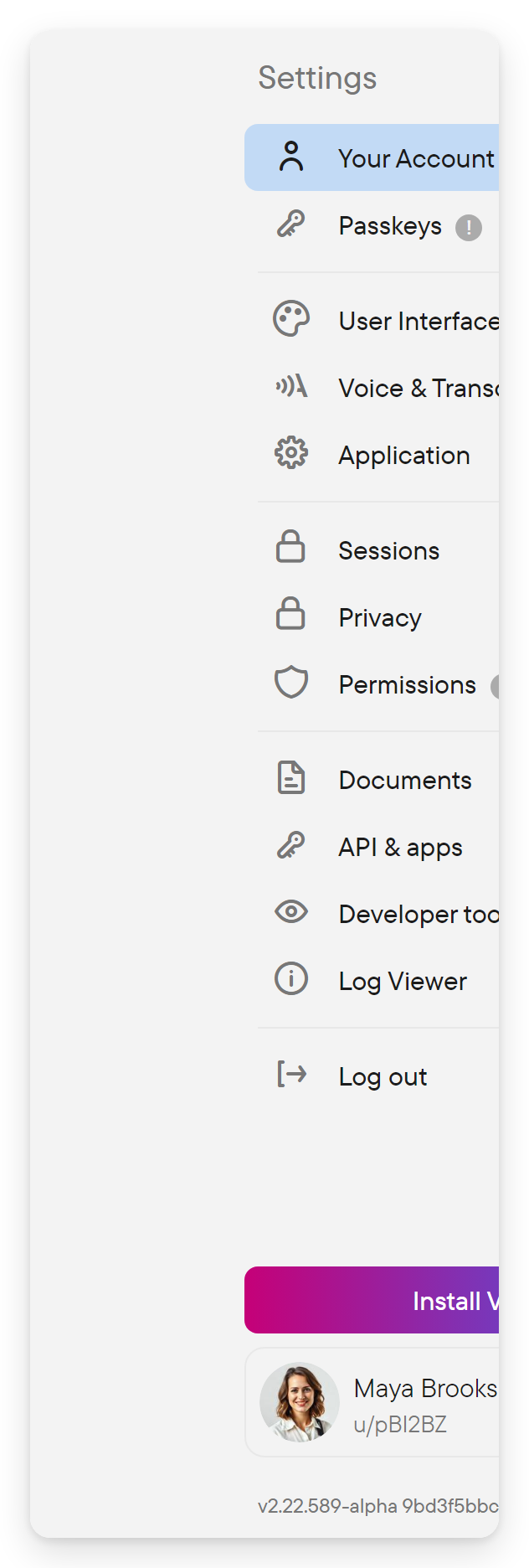
Open your profile/avatar control and choose Settings. The available sections depend on whether you are signed in and which app or device you are using.
Sign in
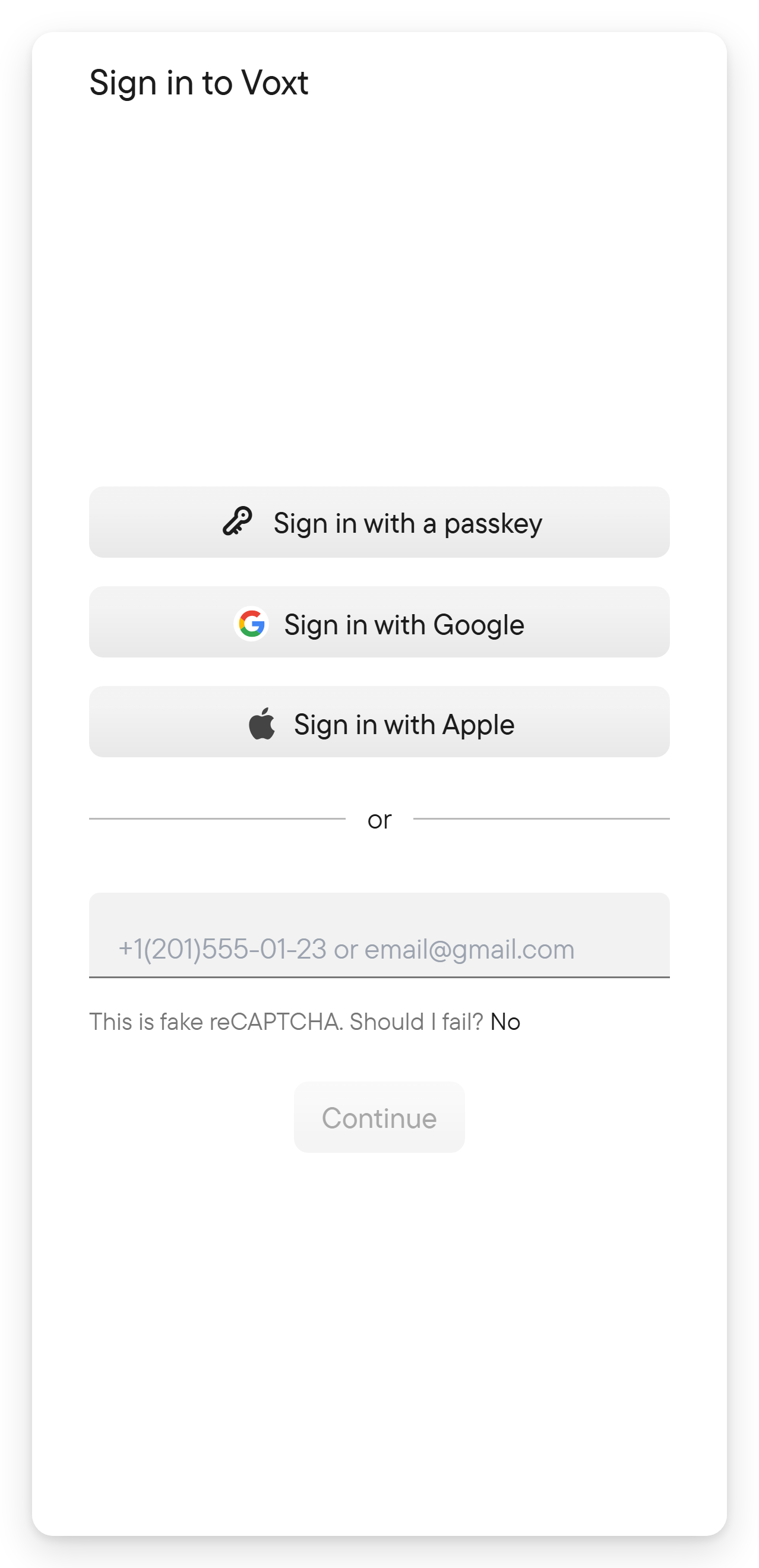
The Sign in to Voxt dialog lists the options available on your device, such as Sign in with Google and Sign in with Apple. Or enter your phone number or email address in the field below them and choose Continue, then complete the verification step using the code you receive.
Follow the account setup prompts if this is your first visit. Use the same account when signing in on another device to return to its conversations.
Edit your profile
Open Settings → Your Account.
The Information tile shows:
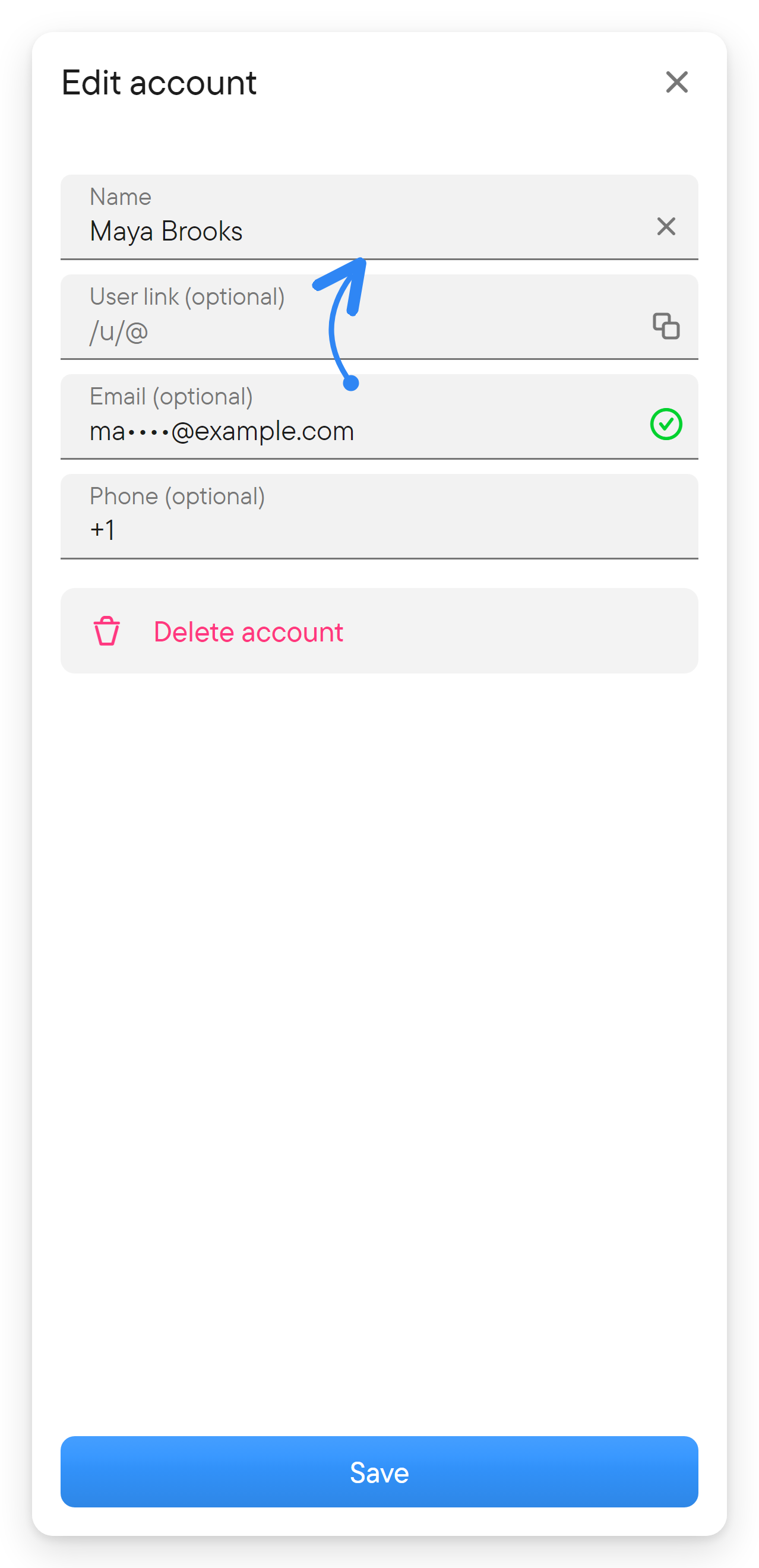
- Your name. Select it, or choose Edit or Delete, to edit your name, user link, email and phone; the user link makes your profile easier to share.
- Your email and phone, partly masked, with their verification status.
- Share, to share your contact.
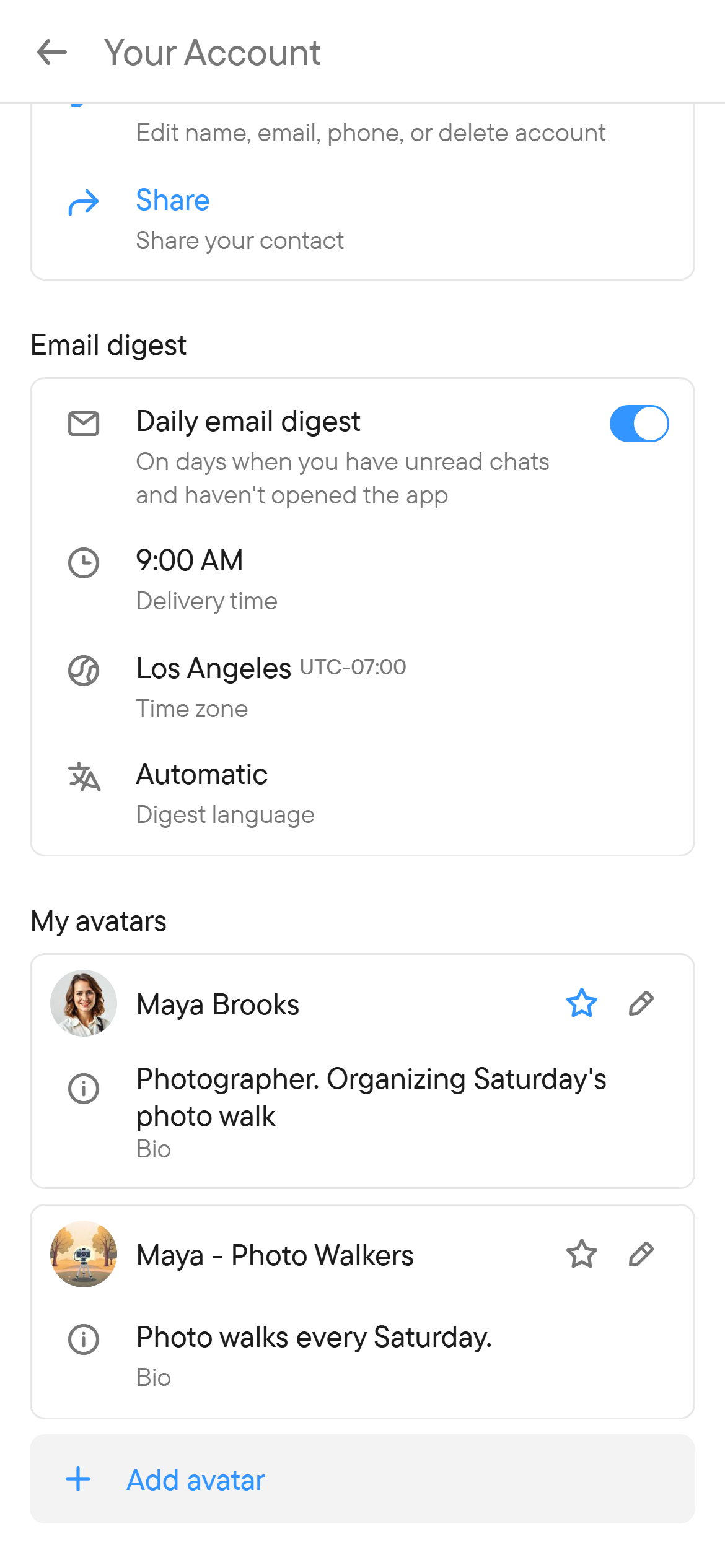
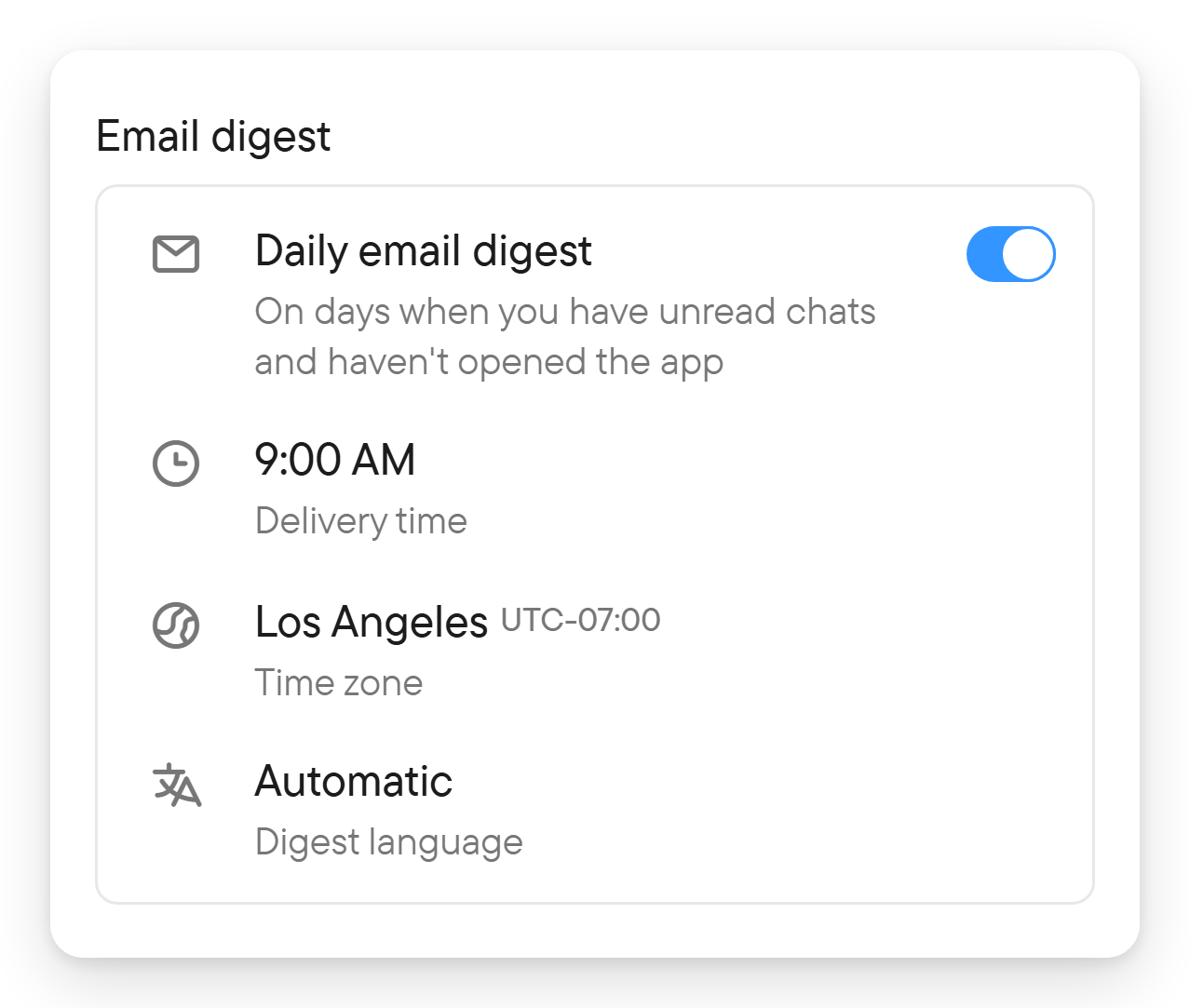
The Email digest section holds the Daily email digest switch (once your email is verified), the Delivery time, your Time zone and the Digest language (Automatic sends each chat in its own language). On days when you have unread chats and have not opened the app, the digest emails a summary at that time in your time zone.
My avatars lists the identities/pictures you use in conversations; see avatars.
A chat-specific avatar can differ from the main account identity. Check the avatar shown in the conversation before posting when that distinction matters.
Language and appearance
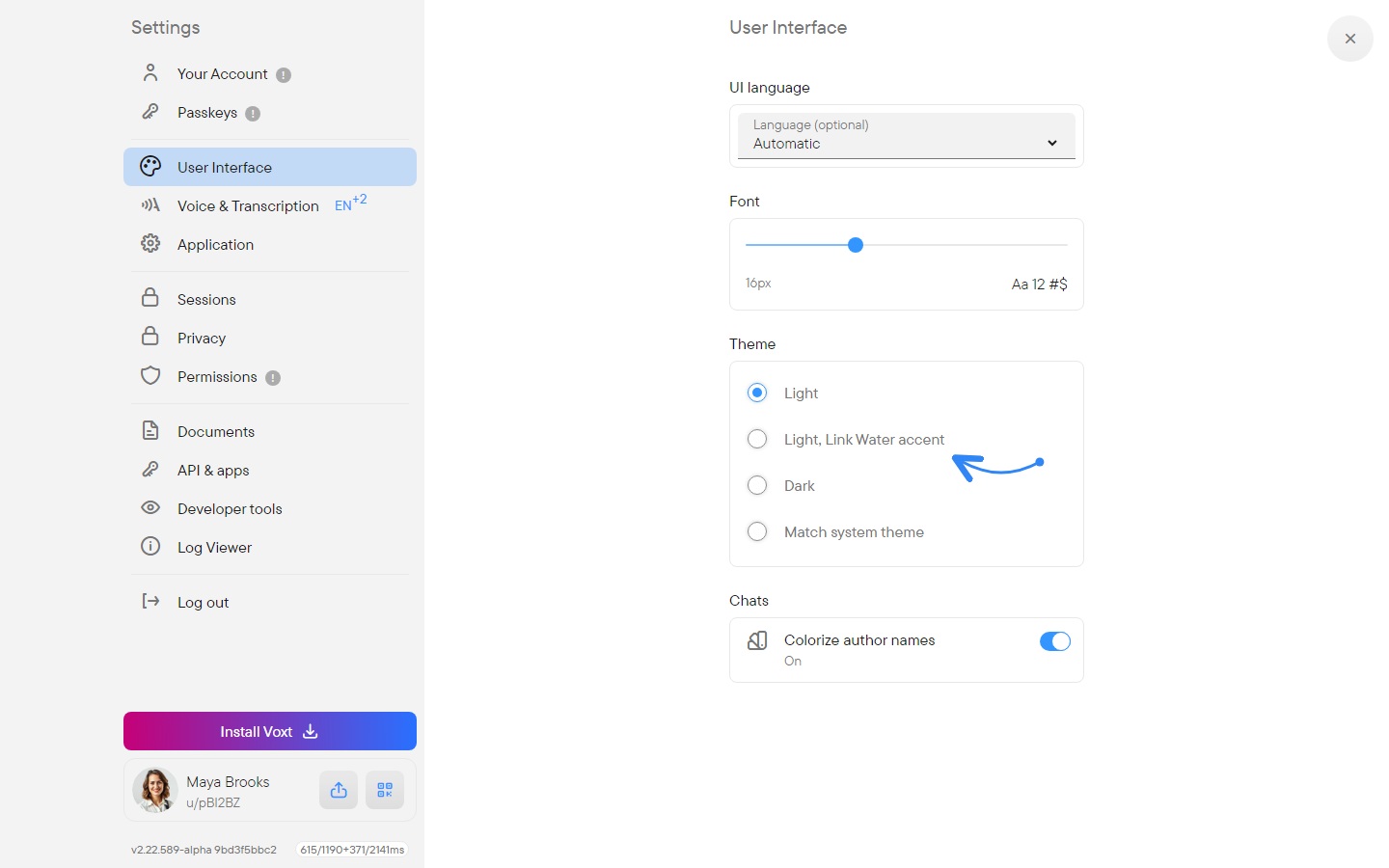
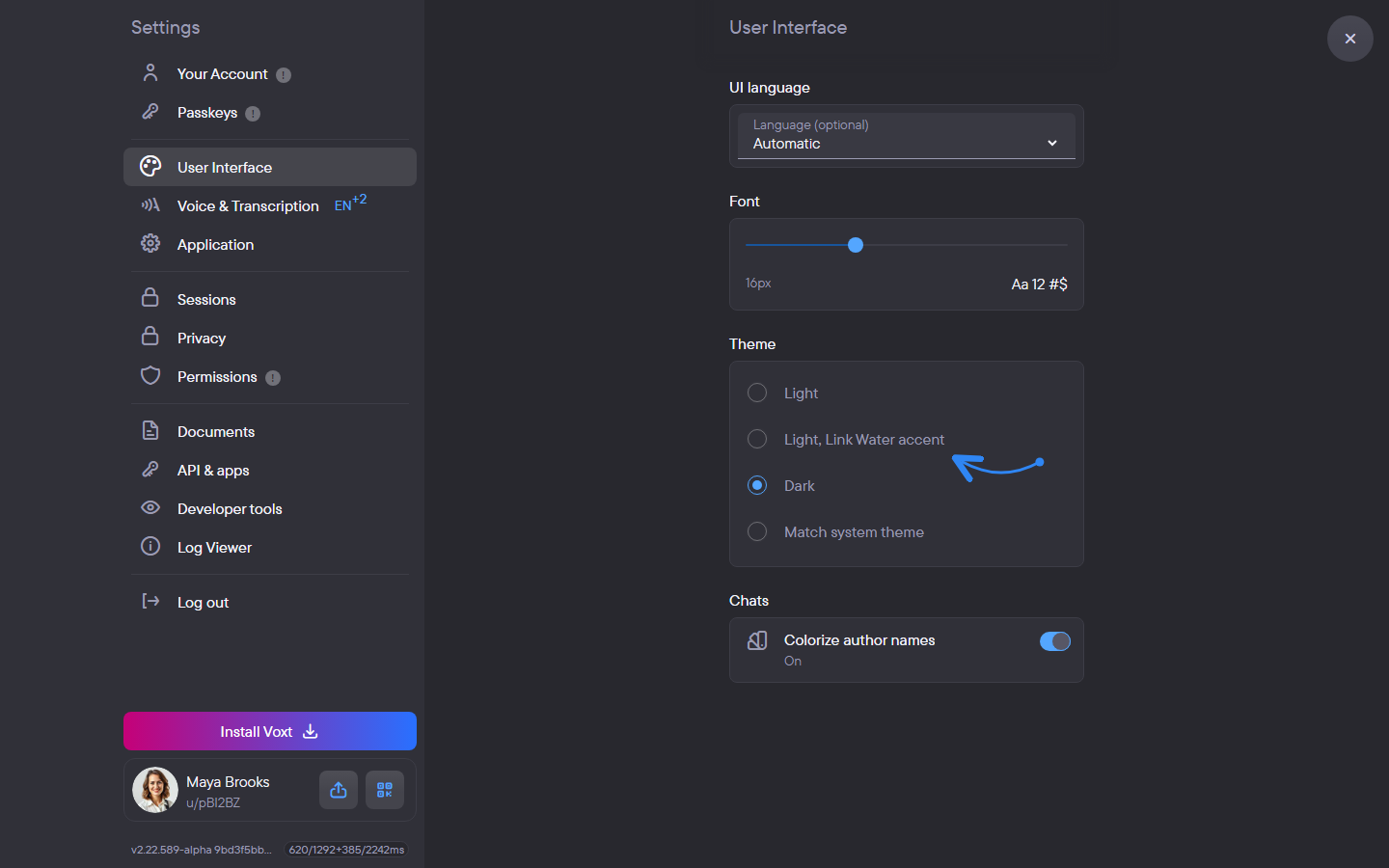
Open Settings → User Interface to change:
- UI language: use automatic selection or choose a language.
- Font: adjust the text size with the slider.
- Theme: Light, Light, Link Water accent, Dark, or Match system theme.
- Colorize author names (under Chats): distinguish message authors with color.
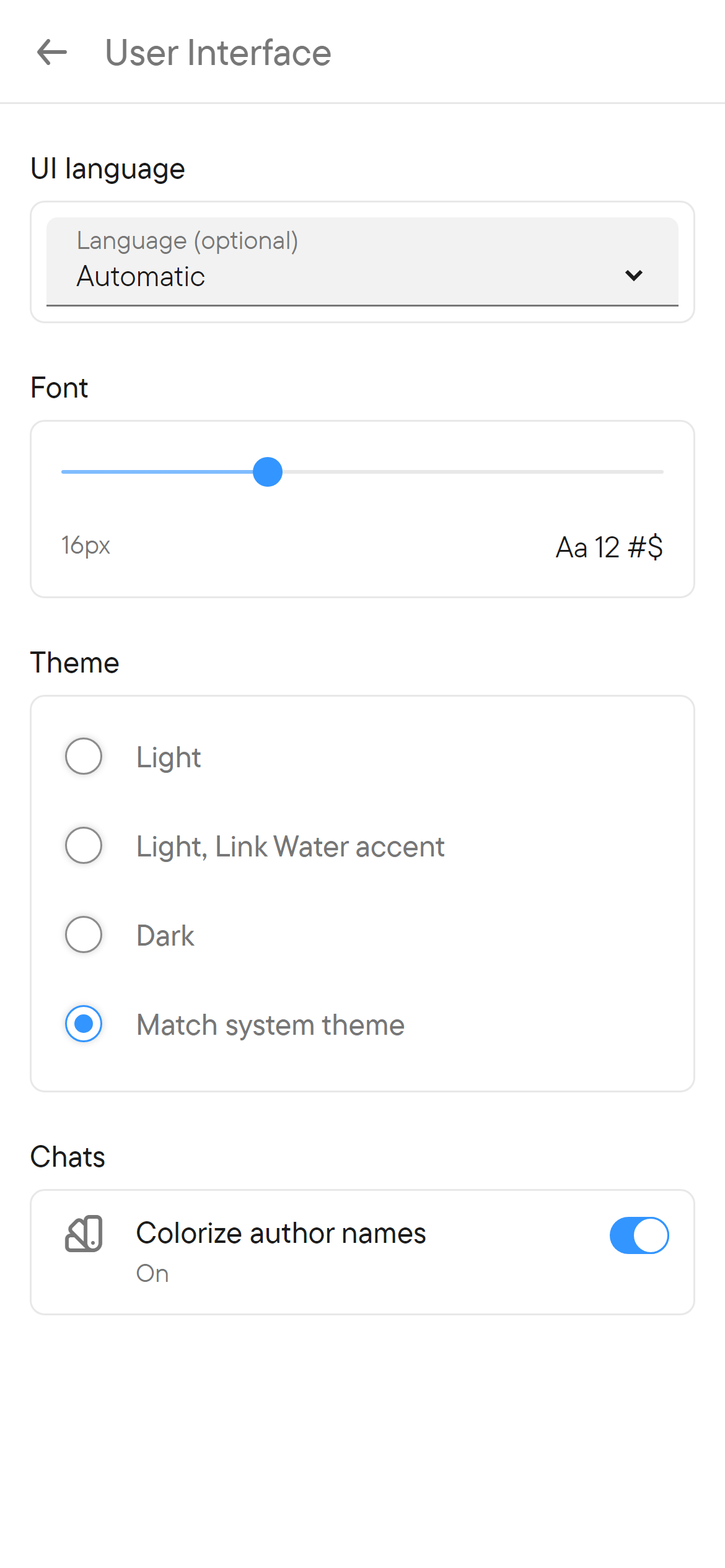
Changing the UI language changes the app's controls. Translating conversation content is a separate feature; see translation.
Voice and device settings
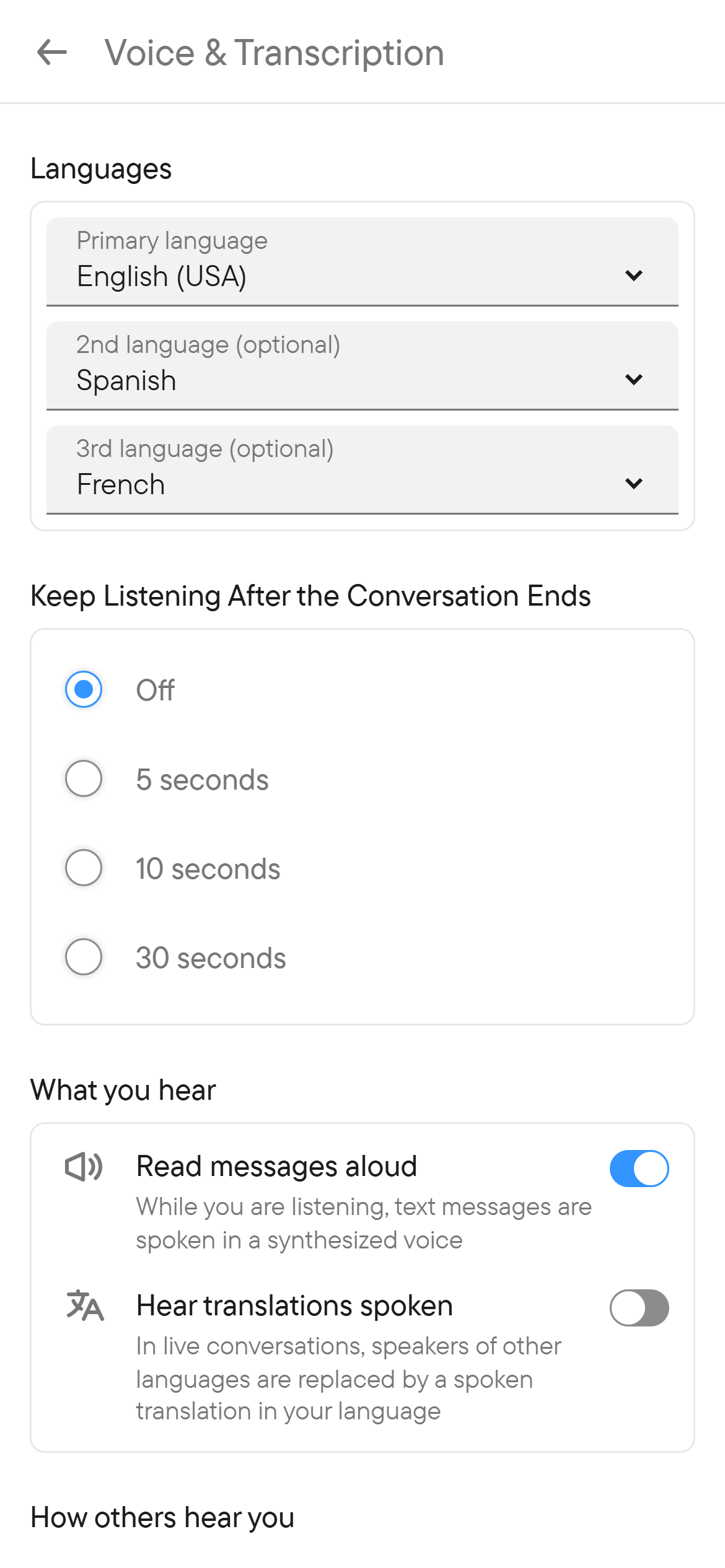
Voice & Transcription controls voice/transcription preferences. See voice for languages, listening, and recording. Push-to-talk has its own page in Settings: see Push-to-talk.
Native apps can offer additional sections, such as Android. These are device features and may not appear in a browser.
Android settings
In the Android app, open Settings → Android. Starting a recording chooses what happens when a recording starts while an external audio device may be connected: Automatic (start at once, unless a headset or another external audio device is connected; then wait for it so the recording begins on the right microphone), Wait for the audio switch (always wait; starting takes a little longer) and Start recording at once (never wait; with a Bluetooth headset the first words may be captured by the phone's microphone).
The same tab holds Android Auto - sound and microphone, which chooses the route used while connected to Android Auto:
| Choice | Audio route |
|---|---|
| Car | Uses the car's microphone and speakers, like a phone call; music pauses while you talk. |
| Car, assistant channel | Uses the car's microphone and speakers over its voice-assistant channel instead of a call. Try it if your car shows its phone screen while you talk. It needs the Nearby devices permission. |
| Car speakers, phone microphone | Plays through the car and records from the phone; music pauses while someone talks. |
| Phone only | Keeps sound and microphone on the phone. |
These settings are available in the Android app, not in the web app. If the wrong microphone or speakers are being used in the car, check this setting first.
Ongoing activity on iPhone
On supported iOS devices, Voxt can show ongoing recording, listening, replay, location sharing, or file-upload progress as a Live Activity on the Lock Screen and, on supported models, the Dynamic Island. It provides status while you are outside the app. Return to the relevant chat to stop recording, sharing, or another ongoing action; hiding a status display is not the same as stopping that action.
To send files from another app, use the native share sheet as described in files and photos.
Permissions
Open Settings → Permissions to see which feature permissions are granted: Microphone, Notifications, Camera and Location, each with a switch. Turn a switch on to request a missing permission there, or wait until you start a feature that needs it.
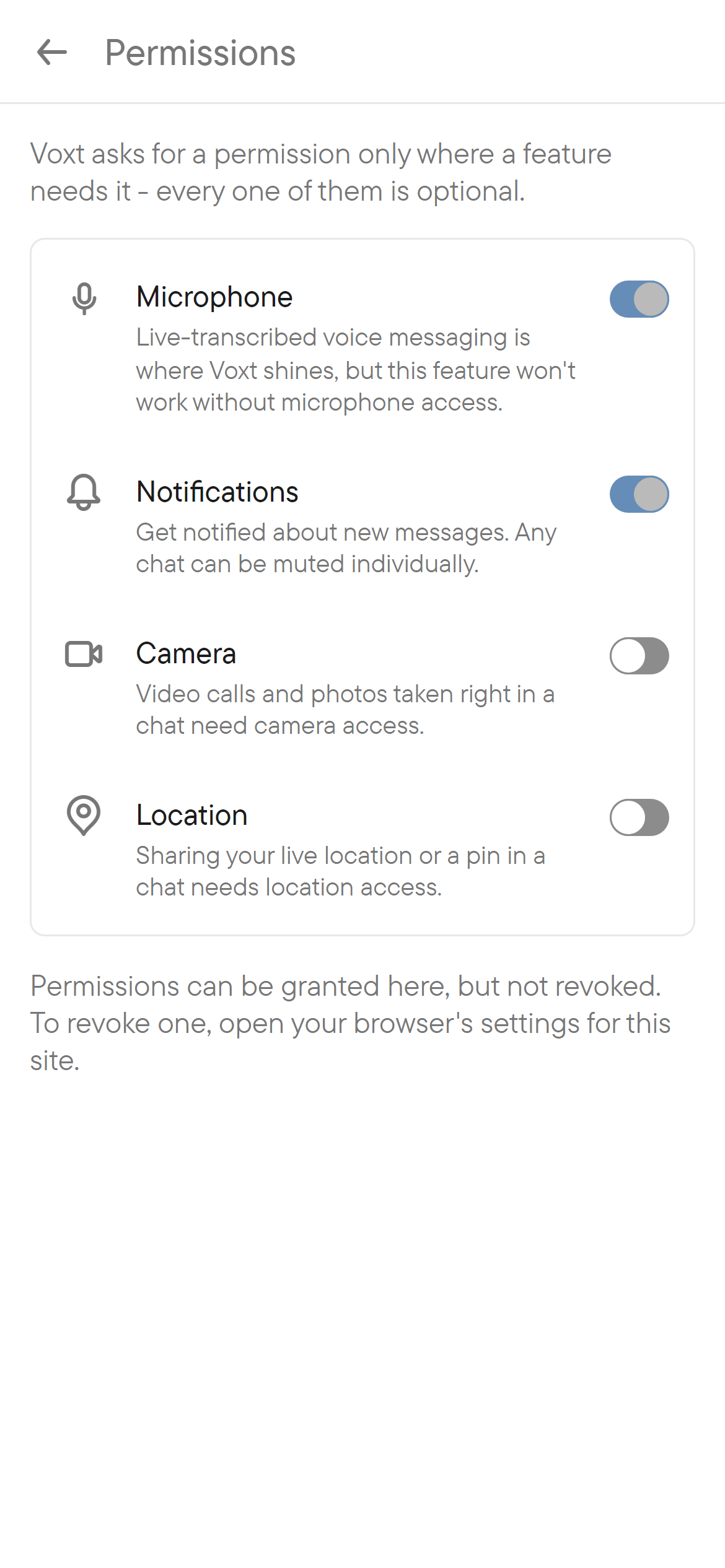
Permissions are optional: microphone access is needed to record, for example, but you can continue using text without it. If a request was blocked, follow the permission guide shown by the app.
Permissions can be granted in this list but not revoked. To revoke one, use the operating system's app settings or your browser's settings for the site. Dismiss warning hides the red "!" marker on the Permissions tab; it does not grant access.
Review signed-in sessions
Open Settings → Sessions. The current session is shown separately from other sessions, along with descriptions and recent activity.
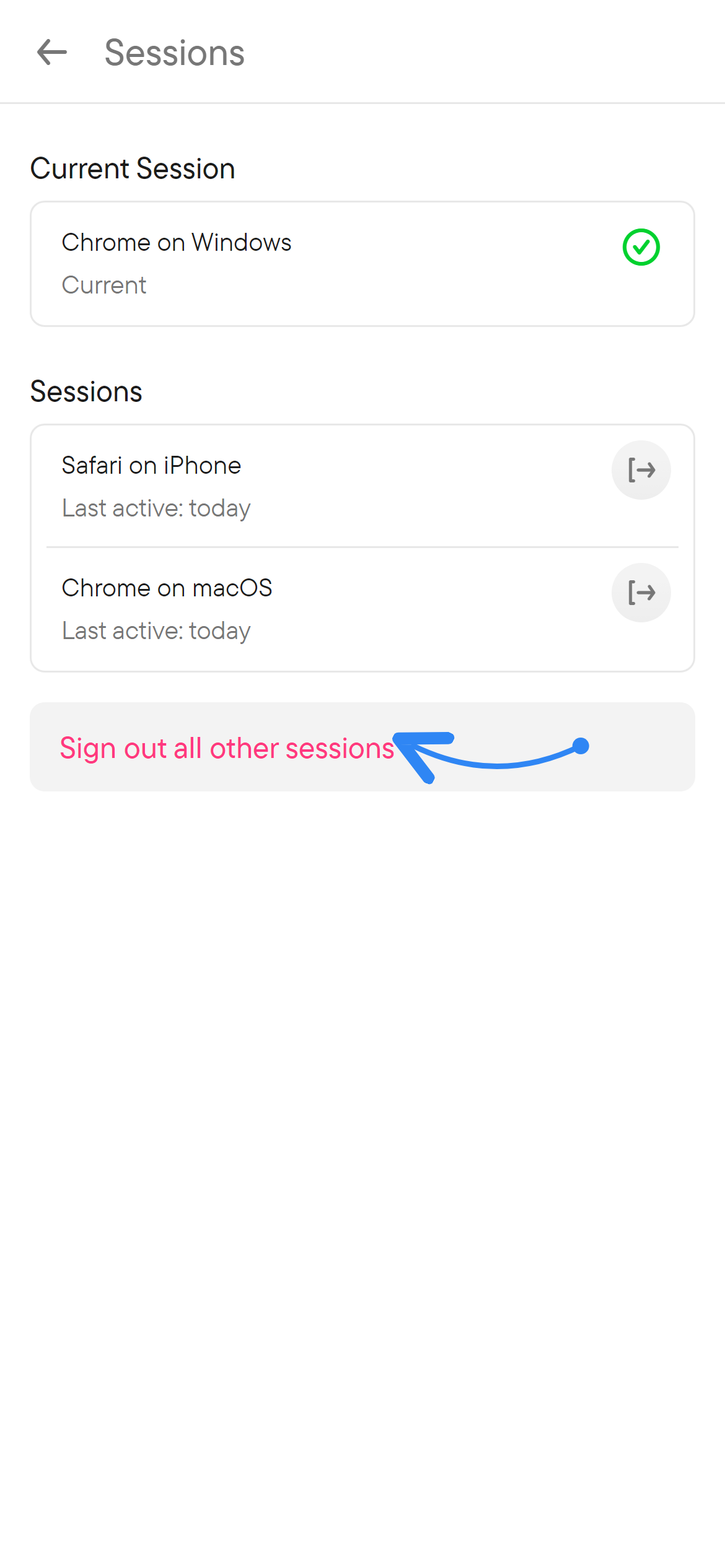
Use the sign-out button beside an individual other session. Sign out all other sessions asks for confirmation and keeps your current session signed in. Use Log out in Settings when you want to leave the current session.
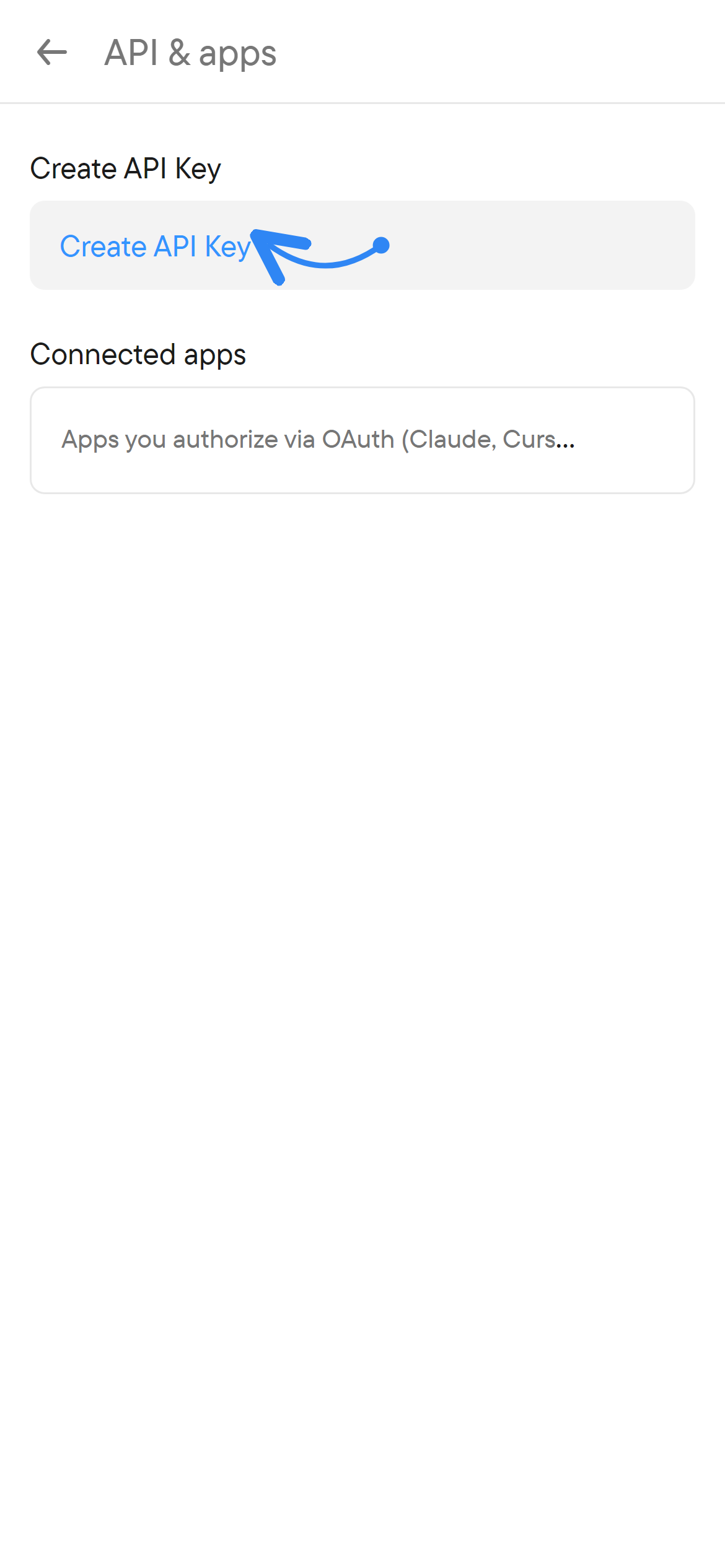
API & apps holds Create API Key and your API keys (which you can Revoke, one at a time or all at once) and Connected apps: apps you authorized through a sign-in page, such as an assistant that connects to your account, with a Revoke access action for each. See the developer guides before creating a key for an integration.
Privacy and application preferences
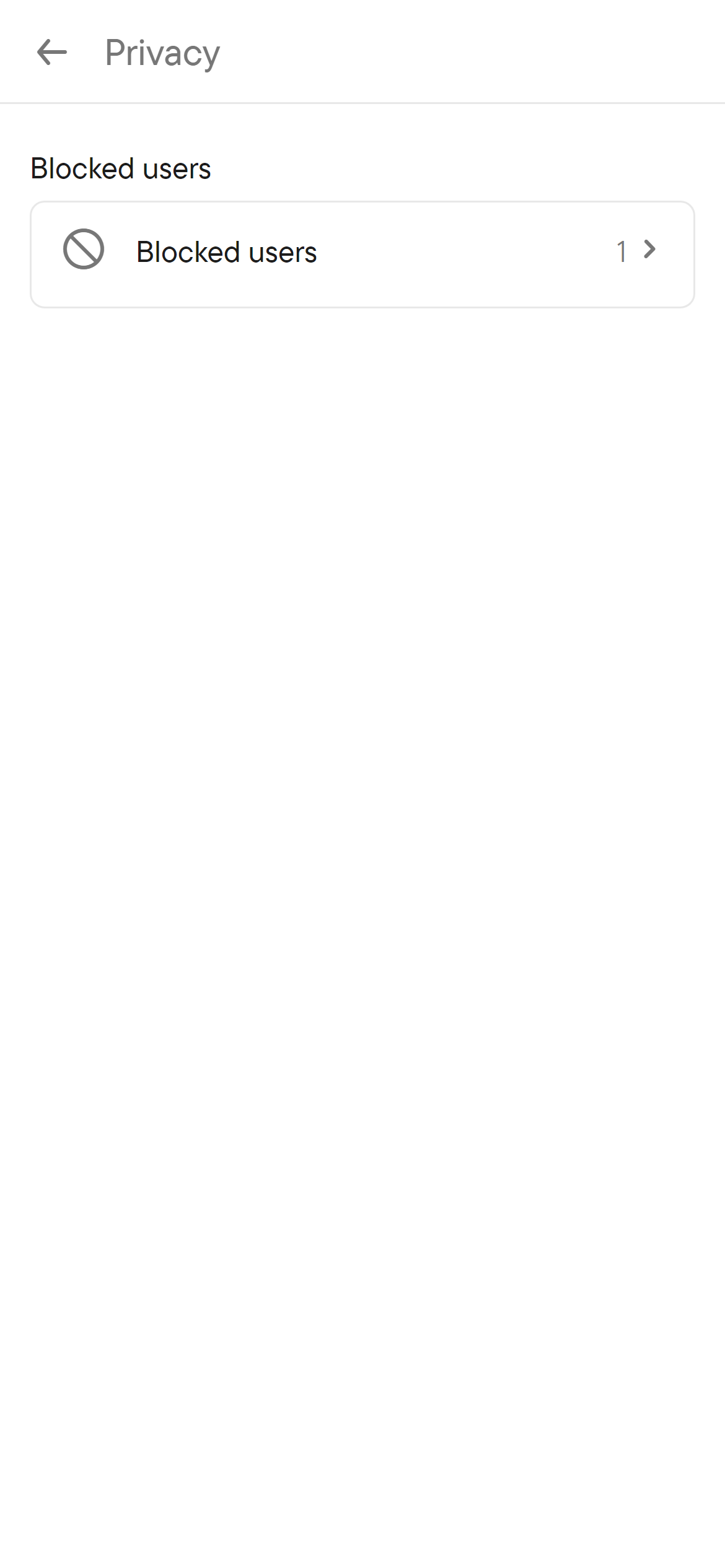
Privacy has a Blocked users row with the number of blocked people; open it to unblock them.
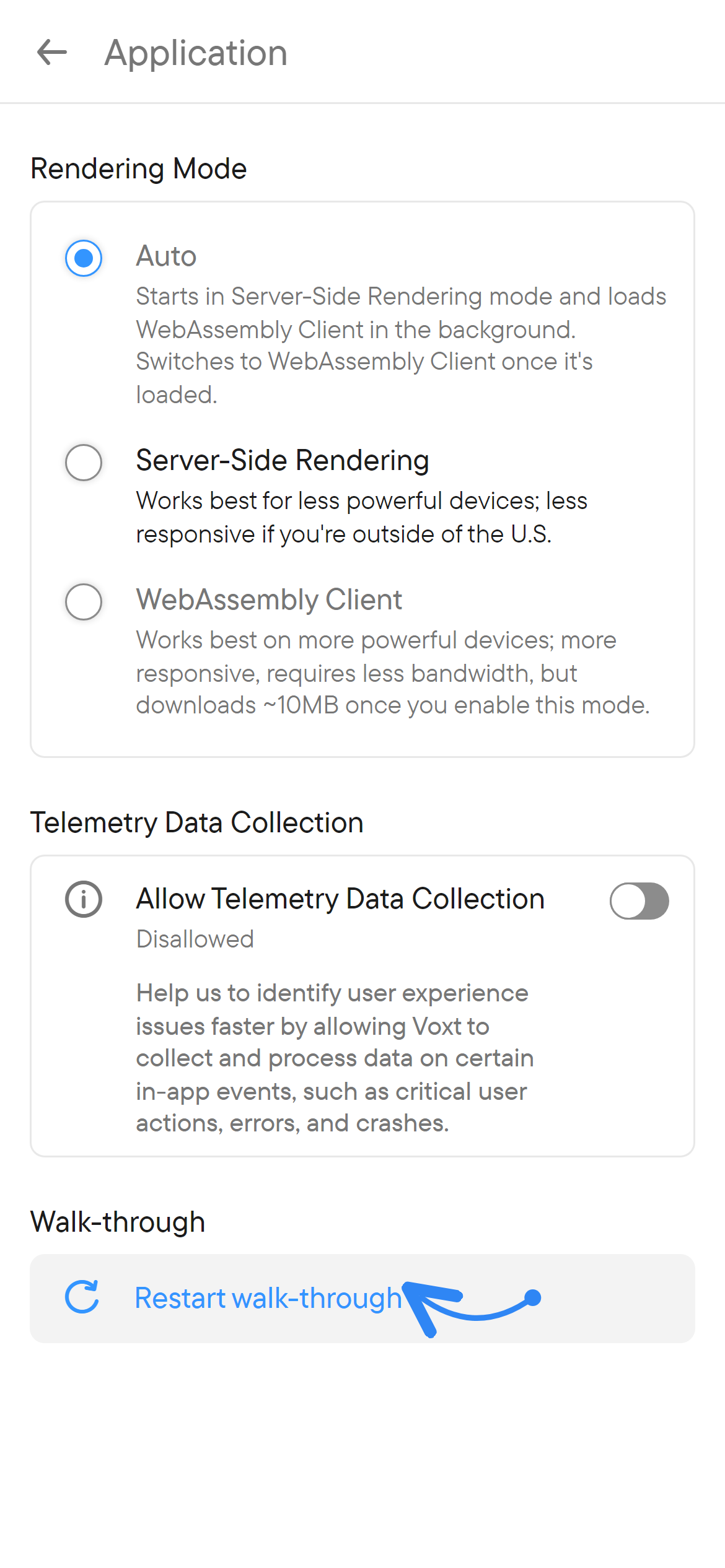
Application includes Rendering Mode (Auto, Server-Side Rendering or WebAssembly Client), Allow Telemetry Data Collection and Restart walk-through, which brings back the in-app hints. Native apps also show a Rate Voxt section with a review button where the store supports it. Advanced connection and developer controls are intended for diagnostics; everyday messaging does not require changing them.
Documents provides the app's legal/policy documents in three tabs: Privacy Policy, Terms & Conditions and Cookies.
Delete your account
Open Your Account → Edit or delete, then choose Delete account. Review the deletion dialog, type DELETE to confirm, and submit only when you intend to delete the account. The dialog says that this cannot be undone and that your direct chats and everything you wrote in other chats are deleted. It also lists the group chats and places of which you are the only owner; those are deleted too, so make someone else an owner first if you want to keep any of them.
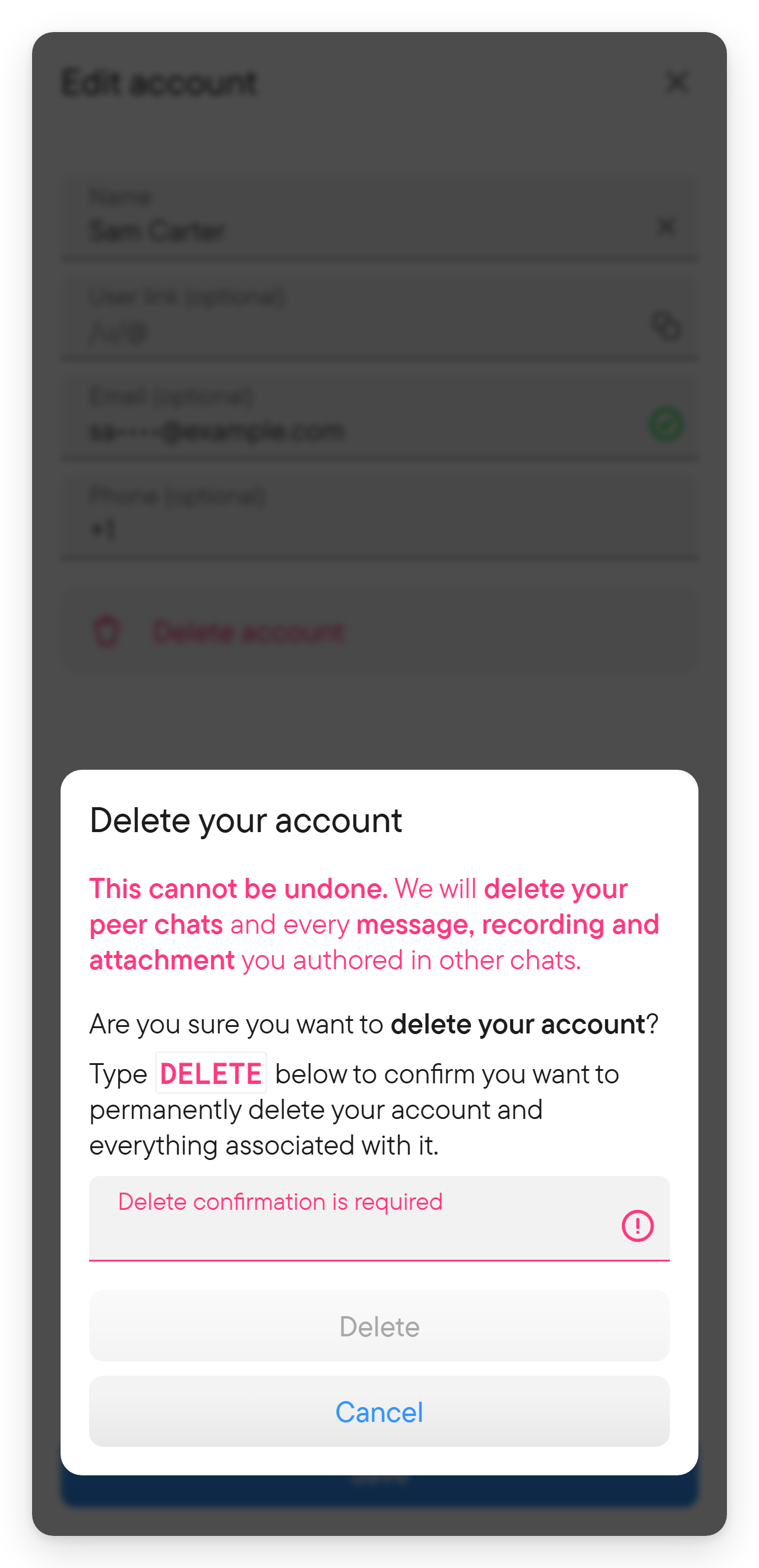
Deletion is different from logging out. Use Log out if you only want to end a session.
Find your app version
The settings view includes the product version and commit identifier. Include these, your device/platform, and the steps that caused a problem when reporting an issue. See troubleshooting.