Avatars and identity
An avatar combines a picture, name, and short bio. Your default avatar is used in direct chats and wherever you have not chosen a special chat avatar.
Add or edit an avatar
- Open Settings → Your Account → My avatars.
- Choose Add avatar, or the pencil button beside an existing avatar.
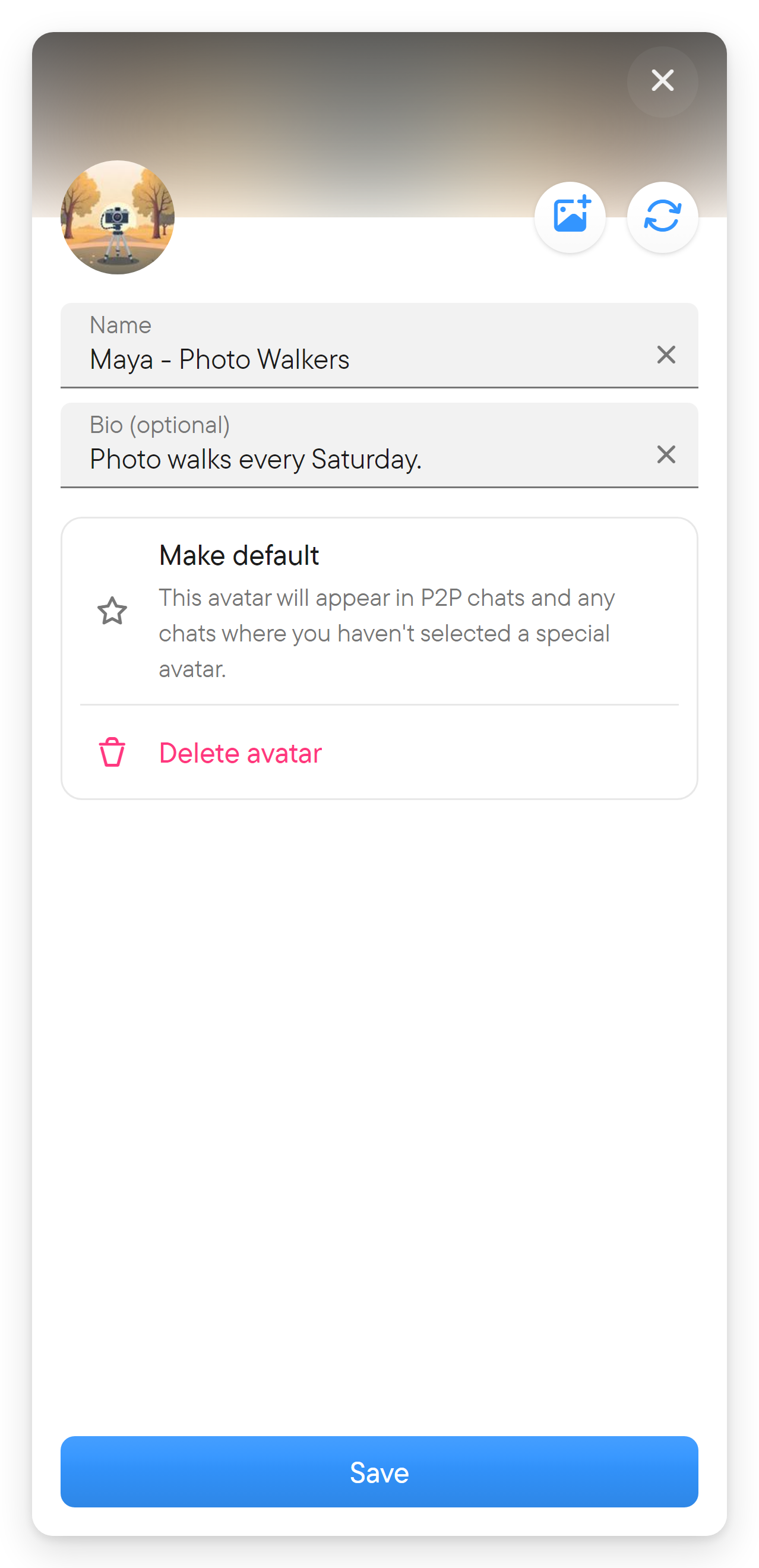
- Set its picture (upload a photo, or generate another picture with the refresh button), name, and bio (optional).
- Select Save.
Add avatar creates the new avatar at once as a copy of your current one and opens it for editing, so closing the editor without saving leaves that copy in the list. Remove it with Delete avatar if you do not want it.
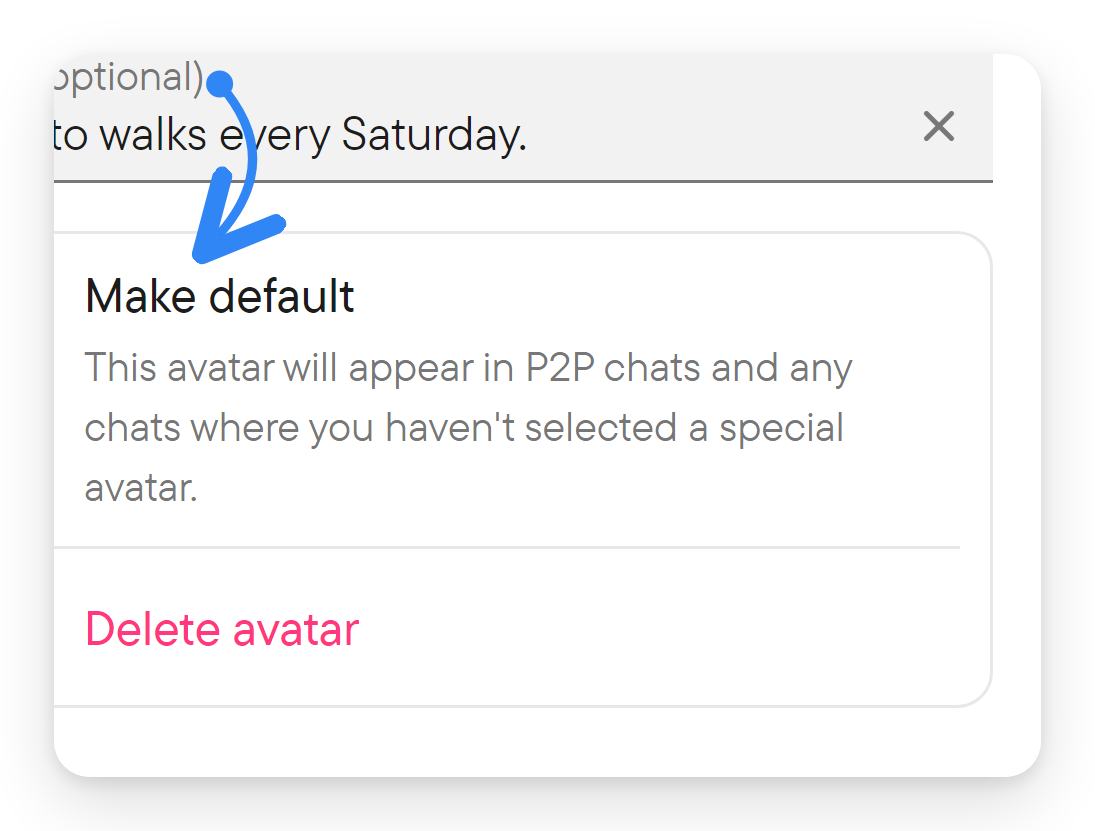
Use the star beside an avatar, or Make default in the editor, to make it your default identity; the default avatar's star is highlighted. The editor also offers Delete avatar for avatars that can be deleted.
Change your avatar in a chat
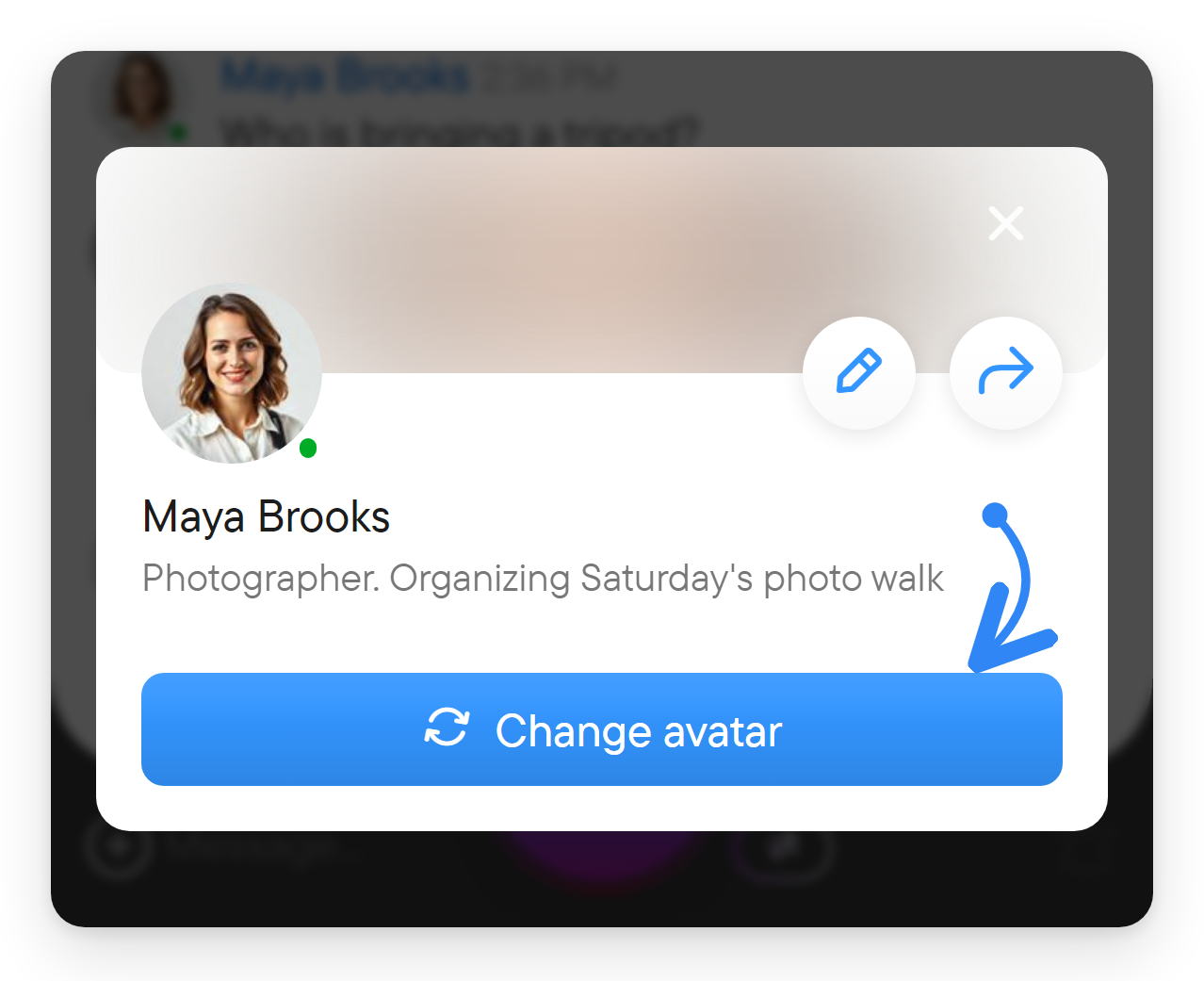
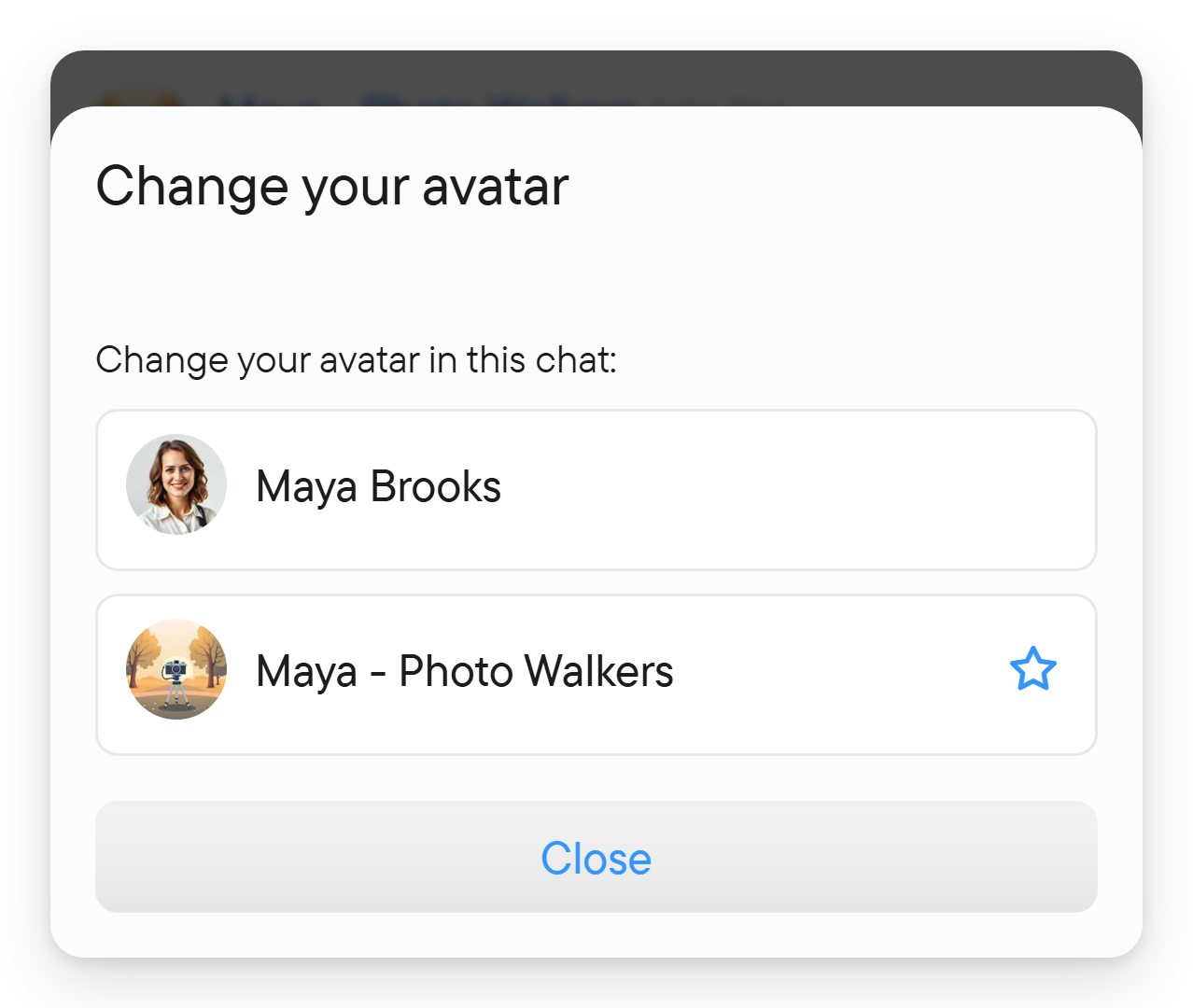
Select your name or picture on one of your messages, or your entry in the member list, to open Your profile, and choose Change avatar. The Change your avatar dialog lists your avatars under "Change your avatar in this chat:"; select the one you want to use there. This lets you use a different identity for a particular group without changing your default everywhere.