
Video and screen sharing
Add video to a chat when you want to see the people you are talking to, or share your screen to discuss something together. Text and voice stay in the same conversation, so participants can keep reading and writing alongside the live session.
What to expect
Most chat apps offer video calls only one to one, or not at all. In Voxt, video works in any chat, including group chats, and everything said in the session is transcribed like any other voice conversation, so you can read it afterwards or get a summary.
- No limit on participants. Voxt does not set an explicit limit on how many people can take part or watch. In a group chat, the whole group can follow a session.
- A limited number of tiles. The app shows a limited number of video tiles at once: on a wide screen up to five other people plus your own camera, on a phone up to three others plus your own. Further participants are still in the session but are not shown as tiles.
- Best for small and medium groups, and for presenting. It works well for small and medium-sized groups, and for a setup where one person mostly talks and the others watch with their cameras off, which is typical. It is not the right tool for a conference where you want forty faces on screen; the layout is designed for phones first.
Start or join video
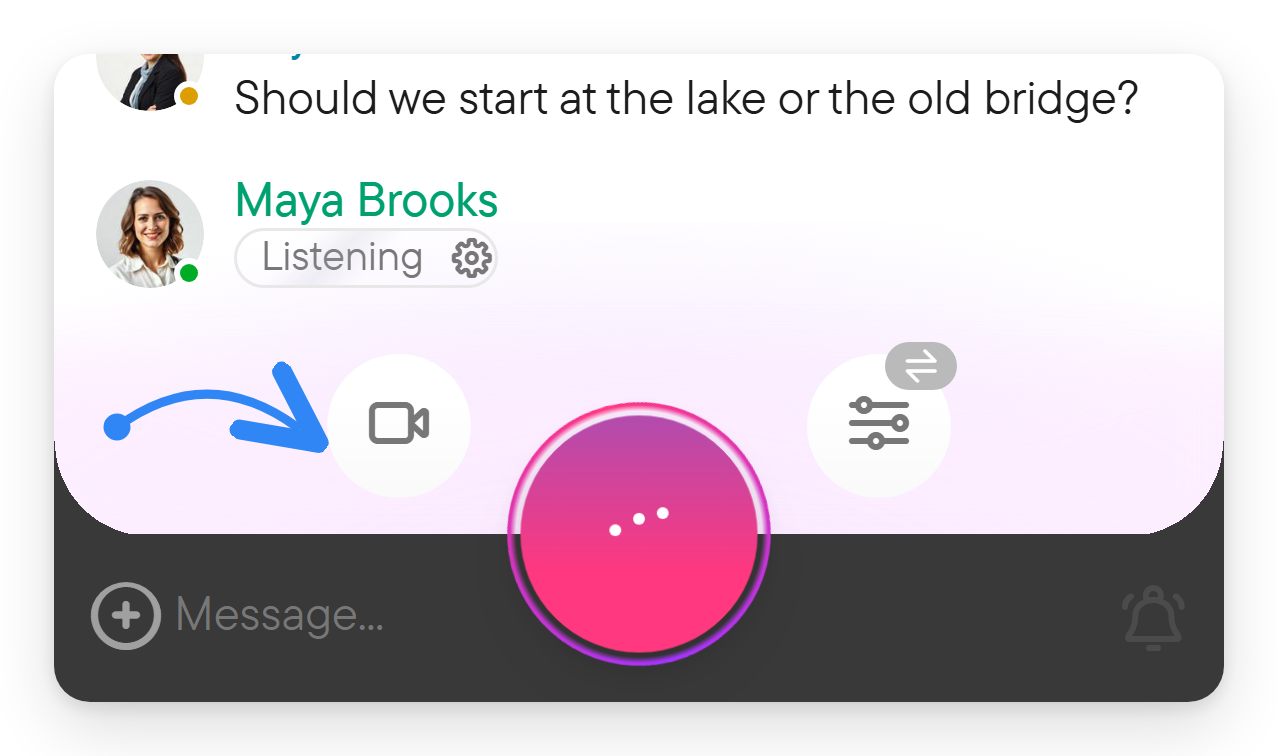
- Open the chat and select the video/camera control.
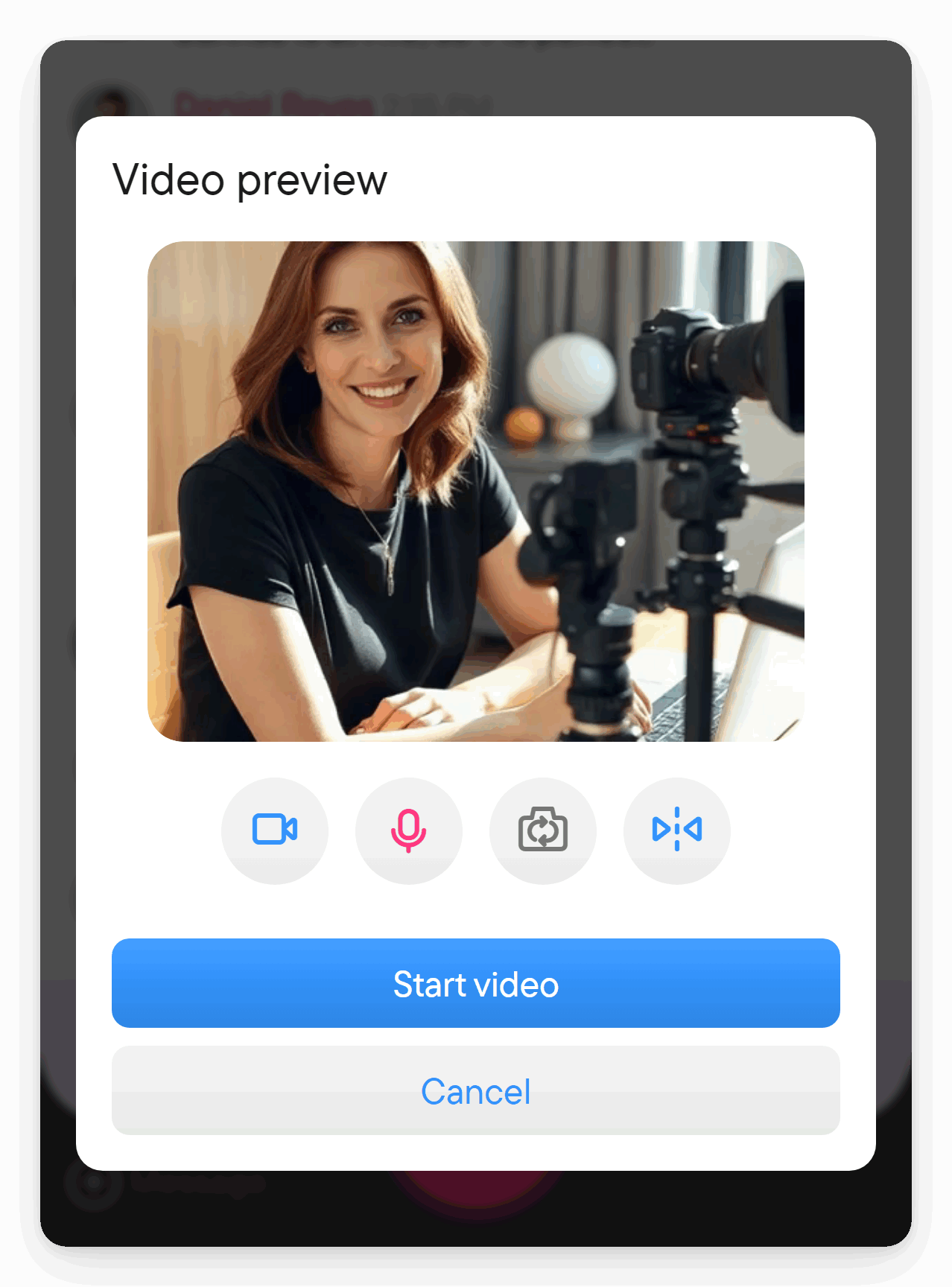
- Allow camera access if prompted. The preview shows what your camera sees before you join.
- Choose the camera you want to use. On a wide screen, open the camera's arrow menu; on a narrow screen, use the camera-switch control.
- Check the microphone and camera switches in the preview. Set them deliberately before joining.
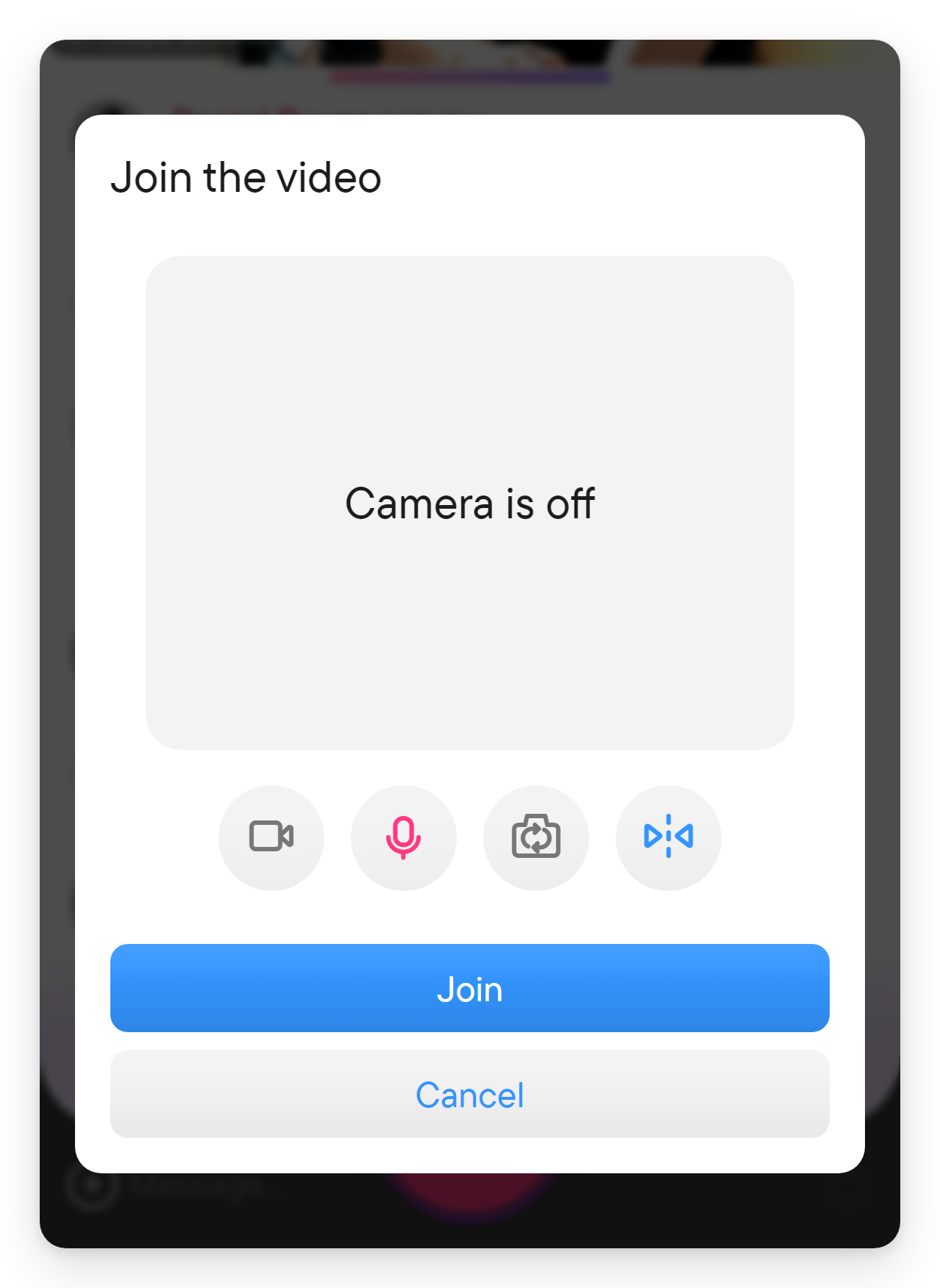
- Select Start video, or Join when another session is already active.
You can join an existing video session with your own camera off. Turning the microphone off lets you watch and listen without speaking. The preview's mirror option changes how you view yourself.
Share your screen
Screen sharing is available in a desktop browser or app when the browser supports it. It is not offered in a phone browser. On a wide window it has its own button beside the microphone button; in a narrower window use the ⋮ menu.
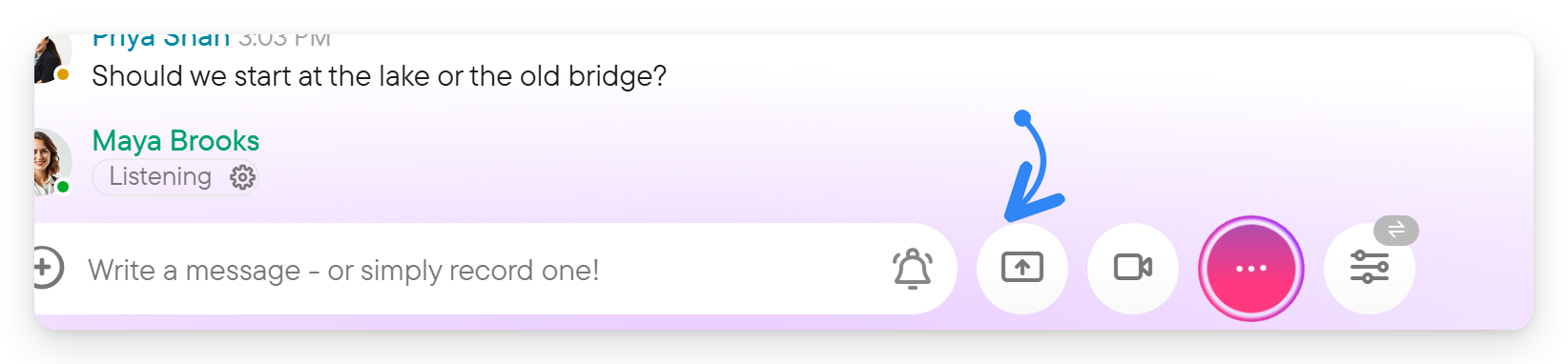
- Select the screen share button, or open the ⋮ menu and select Share screen.
- In the browser's screen picker, choose the screen, window or tab you want participants to see.
- Confirm the choice in the picker.
- Return to Voxt and continue the conversation while the screen is shared.
- Select Stop screen share when finished, or stop sharing through the browser's sharing control.
While you share, your own call view shows your camera preview and the Stop screen share control; the shared screen itself appears for the other participants, with your camera as a small tile. You can share your screen and camera together. Stopping the screen share leaves your camera running if it was already on; stopping your camera leaves the screen share running. Check each control when you finish.
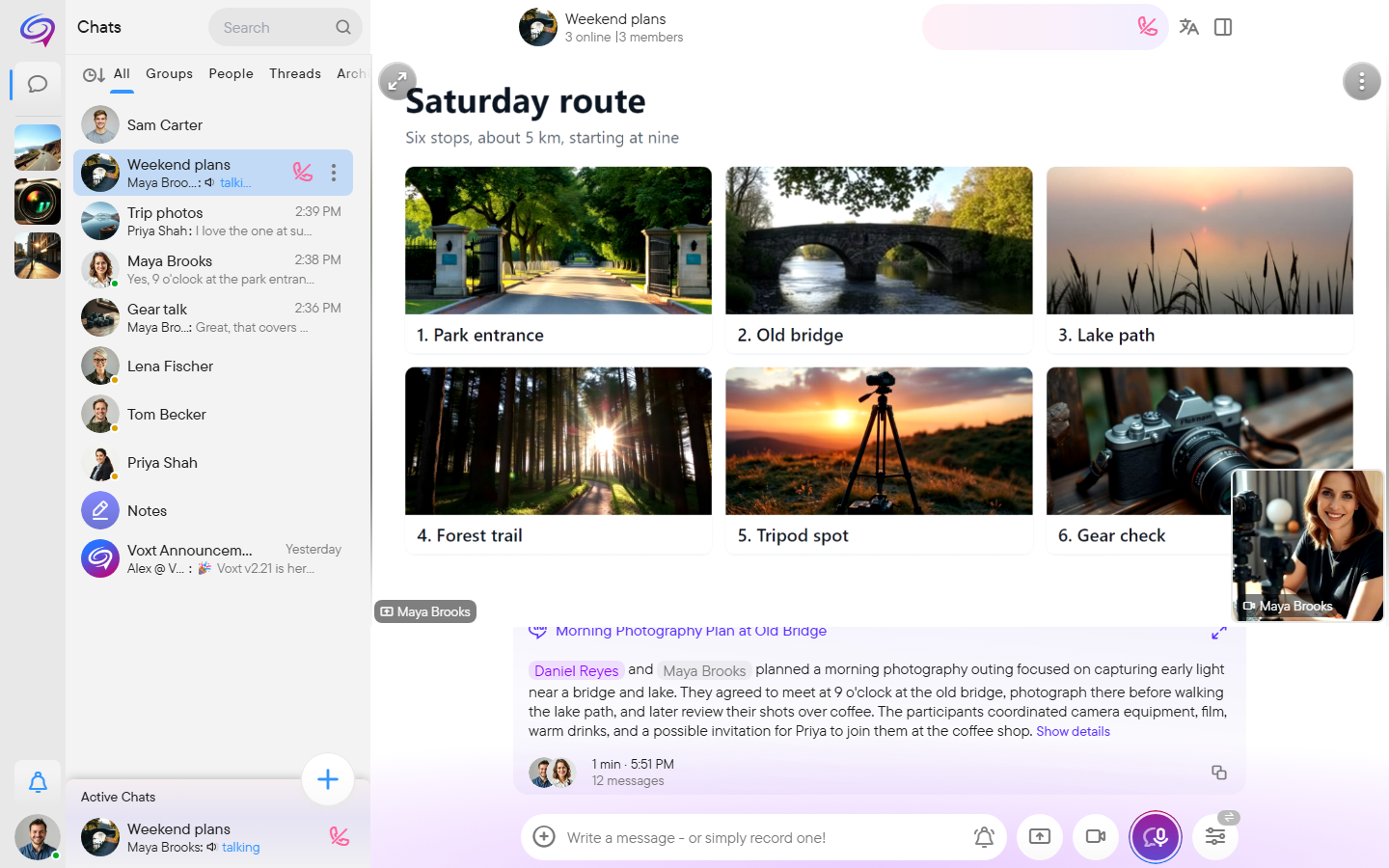
Full screen, tiles and floating video
The video appears in the chat. Use these controls to change how you view it:
- Full screen. Open the ⋮ menu of the video and choose Fullscreen to give the session the whole window. A button at the top left collapses it back to the chat.
- See all tiles. In full screen, by default one large tile follows whoever is speaking (or whoever is sharing a screen) and the others sit in a strip beside it. When more than one person has video, the grid button at the top left switches to a layout where all tiles are the same size. Select it again to go back.
- Keep one person in focus. In the default layout, the pin button fixes the large tile on the person you chose instead of following the speaker; select it again to follow the speaker. It is offered when two or more other people have video.
- Float. Choose Float in the ⋮ menu to shrink the video into a small floating window. You can then move around Voxt, to other chats for example, while the session continues. The floating window shows the person who is speaking, not all tiles. Open it again to return to the full view.
- Hide. Hide removes the video panel from the view without ending your participation, so check that your camera and microphone are off if you want to stop transmitting.
Finish participating
Stop any screen share, switch off your camera and microphone, and leave the live audio conversation when you no longer want to listen. Closing or hiding the video panel only changes the view; confirm the transmission controls are off.
Troubleshooting
- Camera blocked: use the browser's site permissions or the app's system settings to allow it. The preview explains whether permission is missing or the camera is unavailable.
- Wrong camera: choose another device in the camera menu and check the preview before joining.
- No Share screen option: use a desktop browser or app that supports screen capture; a phone browser does not offer it.
- Screen sharing stops: if sharing was stopped in the browser's control, start it again from Share screen and choose the source again.
- Video still visible after you stop your camera: other participants' streams can remain visible. Check your own camera state rather than whether the panel is open.