
Search
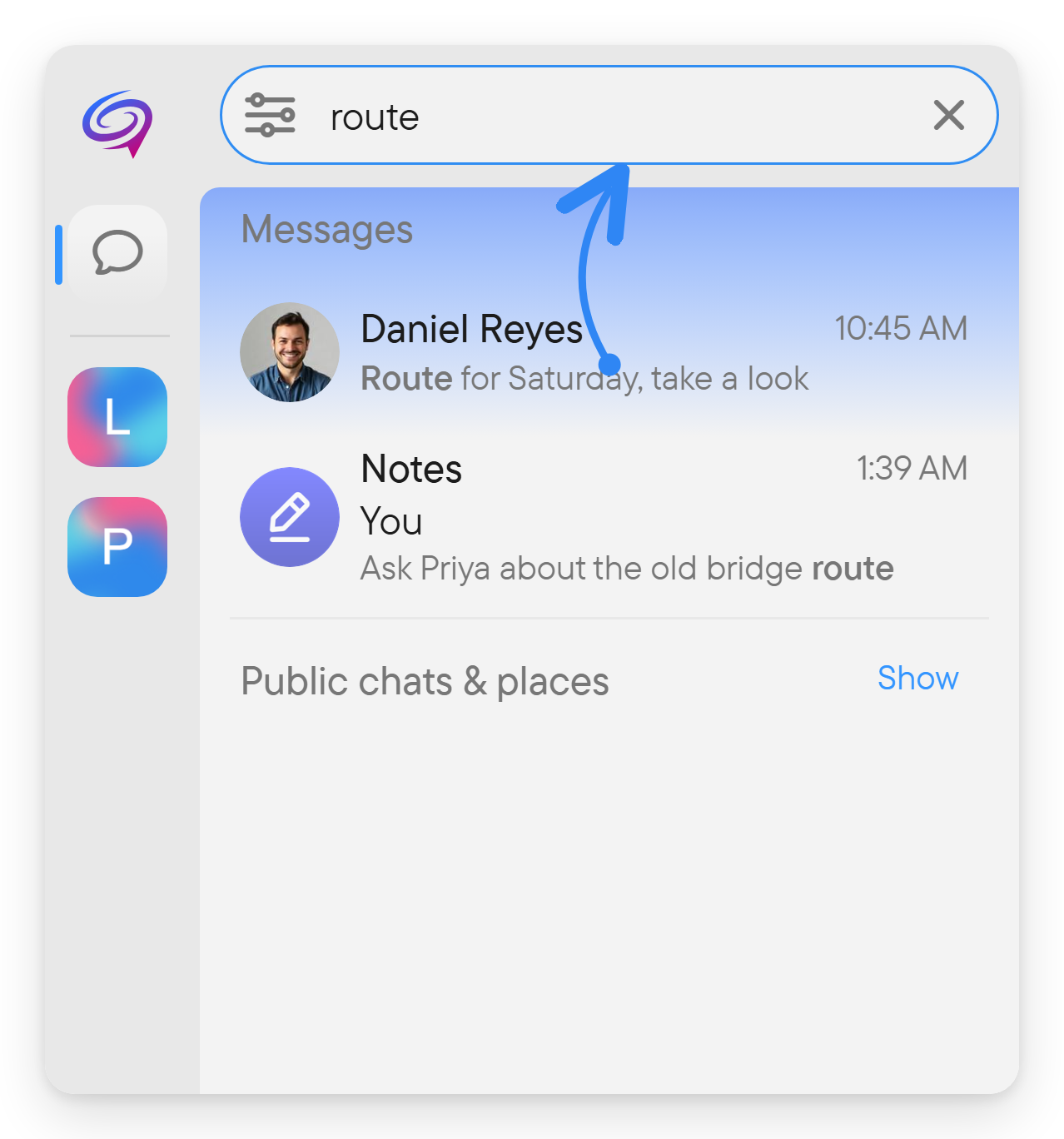
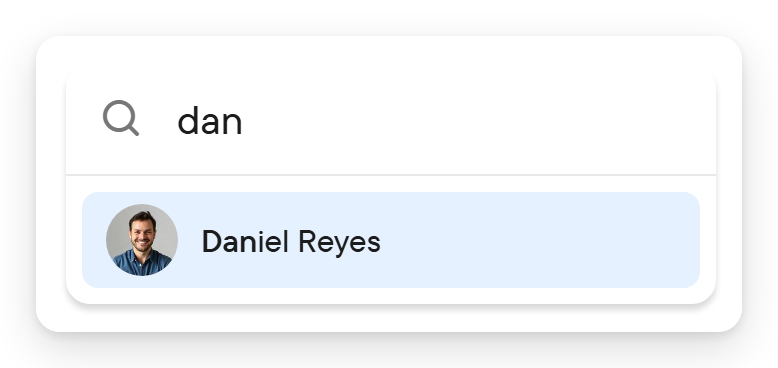
Search helps you find people, groups, and messages. Start with a phrase you remember, then narrow the scope if there are too many results.
Search for a message
- Open the search control beside the chat list, or press Ctrl+F (⌘F on Mac).
- Enter a word or phrase.
- Open the filter menu.
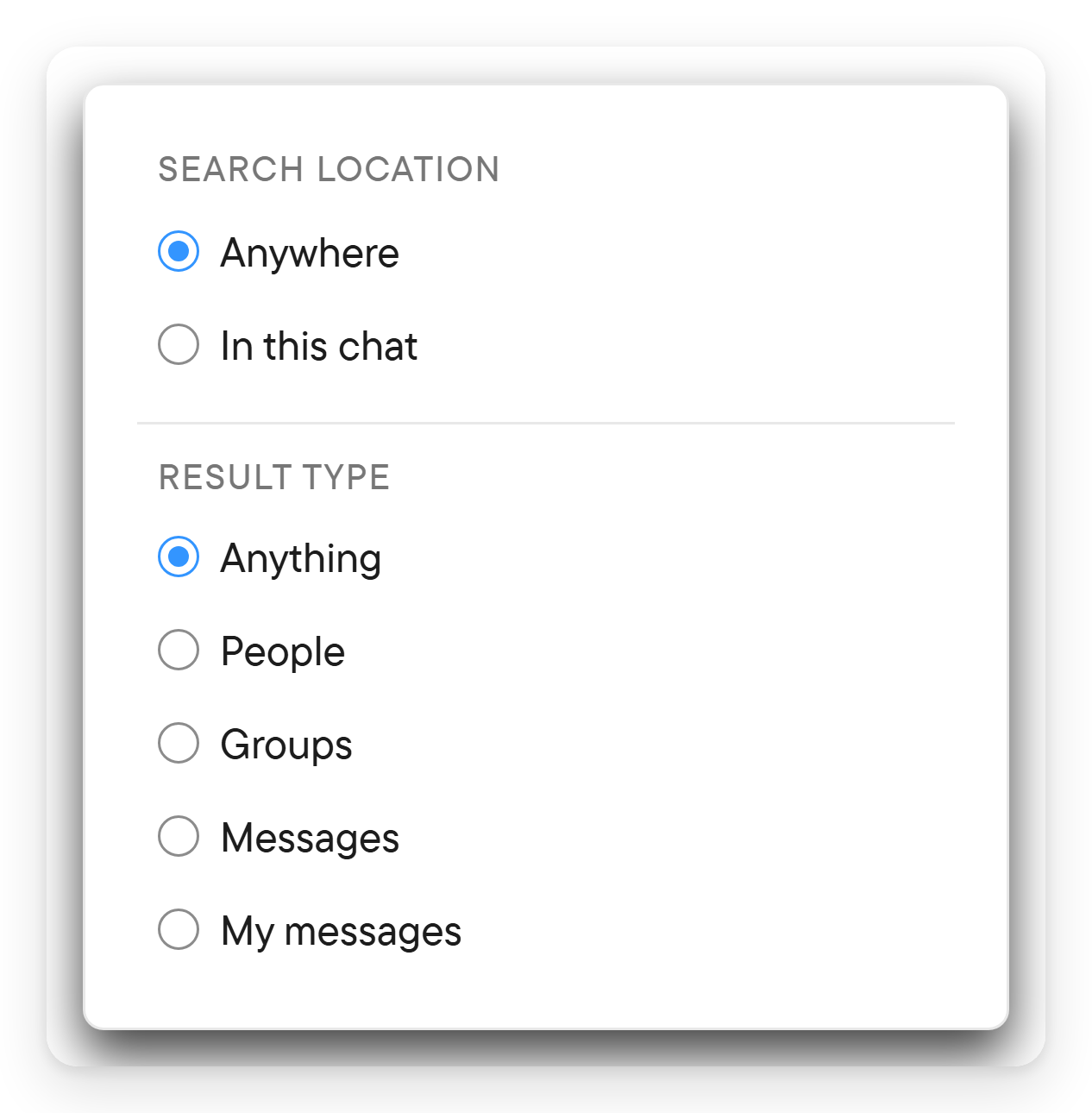
- Choose a location and result type.
- Select a result to open its conversation.
| Location | Searches |
|---|---|
| Anywhere | Across the content available to you. |
| In this chat | The selected conversation. |
| In this place | The selected place; offered when a place chat is selected. |
| Result type | Use it for |
|---|---|
| Anything | A broad search. |
| People | Finding a person. |
| Groups | Finding a group conversation. |
| Messages | Finding text in conversations. |
| My messages | Finding something you wrote. |
Search follows your access to the underlying content. It does not grant access to a private conversation.
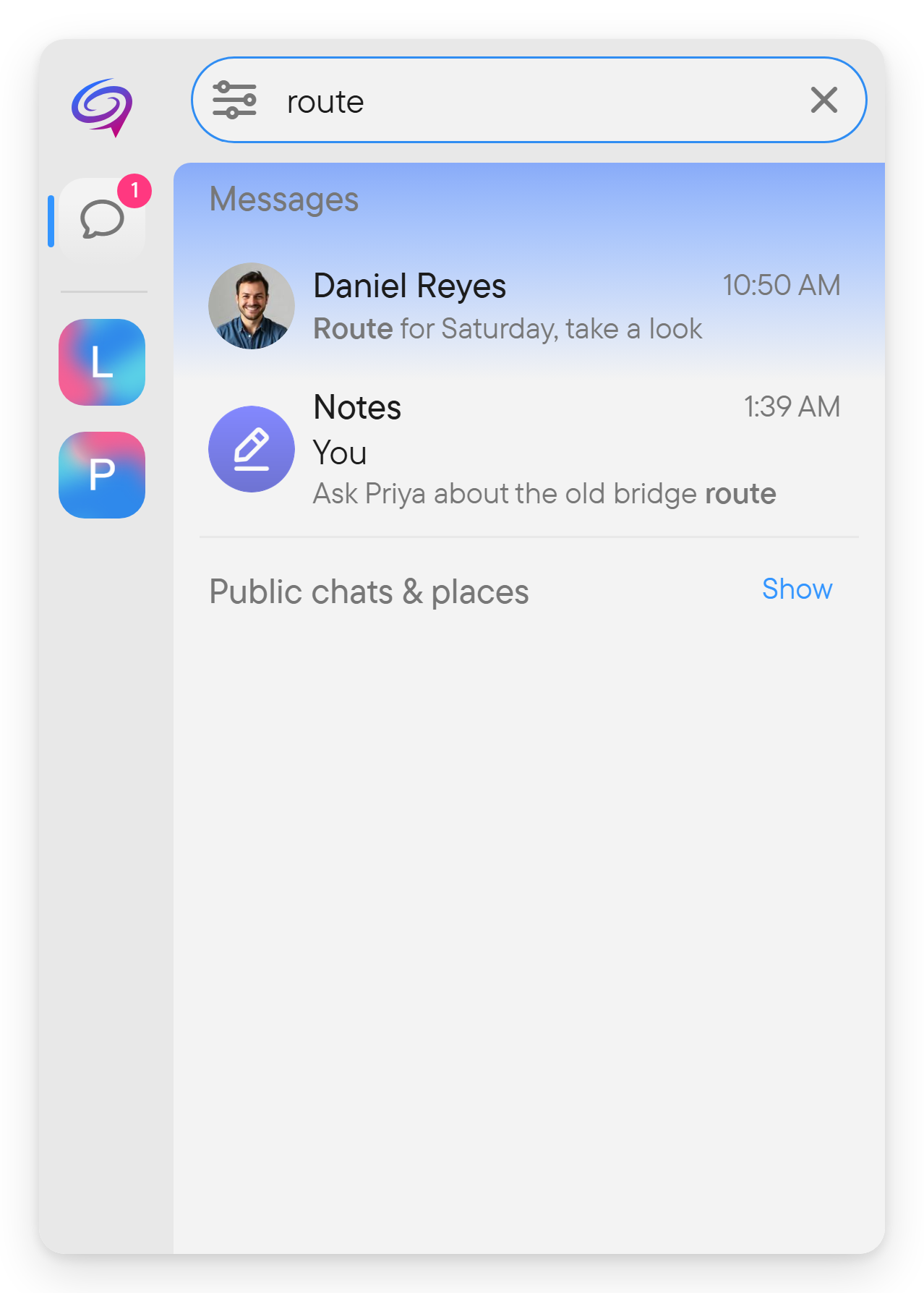
Results are grouped; for example a message search lists the chat name, author and matching text, and a Public chats & places group with a Show link appears below.
Search a hashtag
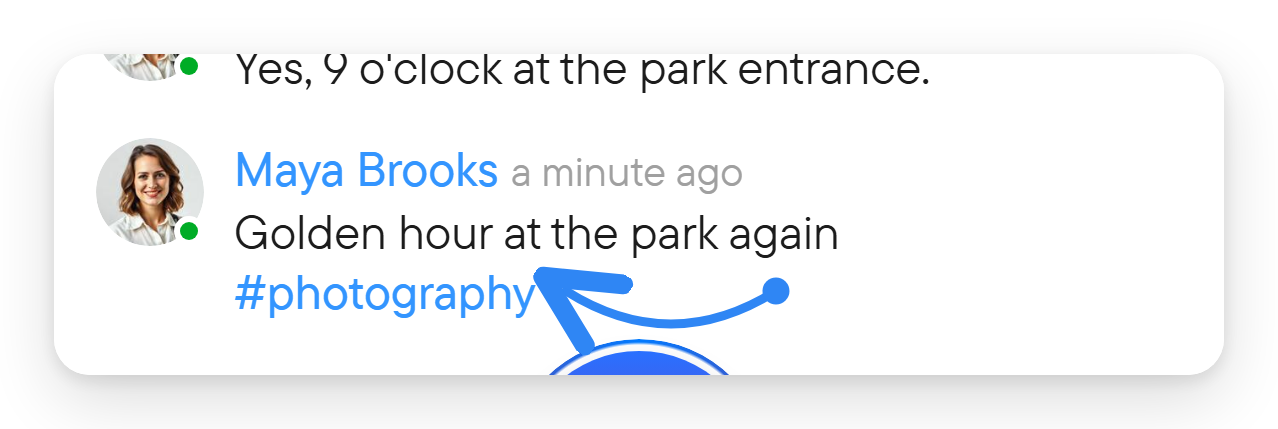
Select a hashtag such as #photography in a message to search for that tag. Use consistent tags when you want related messages to be easy to find later.
Jump to a known chat
Press Ctrl+K (⌘K on Mac) to jump to a chat. This is useful when you know where you want to go and do not need to search message content.
For attachments, the chat's Media, Files, and Links panels can be more convenient than a text search.