
Contacts
Contacts help you find people again and select them when adding members to chats or places. Your contact list and the other person's contact list are separate.
Start a conversation
The easiest way to reach someone is to exchange profile links. In order of preference:
- Exchange profile links. Ask the person to send you their profile link, or send them yours. Opening the link takes you straight to their profile and to a conversation with them.
- Scan a QR code. If you are in the same place, show the QR code of your profile and let them scan it with their phone's camera, or scan theirs with the Scan QR tab.
- Search. If you have no link, use search to find the person, open their profile, and open the conversation.
If the banner This user is not in your contact list yet appears above your conversation, select Add to contacts to save the person as a contact, or Block to block them. You can still review their profile before adding them. Saved contacts are listed when you add members to a chat or place.
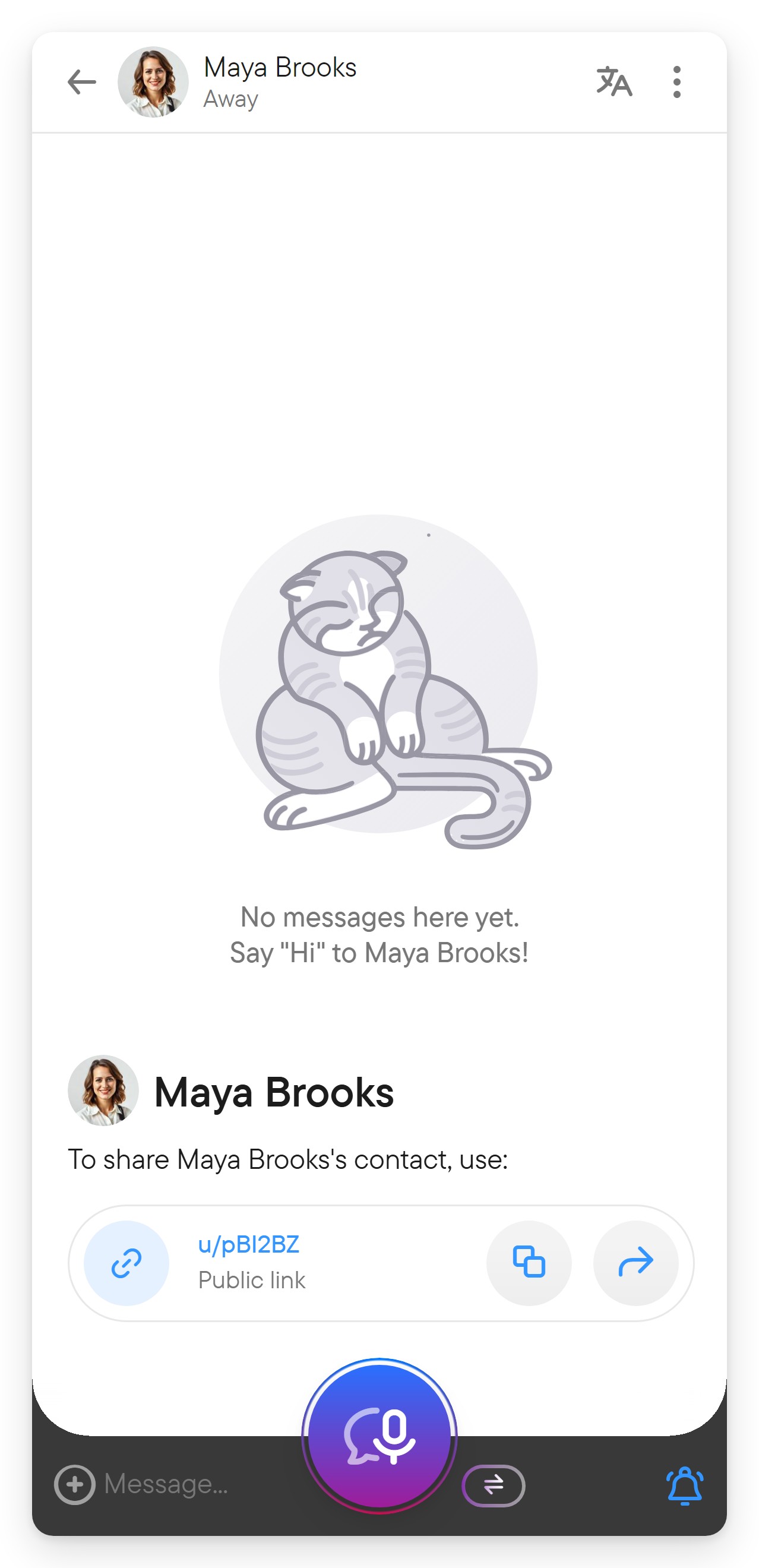
Share your contact
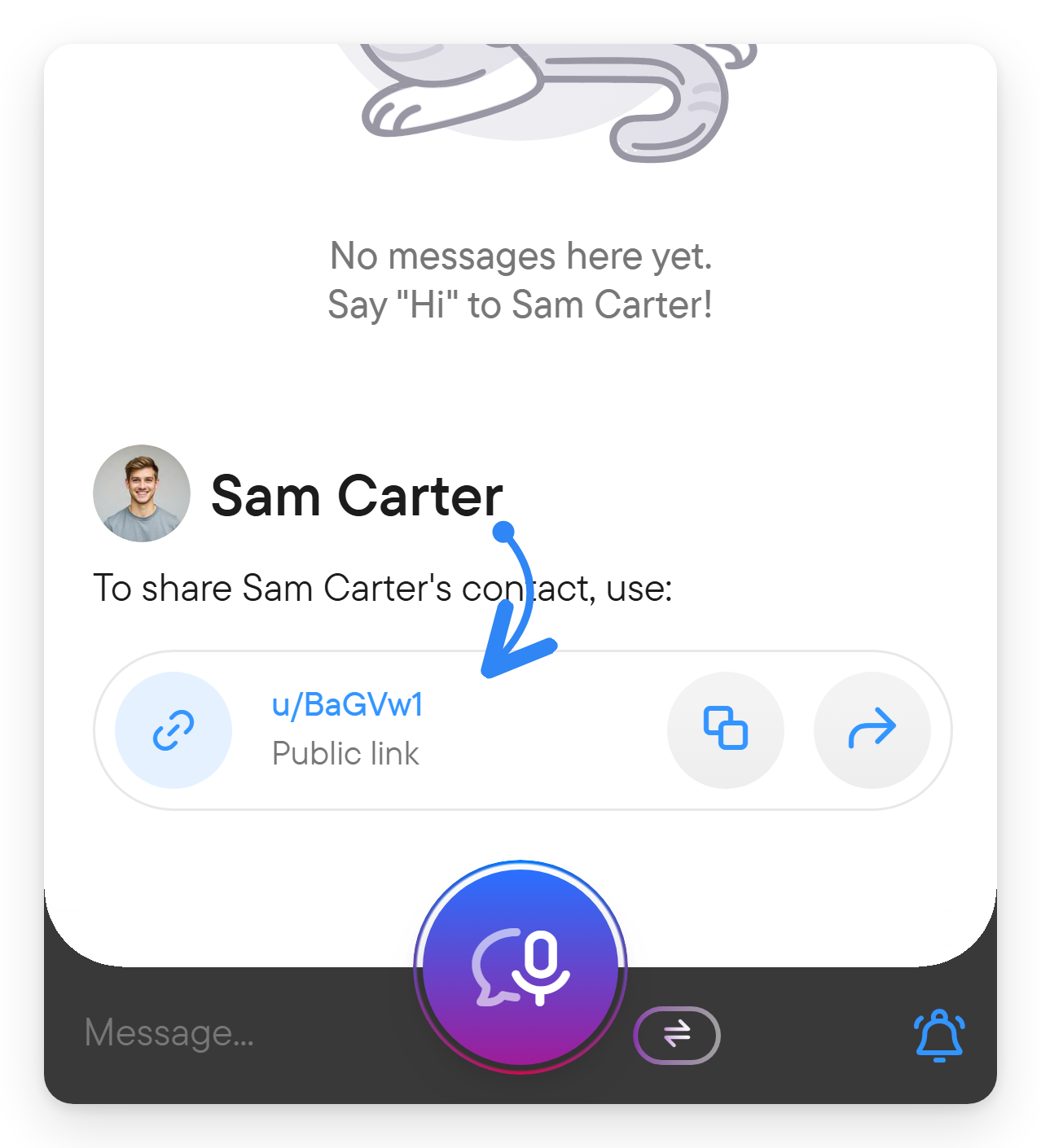
The quickest way is the profile card at the bottom of the settings navigation, just above the app version.
- Open Settings.
- In the card with your picture, name and user link, choose the share button to send or copy your contact link, or the QR button to show your QR code.
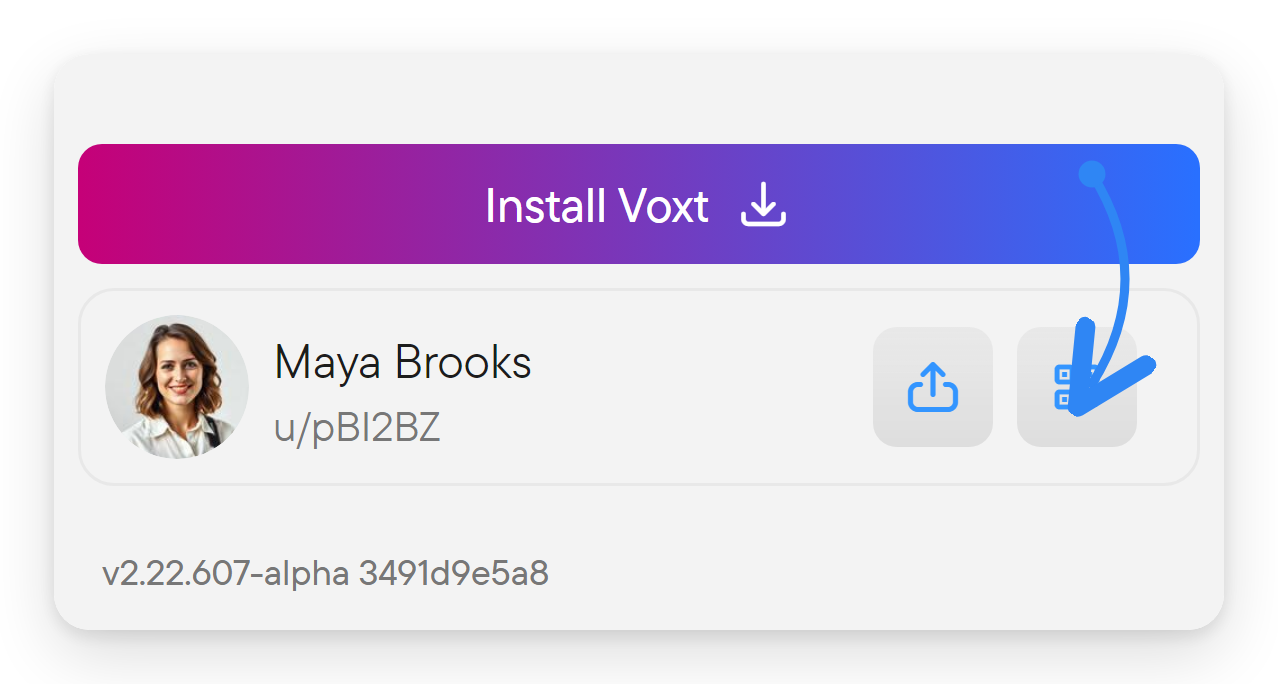
The share button opens Share link. Search for people you want to send the link to and tick them, or use Share to send it with your device's share options, Copy to copy it, or the QR button.
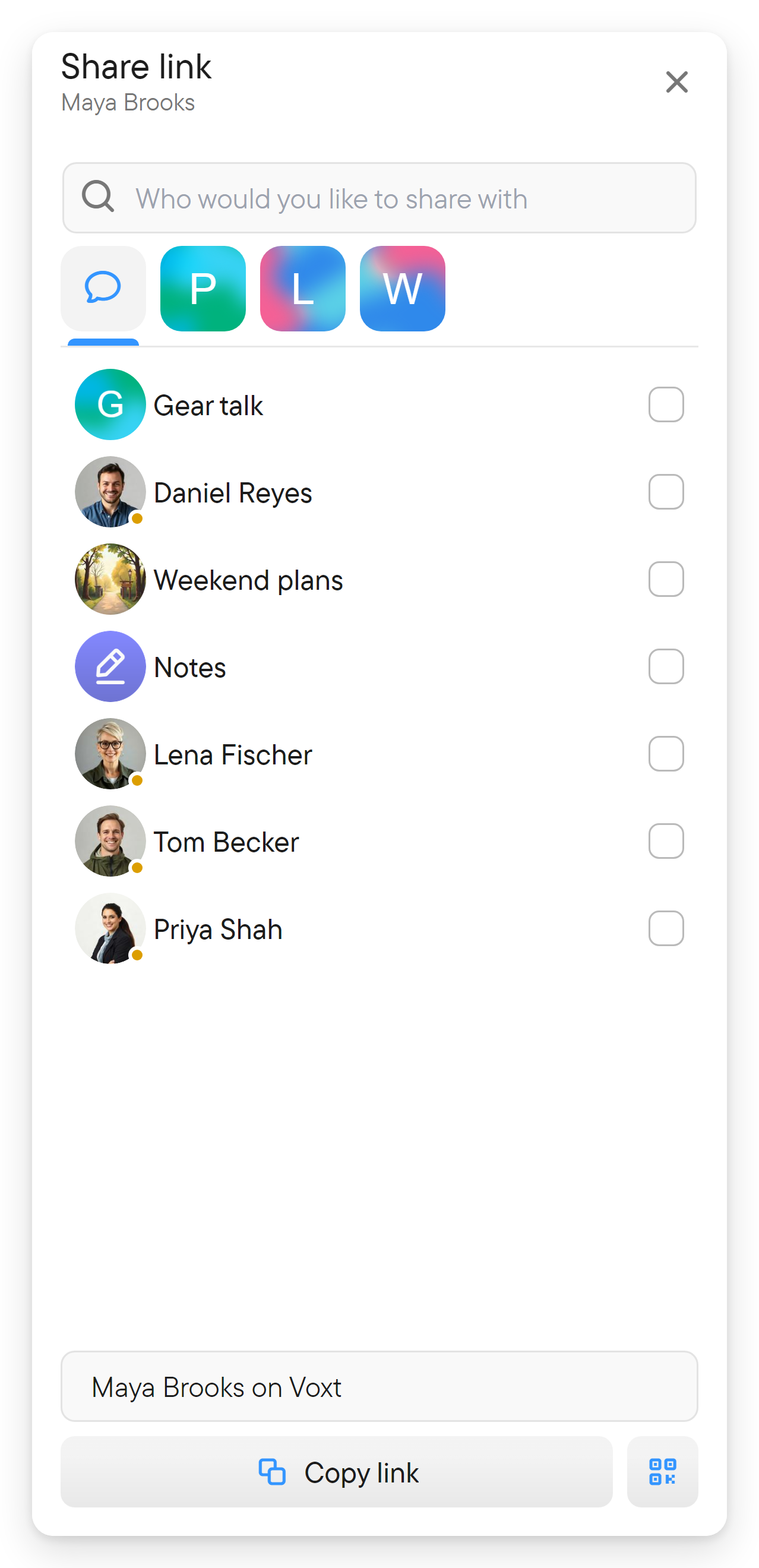
The QR button shows a full-screen page with a Share QR tab, which displays your QR code, and a Scan QR tab for scanning someone else's. Ask a friend to scan your code with their phone's camera to find you on Voxt.
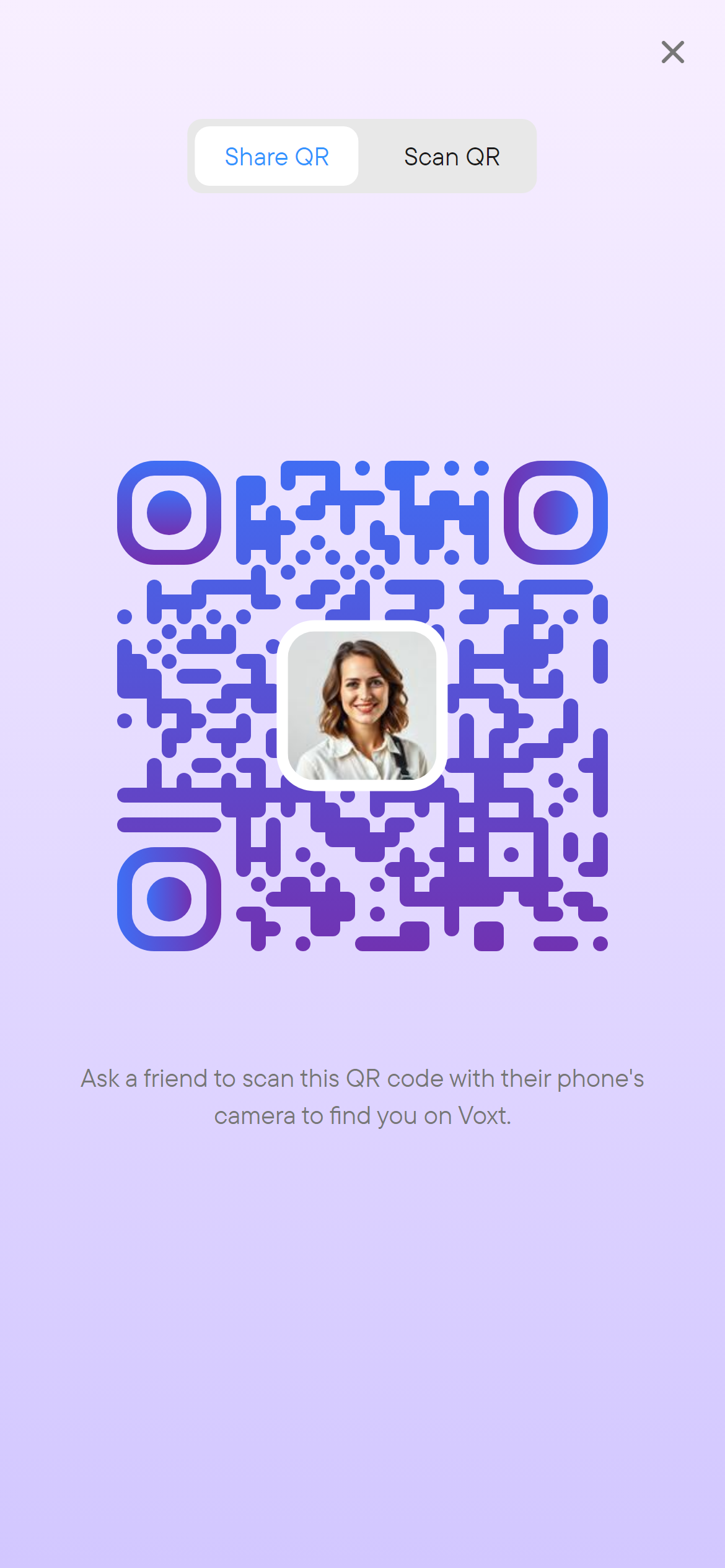
A recipient can open the link to reach your profile. You can also reach the same Share action from Settings → Your Account → Share, which takes a few more steps.
Choose a display name
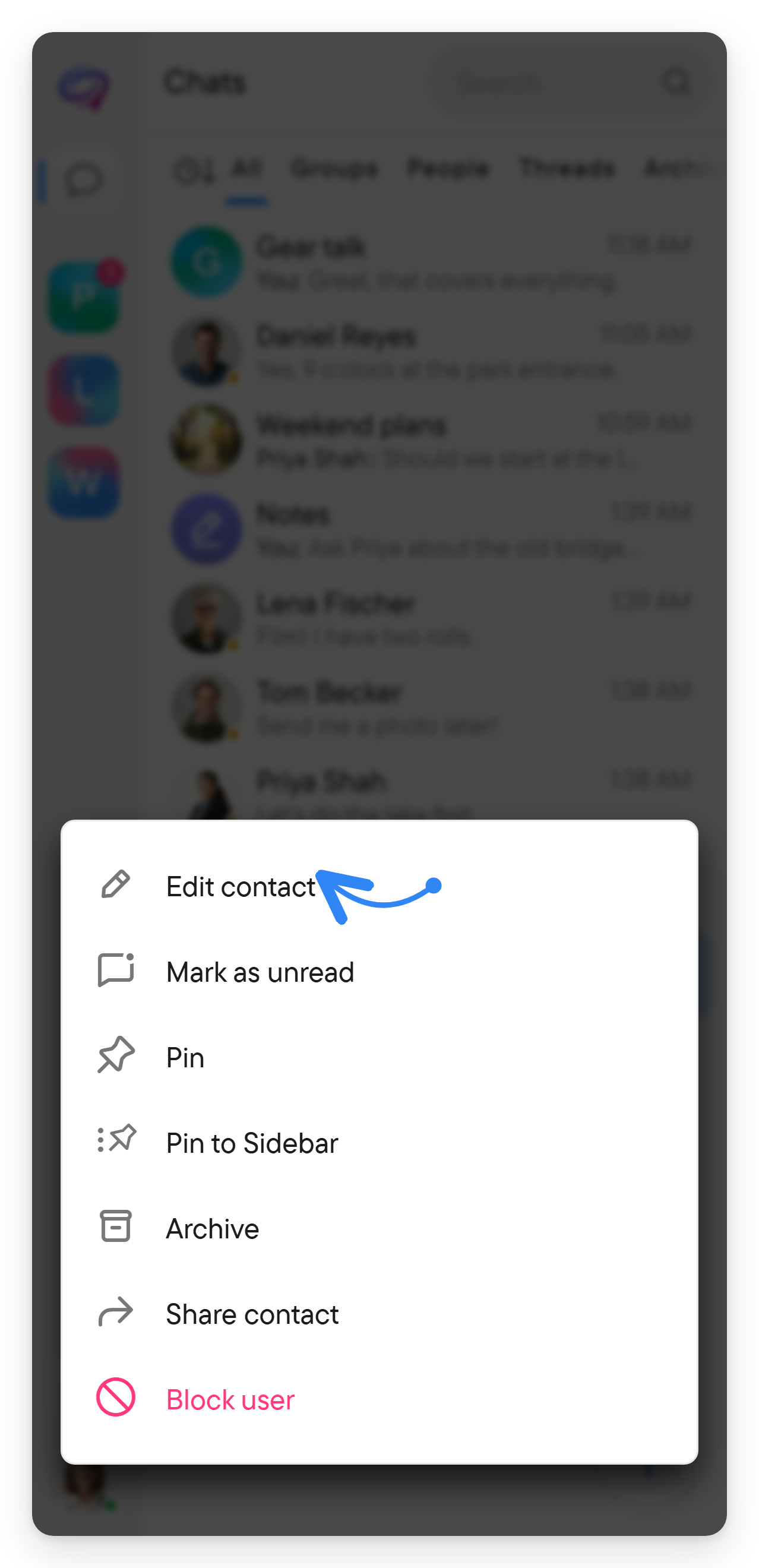
Open the person's chat menu (the three-dot button on their row in the chat list, or the pencil button in the right panel) and choose Edit contact. Set Display Name (optional) and select Save. The same menu also offers Pin, Pin to Sidebar, Share contact and Block user.
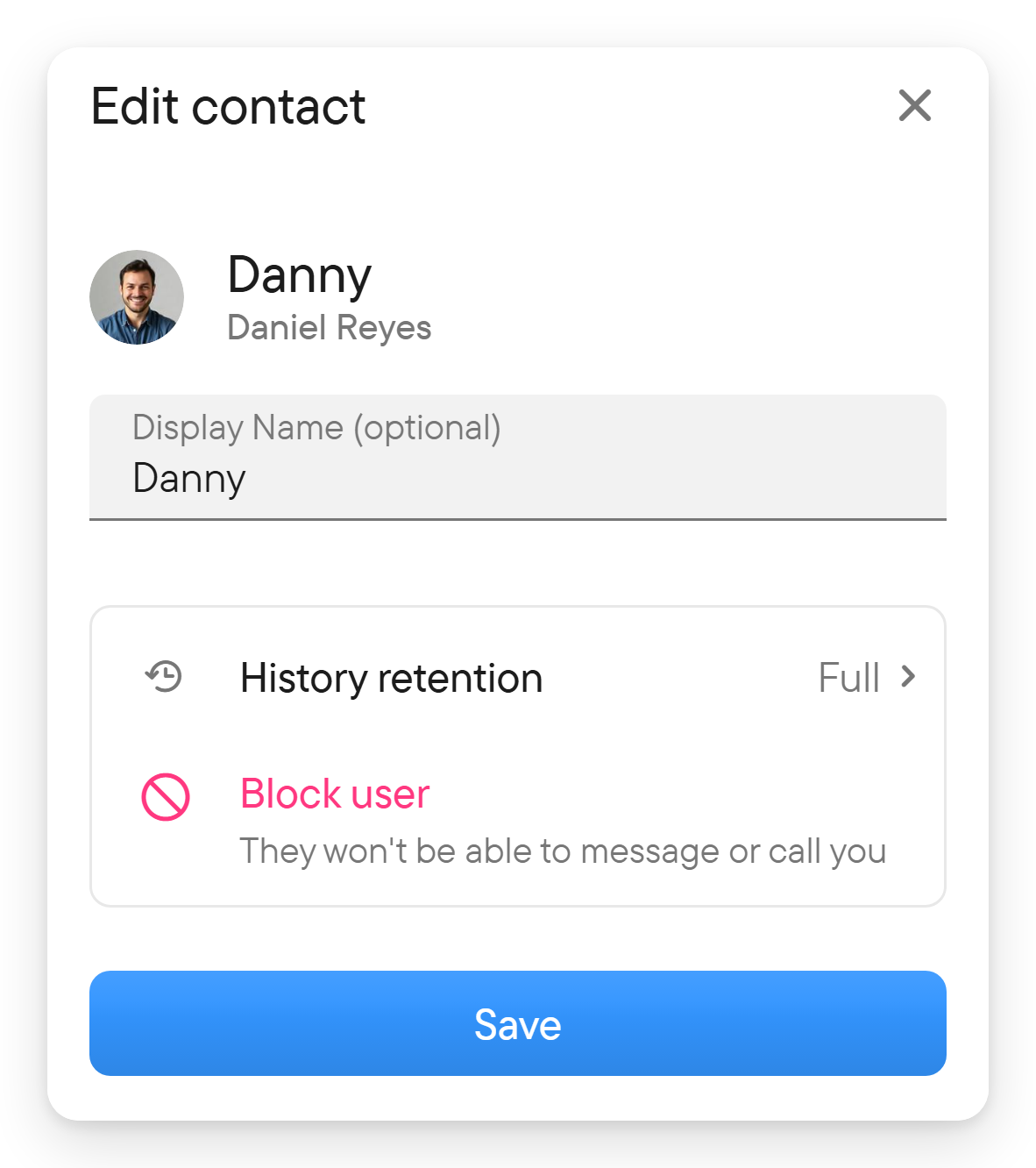
This changes how the contact is named for you; it does not rename the other person's account. The editor also shows the person's own name for context, and a History retention row that opens the retention settings for the direct chat.
Device contacts
On supported native apps, contact access can help you find people from your device's address book. Grant contact permission when you want to use that feature. If you decline it, you can still use profile links and search.
Review Permissions if access was denied previously.
Block or unblock
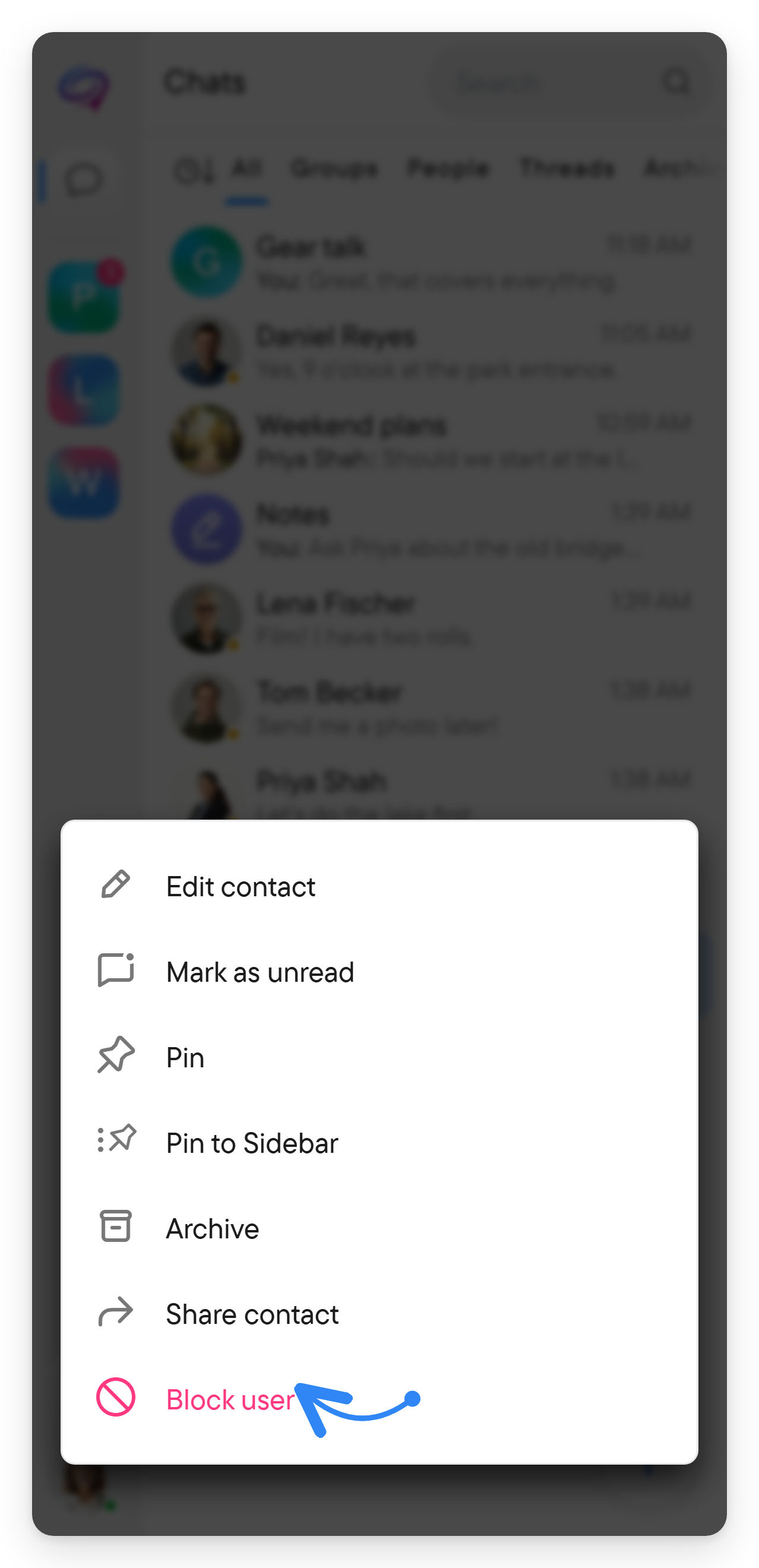
Choose Block user from the direct chat menu or the contact editor ("They won't be able to message or call you"), or Block in the banner above a chat with someone who is not in your contacts. Blocking prevents that person from messaging or calling you directly.
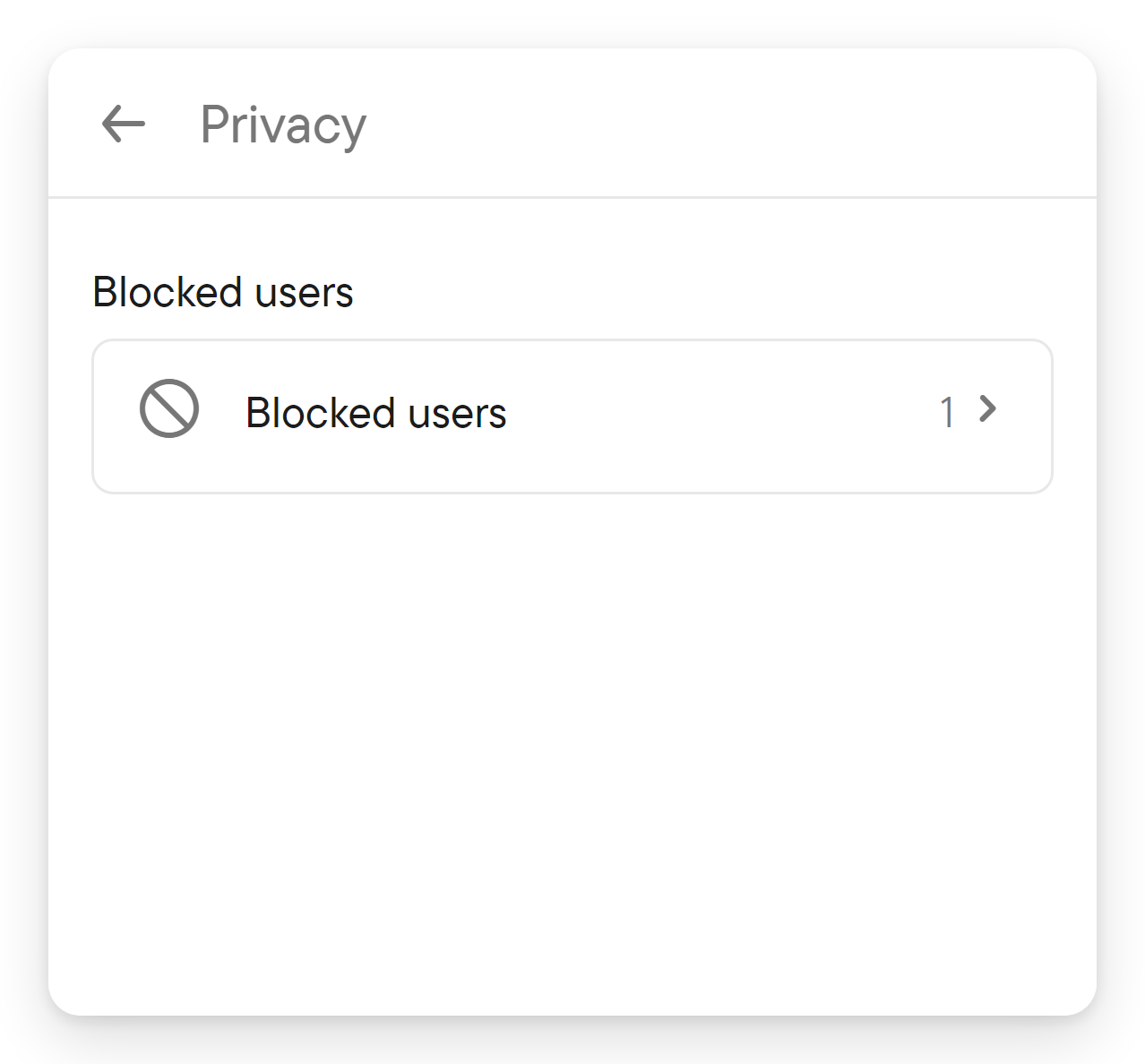
To reverse it, use Unblock user, or open Settings → Privacy → Blocked users and select the unblock control beside the person. Blocking is a direct-contact control; do not treat it as removing someone from a shared group or place.
Presence and identity
Profiles and conversations can show online, away, or last-seen information. A presence indicator describes availability; it is not confirmation that a particular message has been read.

Conversations can show a separate chat avatar. Use the identity shown for that conversation when checking how your messages will appear.