Troubleshooting
Start with the affected feature and check its account, chat, and device settings.
A control is missing
Check whether you are signed in, have joined the chat, and have the required role. Read-only chats do not offer the same composer actions as writable ones.
Some controls are native-device features, and some depend on the deployment or enabled features. A control shown on another person's phone may not be available in your browser.
Microphone, camera, or location does not work
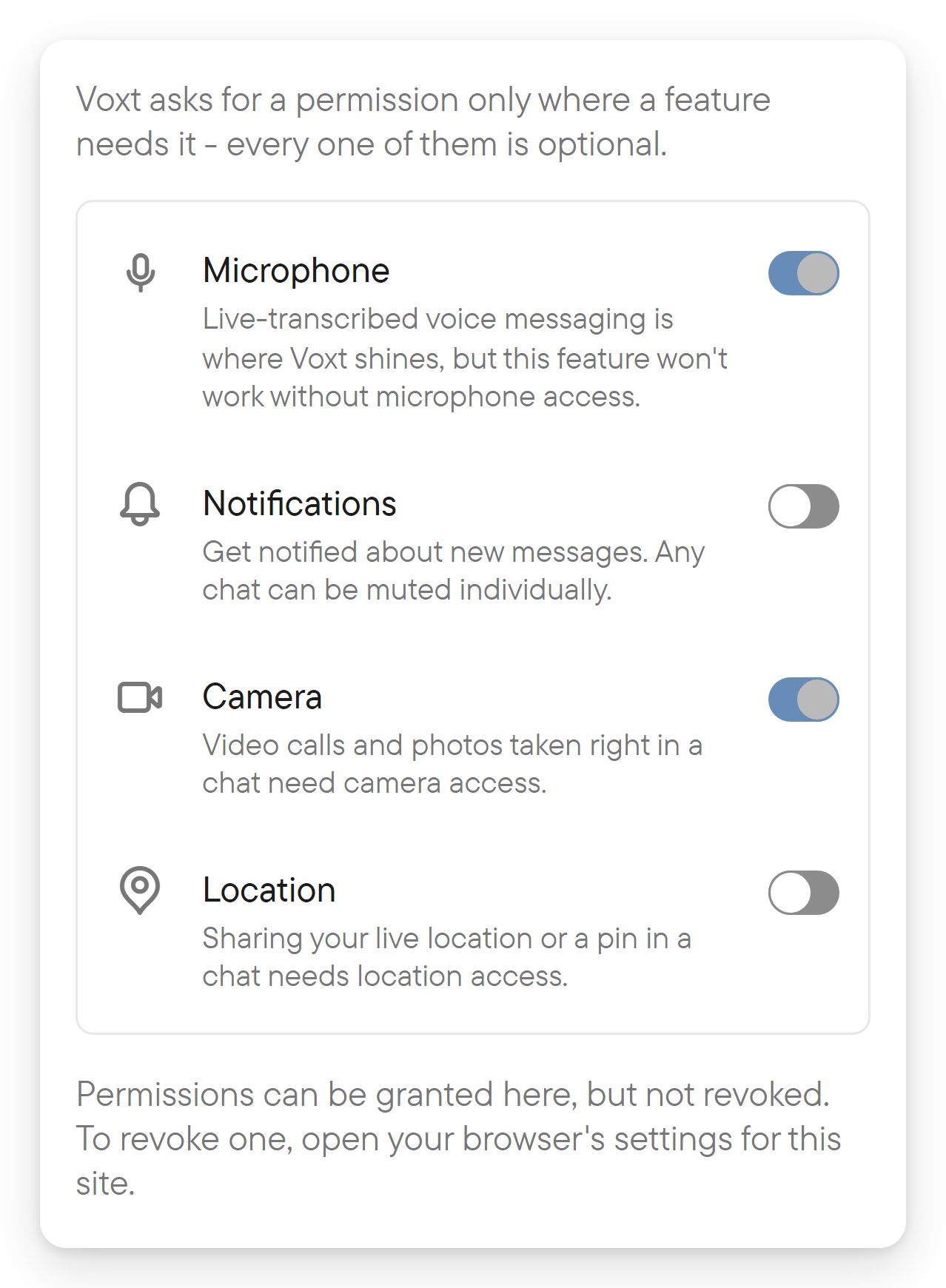
Open Settings → Permissions, which lists Microphone, Notifications, Camera, and Location. Turn on a missing permission there. Permissions can be granted in this list but not revoked. If the browser or operating system has blocked one, the app shows a guide: in the browser, open the site settings for the permission, choose Allow, and reload the page; in a native app, the guide's button opens the system settings for that permission.
For voice or video, check the selected input device and its mute state. See voice and video.
For location, distinguish a fixed point from live sharing. Check when a live position was last updated before treating it as current.
A message or upload is still pending
Check your connection and the message/upload status. Give an in-progress upload time to finish. If it fails, use the offered retry action and verify that the recipient can open the completed attachment.
Previously opened content may remain visible during connectivity problems. Being able to read cached content does not establish that a new message has been sent.
Search does not find something
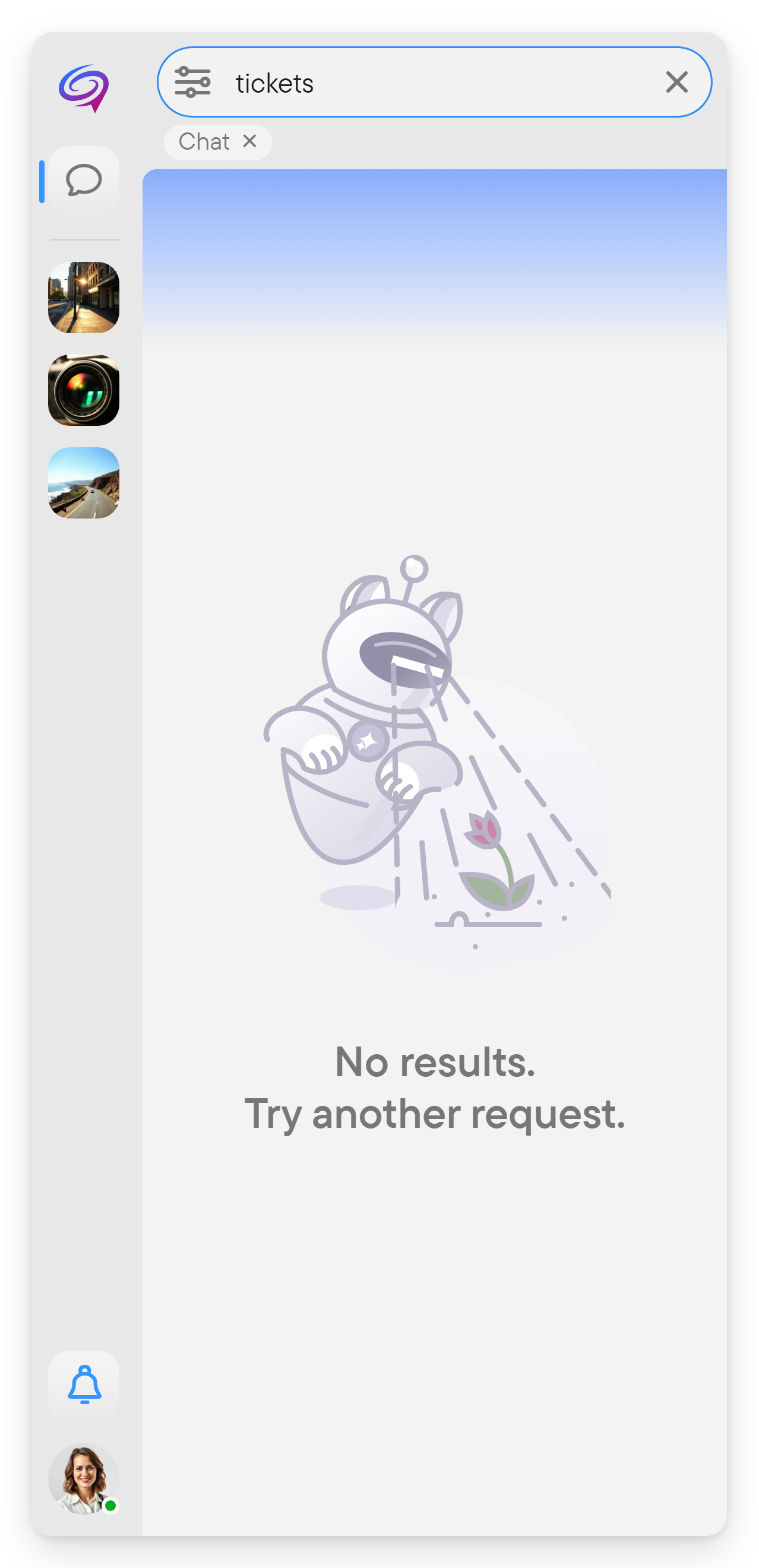
Check the search location and result-type filters. A search restricted to one chat will not find a message in another chat. Try Anywhere or use Files, Media, or Links when looking for an attachment.
You were signed out or see an unfamiliar session
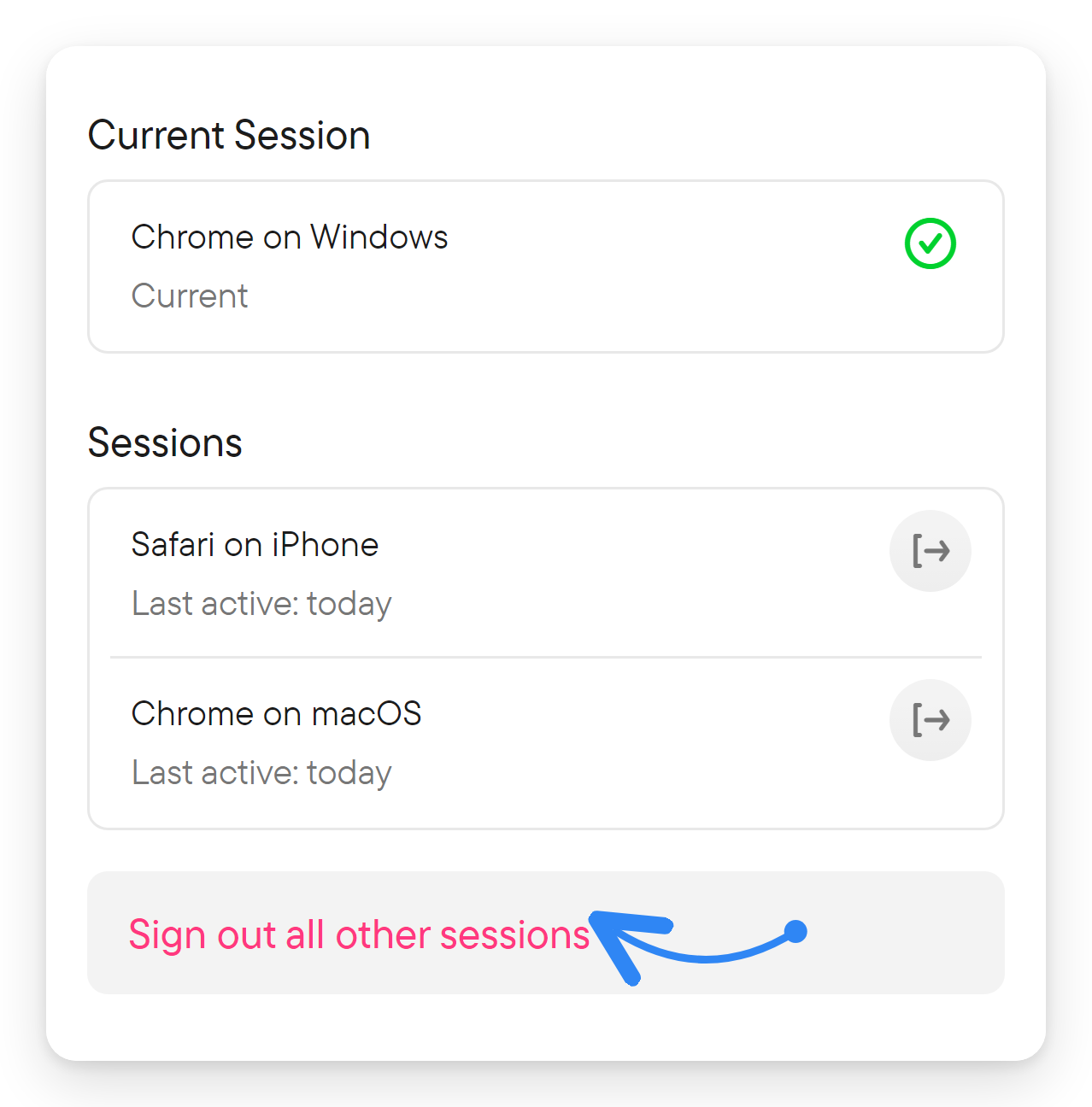
Open Settings → Sessions to see the current session and the others with their last activity. Sign out a single session with the button beside it, or use Sign out all other sessions, which keeps the current one. See Account and settings.
A private link does not open
Check that you are using the intended account and that the invitation is still valid. Ask a member with invitation permissions for a fresh link if necessary. A copied message link alone does not add you to a private chat.
Notifications are missing or too frequent
Review the chat's bell setting and device notification permissions. See notifications for modes and attention alerts.
The app asks you to update
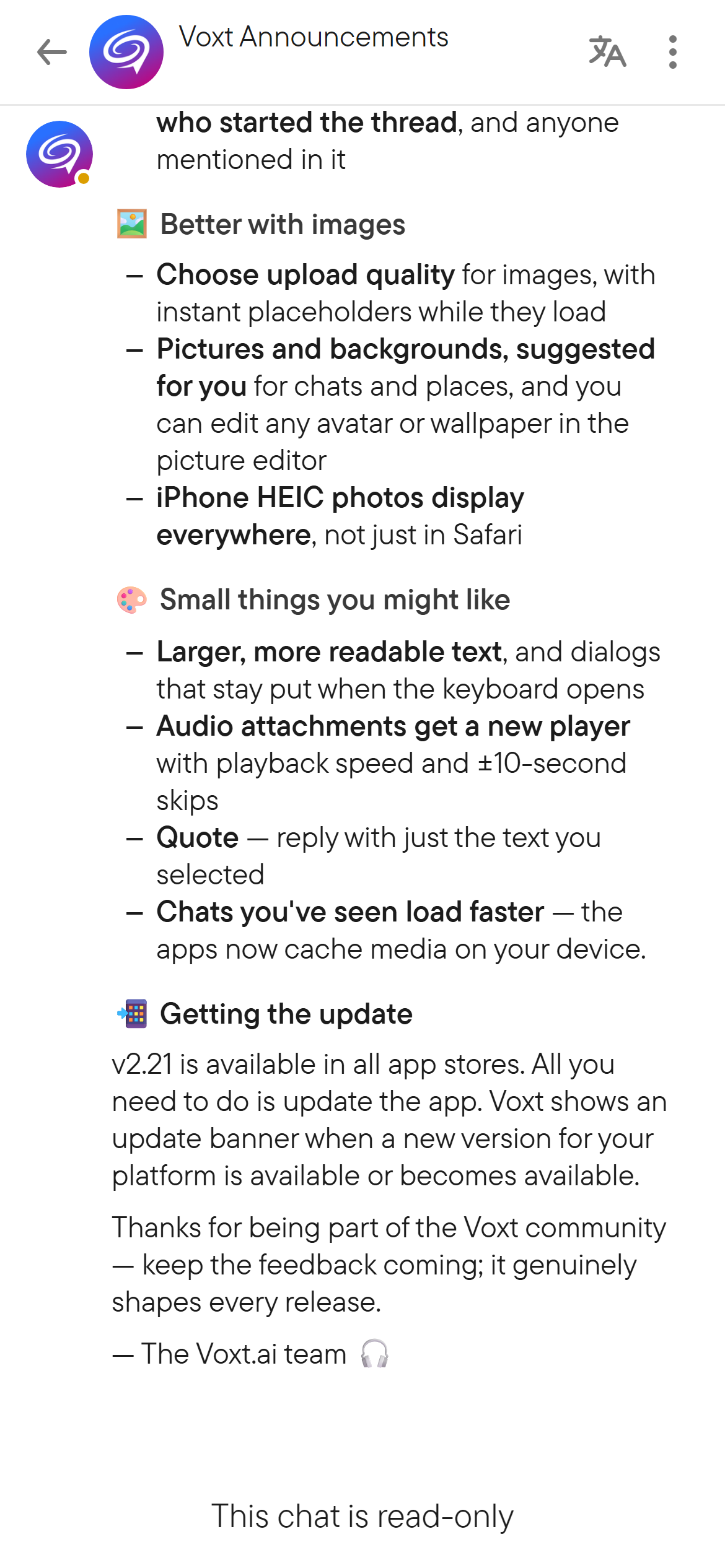
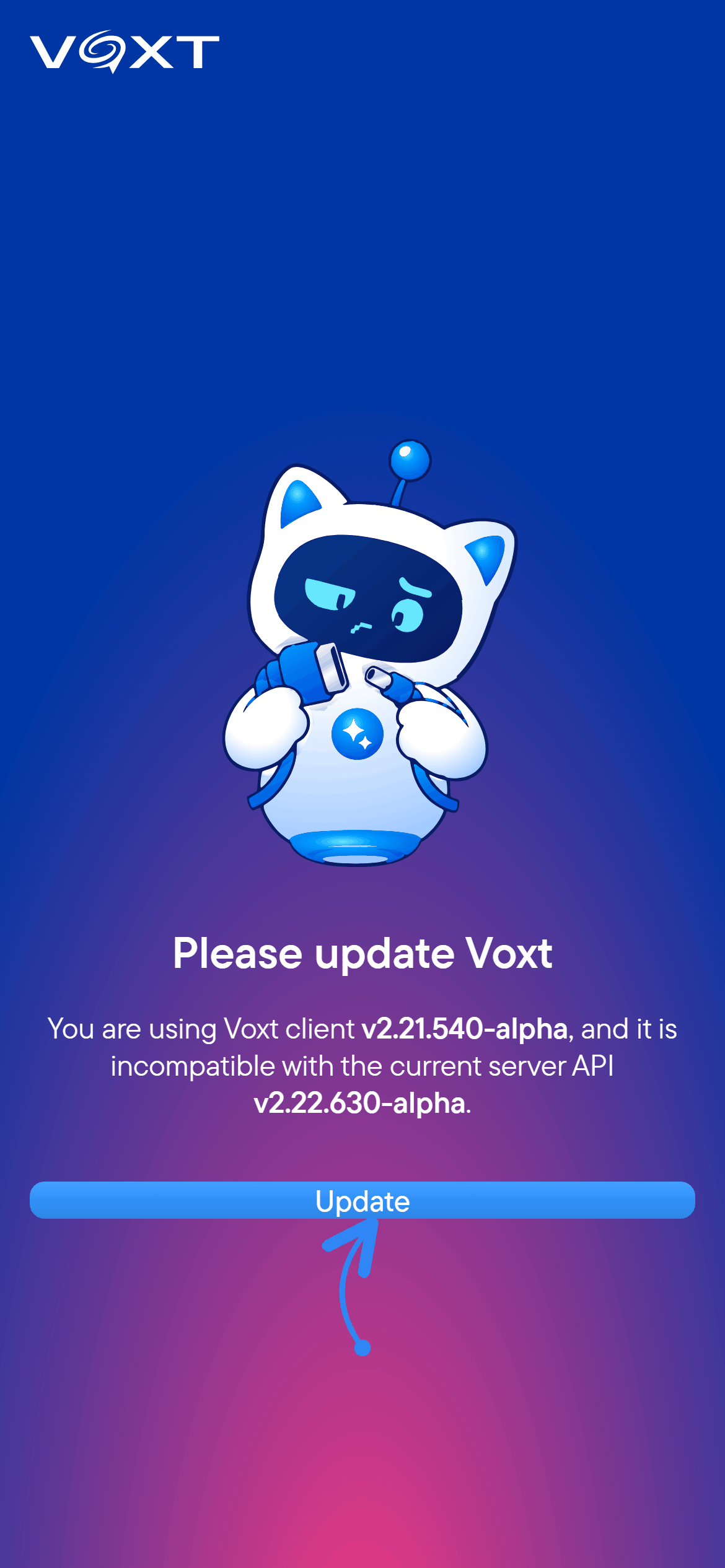
If Voxt shows an update screen instead of the chat, select Update. The web app reloads to obtain the current client; native apps open their app update destination. Complete the update and reopen Voxt. An outdated client may need this update before it can reconnect to the server.
Report a reproducible problem
Include:
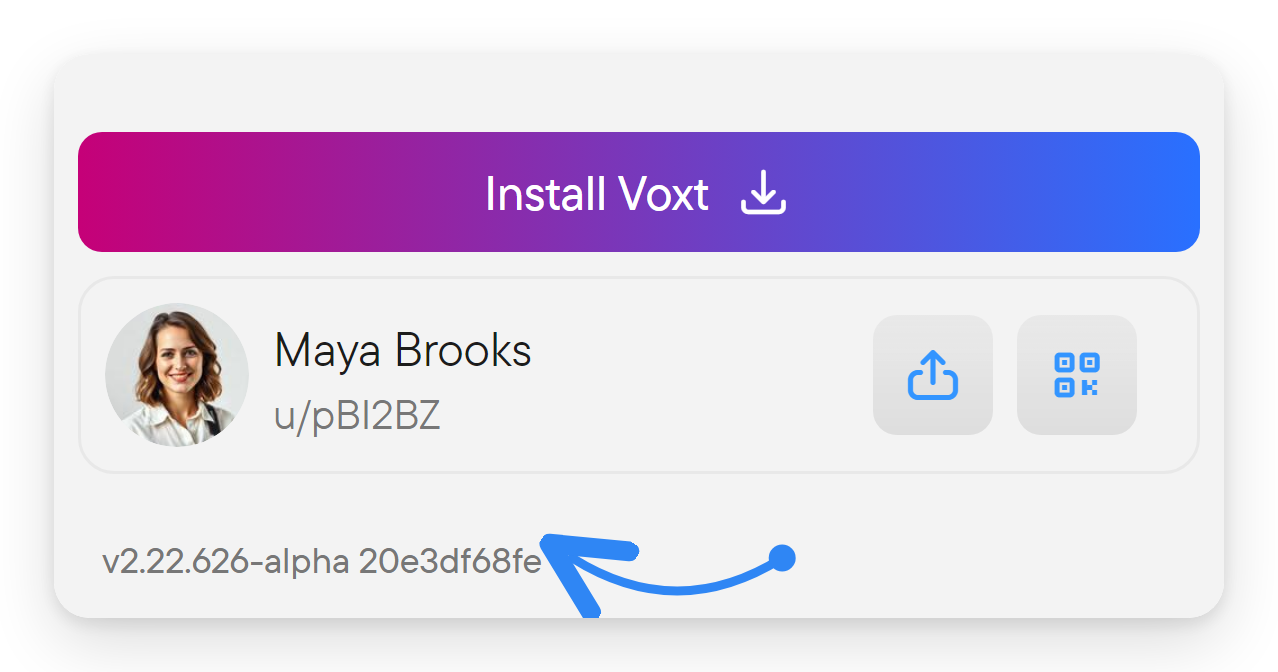
- The app version and commit shown in Settings.
- Your device, operating system, and whether you used the web or native app.
- The steps you took, what you expected, and what happened.
- Whether the problem happens in one chat or several.
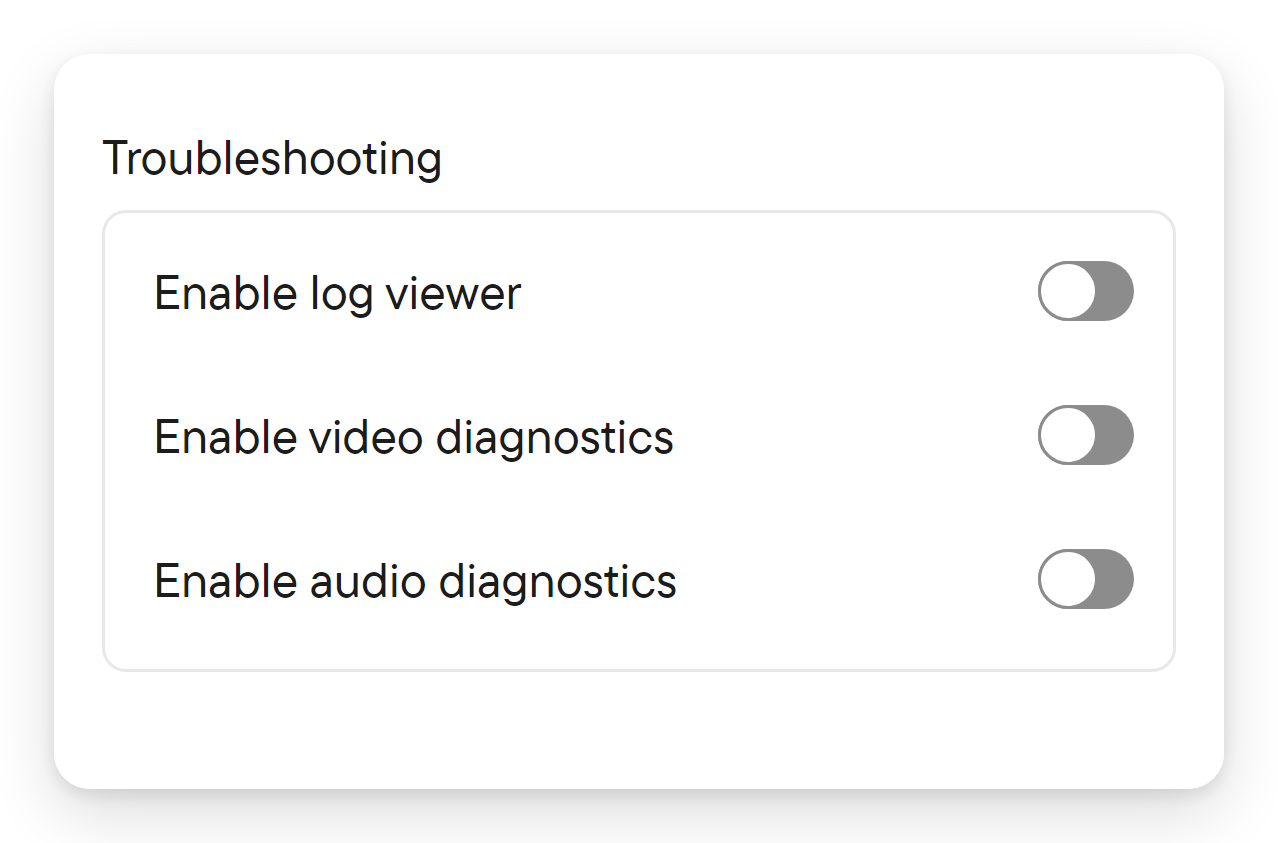
Settings → Developer tools → Troubleshooting has switches for the log viewer and for video and audio diagnostics; native apps can add a file log and a way to export it. Use them to provide diagnostics requested by support. Do not include API keys or sign-in codes.