Notifications and unread activity
Use the notification panel to catch up, and a chat's notification settings to choose how much attention it receives.
Catch up
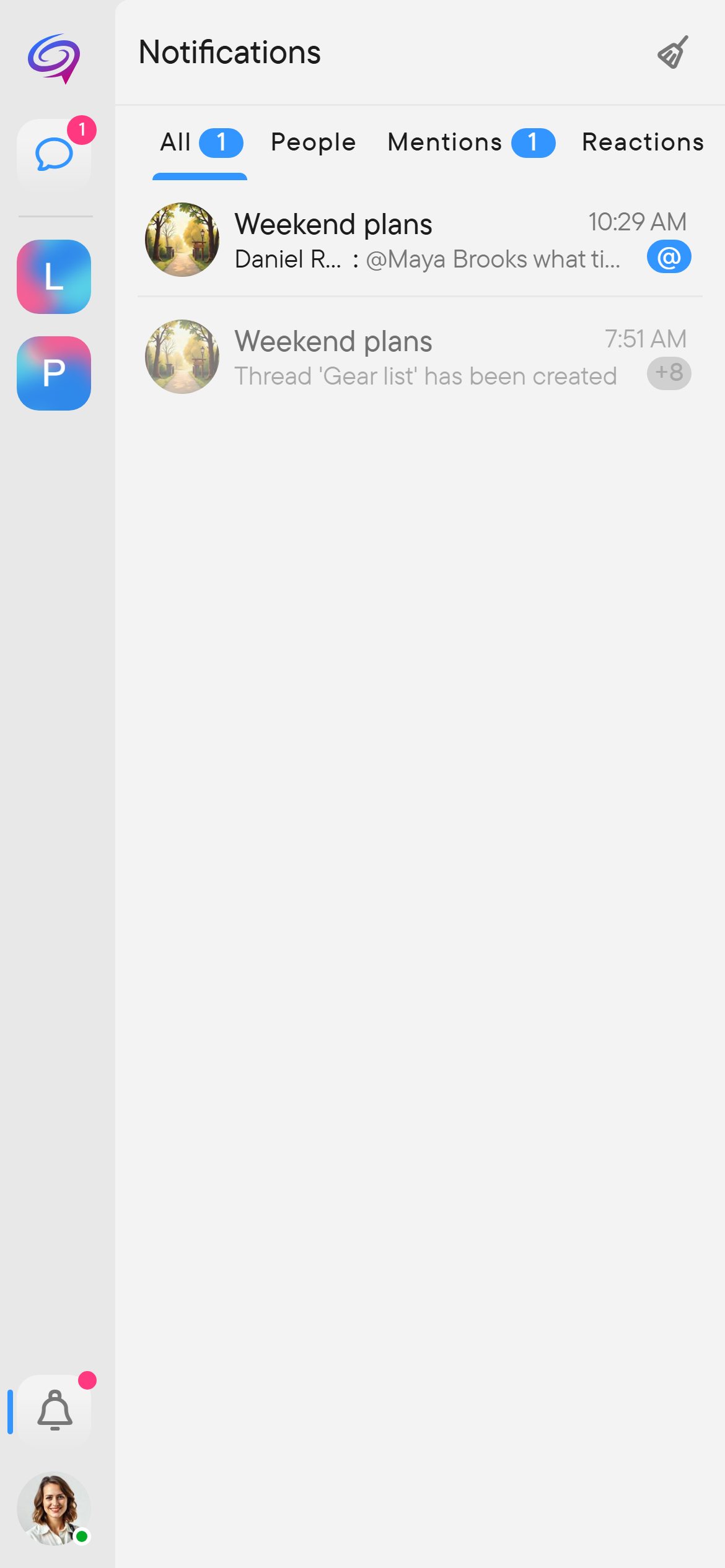
Open Notifications in the navigation rail. Depending on the activity available, the panel shows All, People, Mentions, and Reactions tabs.
Select an item to return to its conversation. Mentions help you find messages that refer to you; reactions show responses to your messages. Empty categories may not appear. The panel shows an all-caught-up state when there is nothing to display.
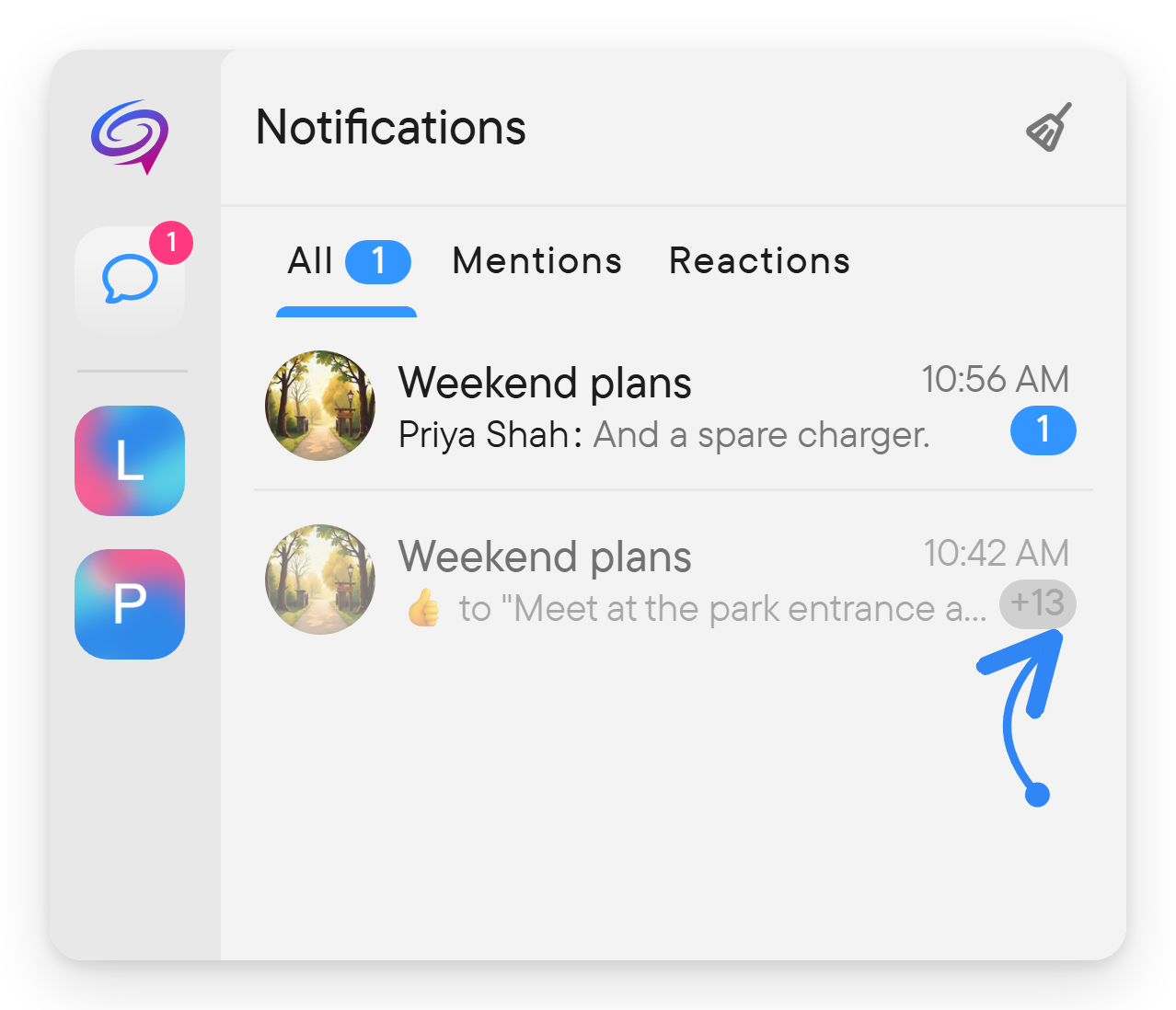
Notifications you have already handled are kept as a short history below the current ones: one row per chat, with a +N badge for older notifications from the same chat. Select a row to open that chat.
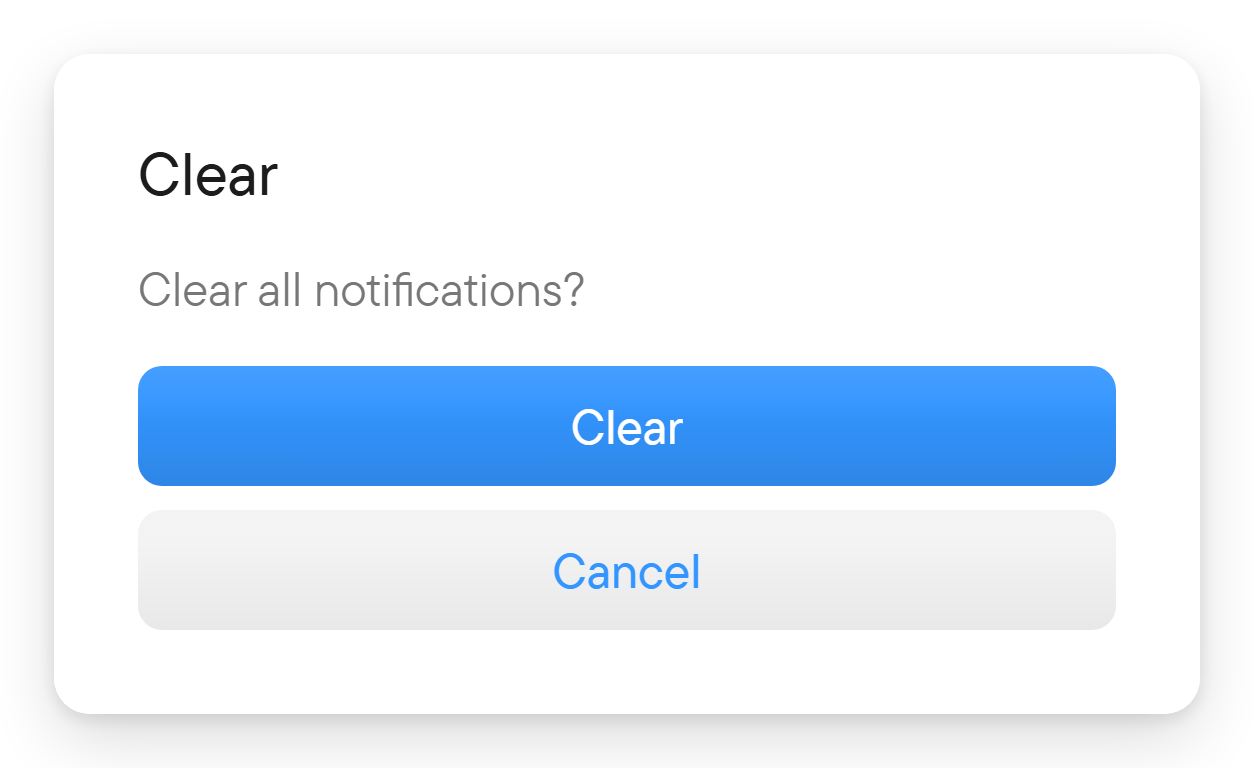
Use the broom button (Clear) in the notifications panel header to clear all notifications. It asks Clear all notifications? first.
Change a chat's notification mode
Open the chat's right panel and select its notification bell. In a group chat the bell opens a menu with the three modes below. In a direct chat the bell is a plain on/off toggle for that conversation.
| Mode | Behavior |
|---|---|
| All messages | Receives ordinary message notifications as well as important ones. |
| Important only | Receives mentions, replies, and invitations; suppresses ordinary activity. |
| Muted | Suppresses ordinary and important message notifications for that chat. |
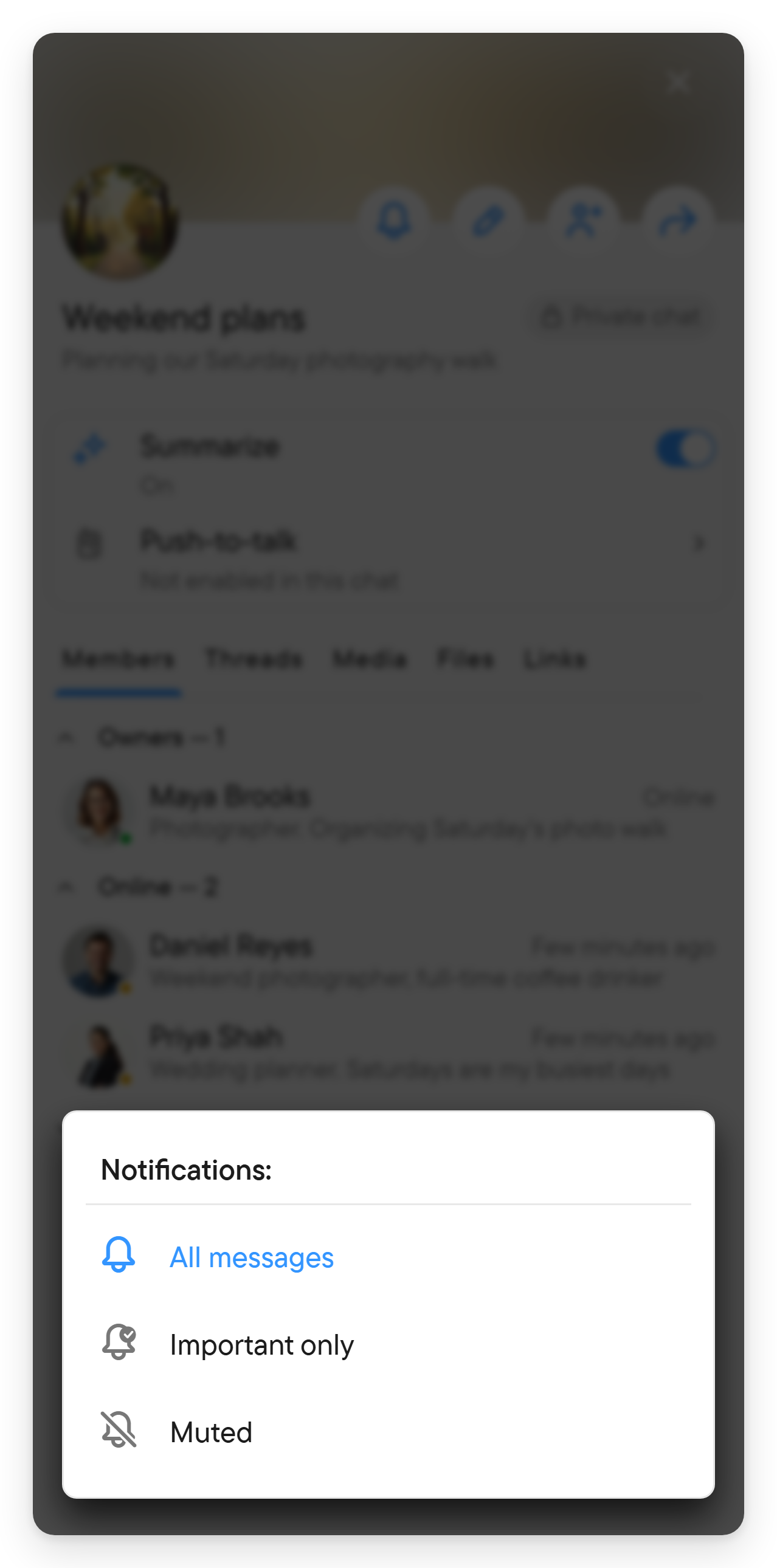
Explicit attention alerts and incoming calls have a separate ringing priority and can break through a chat's mute setting. Device notification permissions and operating system settings also affect delivery.
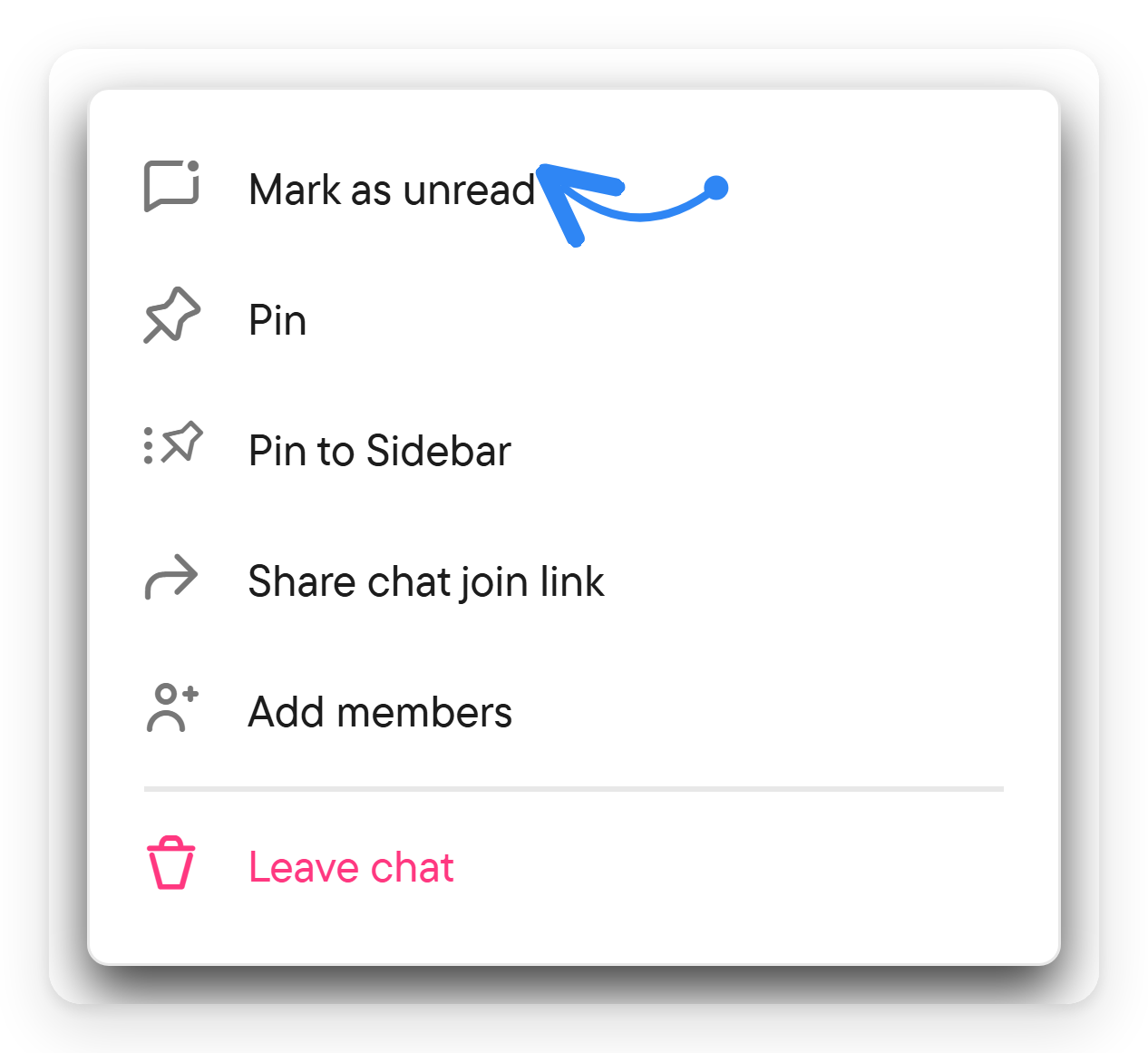
A chat's menu in the chat list has Mark as read / Mark as unread (along with pinning, sharing the join link, adding members and leaving). Muting is chosen with the notification bell in the chat's right panel (All messages, Important only or Muted), not in that menu. Muting notifications does not leave a chat or remove its messages.
Send an attention alert
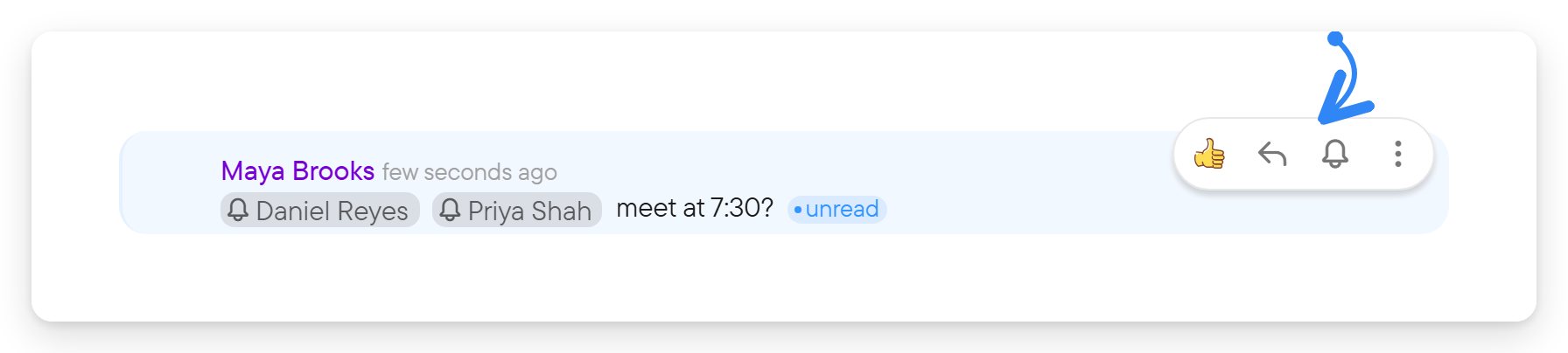
To alert people you mentioned in a message you already sent, use Alert all in that message's menu (the bell on the desktop hover menu). It alerts the mentioned members who have not been notified or read the message yet.
Where the composer's alert bell is available, use it when you need someone's attention. Review the confirmation before sending the alert.
Availability depends on the chat. Publicly accessible chats do not offer this control; private-group alerts have additional restrictions, including group size and unread-message state. It is not a general “notify everyone” option for every group.
Understand unread indicators
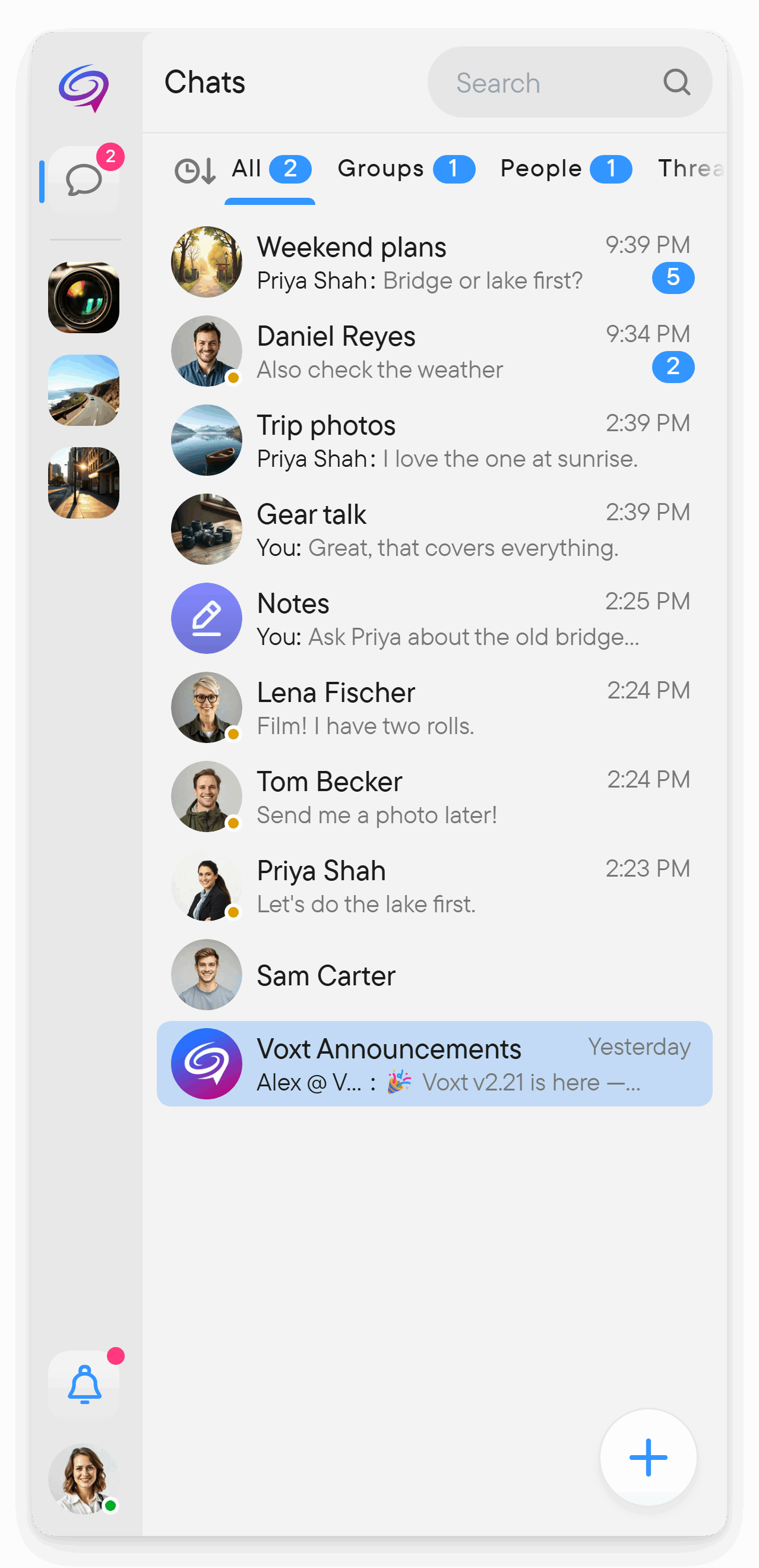
Unread markers help you see what still needs attention. An outgoing-message unread indicator represents unread state, so do not read it as a delivery checkmark. Presence indicators such as Online or Away describe the person, not whether they read a specific message.
If notifications do not arrive
- Check the chat's notification mode.
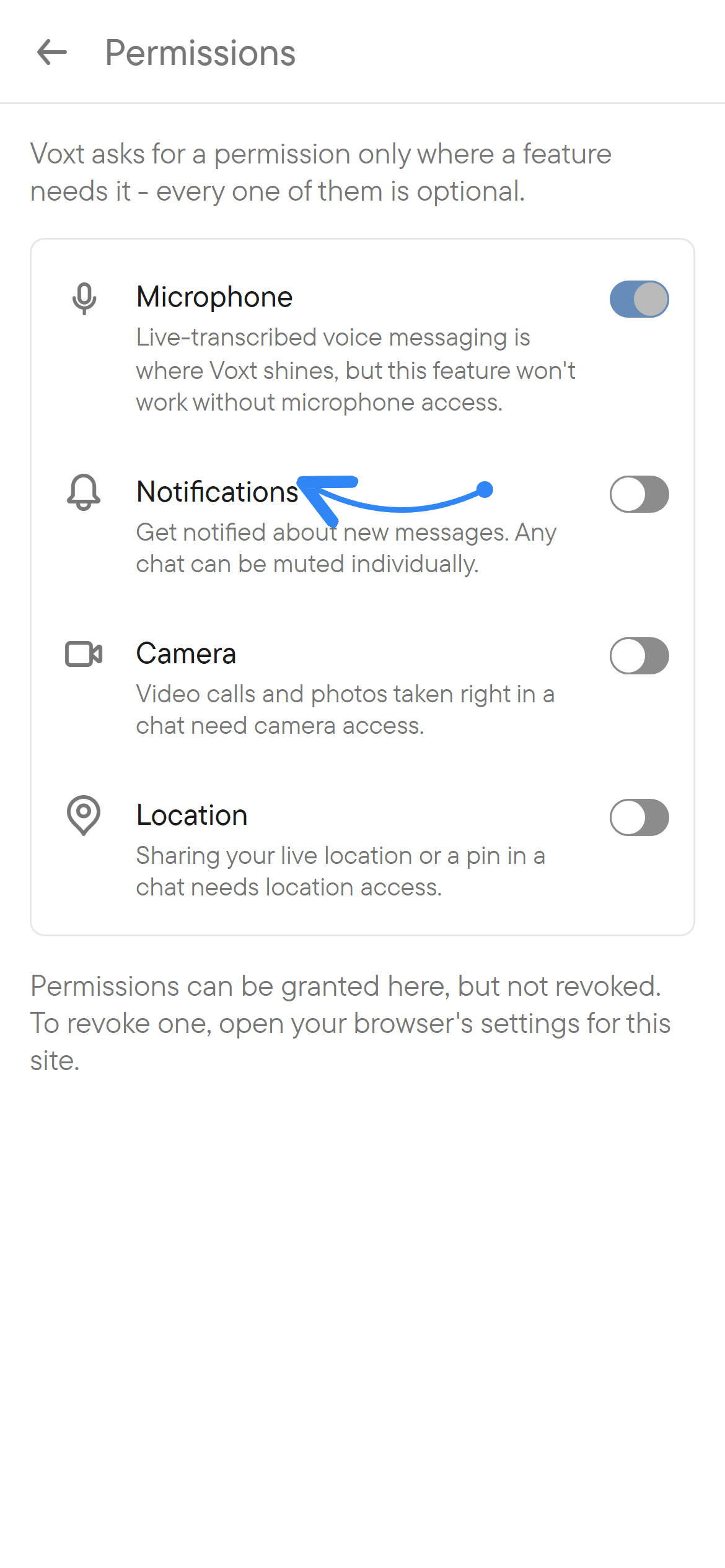
- Open Settings → Permissions and review notification access.
- Review the app/site's notification settings in the operating system or browser.
- Check whether you are already viewing the conversation on another device.
An active conversation may not produce a separate push notification for every message. See account and settings for permission management.