Places
A place brings related chats and people together. You might create one for a team, a club, or a project, then use separate chats for different topics.
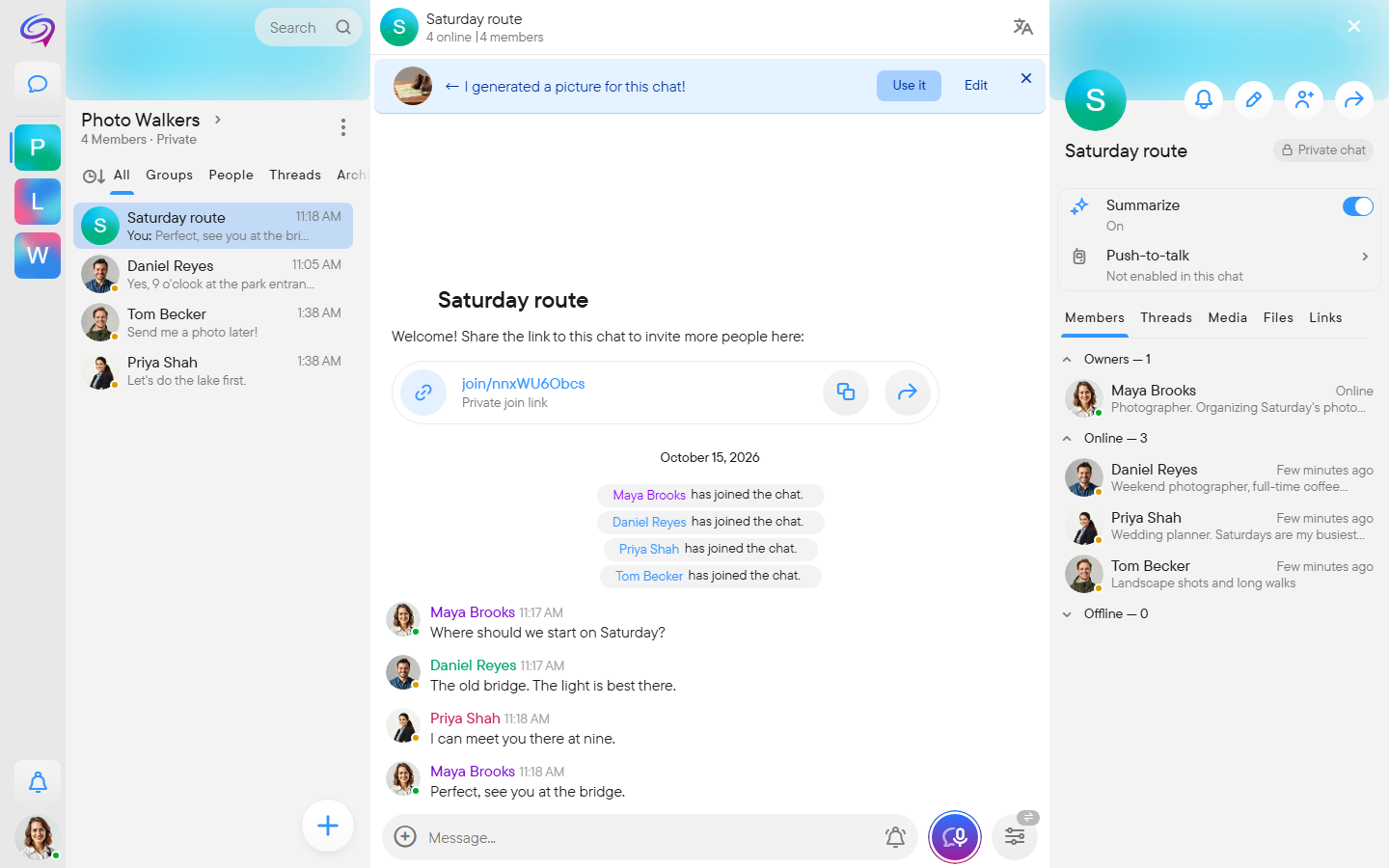
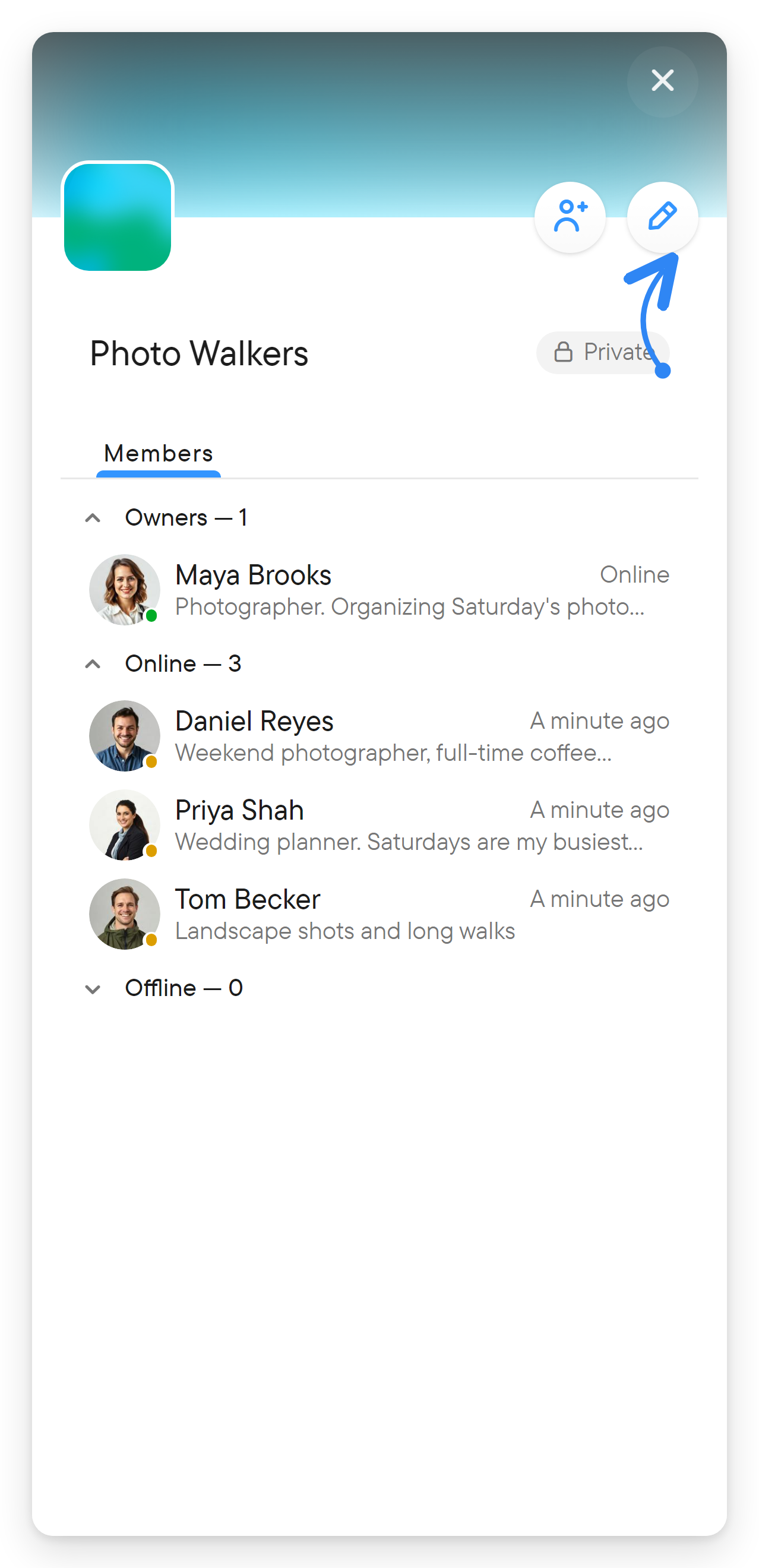
Select a place in the left rail to see its chat list. Above the list, the place header shows its name, its member count and whether it is public or private. Select the name to open the place's information, where the Members list is a way to find the people who belong to that community. The three-dot button beside the name opens the place menu.
Public and private places
| Type | Joining |
|---|---|
| Public place | Anyone can join by opening its URL. |
| Private place | A person must be invited or use a valid invitation link. |
Inside a place, a Place chat is available to the place's members. A private chat has a narrower membership. Choose the type based on who should participate.
Create a place
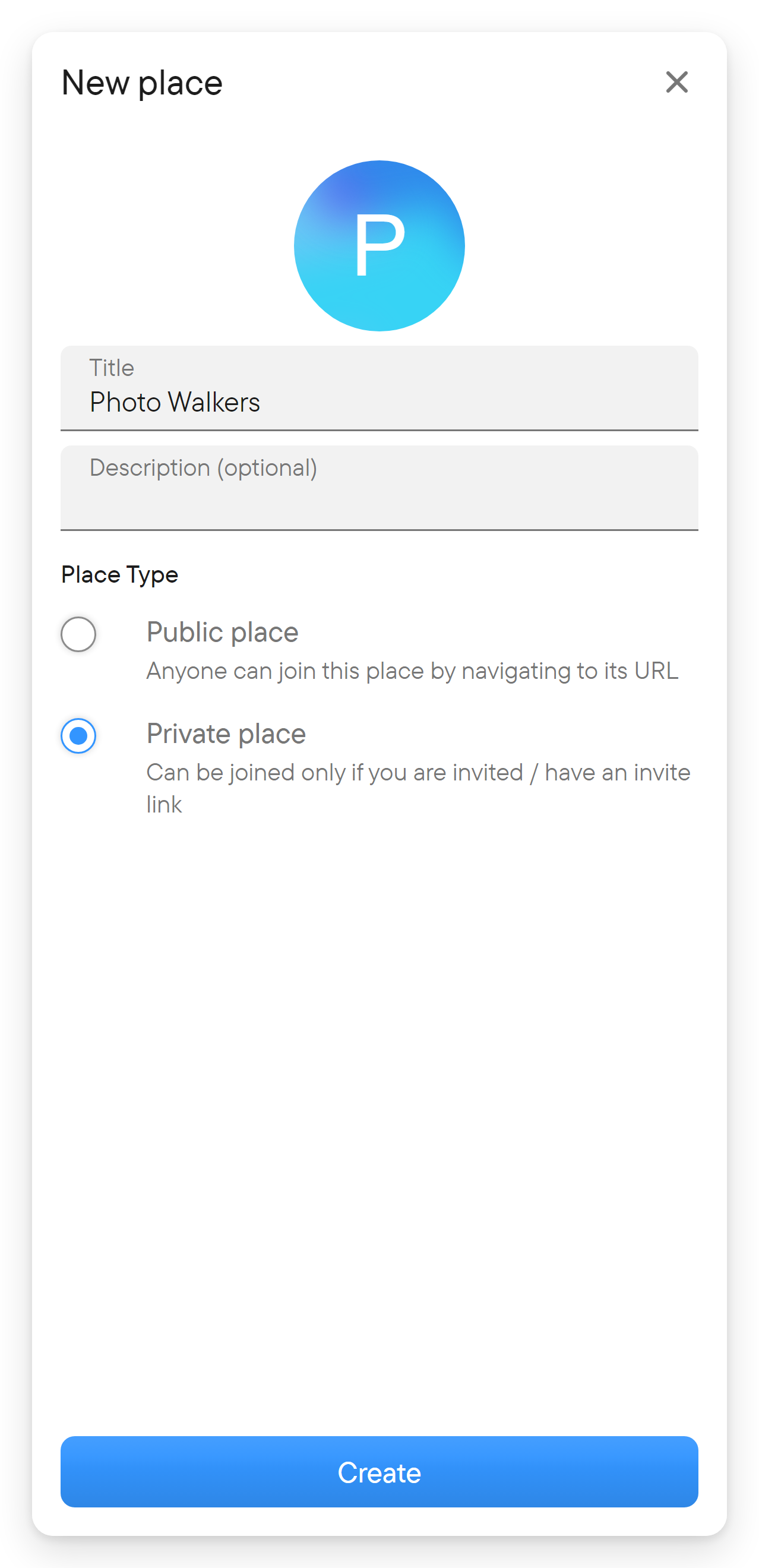
- Select + beside the chat list and choose New Place.
- Enter a title. Add a description and picture if you want.
- Choose Public place or Private place.
- Select Create.
- If you already have people in your chats, select some and add them, or skip the member-selection step. If you have none, the dialog closes by itself.
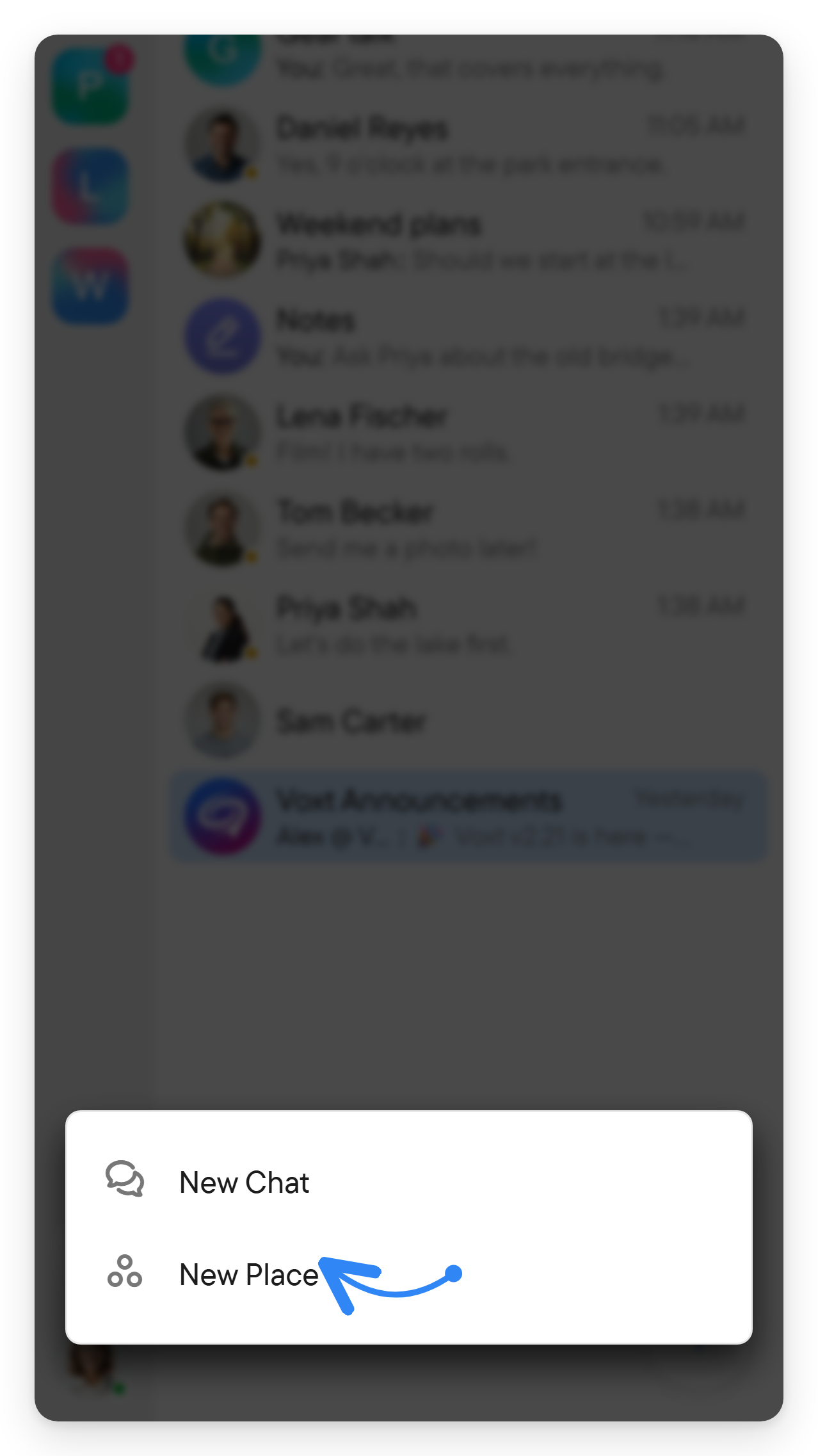
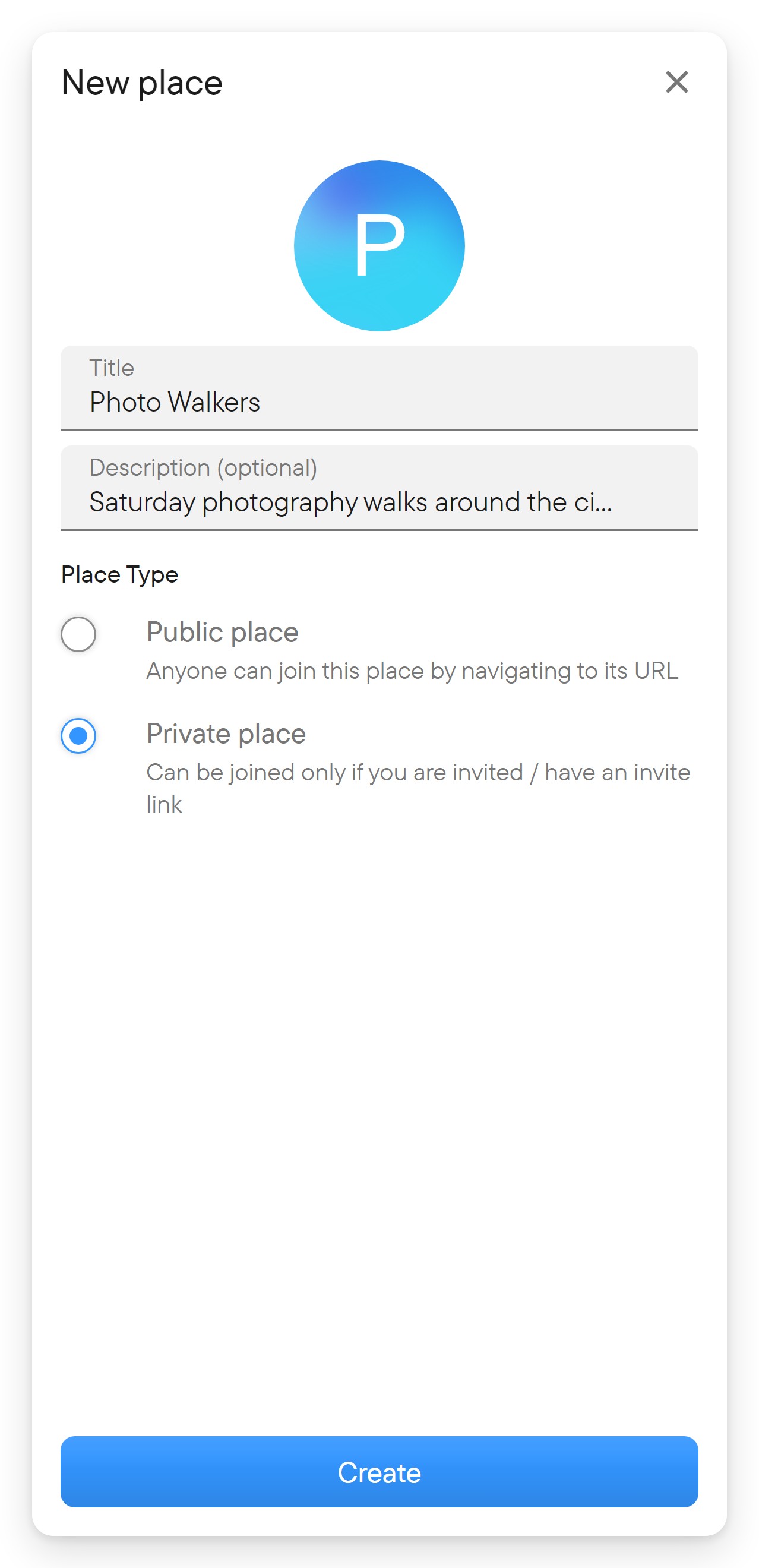
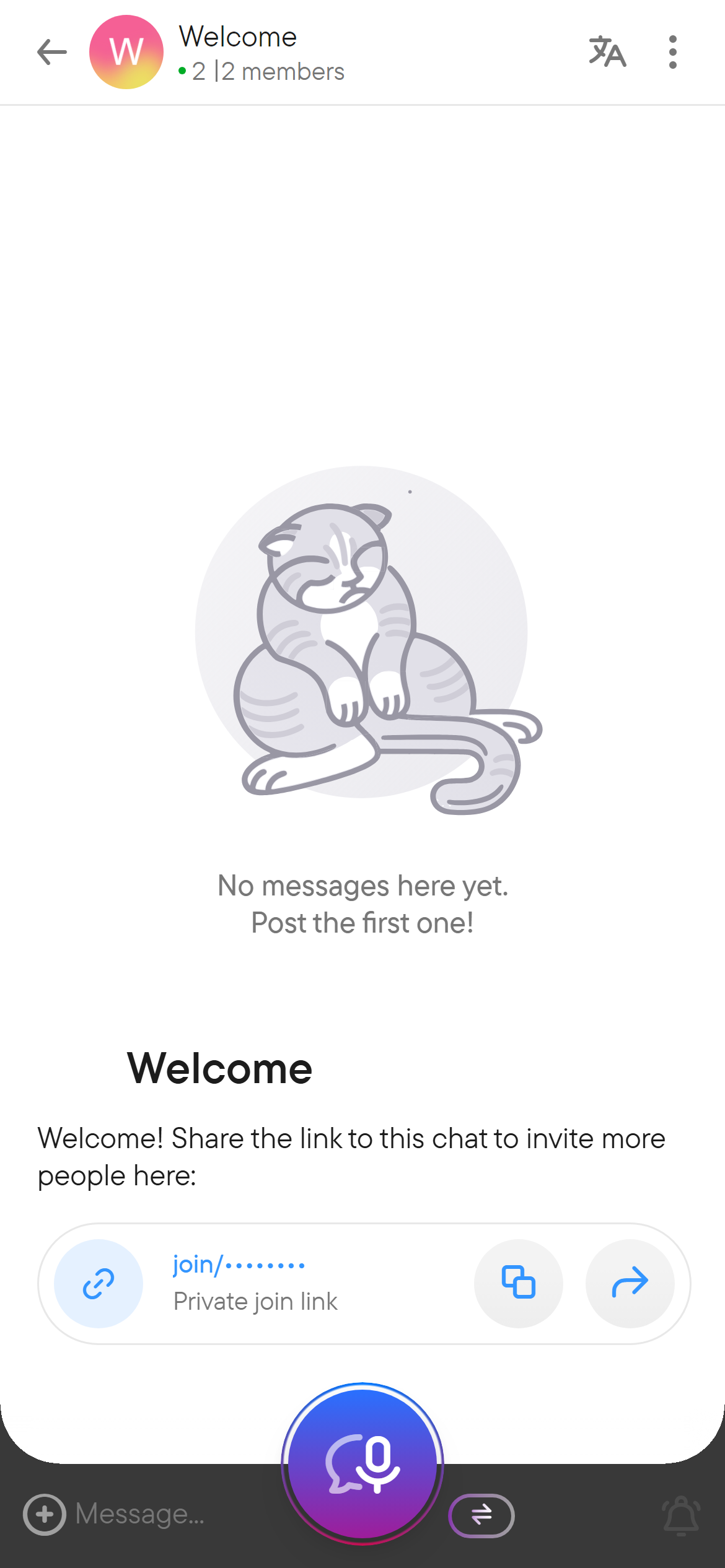
Private place is selected by default. Voxt creates a Welcome chat for the new place and opens it, with a private join link for the place's chat. Add further chats to separate topics as the community grows.
Add chats and members
With the place selected, choose New chat in the place menu (or + beside the chat list) to create a chat within it. Give each chat a title that helps members know what belongs there.
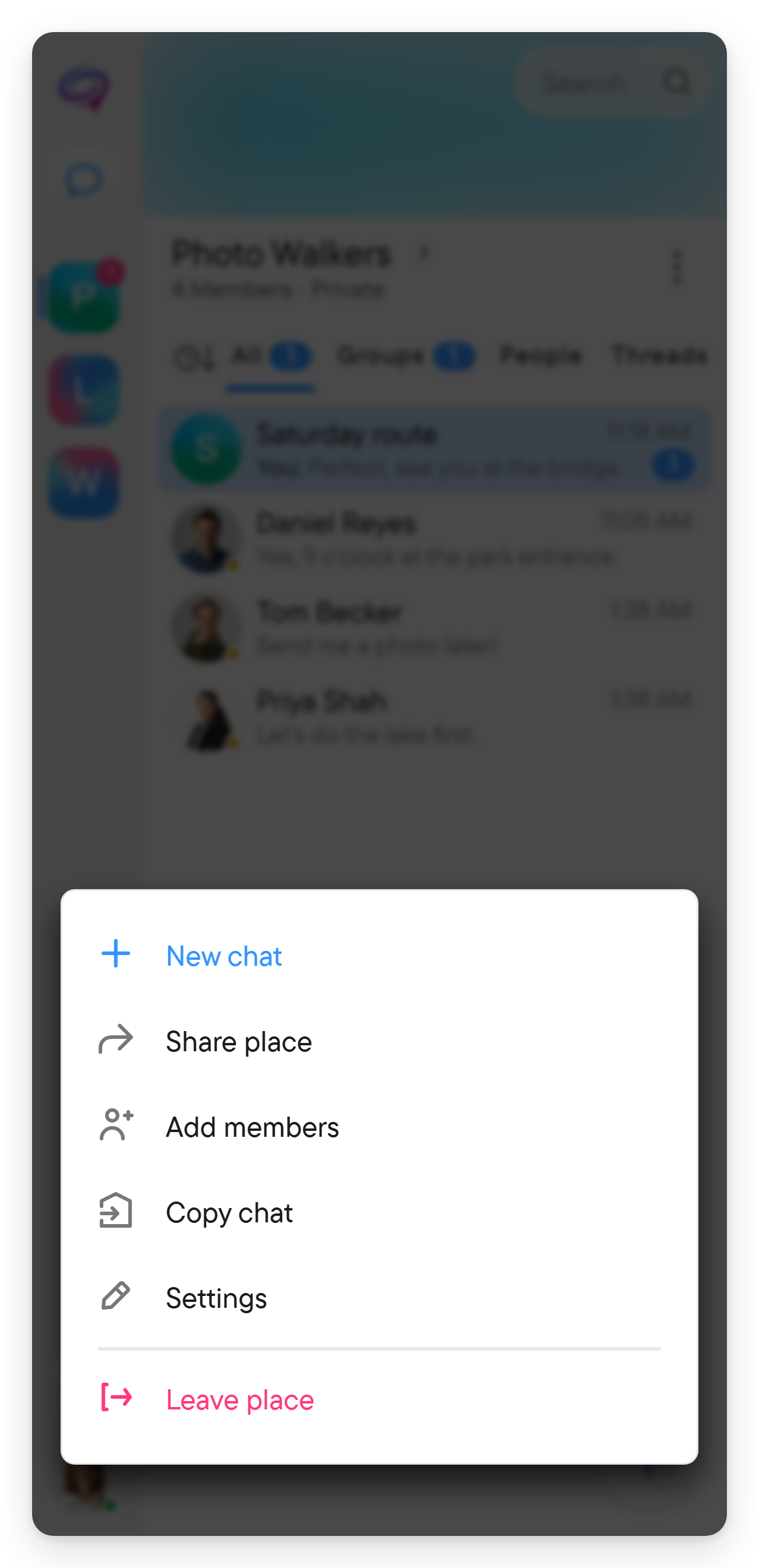
For an owner the place menu offers New chat, Share place, Add members, Settings and Leave place. Settings opens the place's information with the Members list. In its header, an owner has two buttons: add members, and edit (the pencil). In member management, the actions offered depend on the member and your permissions. An Add new members button also sits under the place header while you are the only member.
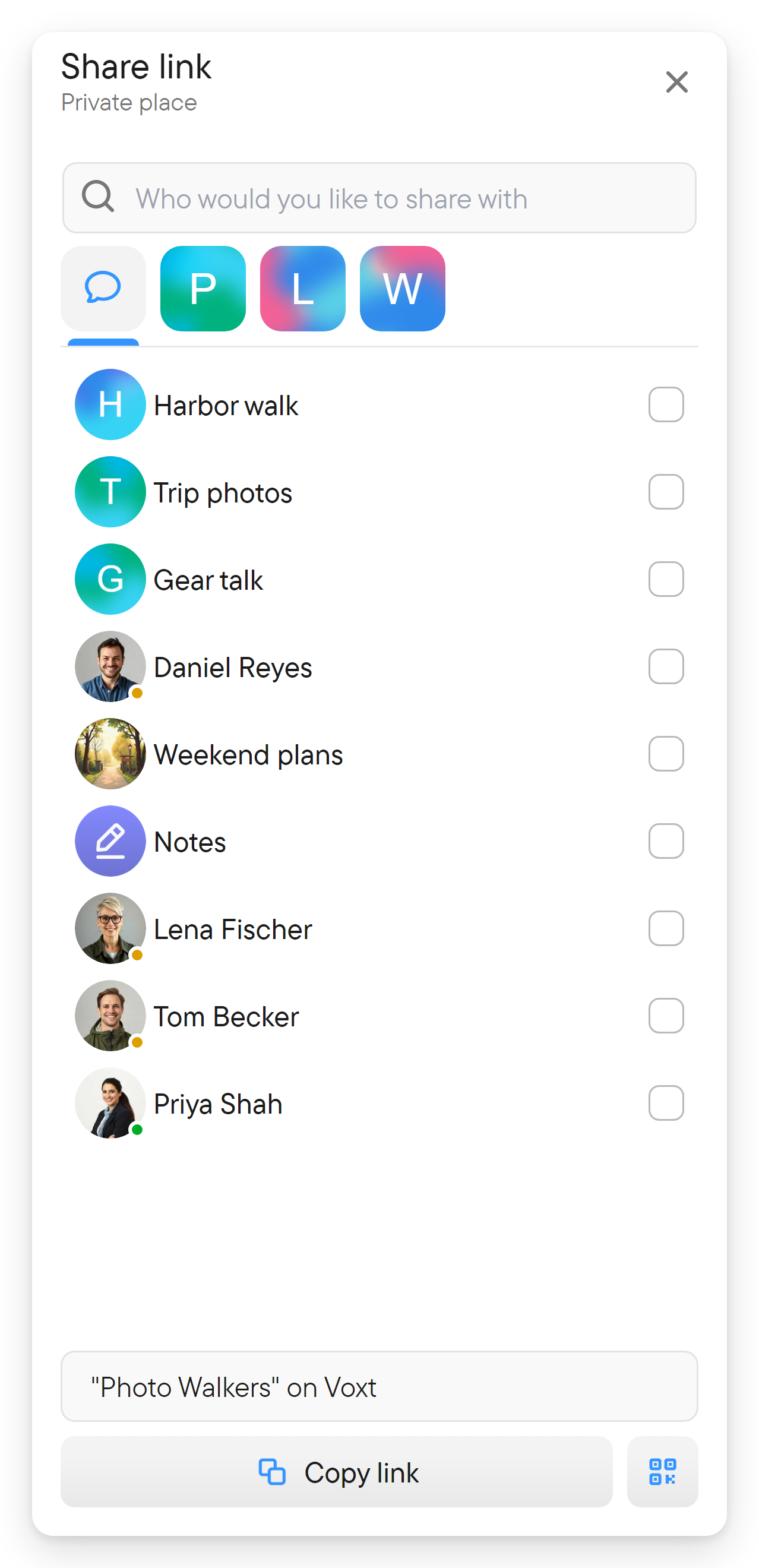
Use the place's sharing/invitation controls to invite people. A private invitation link grants joining access, so share it with the intended people. An owner can manage invitation links in the place type settings.
Edit a place
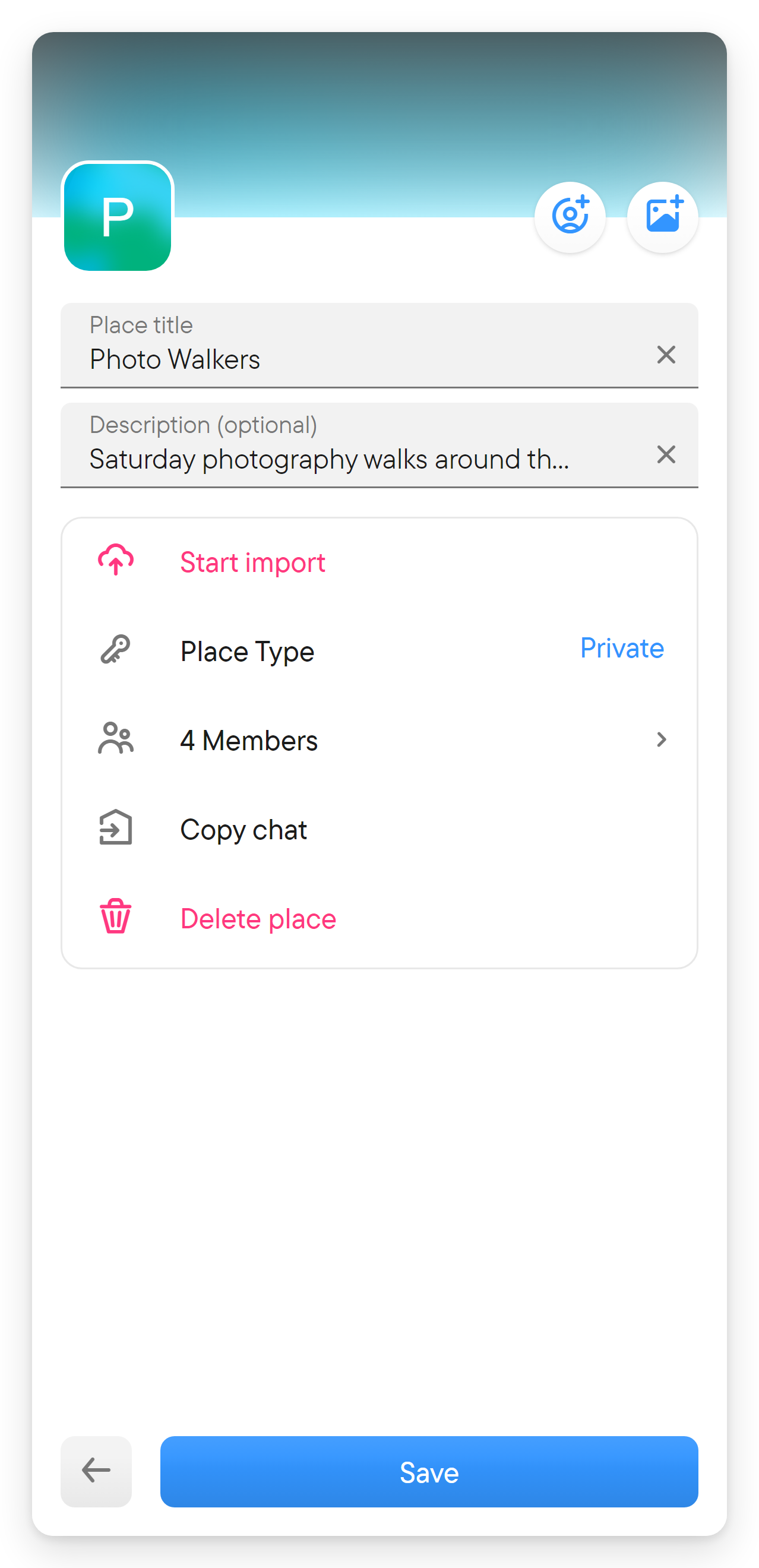
Open the place information and choose the pencil. With the required permission, you can change the title and description, and use the two buttons over the header to change the picture and the background image; select Save to apply the changes. The list below the fields has Start import, Place Type, the member count (opens member management) and Delete place.
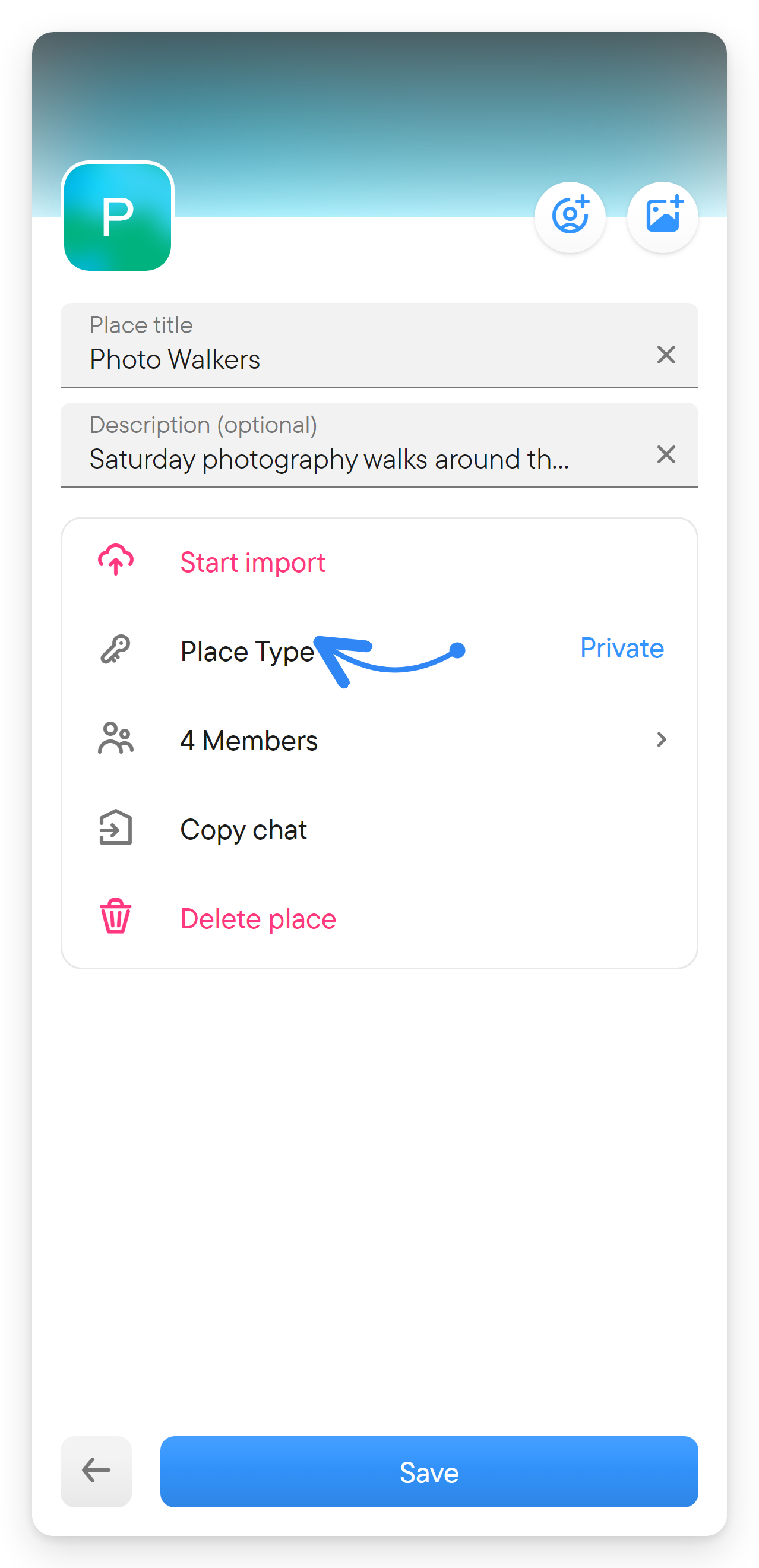
Place Type switches between Public and Private. For a public place it has an optional Custom link; for a private place, Manage links has New private join link. Changing a link affects how people reach the place, so share the updated link when you change it.
Start import works as described for chats in Chats: a place-wide import includes every chat in the place.
Leave or delete
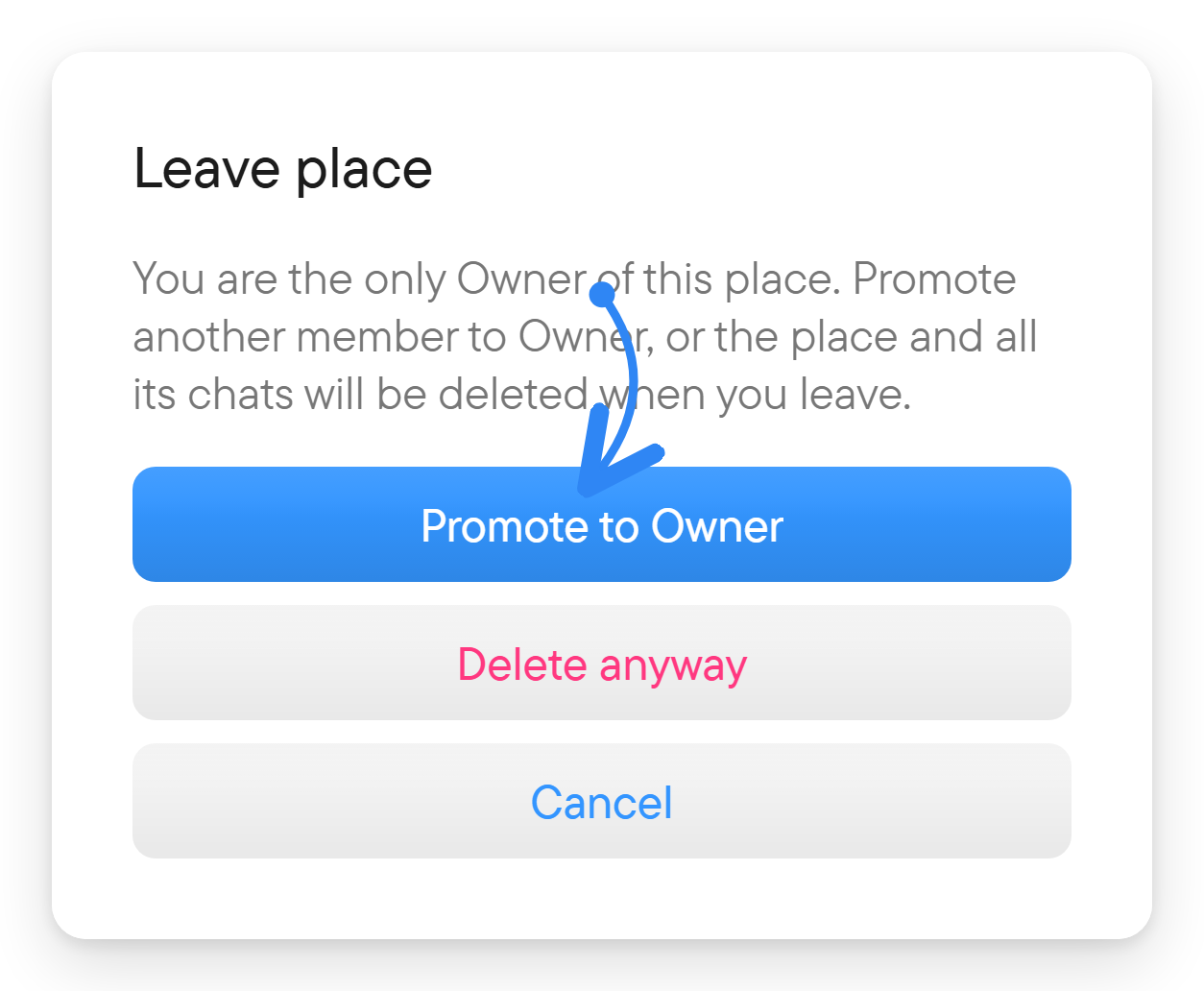
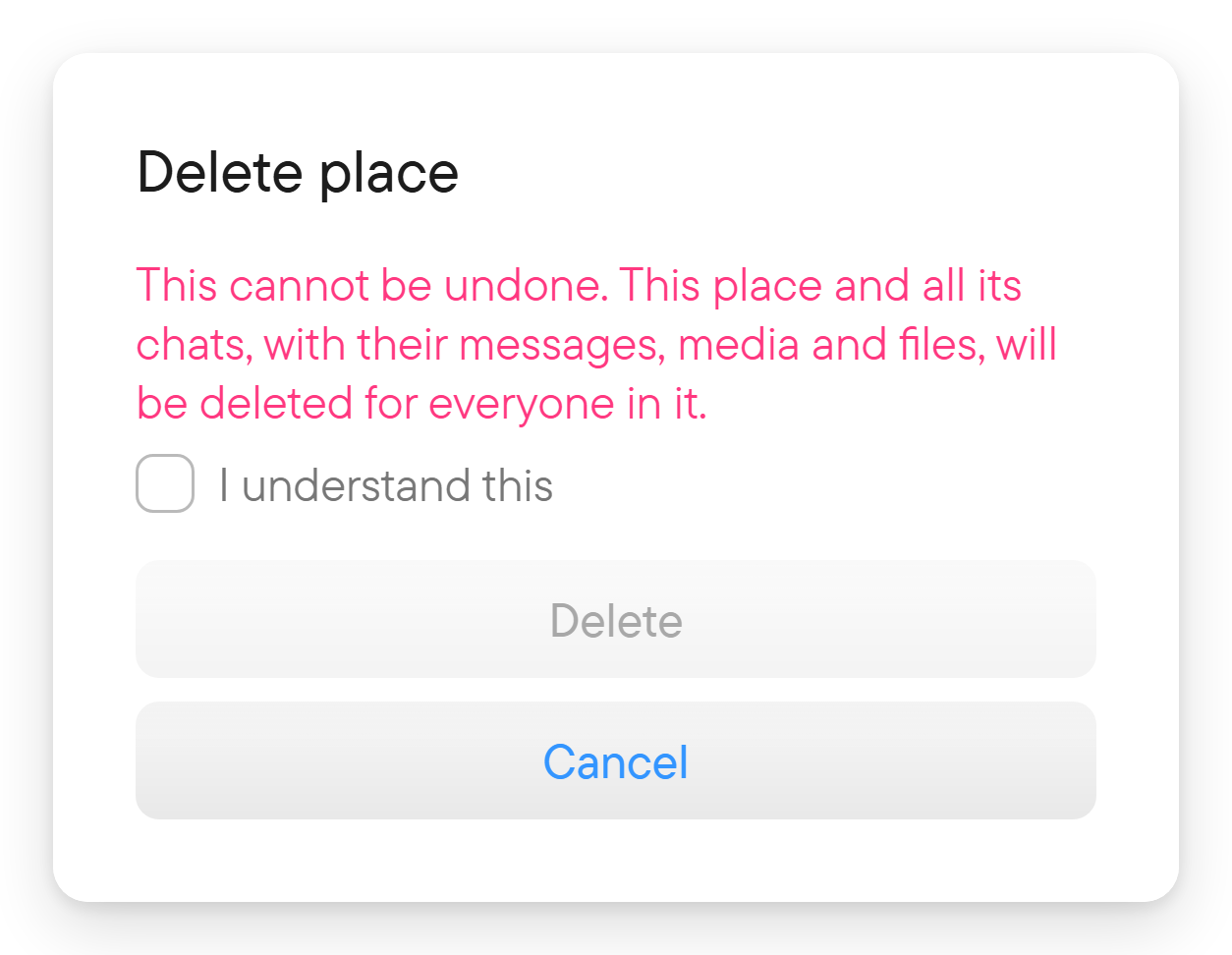
Use Leave place in the place menu when you no longer want to participate. Owners also have Delete place in their settings. Read the confirmation carefully: it says that the place and all its chats, with their messages, media and files, are deleted for everyone and that this cannot be undone. Deleting a place is different from removing its shortcut from your navigation. If you are the only owner and leave, the dialog says so and offers Promote to Owner, which opens Choose a new Owner with the other members; select one and confirm. If you are the only member, it offers Add members instead. Delete anyway deletes the place and all its chats when you leave.