
Your first conversation
Voxt brings text and live voice into the same conversation. You can write a message, speak while the other person reads the transcript, or catch up later from the history.

1. Sign in and choose a name
Open Voxt and follow the sign-in prompts. Choose an offered option (Google or Apple) or enter your phone/email and complete verification.
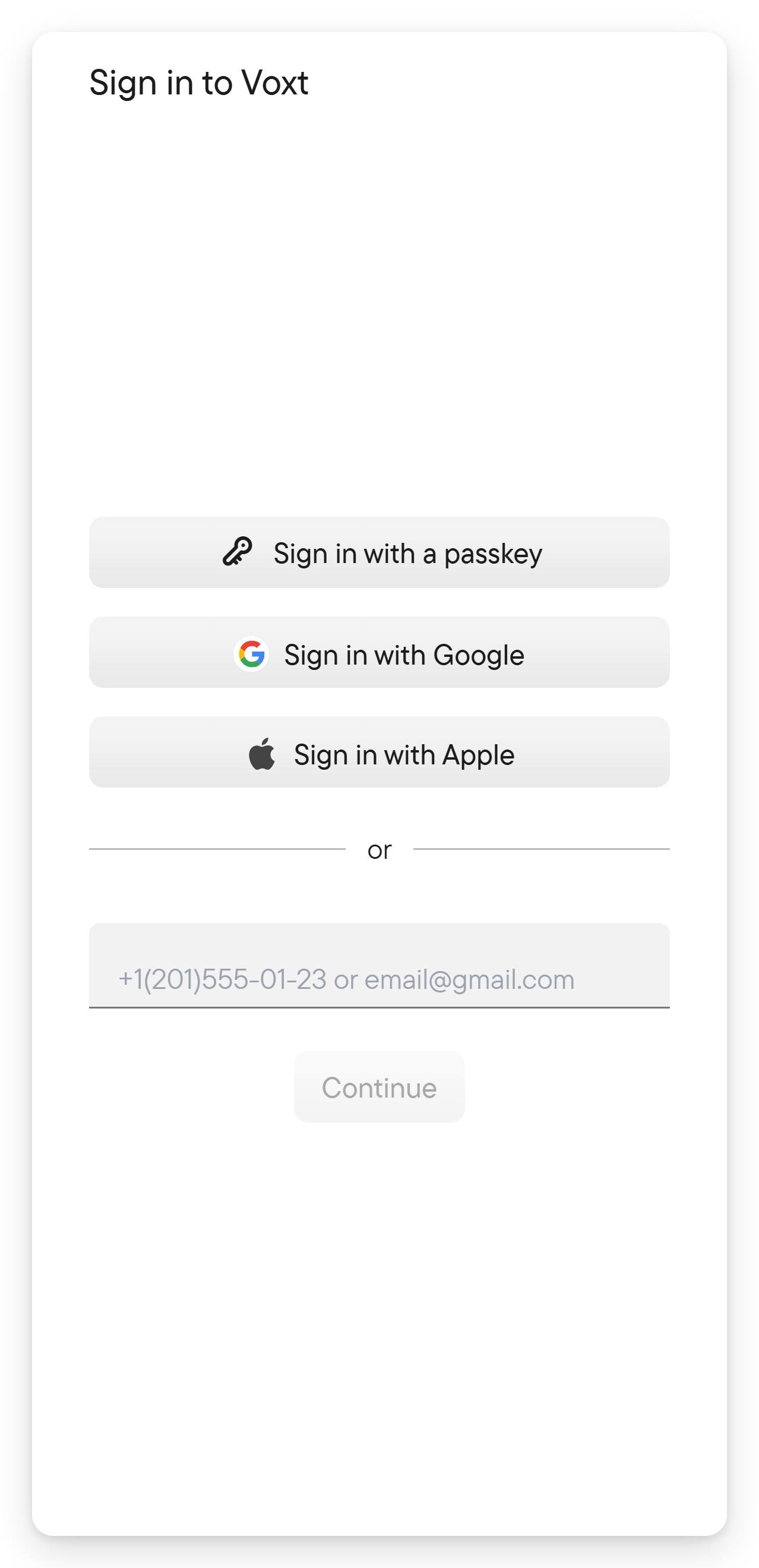
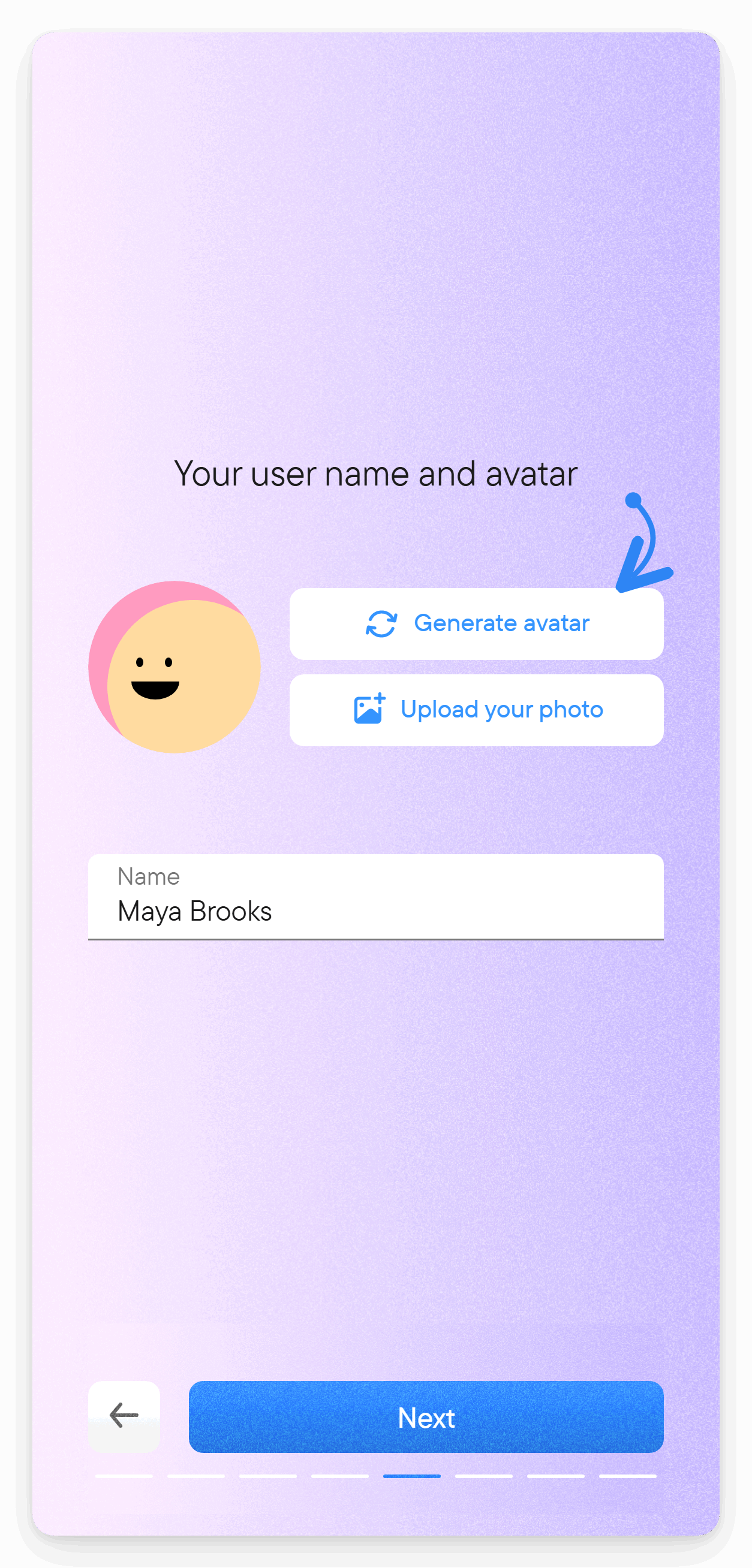
A new account then goes through a short introduction with three slides and a few setup steps: phone number (you can skip it), email, Your user name and avatar (Generate avatar or Upload your photo), Required permissions, Languages you speak and telemetry consent. Set up the profile people should see. You can change it later in account settings, and Restart walk-through there shows the hints again.
2. Find someone
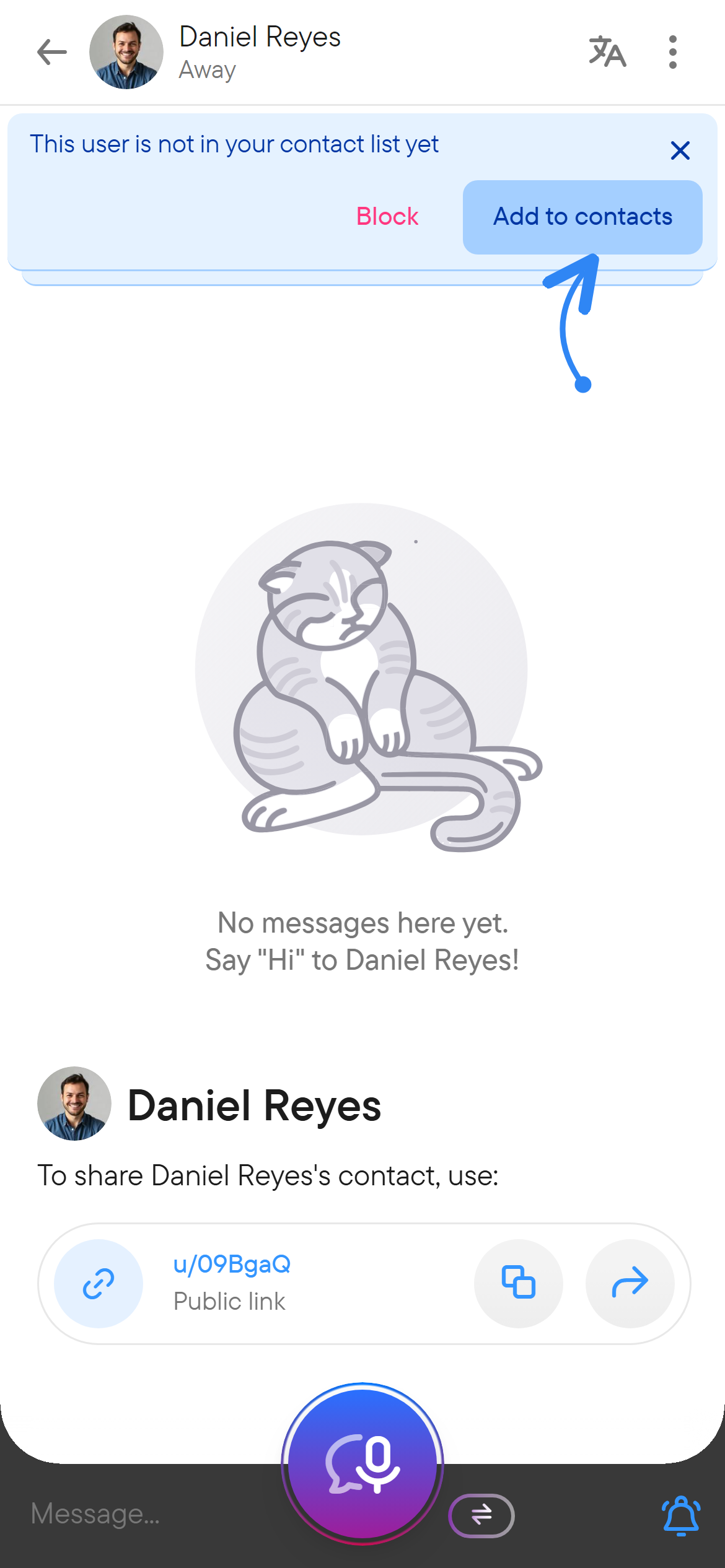
The easiest way is to ask the person for their profile link (or send them yours) and open it. If you are together, show your QR code and let them scan it with their phone's camera. If you have neither, search for the person. Whichever way you take, open their profile and choose the chat action, and select Add to contacts if you want to keep the person in your contacts. See Contacts for the details.
To bring several people together, create a group. Use a place when you need a collection of related chats.
3. Send a message
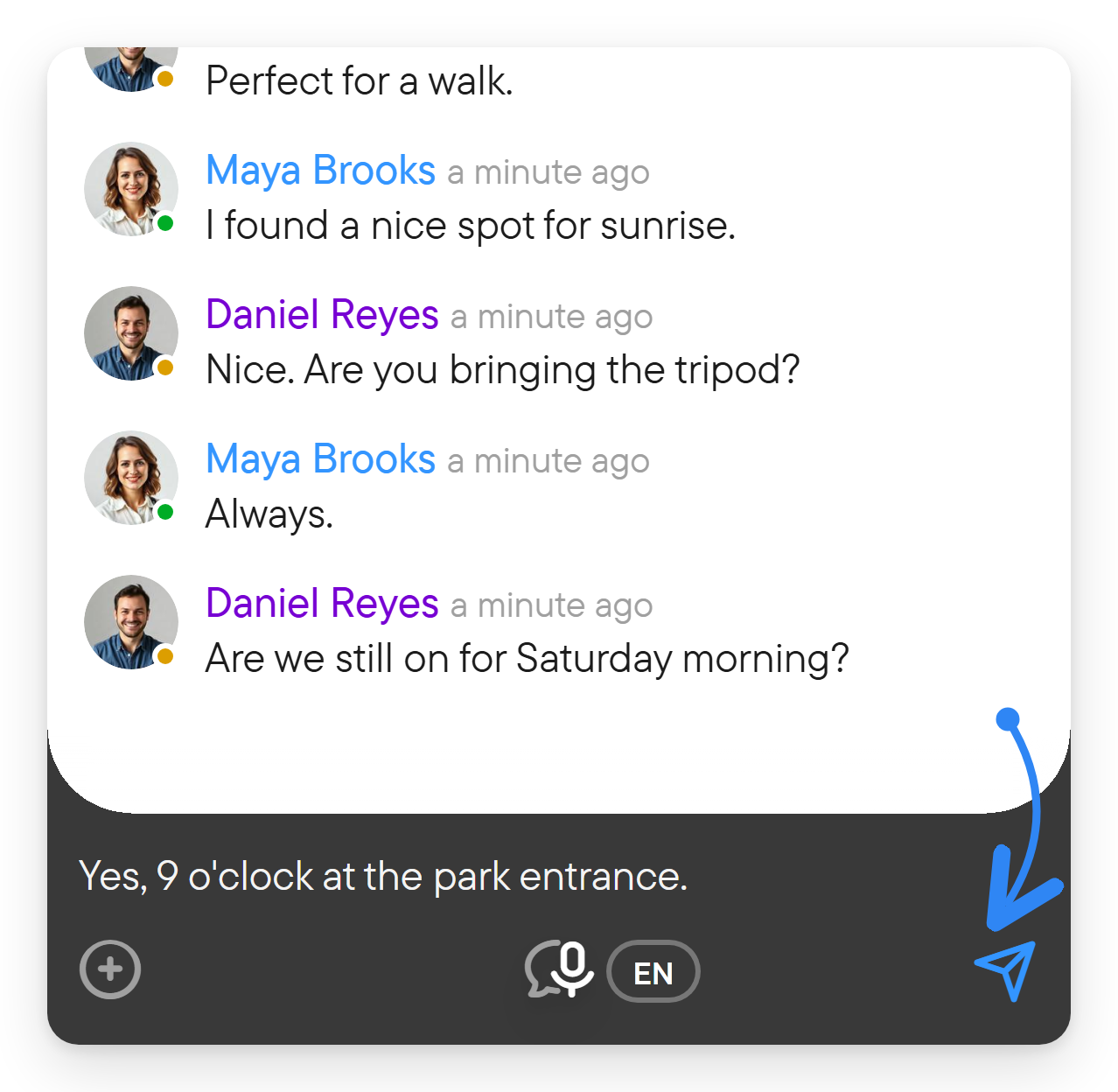
Type in the composer and select the paper-plane button. With a keyboard, Enter sends and Shift+Enter inserts a new line.
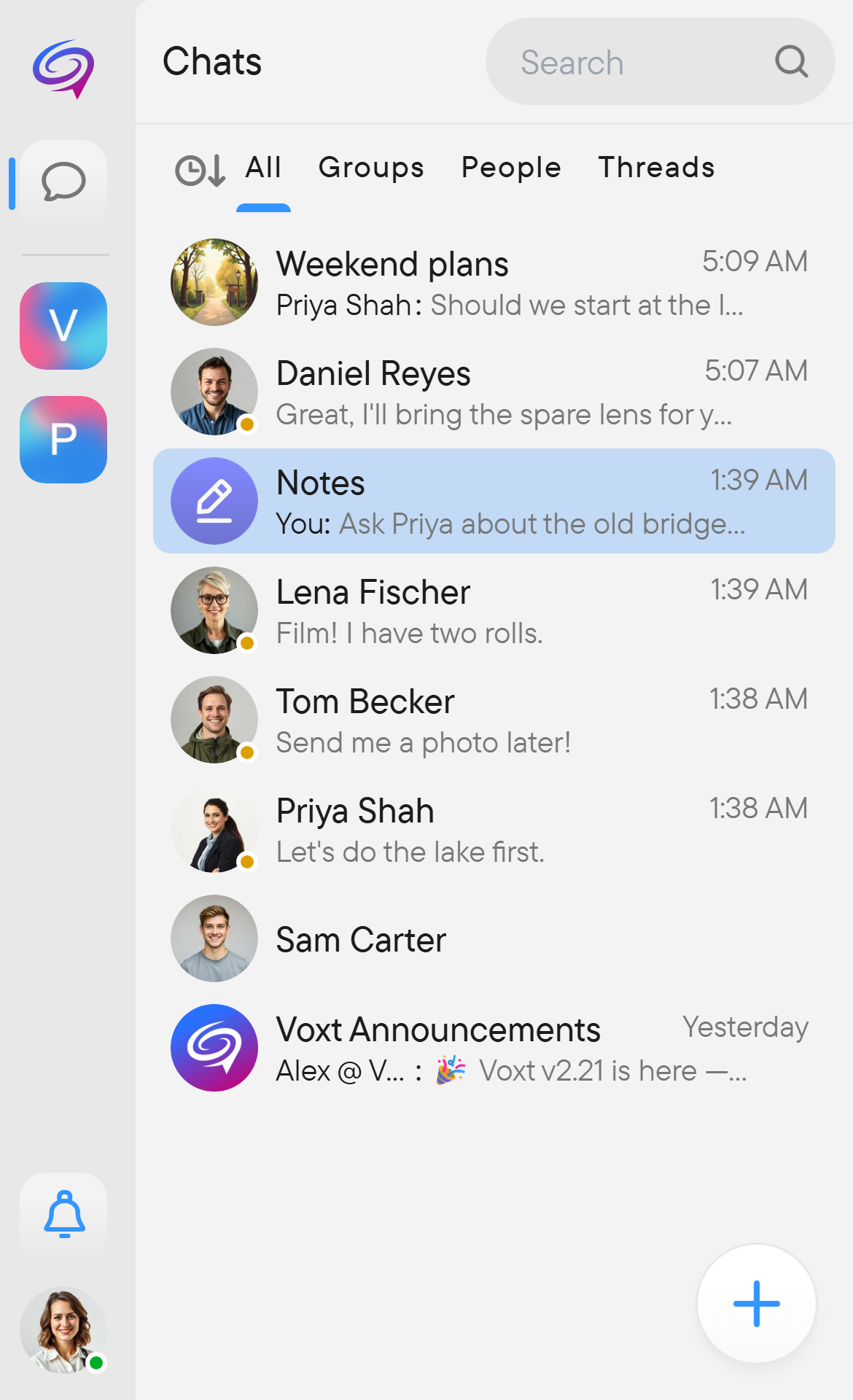
Open Notes when you want to keep a message or file for yourself.
4. Try voice when you are ready
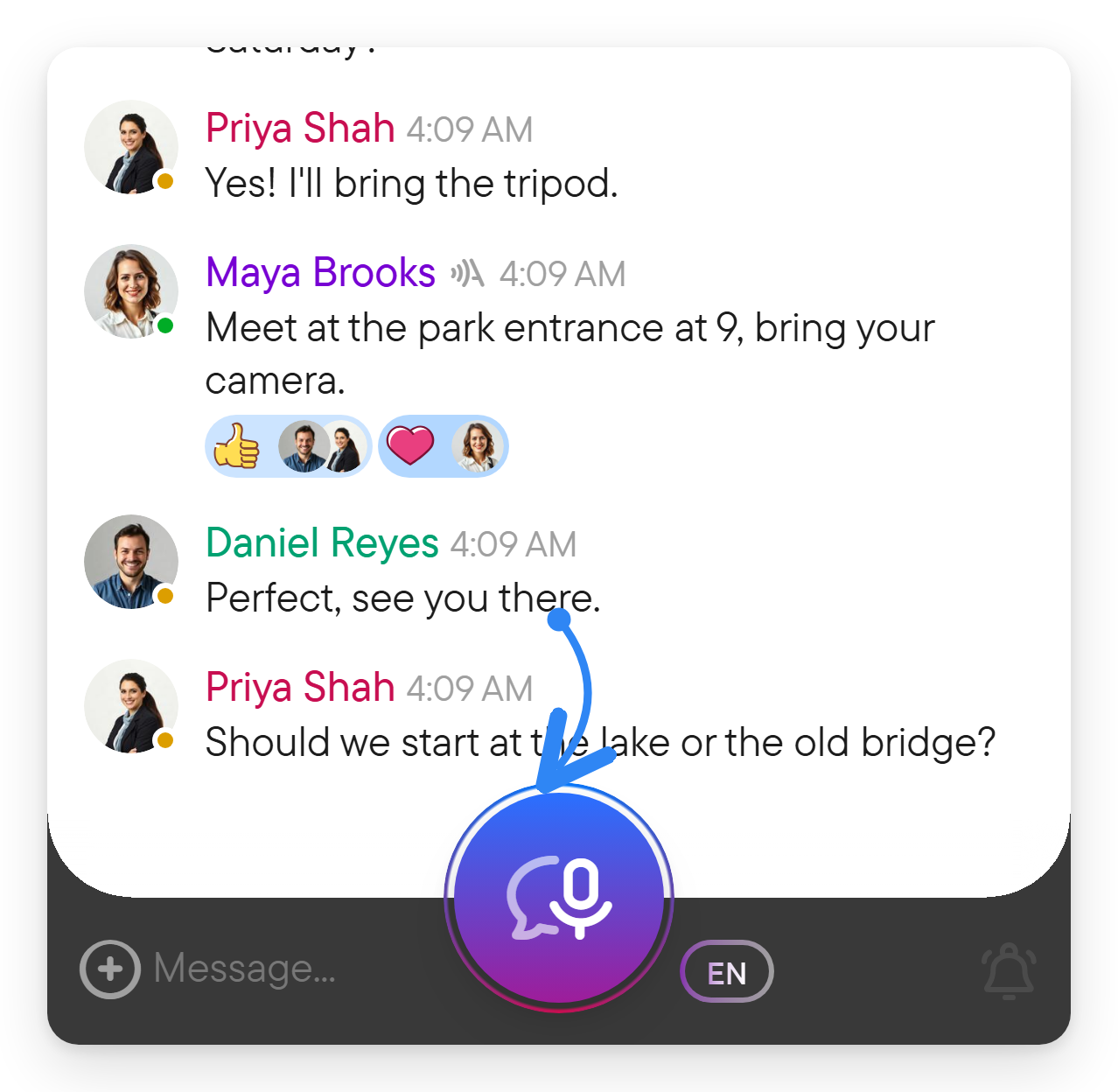
Open the intended chat, select its recording button, and allow microphone access. Your speech is sent as you speak and transcribed into the conversation. Select the button again to stop. See voice and transcription before joining a live conversation: its Join action starts your microphone.
5. Come back and catch up
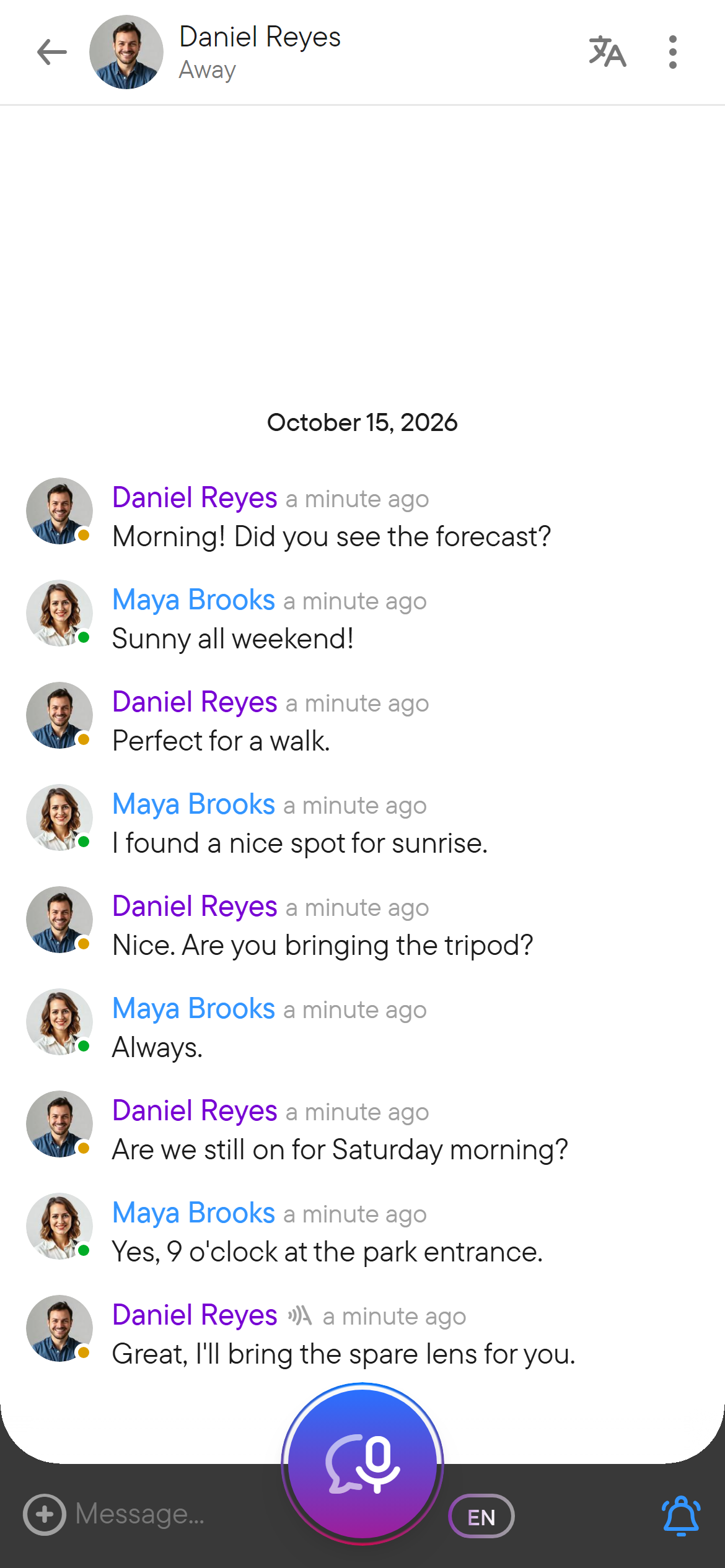
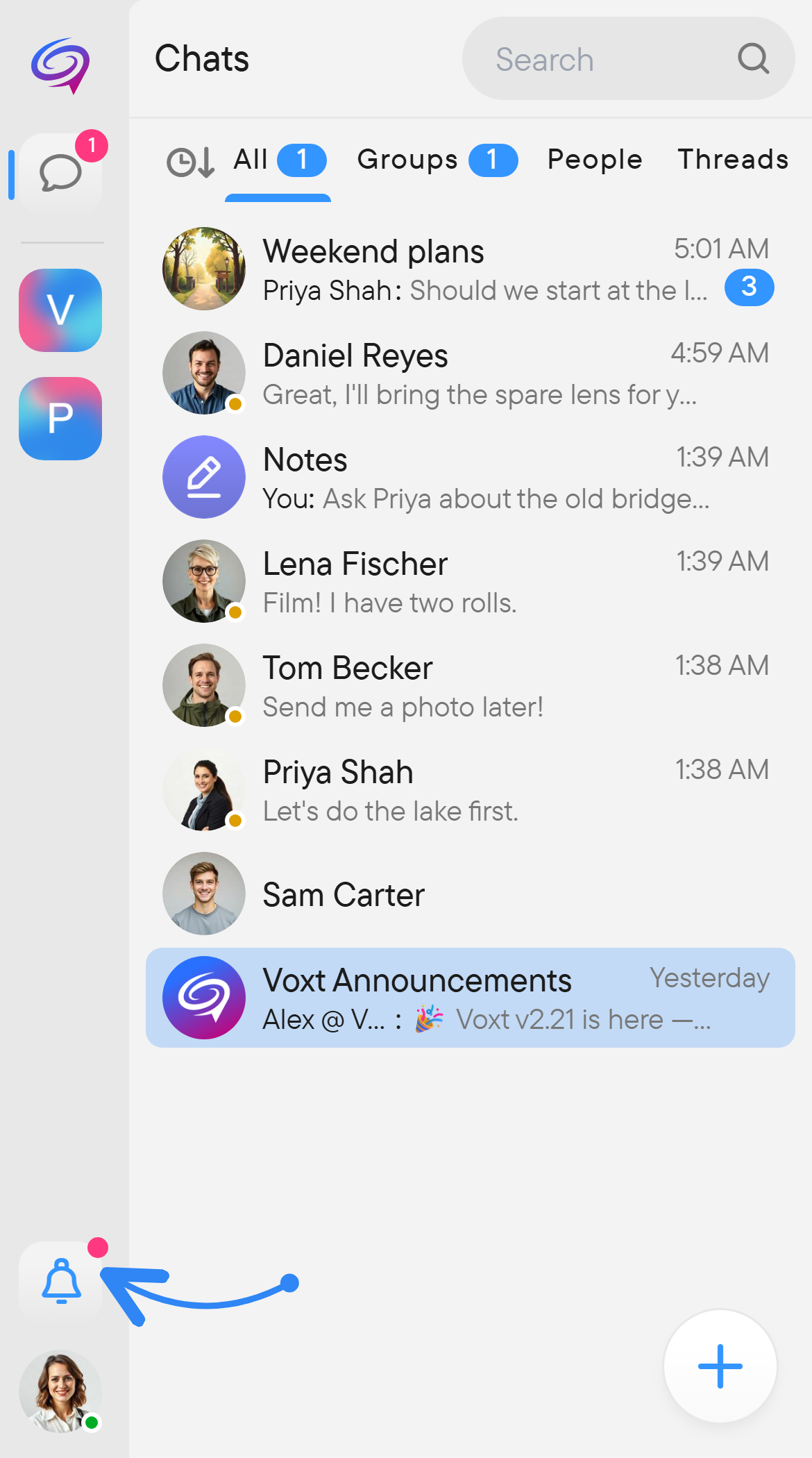
Use your chat list or Notifications to find new activity. Search for something you remember, open a thread for a focused discussion, or replay a voice message.
Where next?
- Interface guide to locate the controls.
- Files and photos to share something.
- Translation for a conversation across languages.
- Troubleshooting when something does not work.