
Threads
A thread is a named discussion connected to an existing chat. Use one when a topic needs its own conversation without taking over the parent chat.
Start a thread from messages
- Open a message menu and choose Start thread.
- Enter a Thread title and, optionally, a description. Voxt may suggest these from the selected messages; you can change the suggestion.
- Select Create and continue the discussion in the thread.
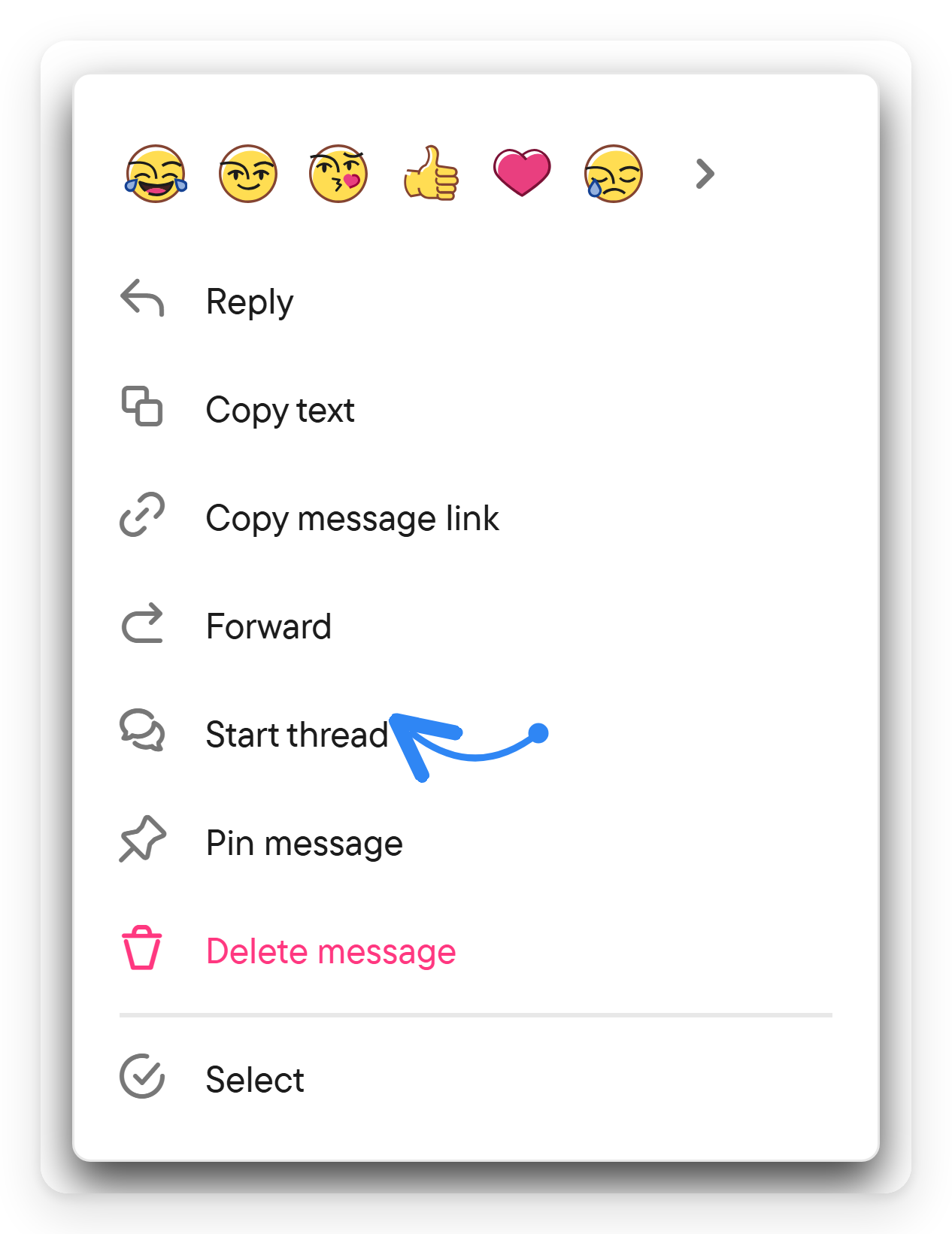
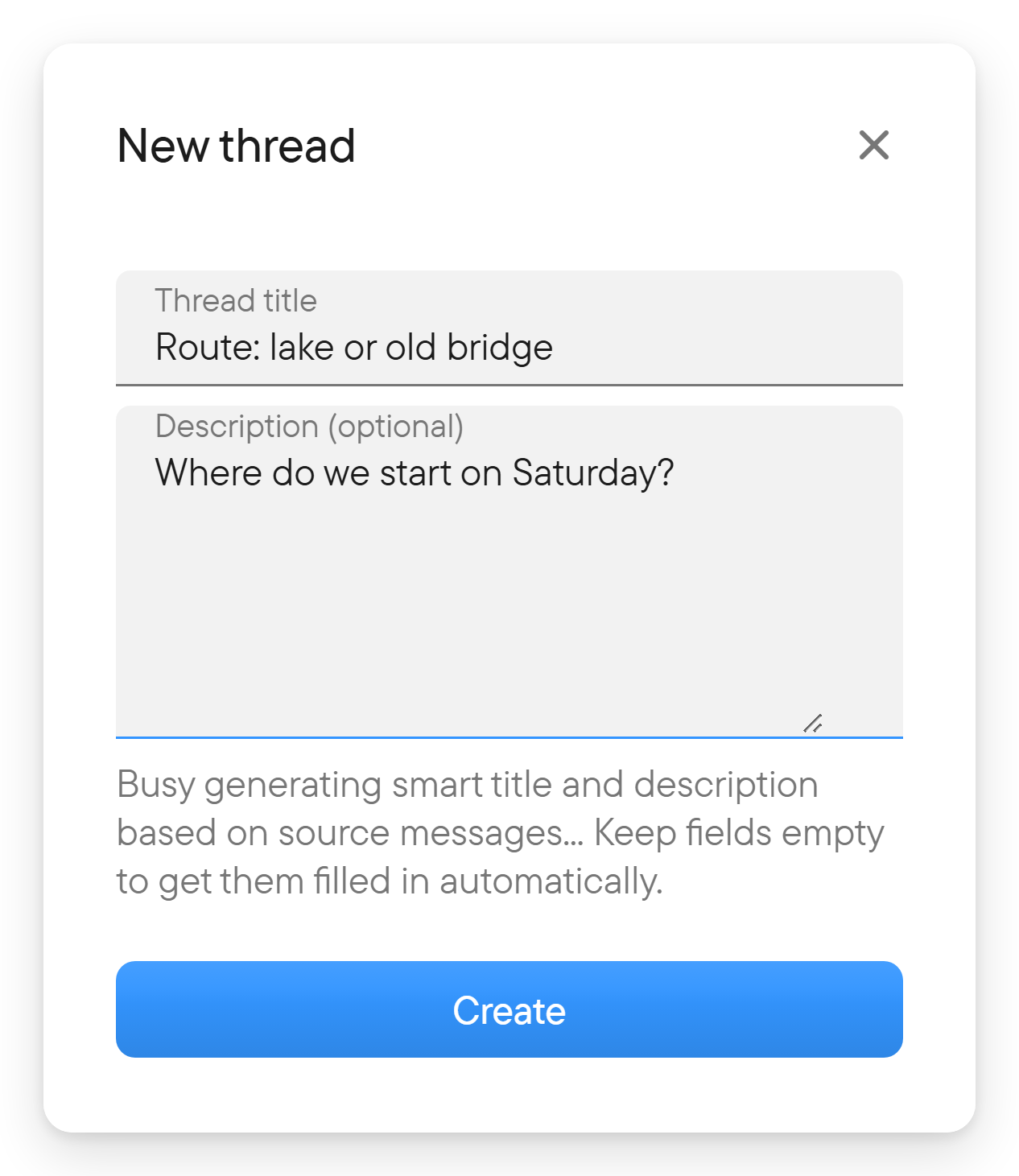
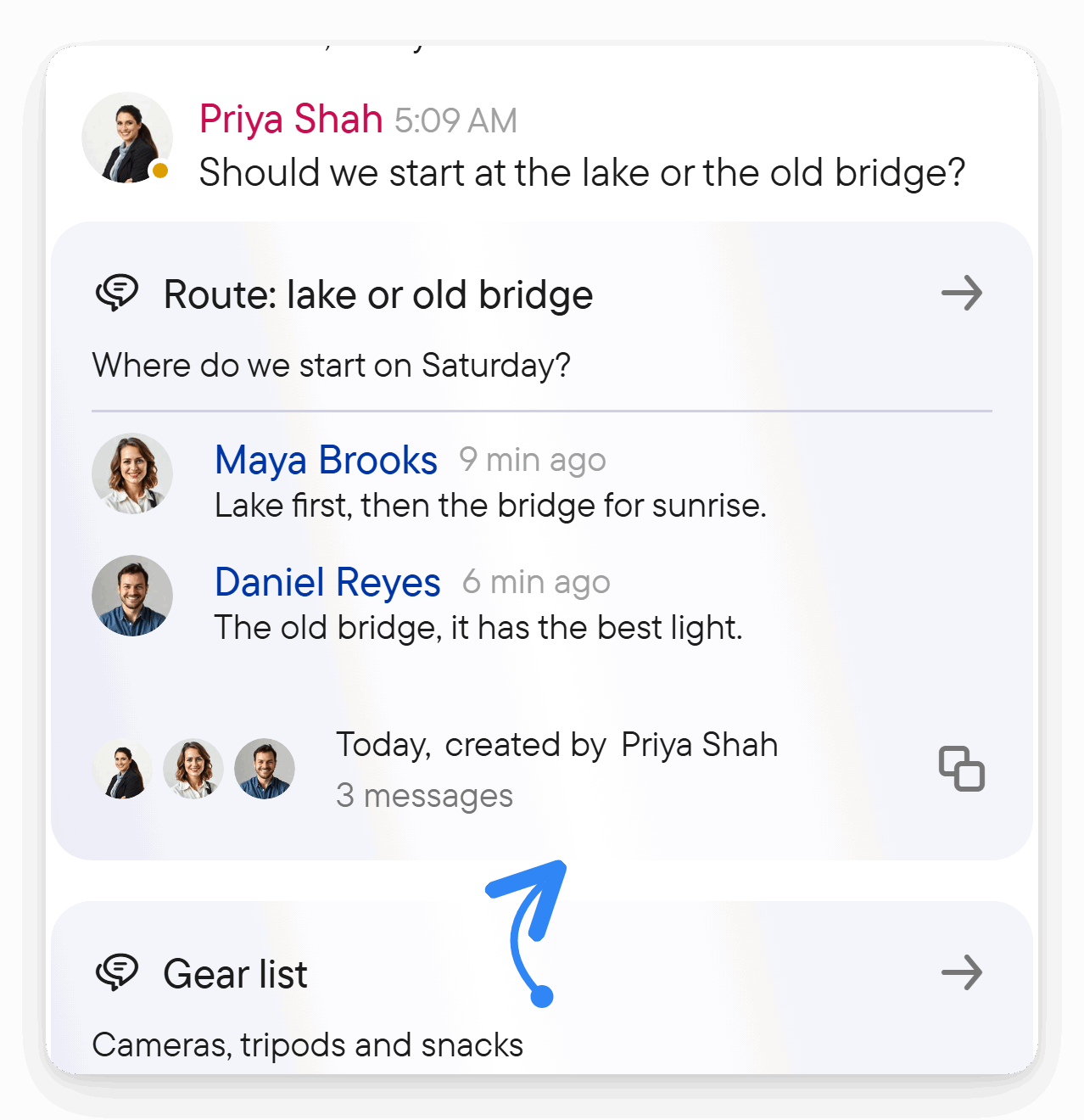
To include several messages, select them first and then use Start thread. The chosen messages move into the new thread. In the parent chat, a thread card takes their place; it shows the title, the description, the latest message, the author of its first message and how many messages it has. Select the card to open the thread.
Find and follow a thread
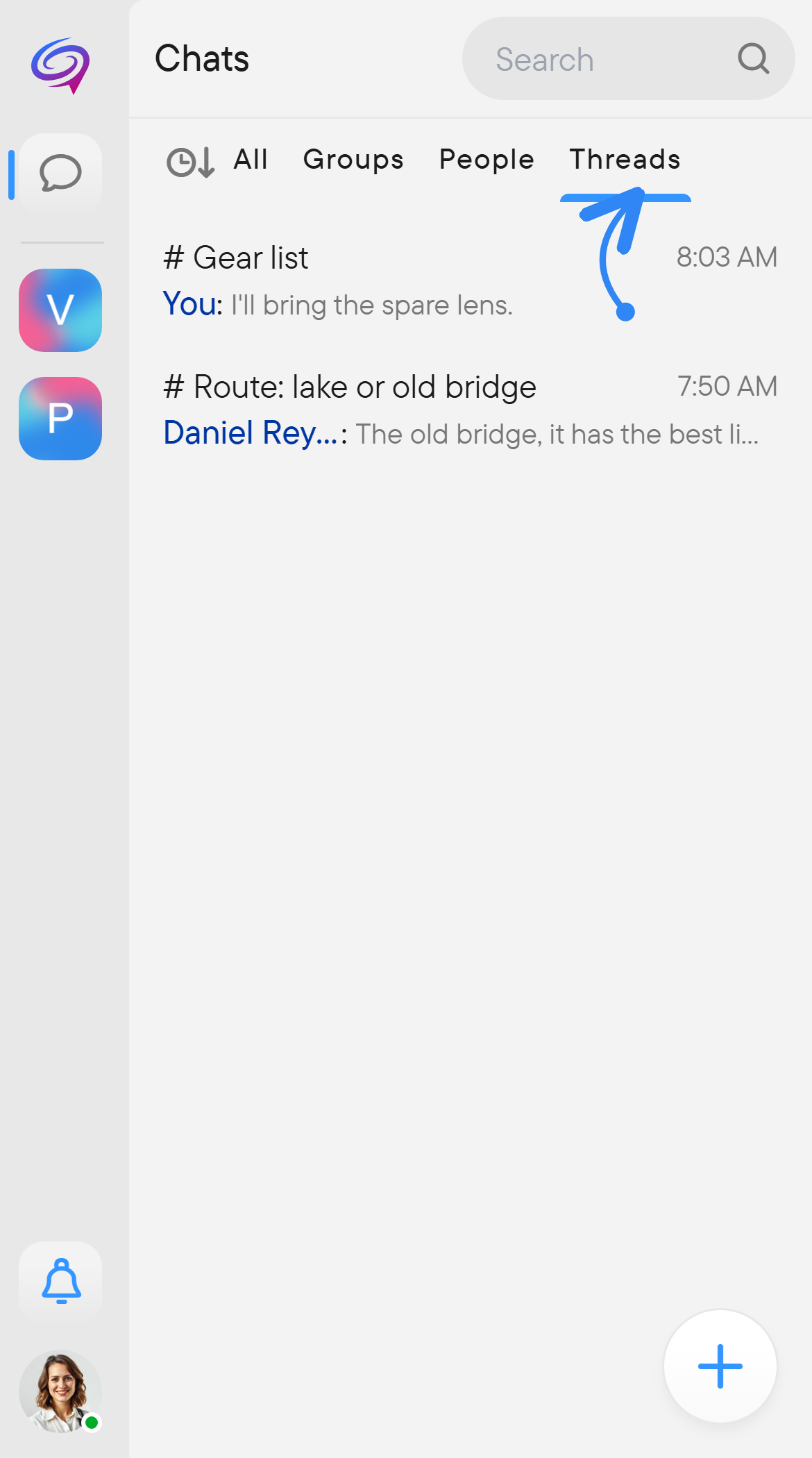
Open the chat's right panel and choose Threads, or use the Threads filter in the chat list. Open a thread to read and reply.
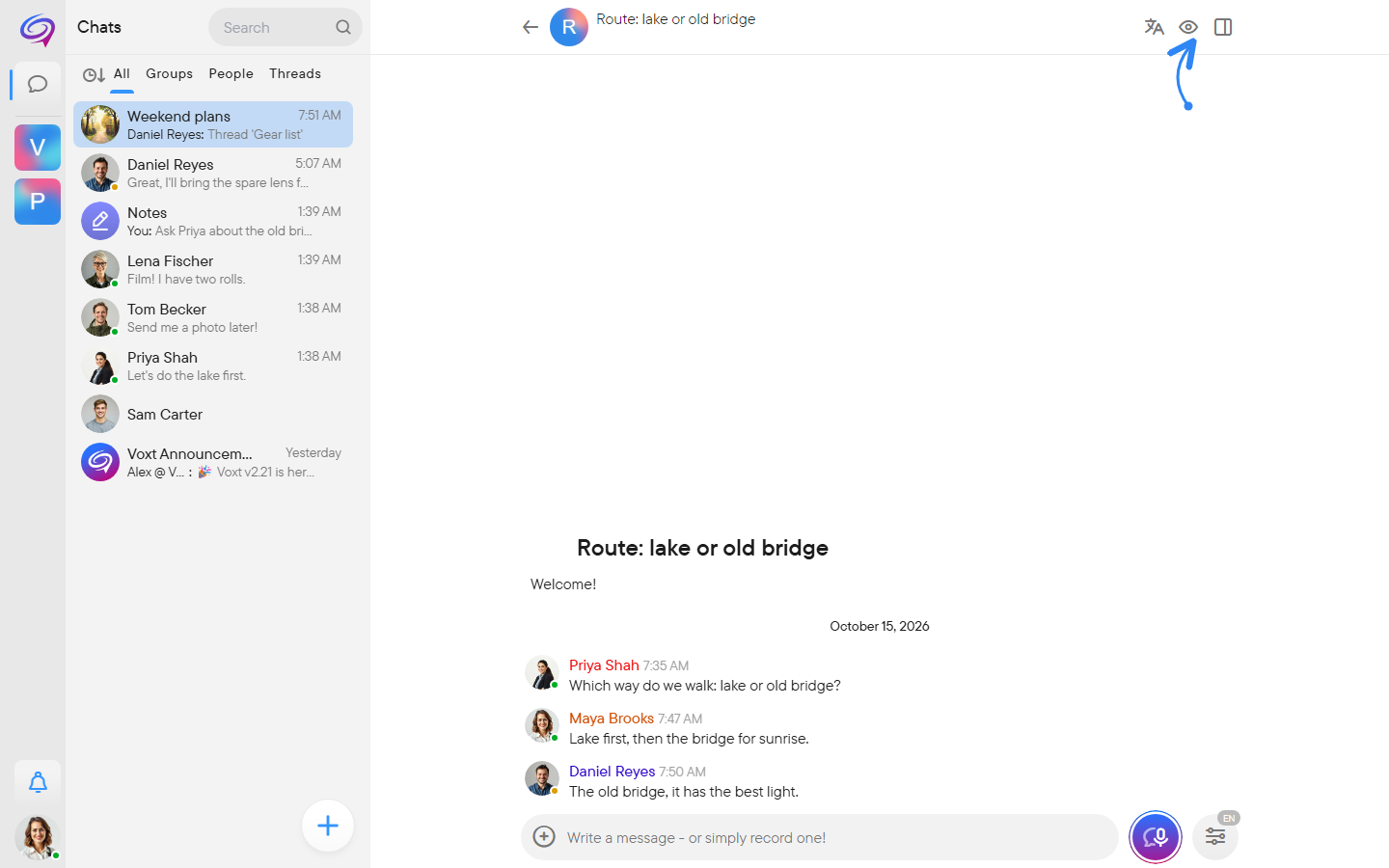
The thread header has an eye button for Follow thread / Unfollow thread. The person who starts a thread follows it. Follow discussions you want to keep track of; unfollow those you no longer need to follow.
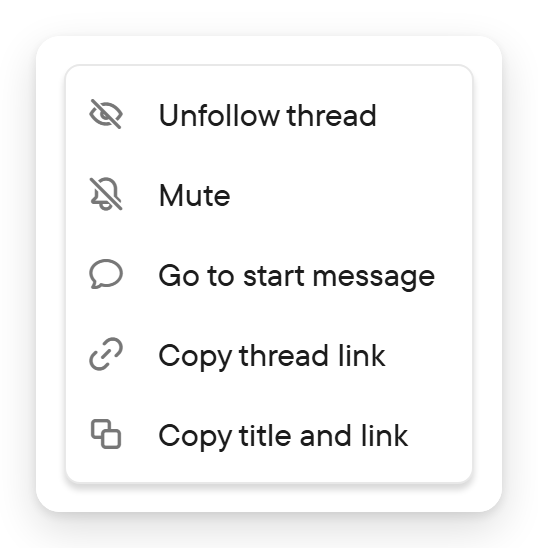
The menu of a thread in the right panel's Threads list (right-click or long press) offers Follow thread or Unfollow thread, Mute (or unmute), Go to start message, Copy thread link and Copy title and link.
A thread remains subject to access to its parent conversation. Sharing its link does not make private content public.