
Voice and transcription
Voxt lets you talk live while the conversation also appears as text. People in the chat can listen, read the transcript, or return to it later. You can switch between typing and speaking in the same chat.
Start and stop speaking
- Open the chat you want to speak in.
- Select the microphone/recording button beside the message composer.
- Allow microphone access when your browser or device asks.
- Speak. Check the recording indicator: it shows that your microphone is active, and the transcript appears in the conversation as speech is recognized.
- Select the recording button again to stop.
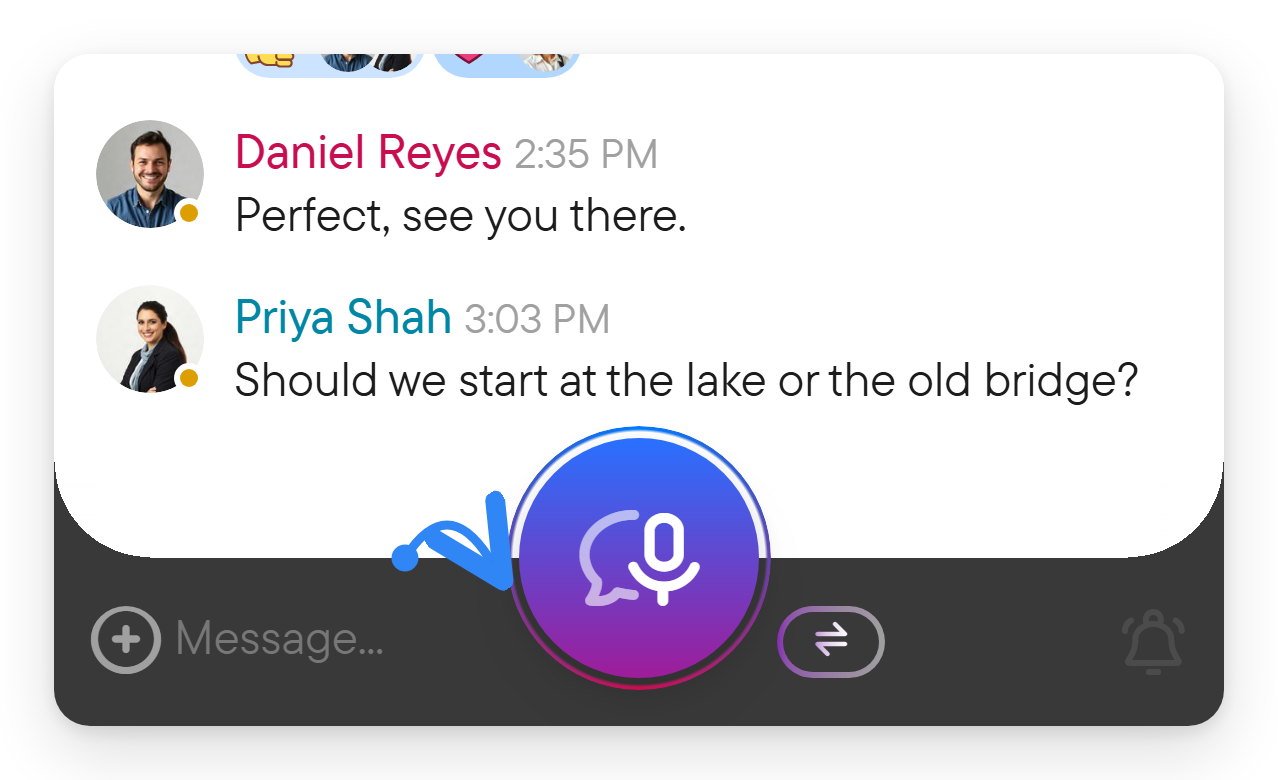
Recording sends your speech to the chat as you speak; there is no separate Send step for the completed recording. Stop the microphone when you have finished. A connection or permission error is shown on the recording control; check that recording actually started before continuing.
Join and leave a live conversation
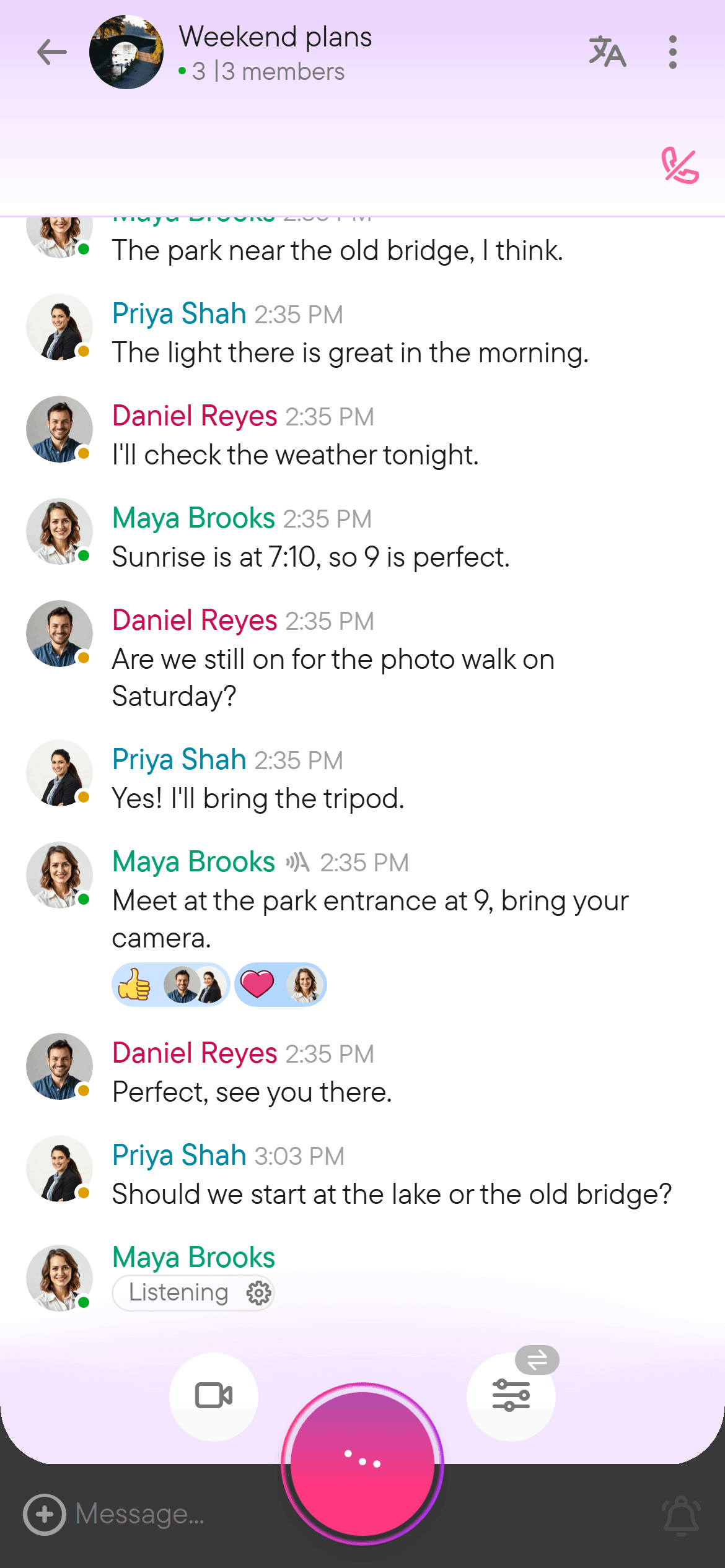
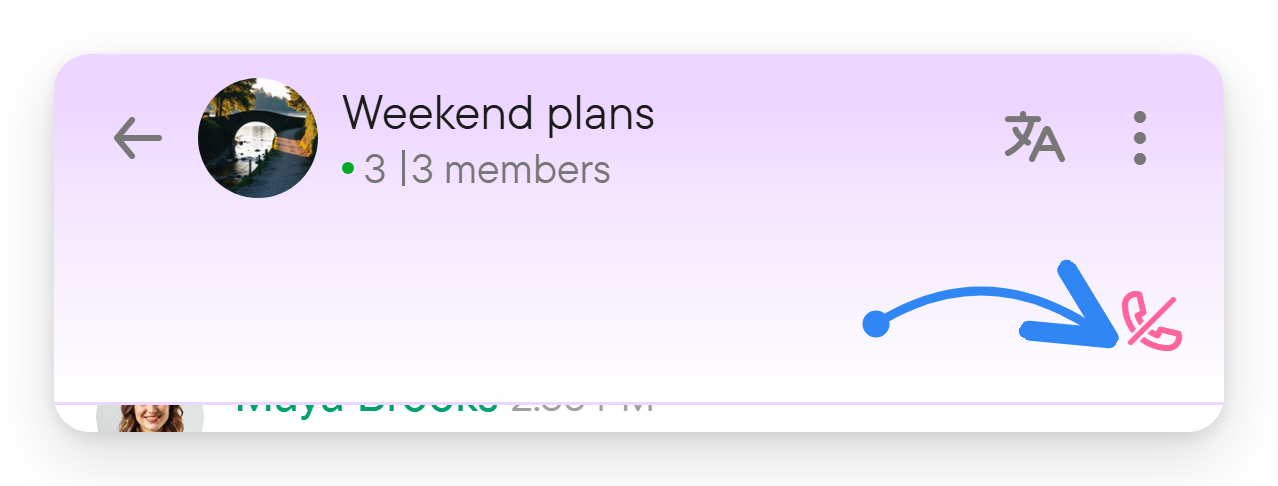
When a live conversation is visible, select Join on its conversation block to participate. This starts your microphone as well as joining the conversation, so be ready to speak. Switch the microphone off when you finish your turn. To leave, use Hang up in the chat menu; during the final listening countdown, the action is Stop listening. Leaving only stops you listening and speaking, so Join is shown again if you want to come back.
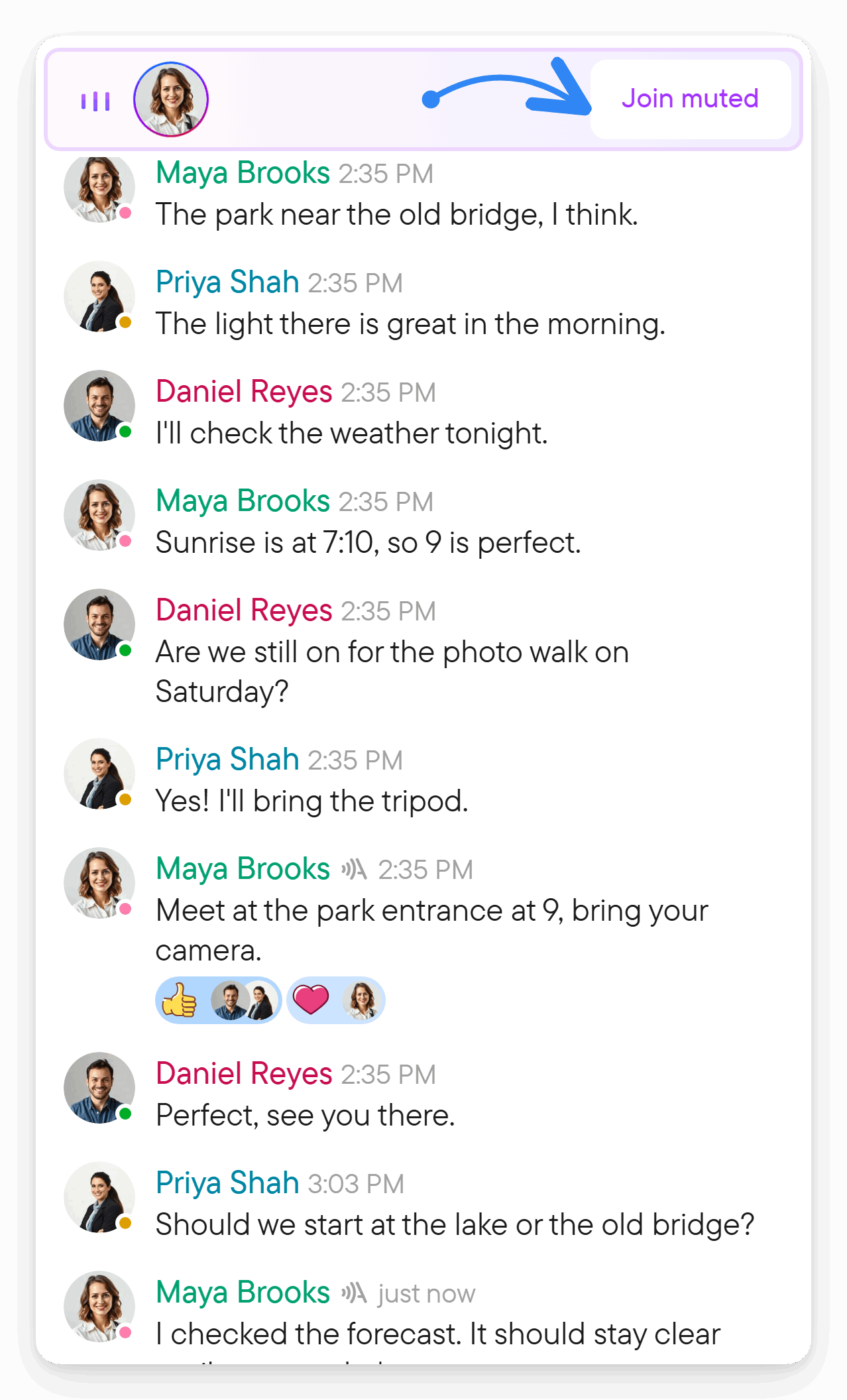
The live conversation block shows the ongoing conversation in the chat. Its header stays at the top while you scroll through the block. Expand it to read more, or collapse it to keep browsing. A block you have never joined is tinted differently from one you attended. The right panel's Call view shows the live participants when a session is active.
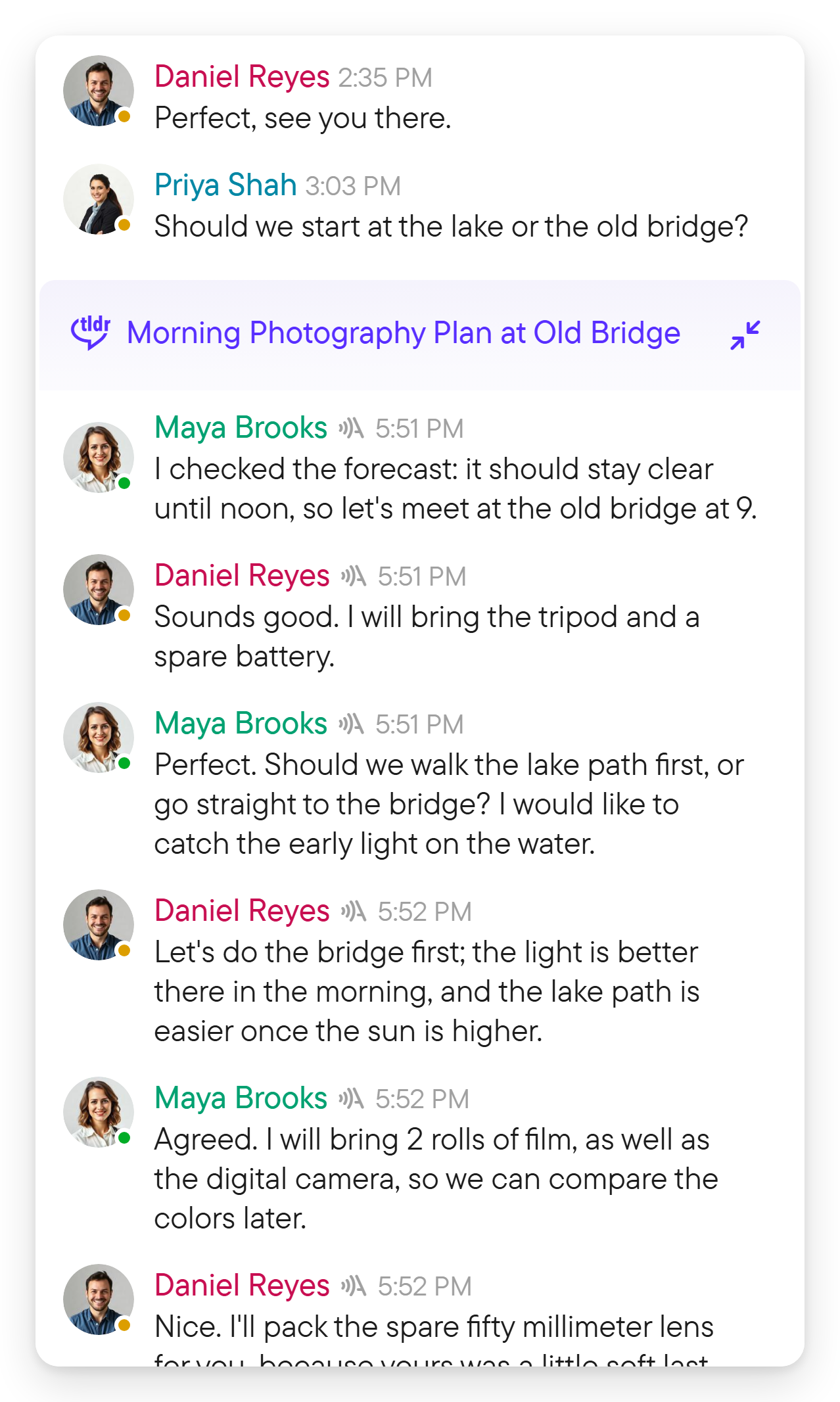
If you have translation turned on for the chat and Hear translations spoken is on in your voice settings, the block's header also shows a Translated voice button (headphones). It switches, for this chat, whether speakers of other languages are replaced by a spoken translation in your language. The translation language dialog shows the chat's state as On in this chat or Off in this chat when it differs from your general setting.
Screenshot — Translated voice button
The header of a live conversation block with the Translated voice (headphones) button.
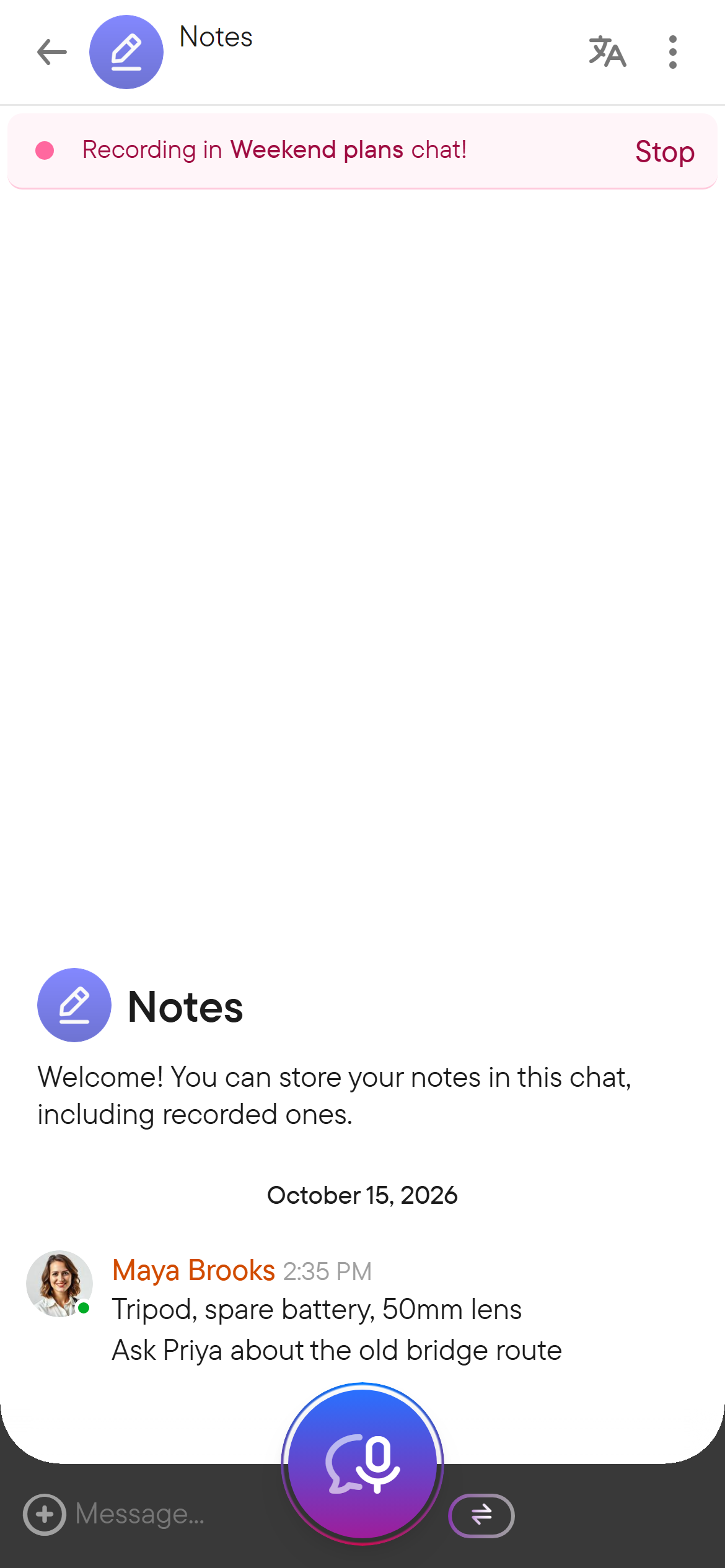
When you leave a chat while its microphone, camera or screen share is still running, a banner at the top names that chat and offers Stop. When recording is about to end after silence, the banner counts down the seconds.
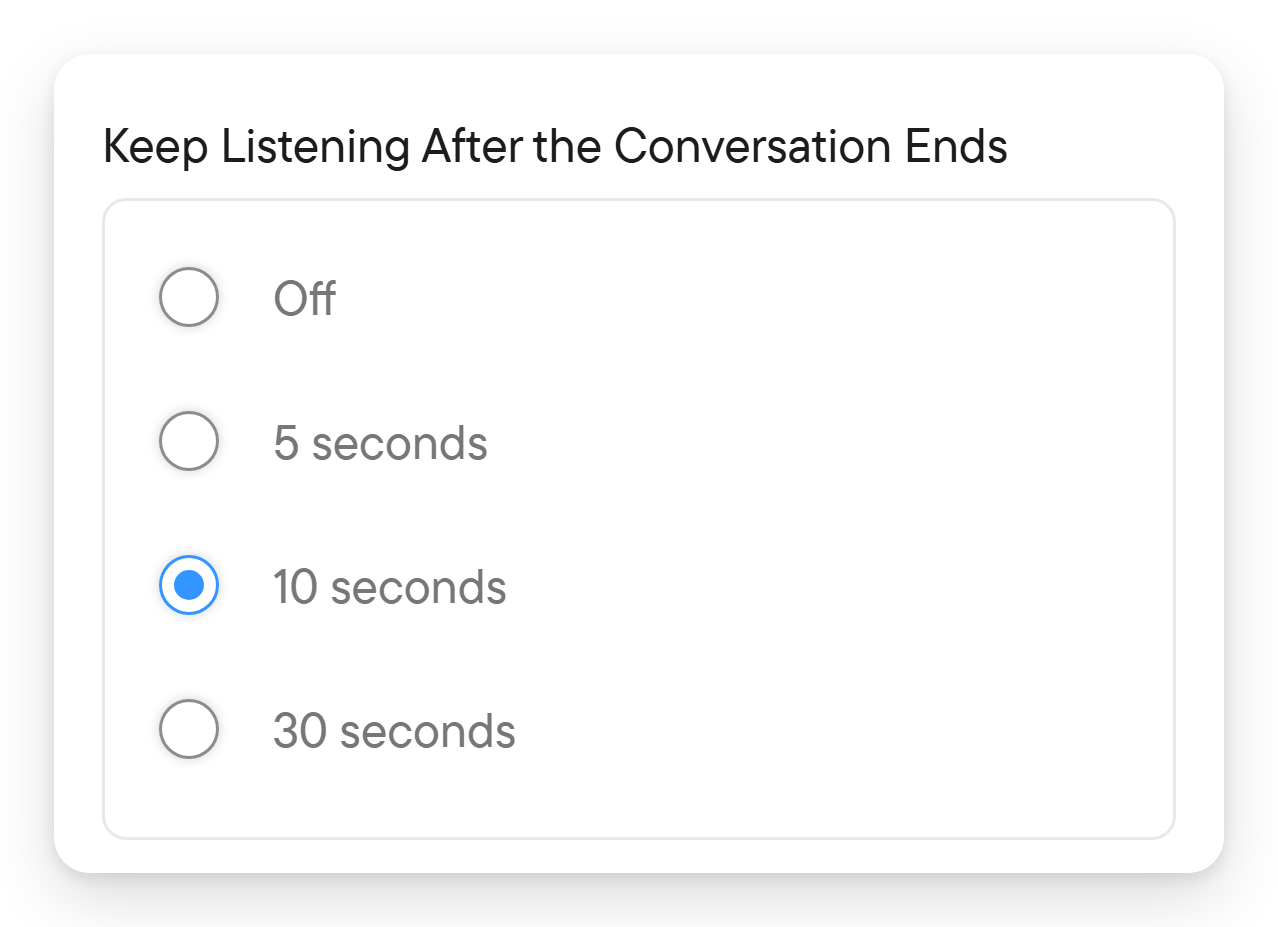
Stopping your microphone does not always stop incoming sound immediately. In Settings → Voice & Transcription → Keep Listening After the Conversation Ends, choose Off, 5 seconds, 10 seconds, or 30 seconds. This controls the extra listening period after a conversation ends, so a short follow-up can still be heard.
Choose your transcription languages
Open Settings → Voice & Transcription and select your primary language. You can also select a second and a third language, or leave the optional languages set to None.
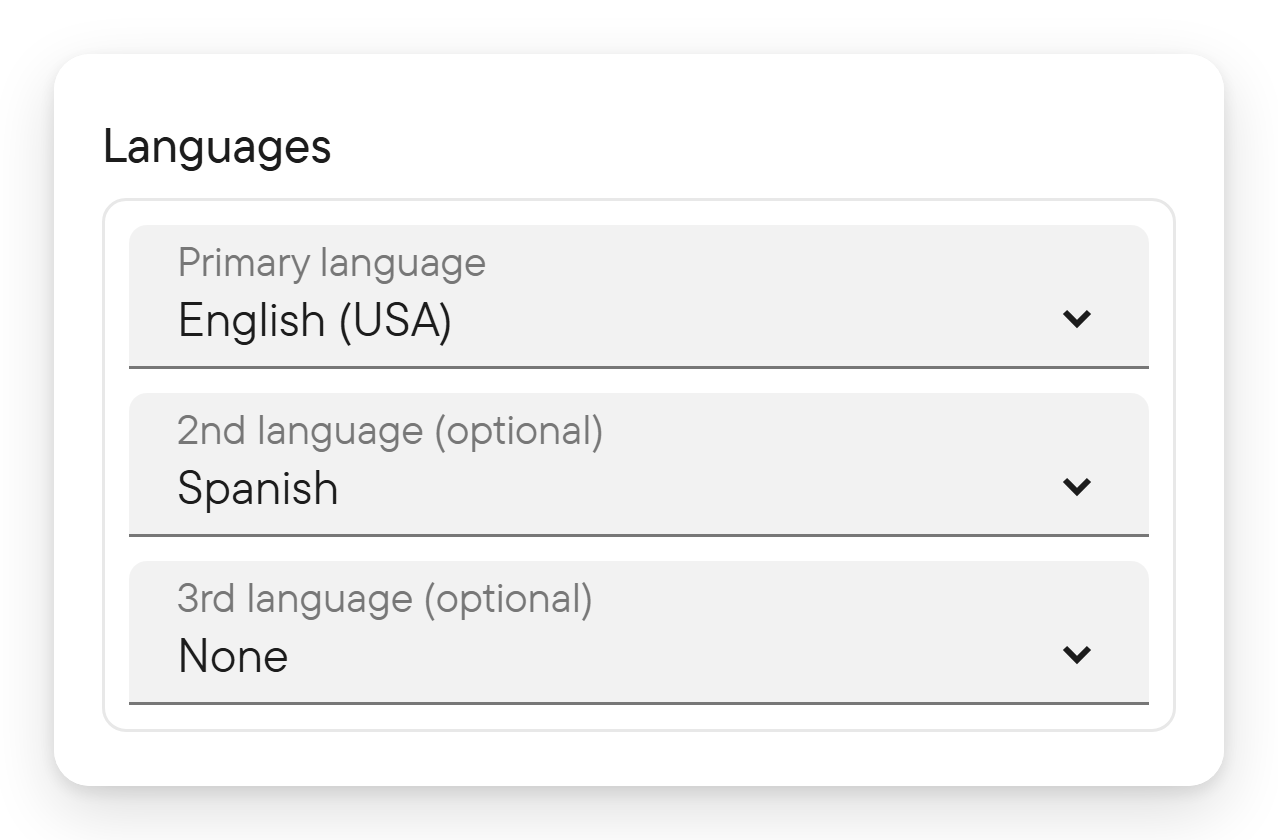
These are the languages you speak or read. They are separate from the language of menus and buttons. They are also the languages you can choose when you translate a chat: the translation target is picked from this set, so add a language here before you can translate into it.
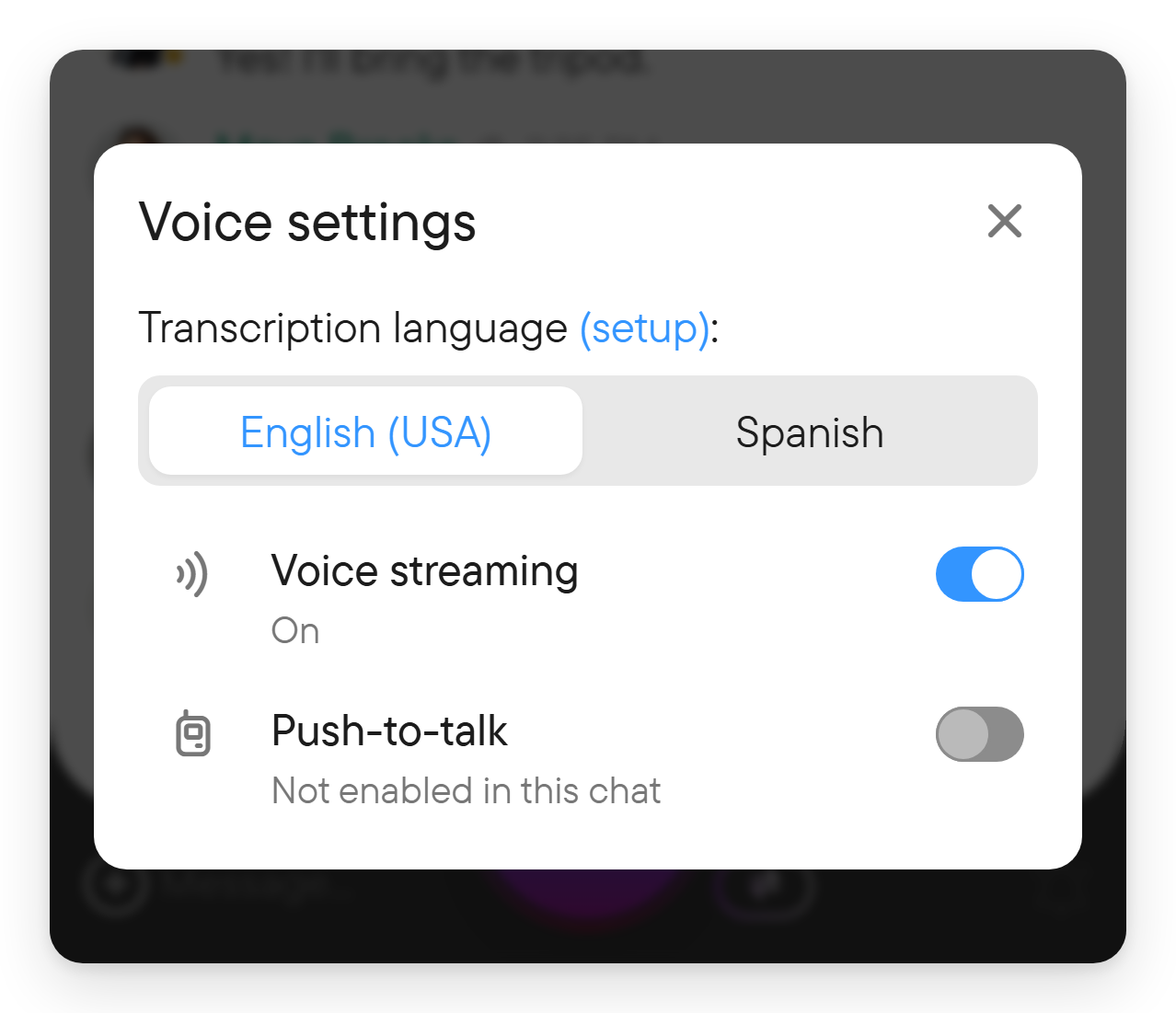
For a particular conversation, open Voice settings beside the chat's audio controls to review the language choices. Use the language you are actually speaking to help transcription recognize words and names.
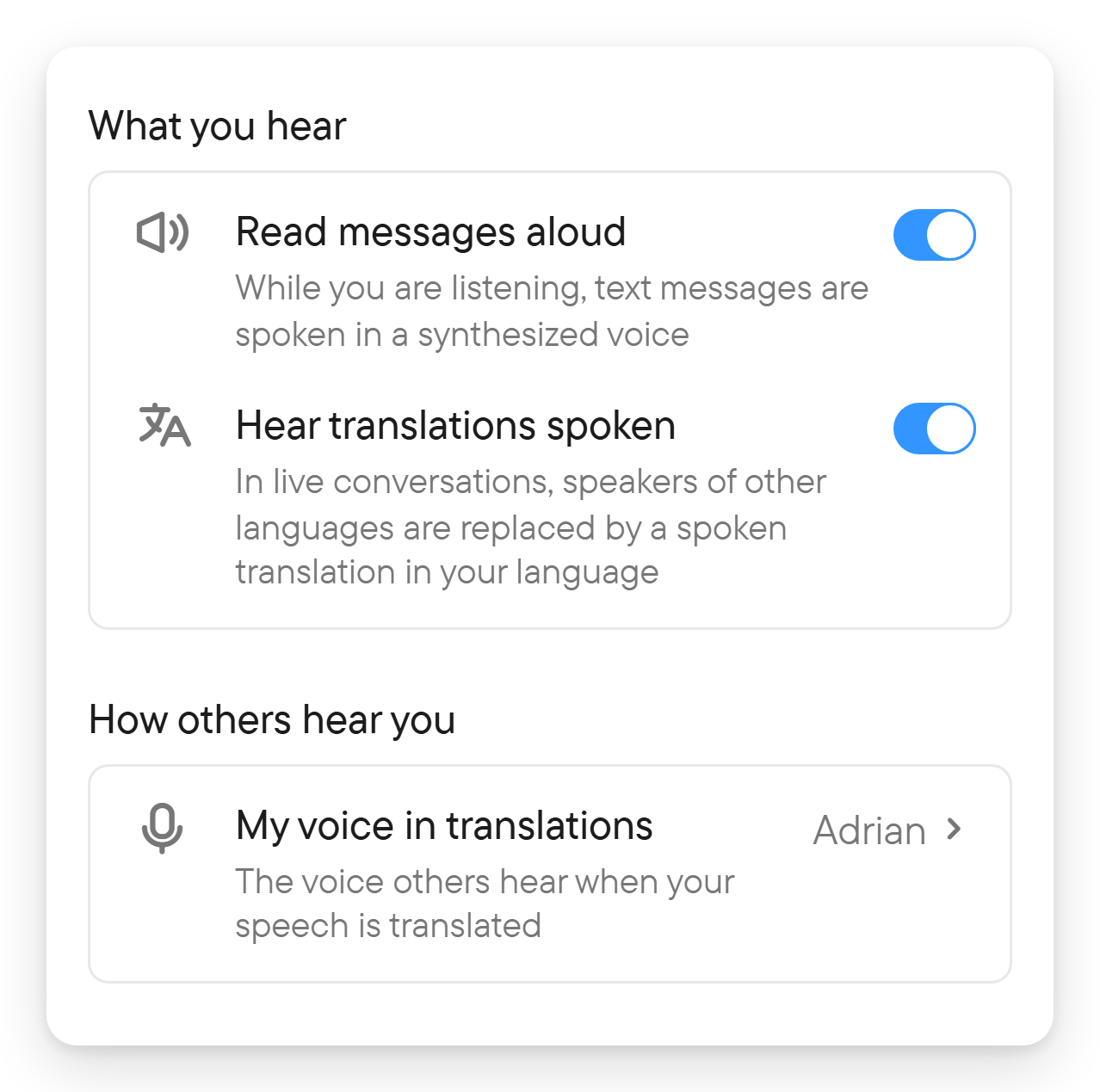
The same settings page has two more groups:
- What you hear: Read messages aloud (while you are listening, text messages are spoken in a synthesized voice) and Hear translations spoken (in live conversations, speakers of other languages are replaced by a spoken translation in your language).
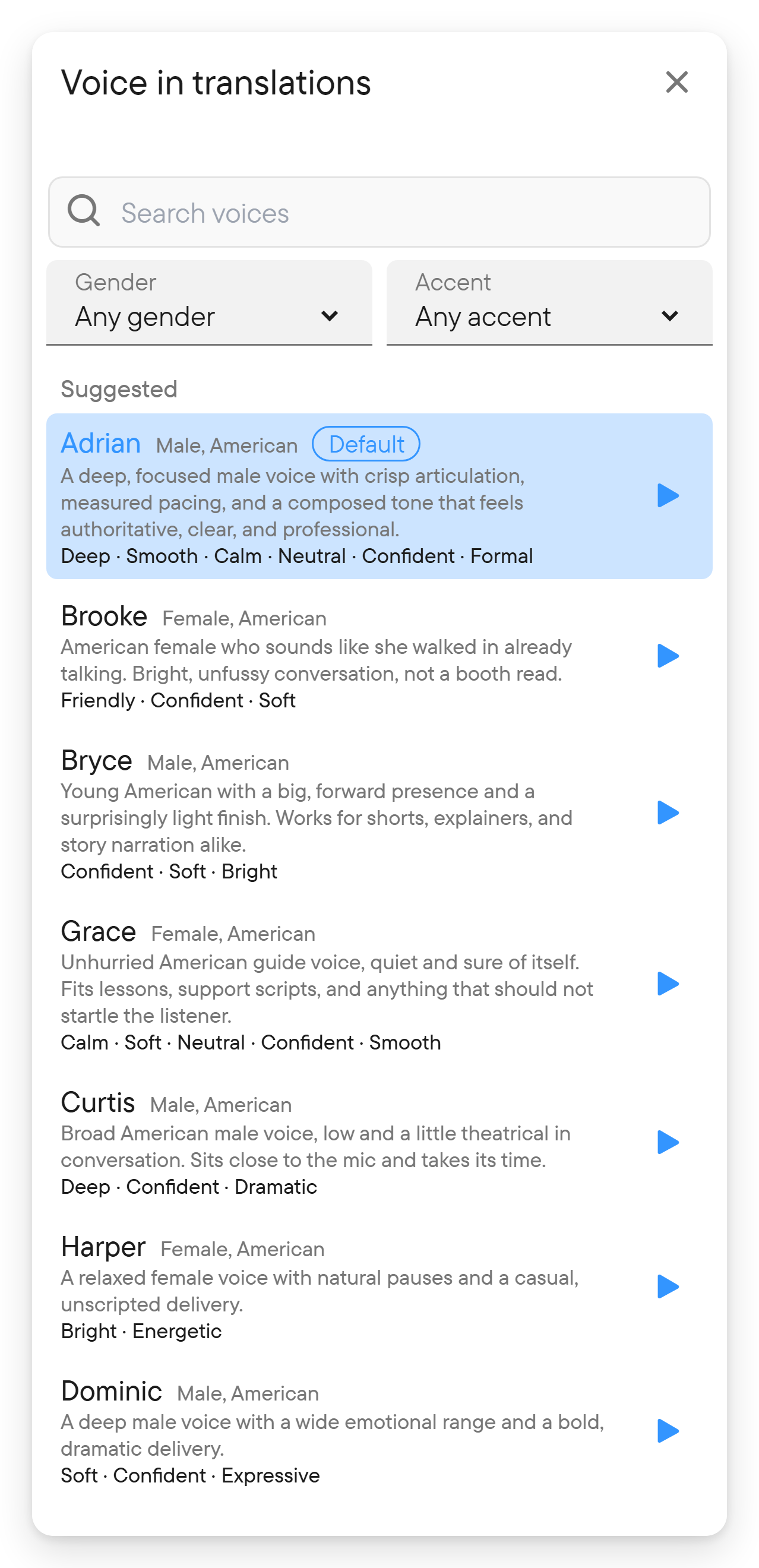
- How others hear you: My voice in translations opens a picker of synthesized voices, with a search box, a Suggested section for your spoken languages, and an All voices section with gender and accent filters and a Preview button for each voice. Choose the voice others hear when your speech is translated; the default is the first suggested voice. Voice cloning from your own recordings (Use my own voice) is currently shown only to administrators.
Speak without sending your voice
- Open the chat's Voice settings.
- Switch Voice streaming off.
- Use the recording button and speak as usual.
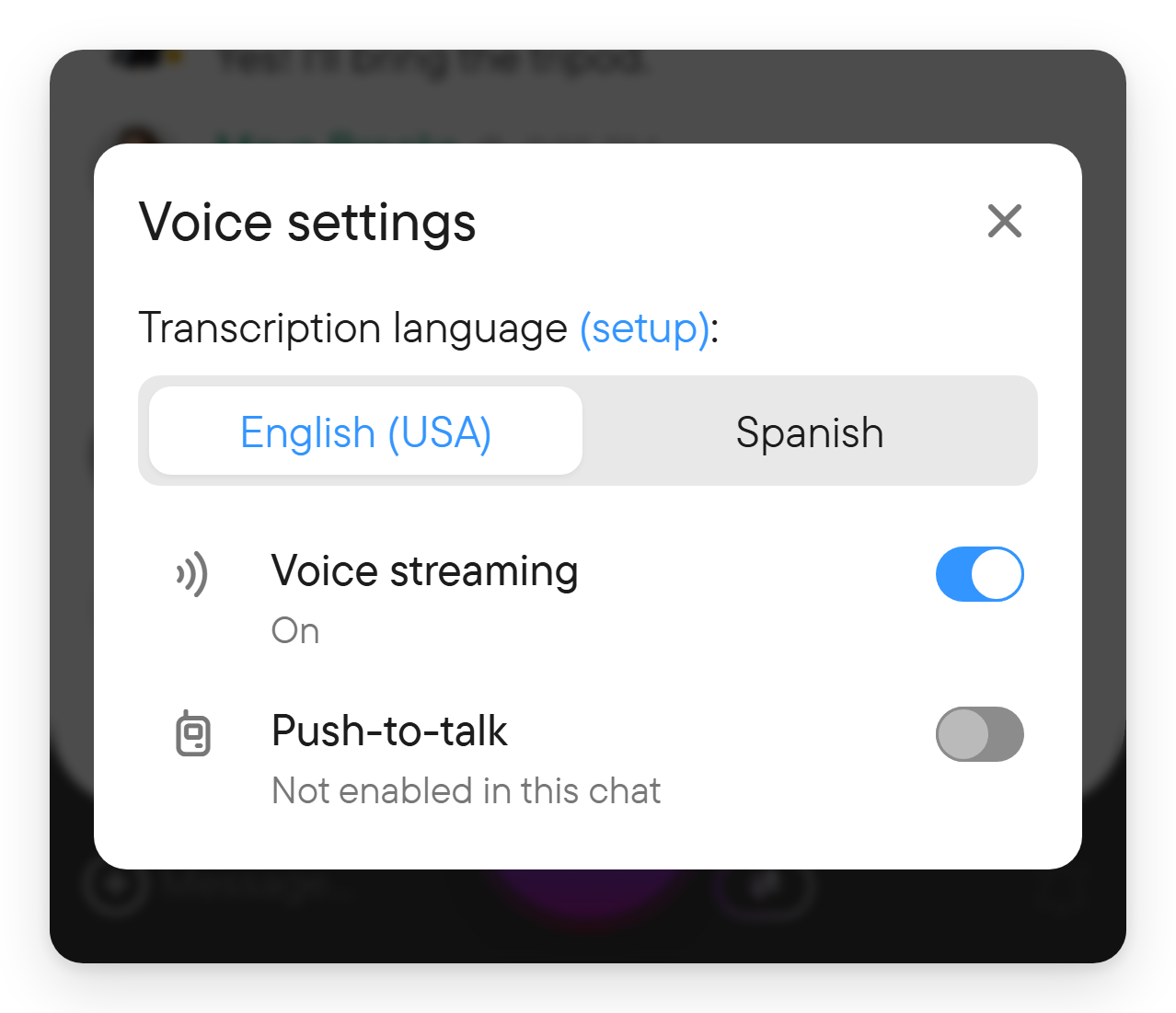
Voxt transcribes the speech into text without streaming your voice to other participants. Switch Voice streaming back on when you want them to hear you.
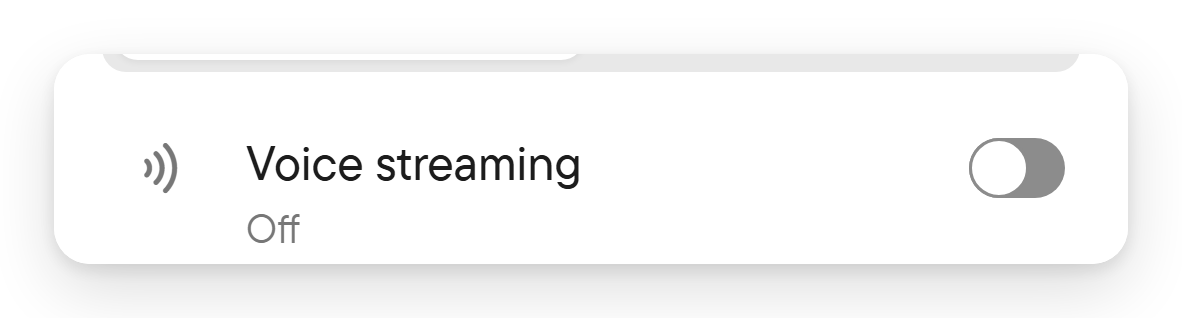
This setting changes how speech is sent; it does not turn off your microphone. Use the recording control to stop capturing speech.
Read and replay a conversation
Voice entries remain part of the chat history. Use their playback control to hear them again, and use the playback speed control to choose normal speed or a faster speed up to 2×. Selecting a word in a recorded transcript can move playback to that point, making it easier to find a particular detail.
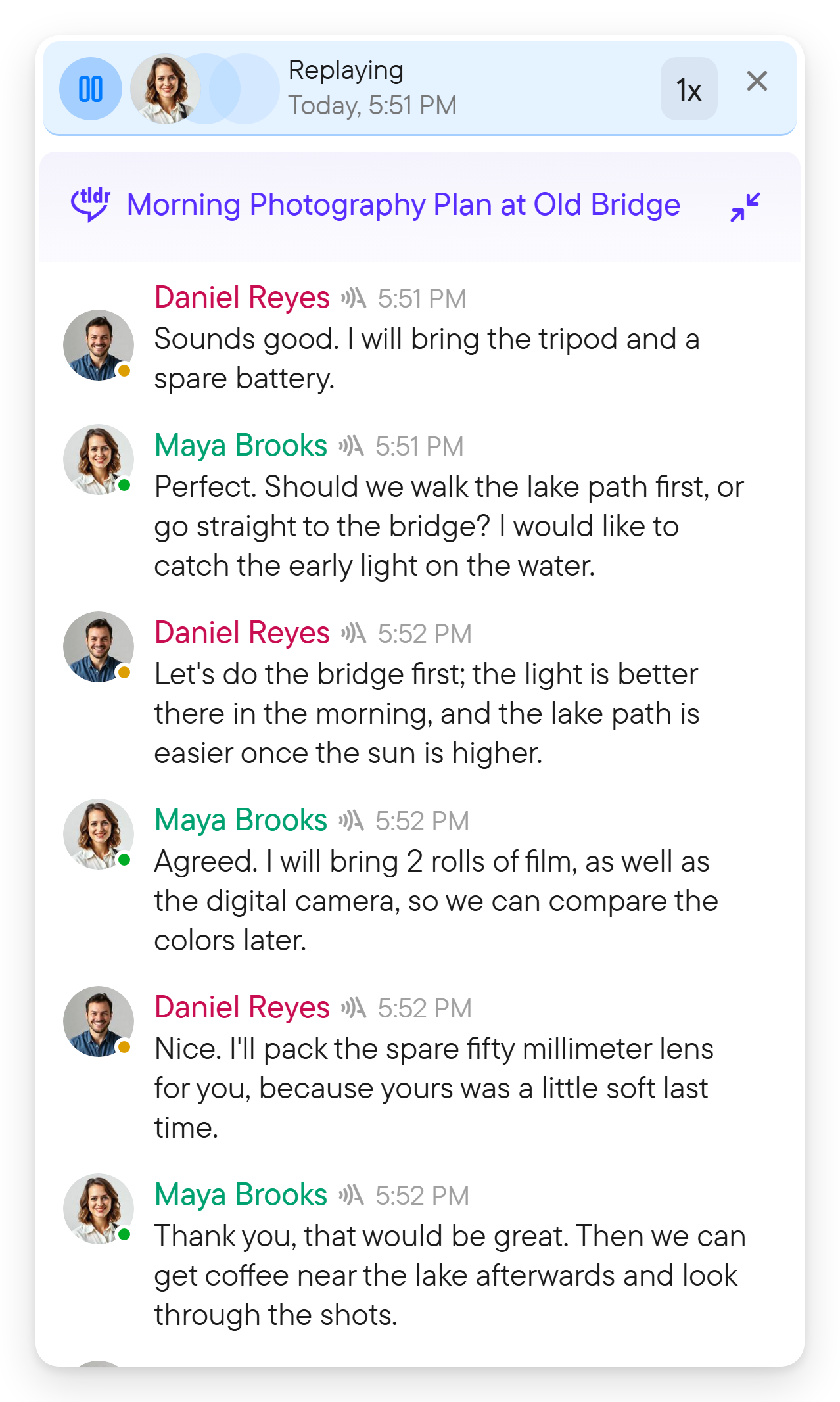
A transcript is recognized text, so check names, numbers and other details against the audio when accuracy matters. Where Edit is available on your own message, you can correct its text. Correcting a transcript does not replace the original spoken audio.
For an overview of a longer exchange, see conversation summaries.
If audio does not work
- Microphone blocked: allow microphone access in the site's browser permissions or the app's device settings, then try the recording control again.
- No incoming sound: check your device volume and output device, then confirm you have joined the conversation.
- Wrong words: check the selected spoken languages and replay the original audio before correcting the text.
- Push-to-talk voice does not play: see If you do not hear it.
- Recording does not start: look for the error on the recording control and check your connection. Do not assume speech was sent while the control reports a failure.