
Files, photos, and GIFs
Share files in the conversation where people need them. Use the chat's media panels to find attachments again later.
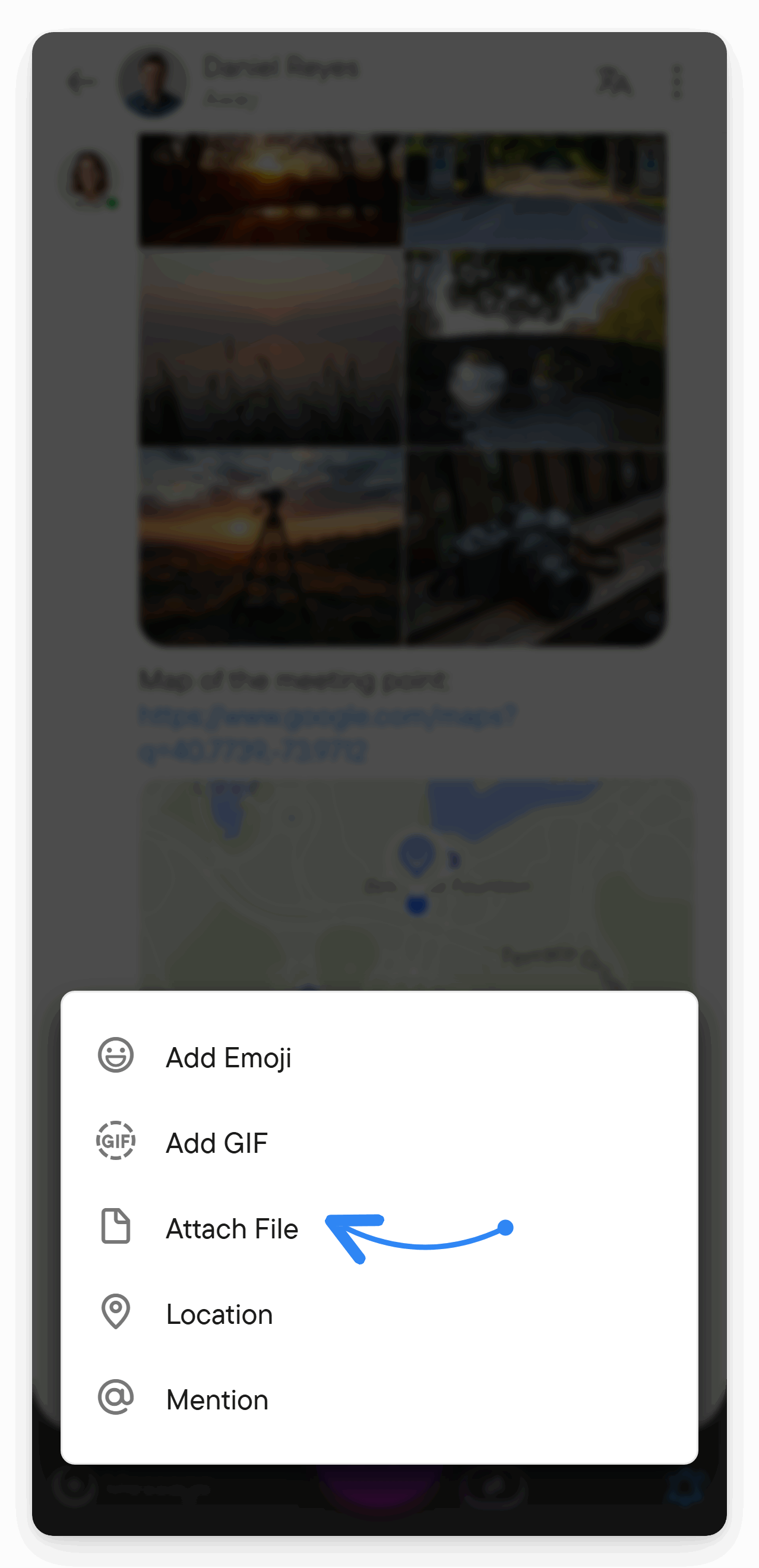
Attach a file
- Open a chat you can write and upload to.
- Select + in the message composer, then Attach File.
- Choose one or more files.
- Add accompanying text if useful, then send.
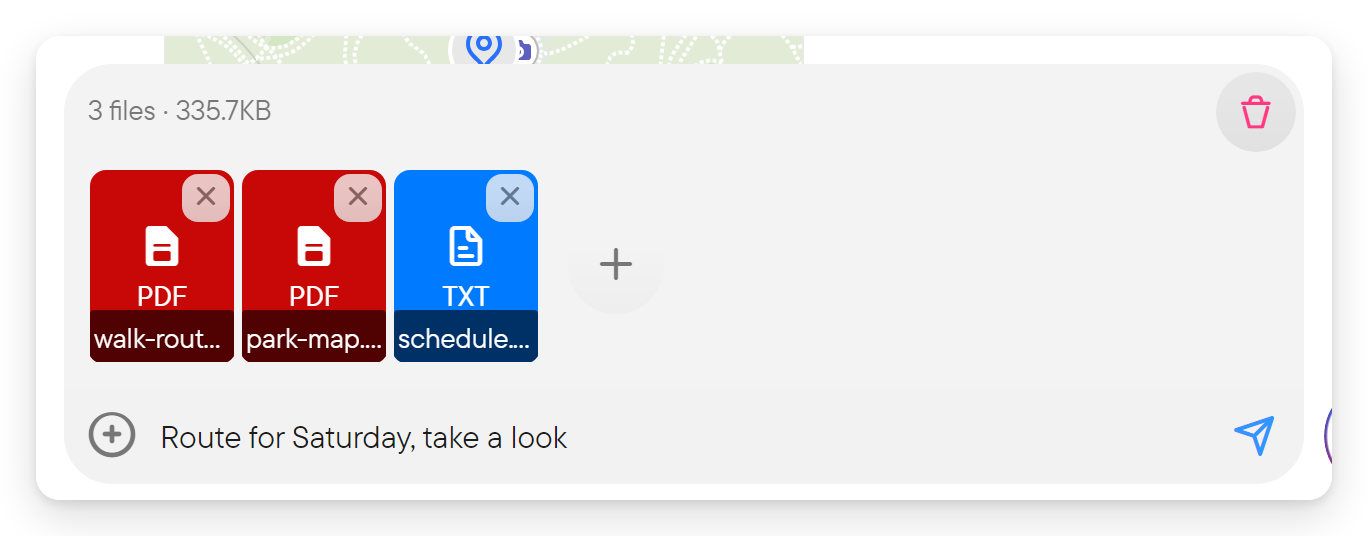
The composer lists the attached files with their count and total size, for example "3 files · 335.5KB". Use the trash button to remove all of them, or the × on one file to remove just that one. A message can carry up to 10 files.
On desktop you can also drop files onto the chat (a drop area appears over it while you drag) or paste an image from the clipboard into the composer. Native mobile apps and mobile browsers add Choose Photo and Select Video to the + menu, so you can pick from the gallery instead of the document picker.
Choose image quality
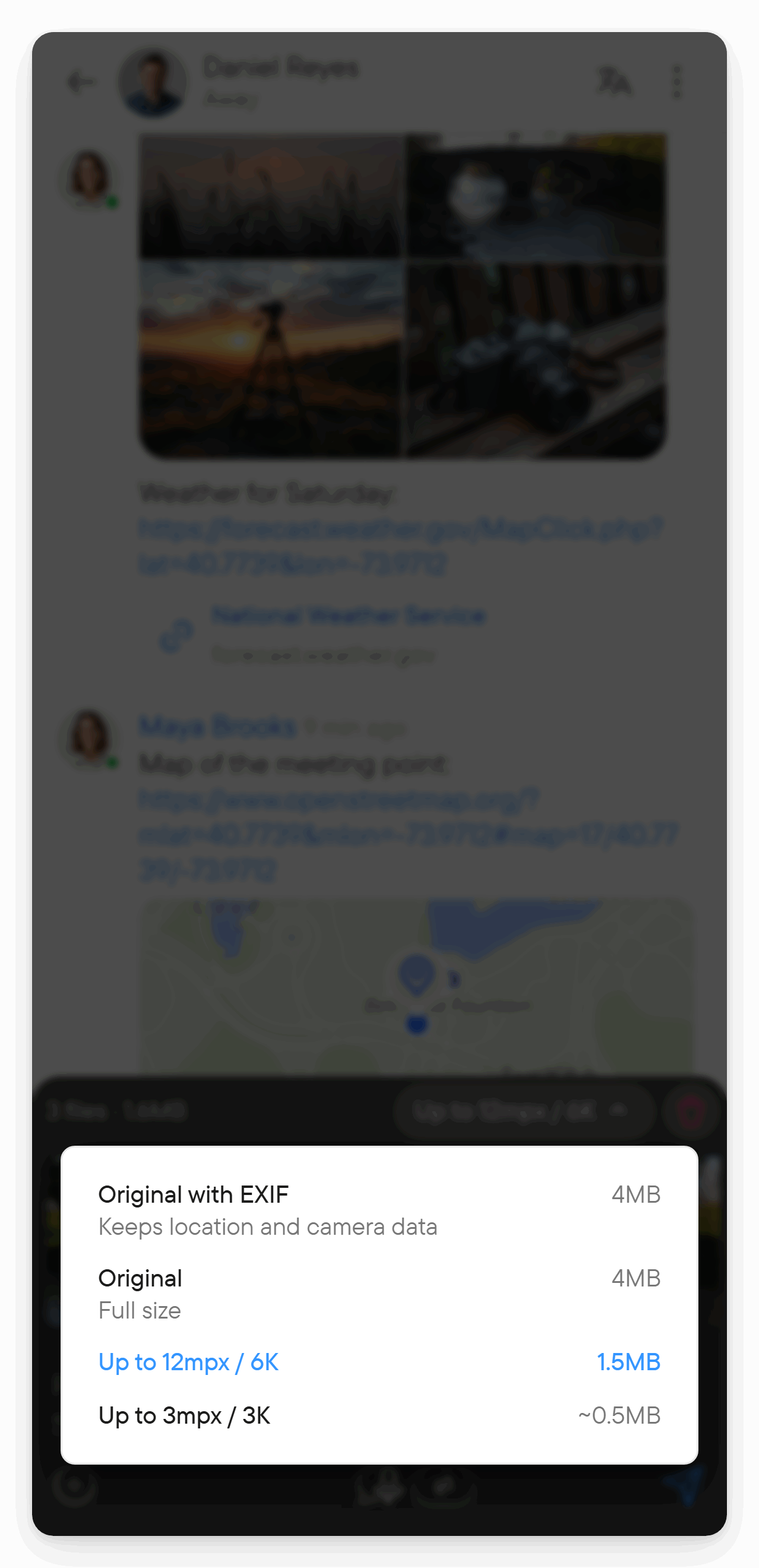
When the selection contains photos, a quality button appears above the file list and shows the current choice. Select it to pick another:
| Choice | Result |
|---|---|
| Original with EXIF | Sends the original file and keeps location and camera data. |
| Original | Sends the original size without that metadata. |
| Up to 12mpx / 6K | The default: larger photos are scaled down to fit. |
| Up to 3mpx / 3K | A smaller upload: larger photos are scaled down to fit. |
Each row shows the estimated upload size for the whole selection; sizes starting with ~ are estimates. When you also attached files that are not photos, the menu says "Applies to N photos", because only photos are affected. A photo too large for the server to process as an image is sent as a file, and its row says Sent as a file. GIFs are not re-encoded.
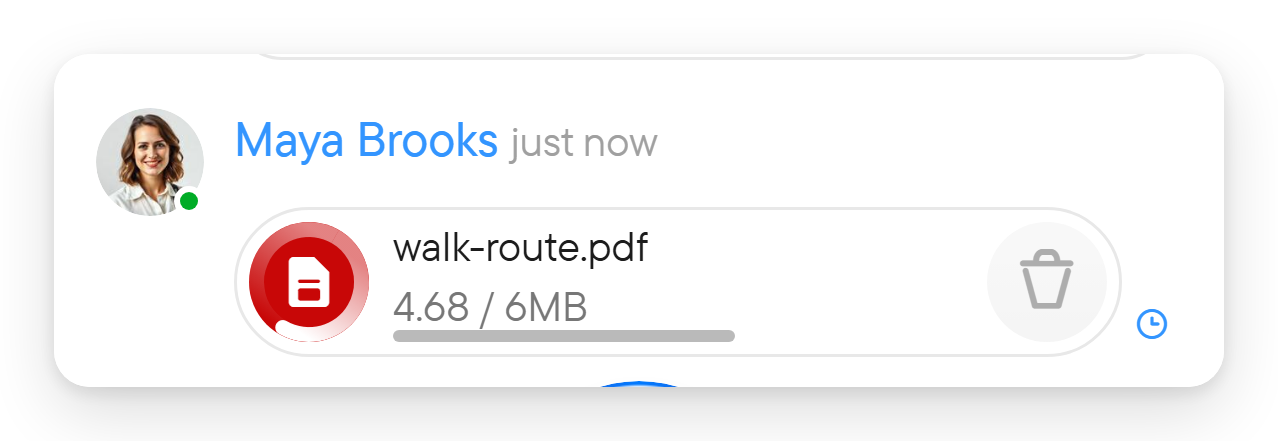
An attachment can appear with upload progress while the upload completes. Wait for completion before relying on someone else being able to open it. If the upload fails, inspect its status and retry rather than assuming the visible placeholder is the finished file.
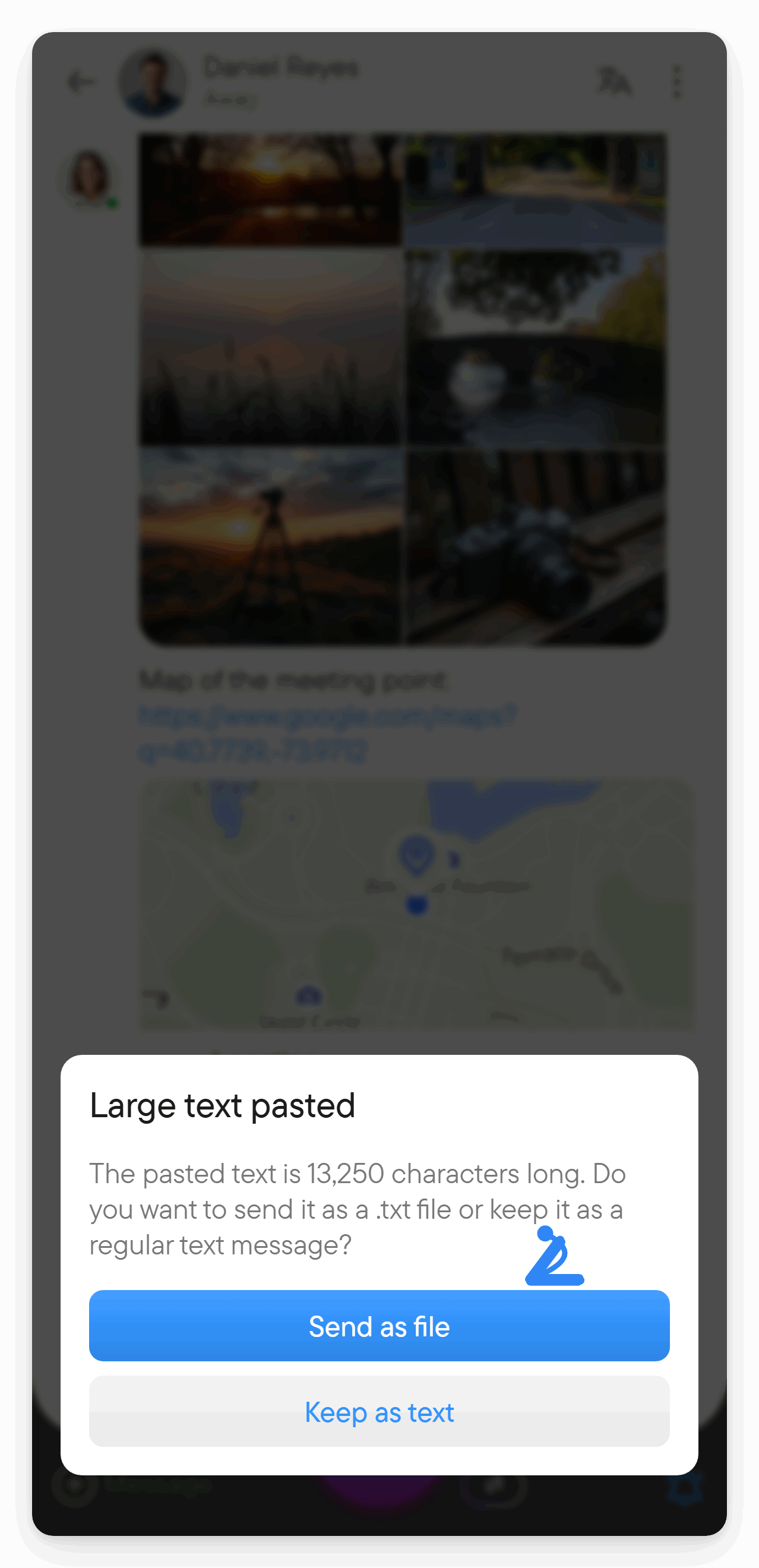
When you paste a large block of text, Voxt asks whether to Send as file (a .txt file) or Keep as text. This keeps a long log or document from filling the conversation.
Emoji and GIFs
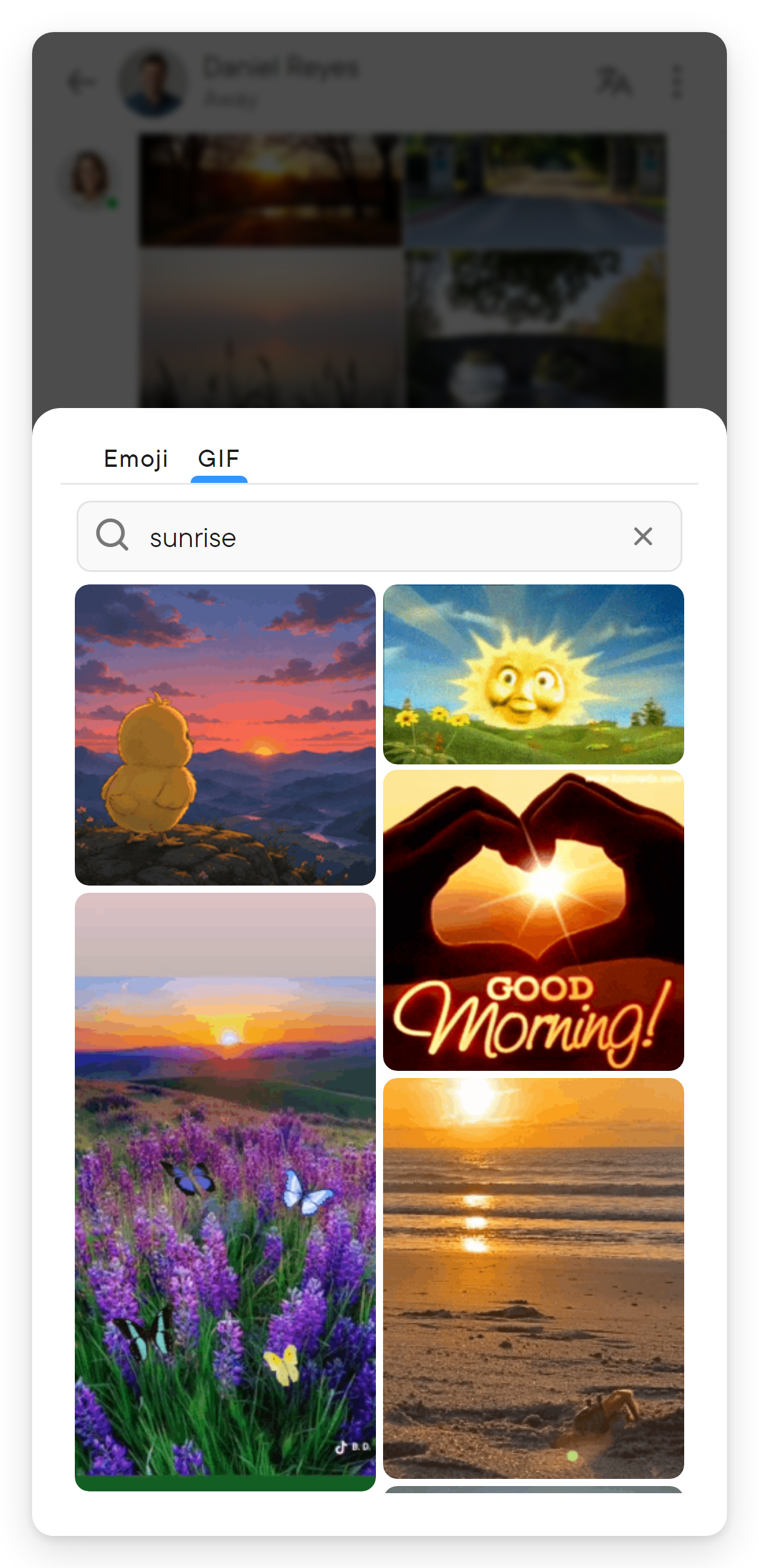
Open the composer's plus menu and choose Add emoji or Add GIF. Use the picker to choose an item; GIF search helps find a suitable animation.
An emoji sent as content is a message. A reaction is attached to an existing message; use the message's reaction controls for that.
Open, download, or share a file
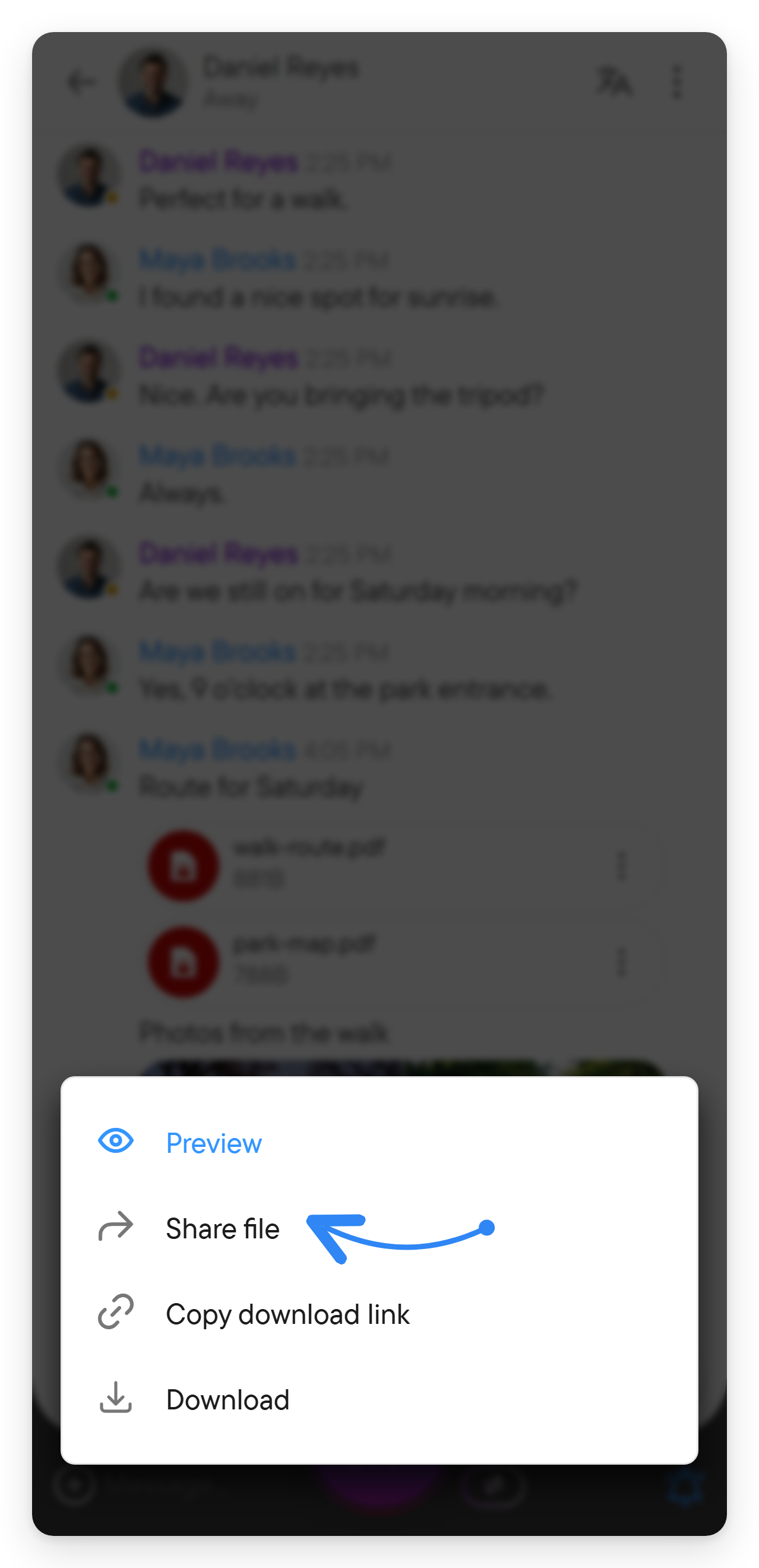
Open the attachment's menu:
| Action | Result |
|---|---|
| Preview | Opens the available viewer. What can be previewed depends on the file and device. |
| Download | Saves the file through your browser or device's download flow. |
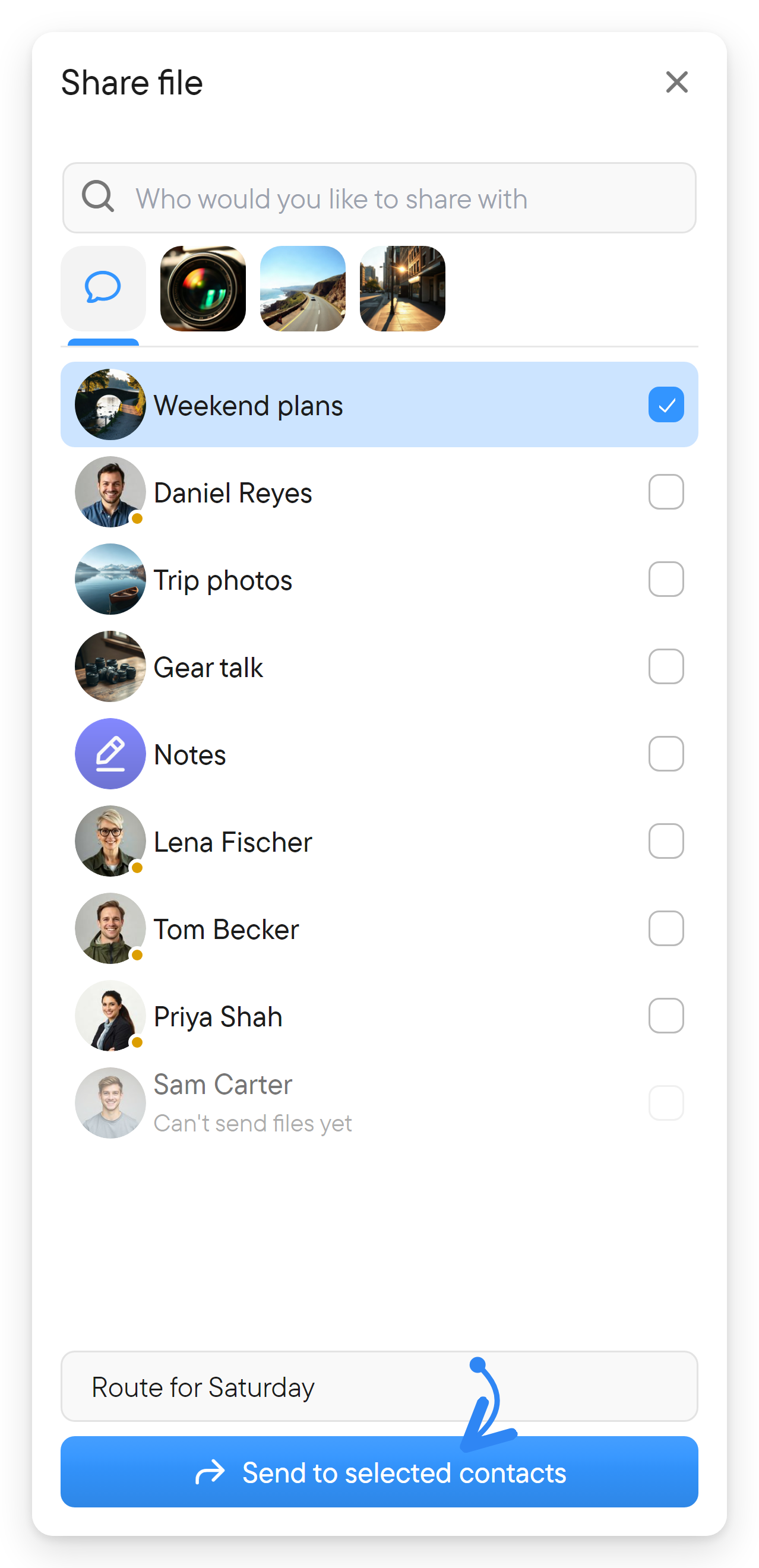
| Share file | Opens a Share file picker: choose chats, optionally Add a comment, then Share. A chat where you cannot send files stays listed but cannot be selected. |
| Copy download link | Copies the file's download URL. |
A message containing several attachments can offer Download all in its message menu. A download link shares access differently from a link to a message; choose the intended sharing action.
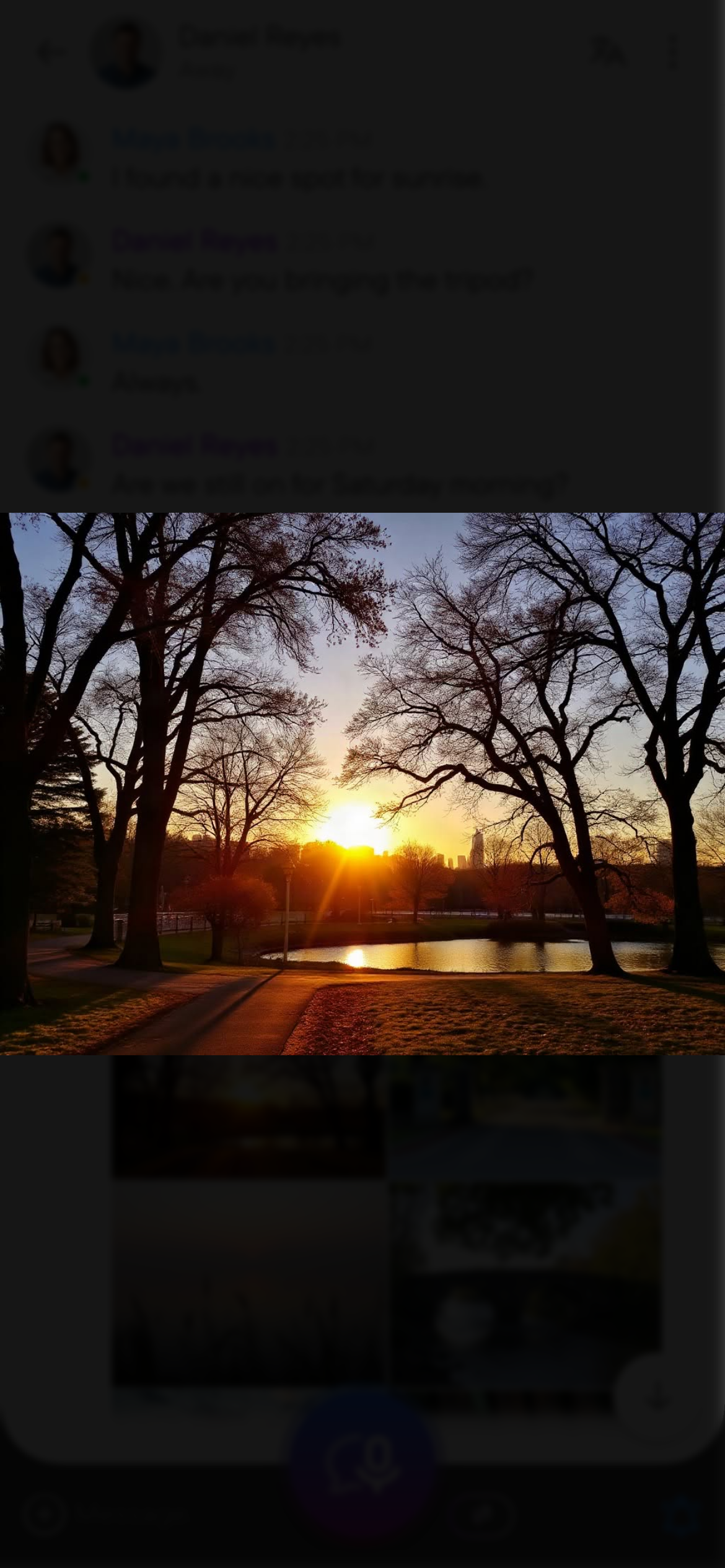
Images open in a viewer for browsing and zooming; its top bar has share, details, download, and close buttons. Audio and video attachments have playback controls when supported. PDF preview is useful for reading a document without leaving the conversation.
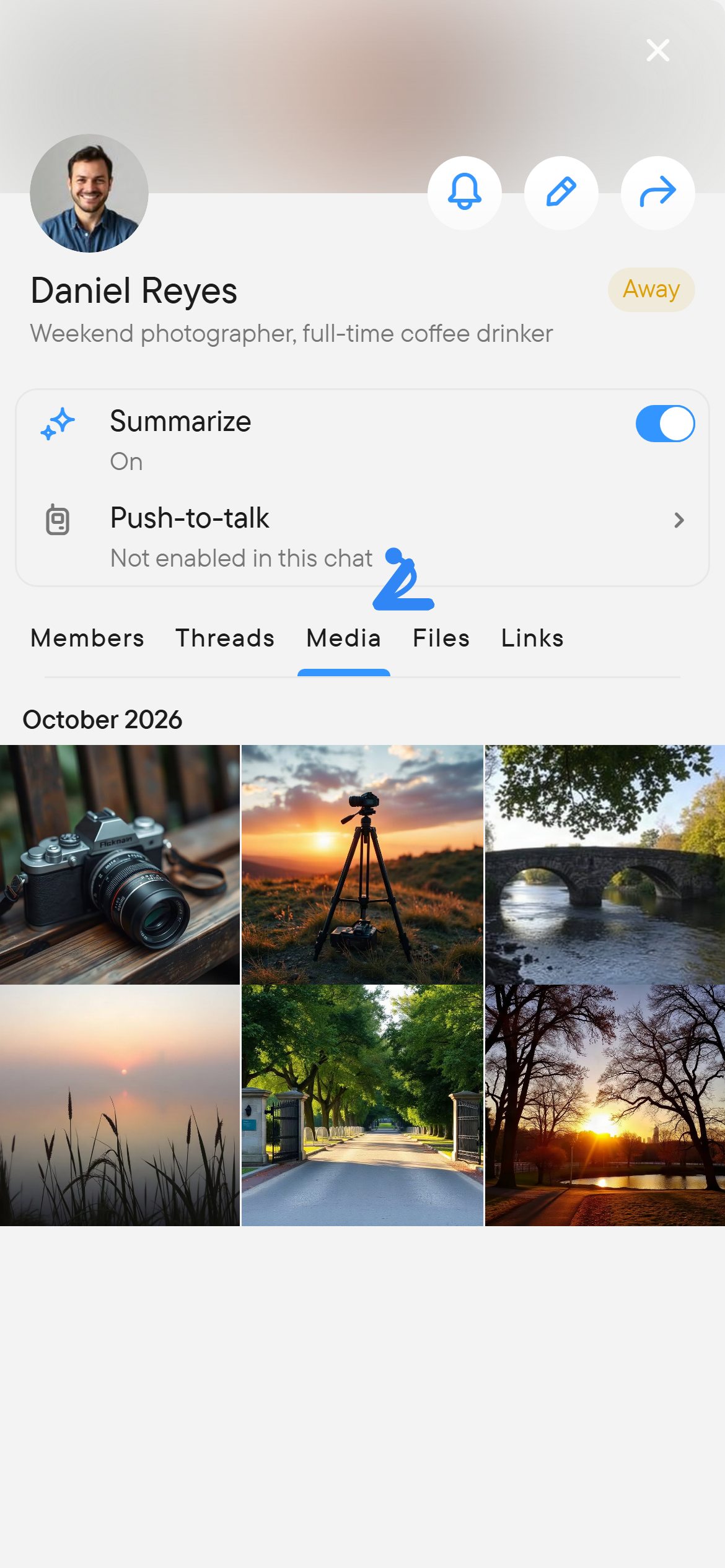
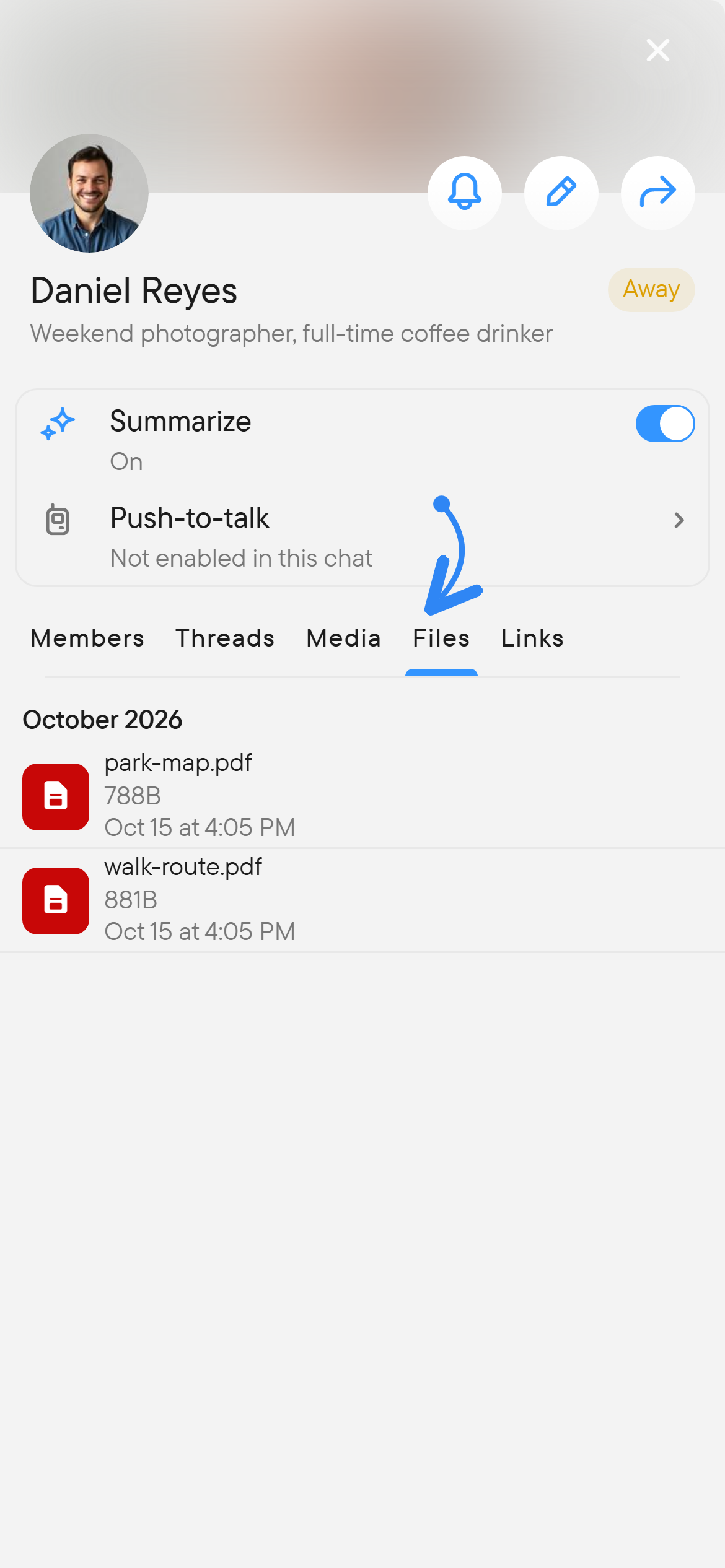
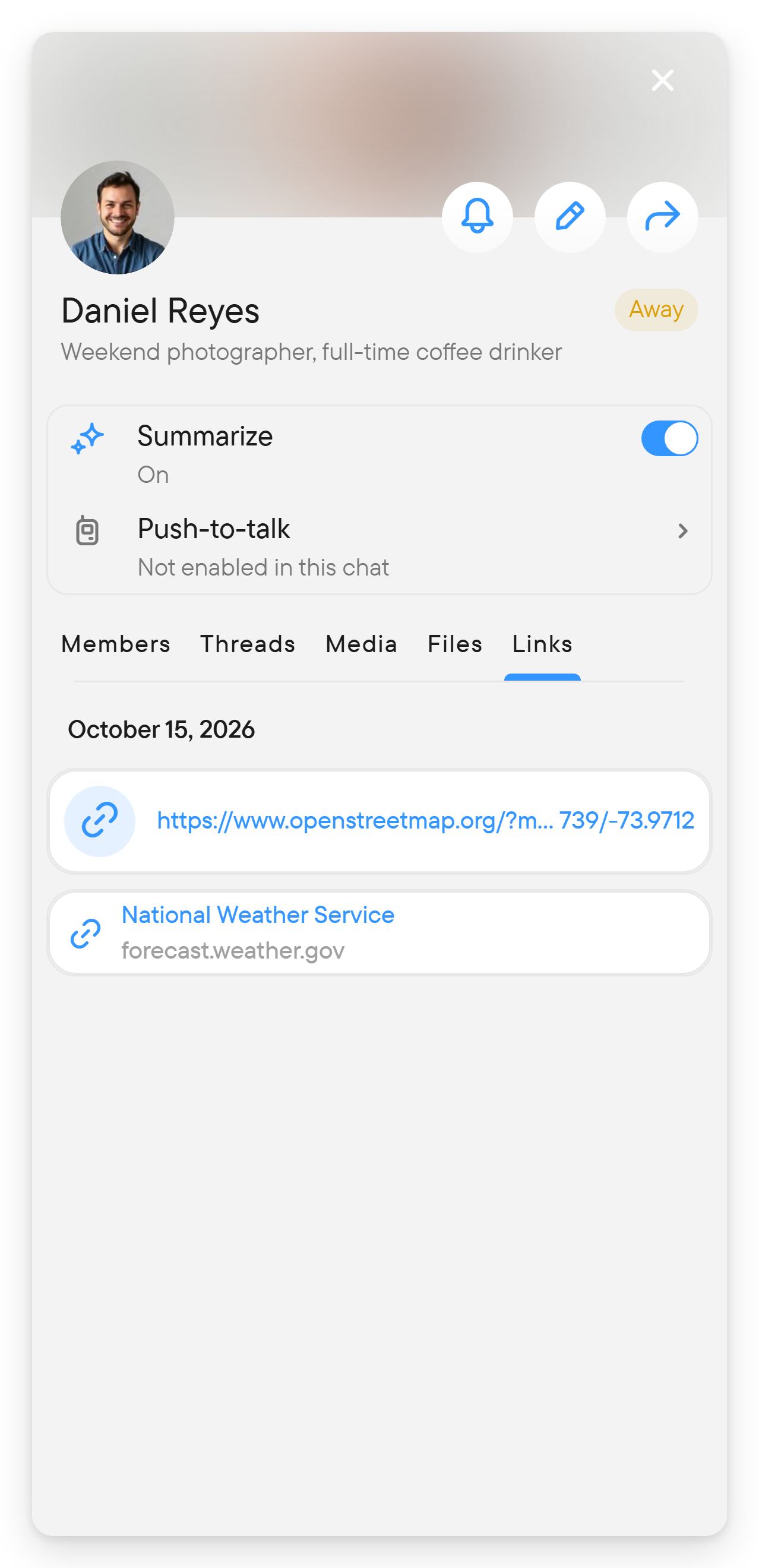
Find older attachments
Open the chat's right panel:
- Media for visual media.
- Files for file attachments.
- Links for links shared in the conversation.
These views help you browse older material without scrolling through all messages. For a word or phrase from the conversation, use search.
Share from another app
On supported native devices, choose Voxt in the operating system's share sheet. Select the intended chat or chats and complete the share flow. Review the destination before sending, especially when more than one chat is selected.