
Format a message
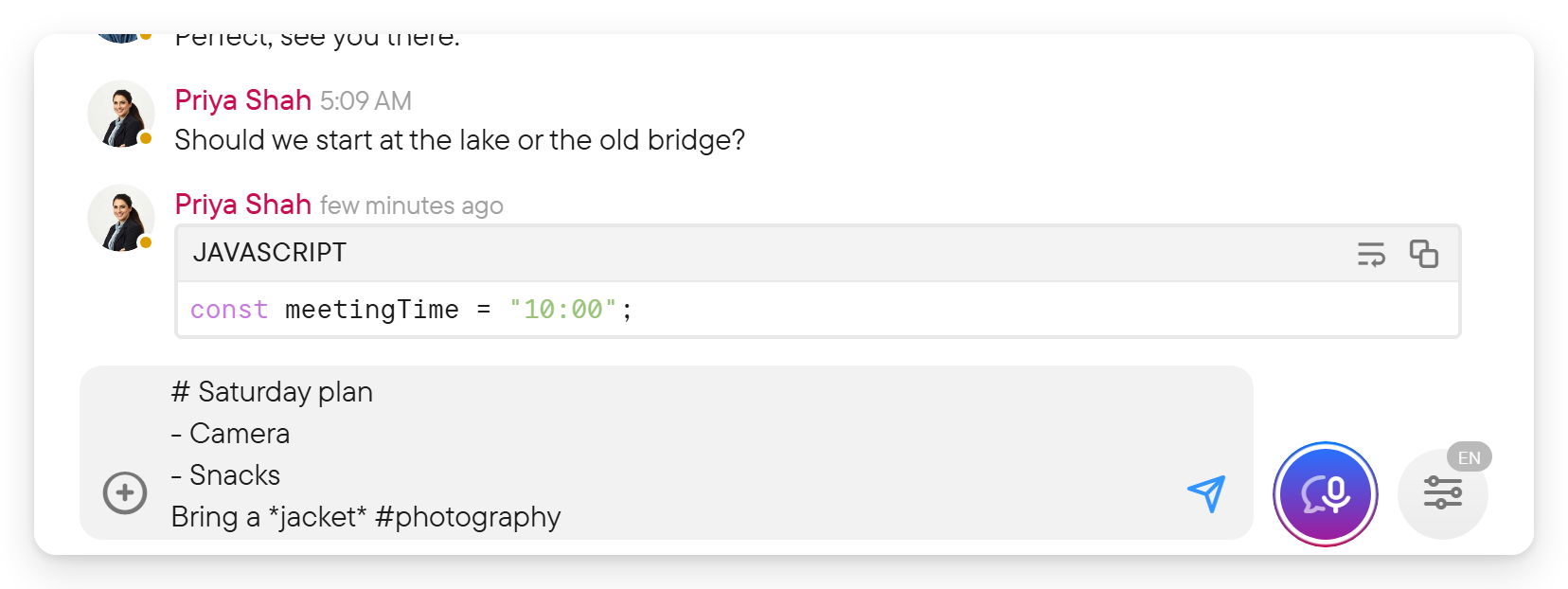
Use lightweight text formatting in the composer to make a message easier to scan. The supported syntax resembles Markdown, with a few specific rules.
| Result | Type |
|---|---|
| Bold | **important** |
| Italic | *emphasis* |
| Inline code | A word or phrase between single backticks |
| Spoiler | ` |
| Heading | Start a line with # , ## , or ### |
| Bulleted list | Start a line with - |
| Quoted text | Start a line with > |
| Hashtag | #photography without a space after the hash |
| Divider | A line of three or more dashes, ---, on its own line |
| Titled link | [Guide](https://example.com/guide) shows the title as the link |
| Enclosed link | <https://example.com> |
A web address or e-mail address typed on its own becomes a link; a period, comma or exclamation mark right after it is not part of the link.
A hashtag is searchable; a heading begins with a hash followed by a space. Select a hashtag in a message to search for that tag.
Code blocks
Put three backticks on their own line before and after the code. You can put the language name immediately after the opening backticks.
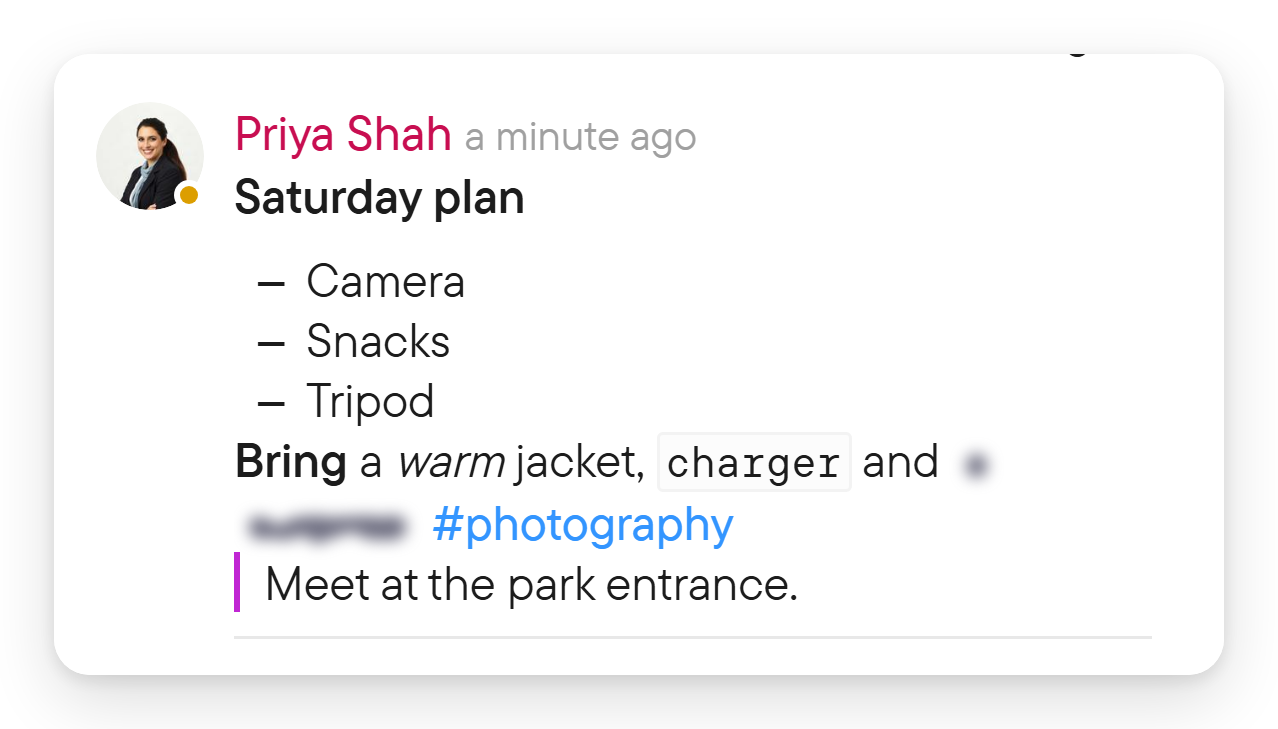
```javascript
const meetingTime = "10:00";
```
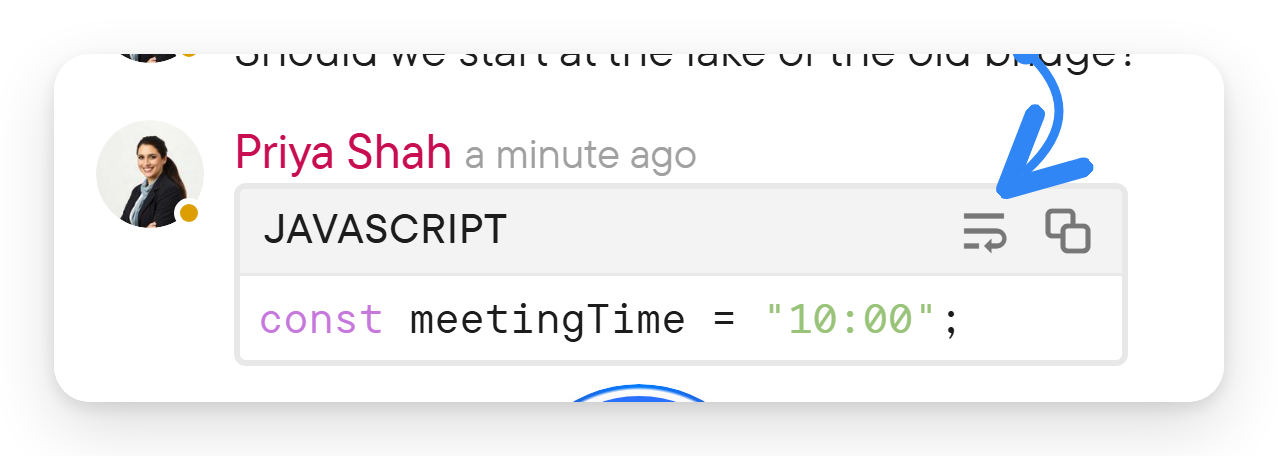
The displayed code block shows the language name and two controls: Wrap, which turns line wrapping on or off, and Copy code. Use the copy control when you want the code without the rest of the message.
Tables and quotes
Start table rows with a pipe, and put a separator row below the headings:
| Item | Who |
| --- | --- |
| Camera | Elsa |
| Snacks | Ophelia |
A line containing pipes without the leading pipe is ordinary text. Keep the header and separator row's column counts consistent.
Use quotes to distinguish referenced text:
> Meet at the park entrance.
>
> Bring a camera if you have one.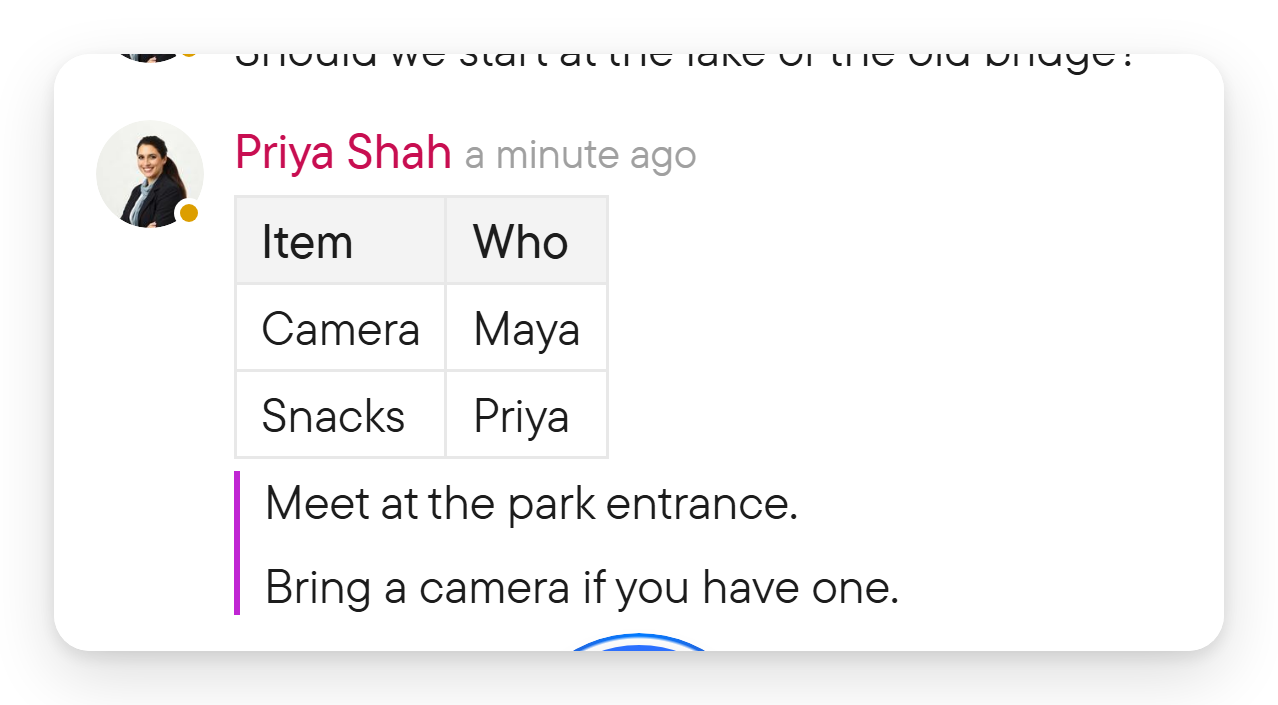
Mention someone or something
Type @ and choose a result from the mention picker. You can also open Mention from the composer's plus menu. Selecting the result creates a reference to the person, chat, or place; simply typing a person's name is ordinary text.
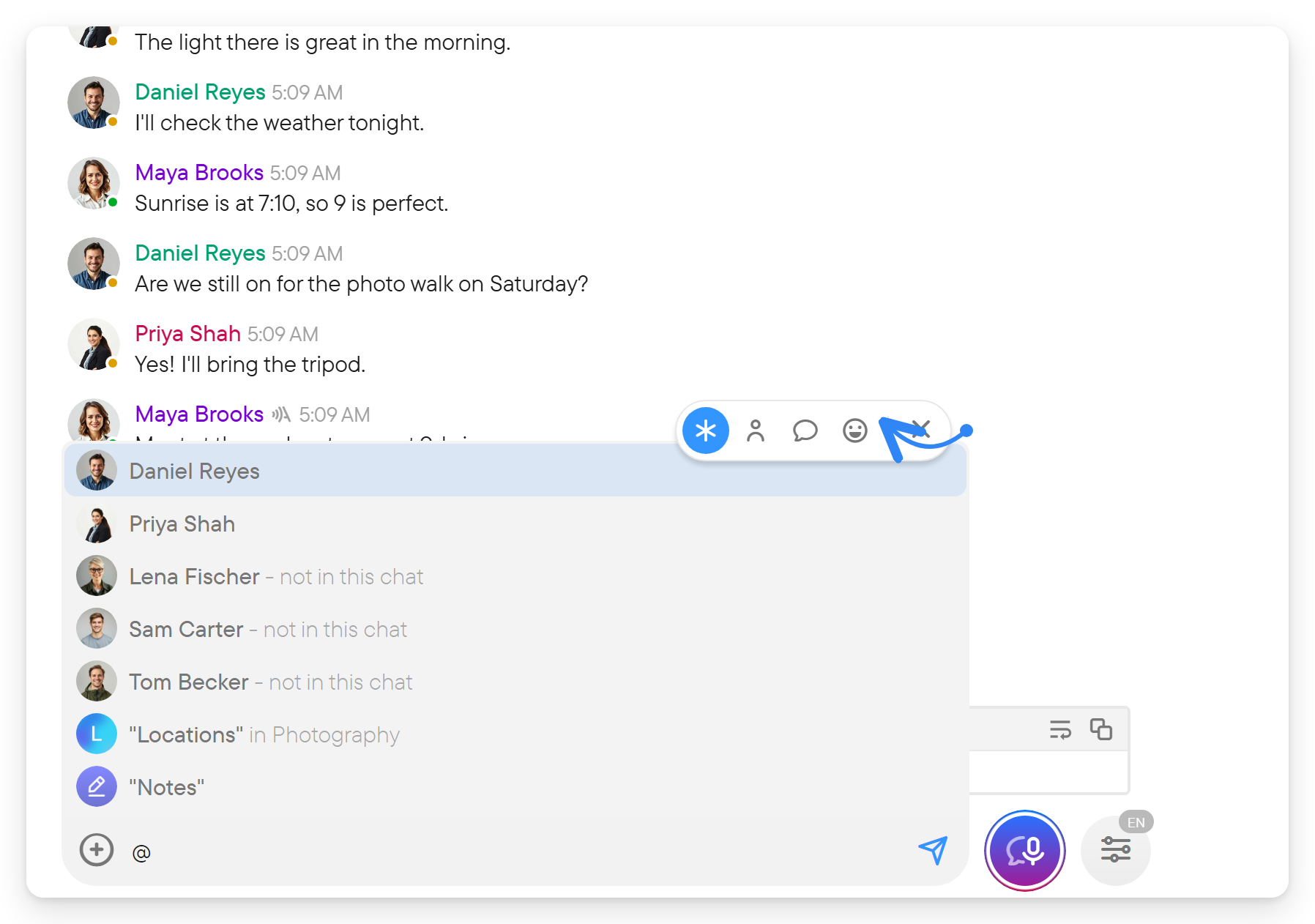
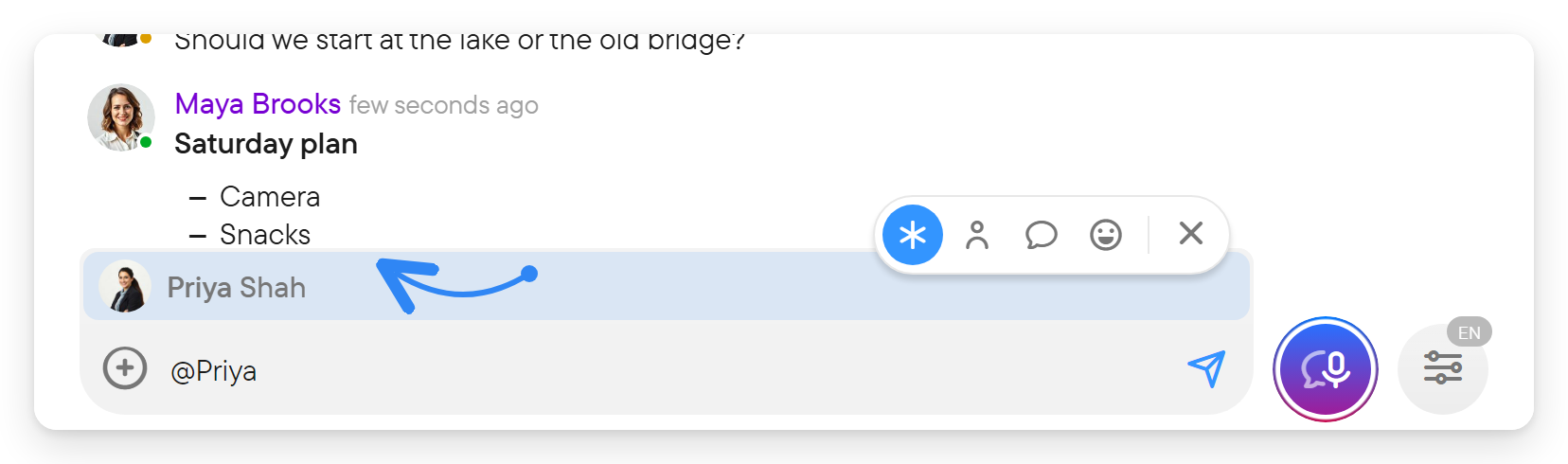
The picker lists people, chats, places and emoji, and has filter buttons to narrow the results to one kind. For emoji and GIFs, use Add Emoji or Add GIF in the same menu.