
Translation
Translation helps you read messages in your preferred language. It works with the text of the conversation, including recognized speech. To catch up on a longer conversation, see conversation summaries.
Translate a chat
- Open the chat.
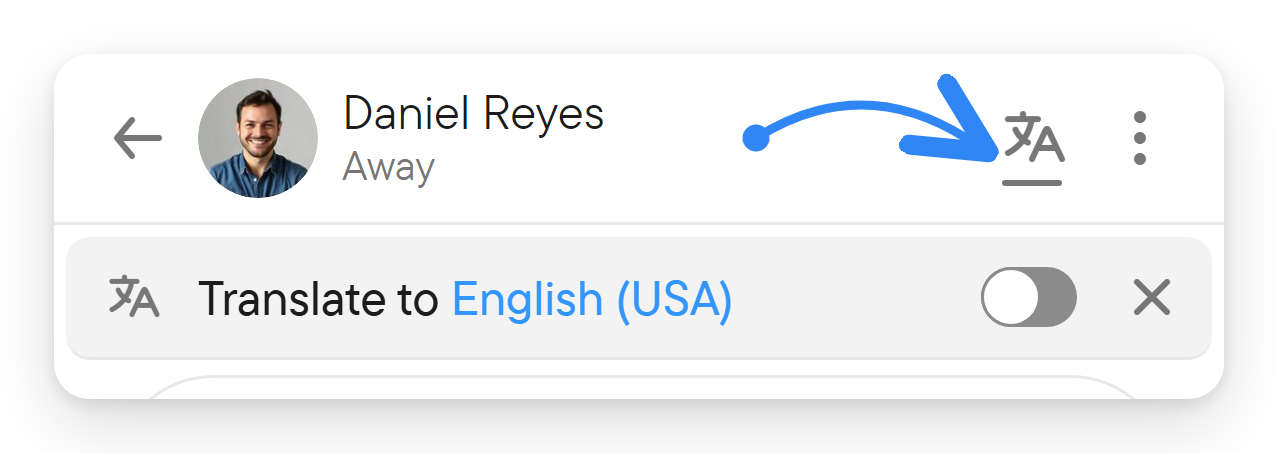
- Select the translation icon in its header to show the translation bar.
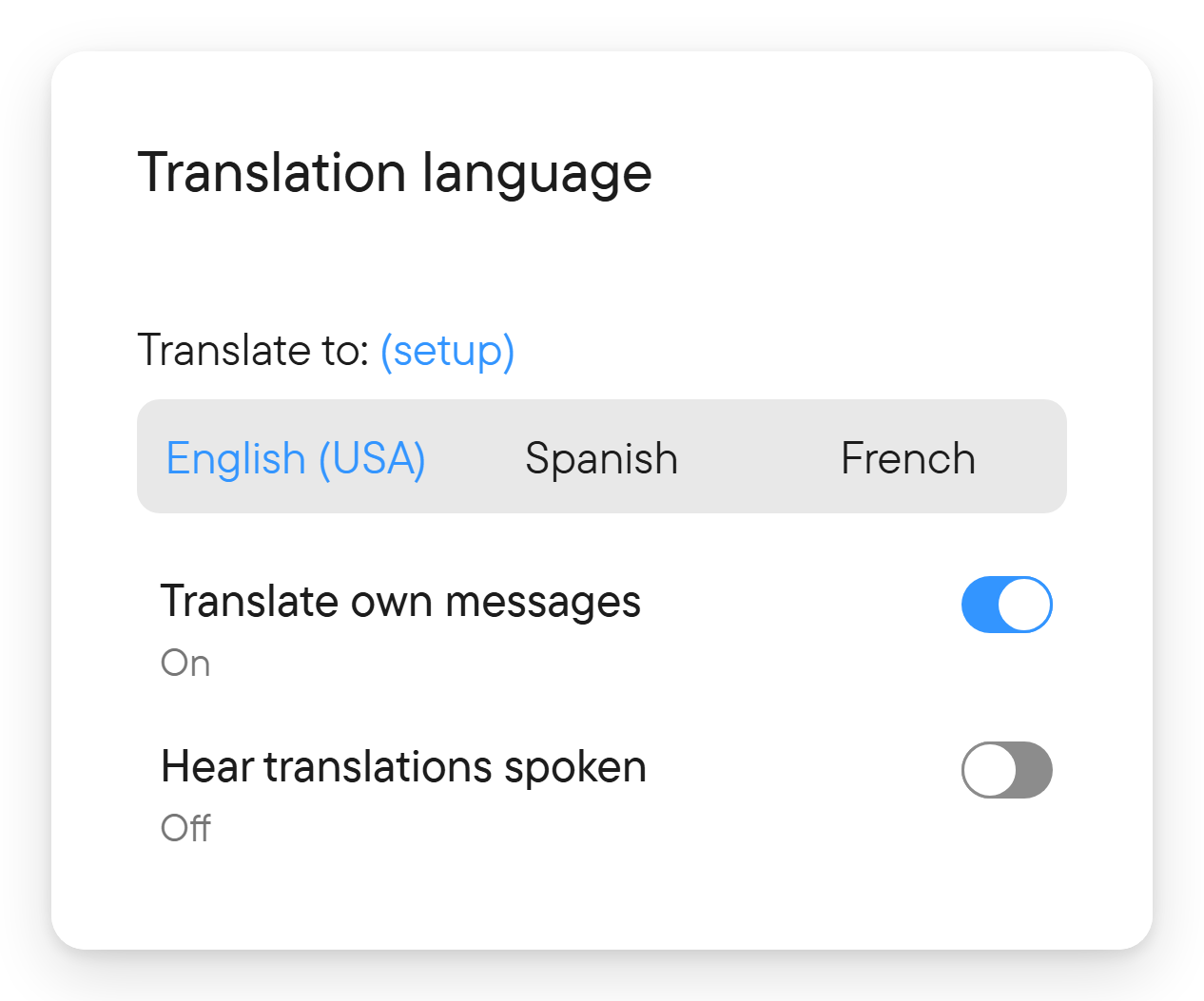
- Select the language displayed after Translate to and choose your target language. The choices are the languages you set in Settings → Voice & Transcription (the languages you speak or read), so add a language there first if it is missing; the chooser's setup link takes you to it.
- Turn the translation switch on.
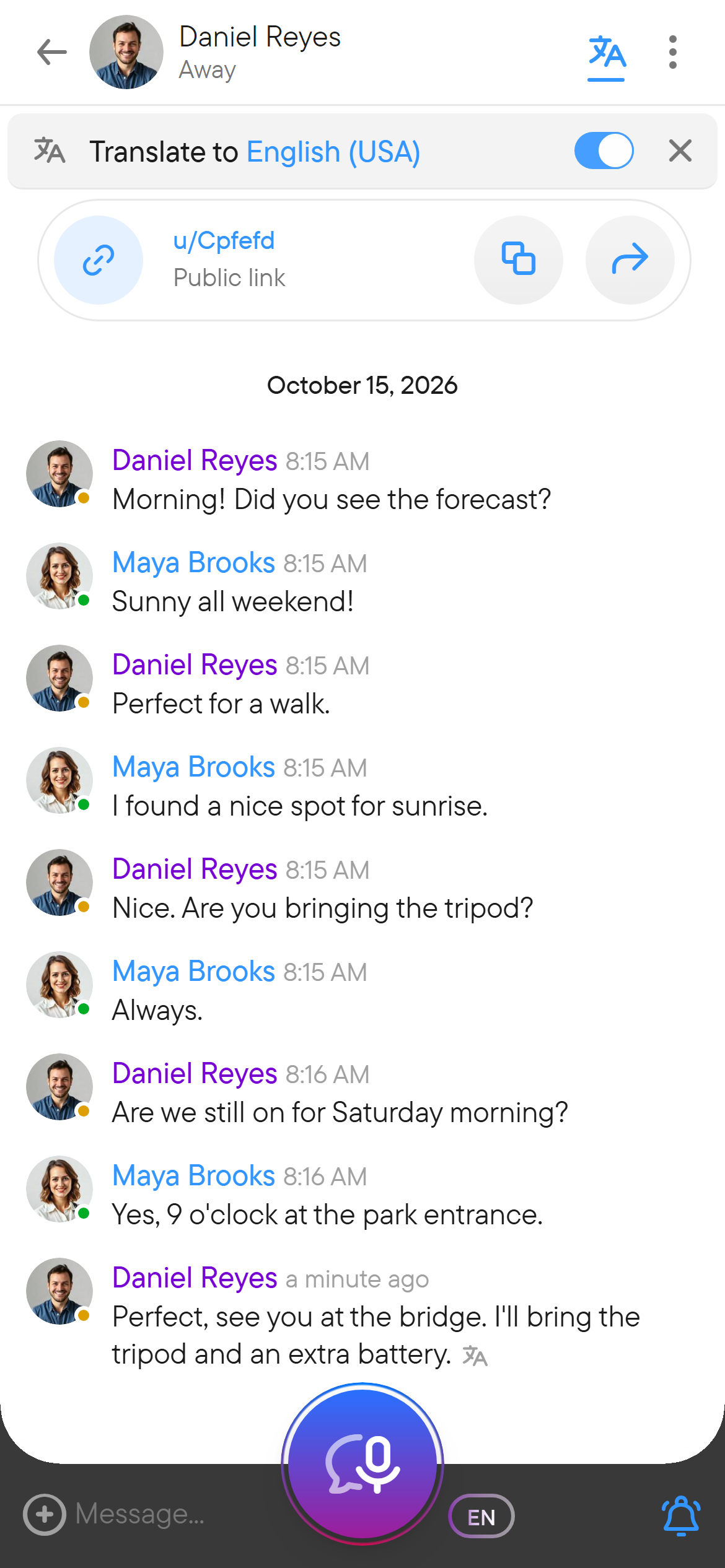
Voxt remembers your translation choice for the chat. Each participant can choose their own reading language; you do not need to change the language everyone else uses. A thread uses its parent chat's translation settings.
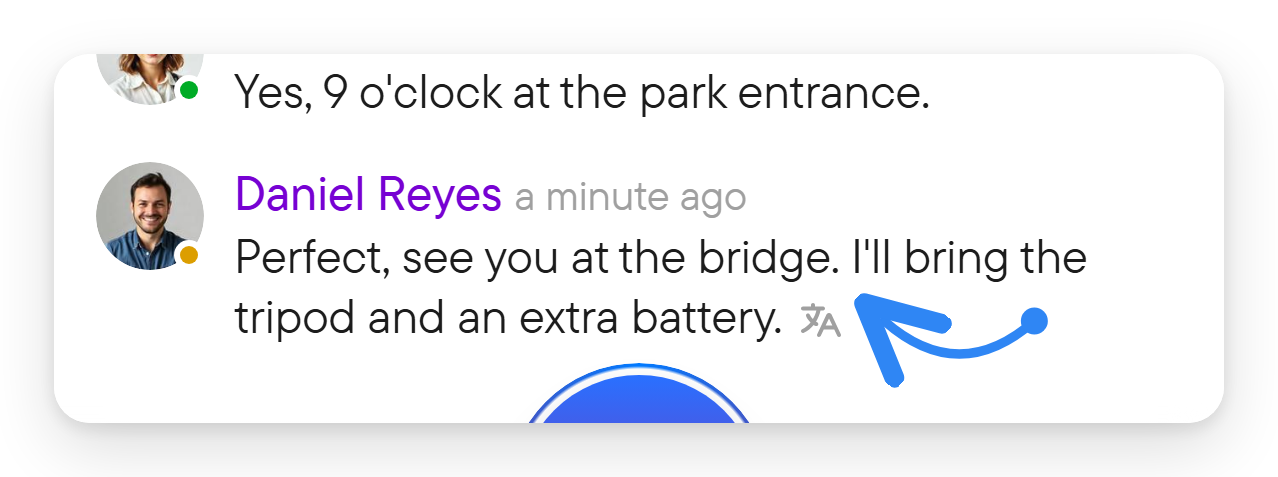
A translated message shows a small translation icon after its text.
If the language you want is missing from the choices, use (setup) next to Translate to: in the language chooser to adjust your language settings, then return to the chat.
Translate your own messages
Open the target-language chooser (titled Translation language) and use Translate own messages to decide whether your own messages are included. This is useful when checking how an exchange reads in another language, or when you prefer to keep your own text in its original form.
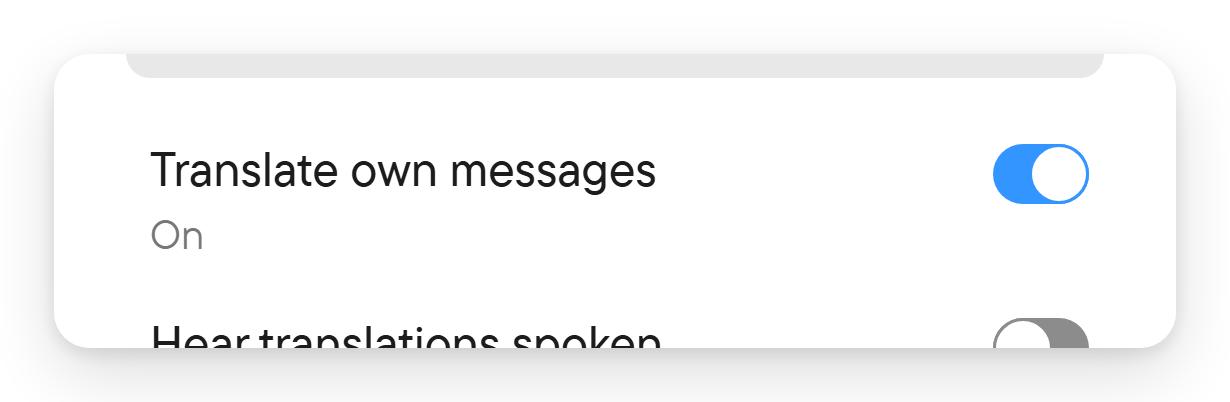
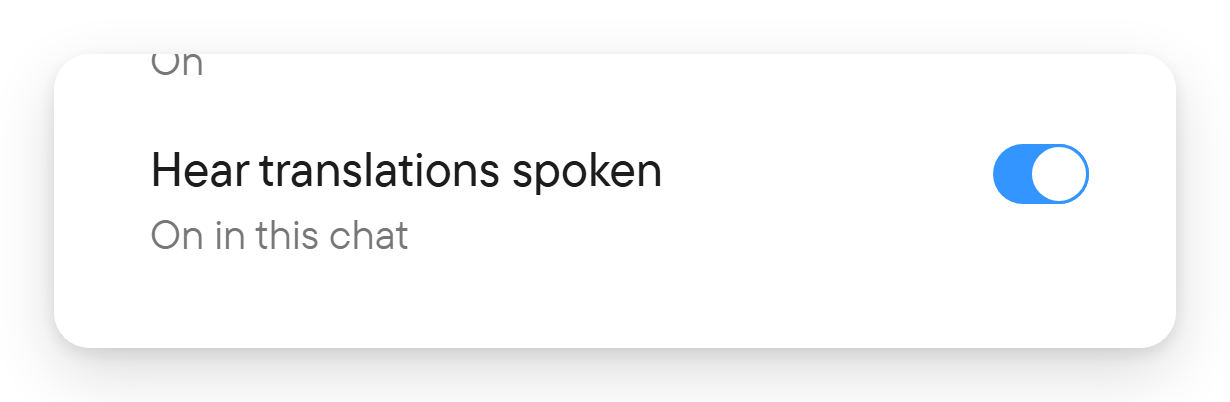
Translation is a reading feature: it does not replace the original text other people sent, and it does not change what other people hear. Separately, in live conversations you can have speakers of other languages replaced by a spoken translation in your language: turn on Hear translations spoken in Settings → Voice & Transcription for all chats, or use the Hear translations spoken switch in the chat's language chooser to override it for one chat (it then reads On in this chat or Off in this chat). The Translated voice button on the live conversation block does the same per chat. The voice others hear when your own speech is translated is chosen under My voice in translations in the same settings tab (see voice and transcription). To understand the difference between spoken-language settings and translated text, see voice and transcription.
Return to the original language
Turn the translation switch off to read the original messages again. Closing the translation bar with its × button only hides the bar; use the switch when you want to disable translation. Reopen the bar from the header's translation icon.
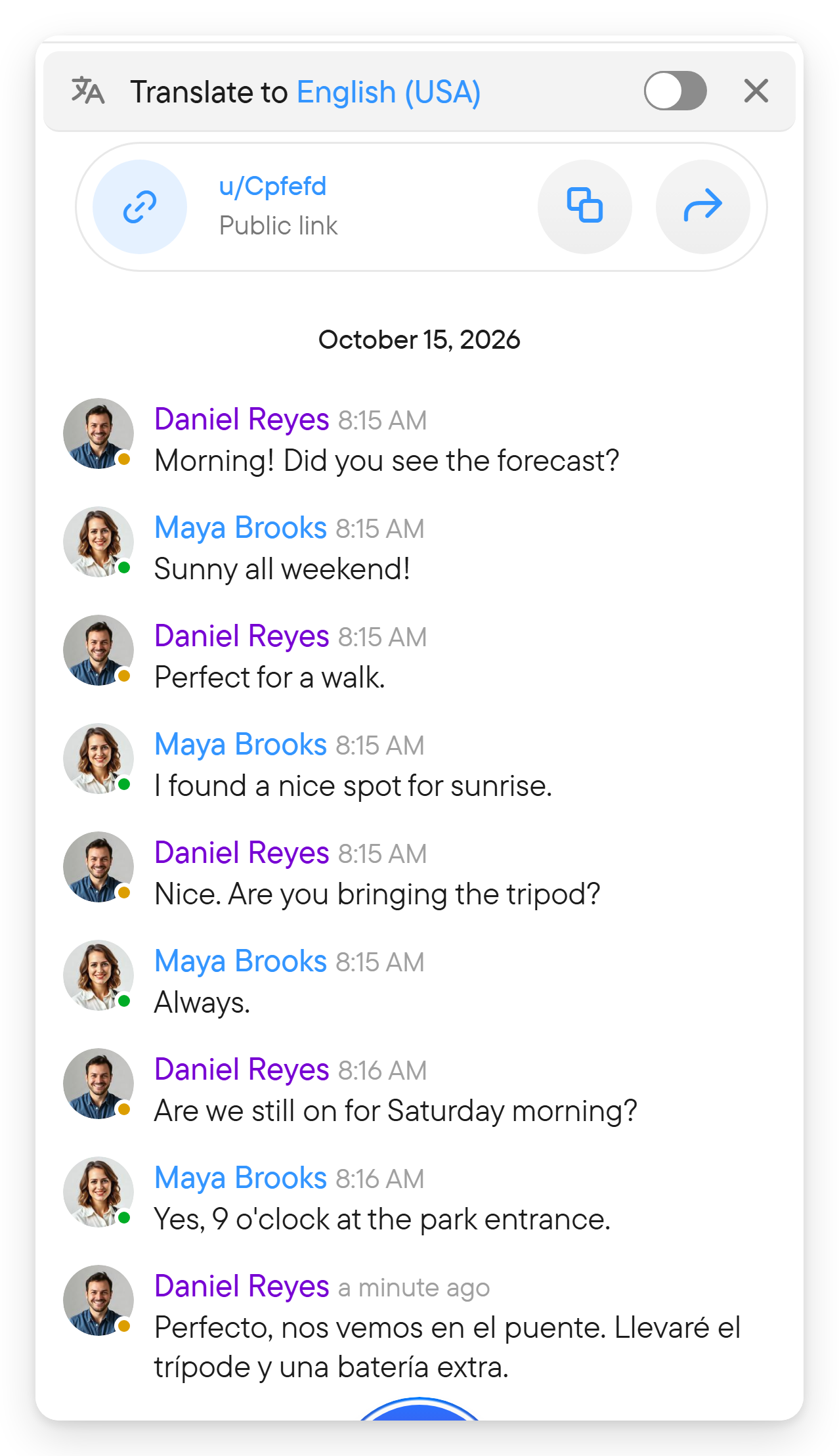
Short or already matching content may not need translation. Automated wording can also be imperfect, so compare the original when a name, number or precise phrase matters.
Translation can also apply to conversation titles and summaries when it is enabled for the chat.