
Find your way around
Voxt organizes the desktop interface into navigation, a conversation, and related information. On a narrow screen these areas appear as separate panels rather than all staying side by side.
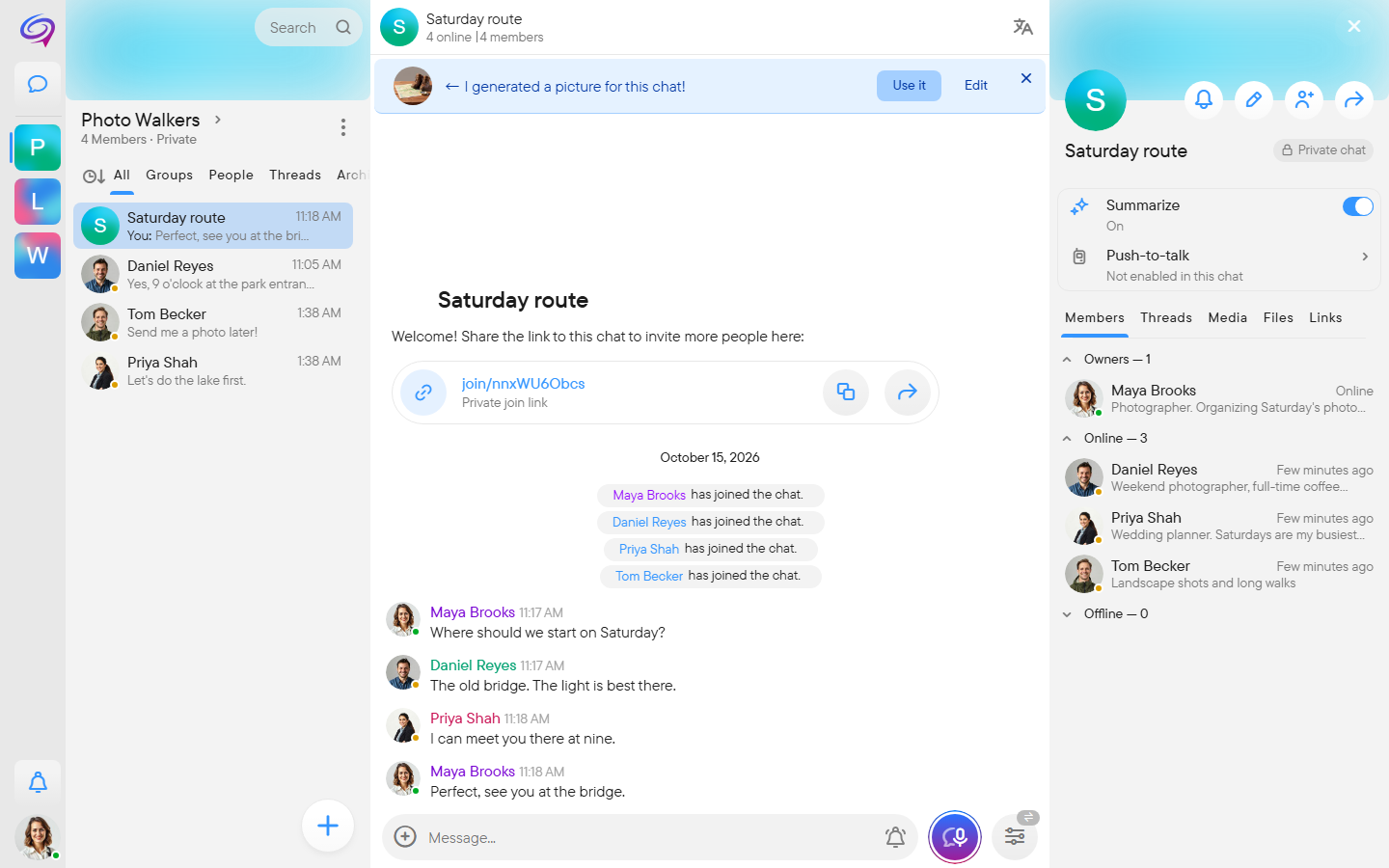
Left: choose where to go
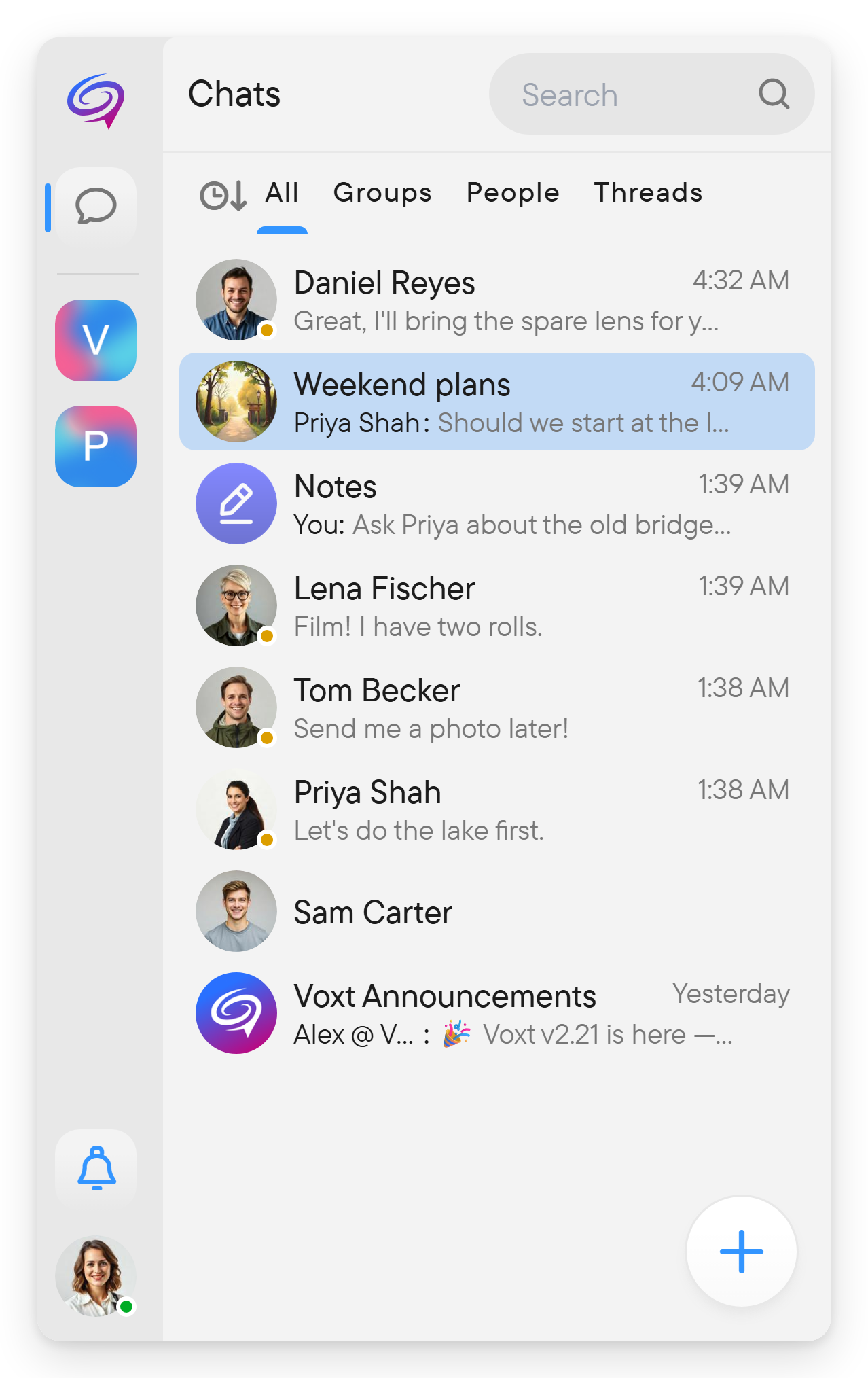
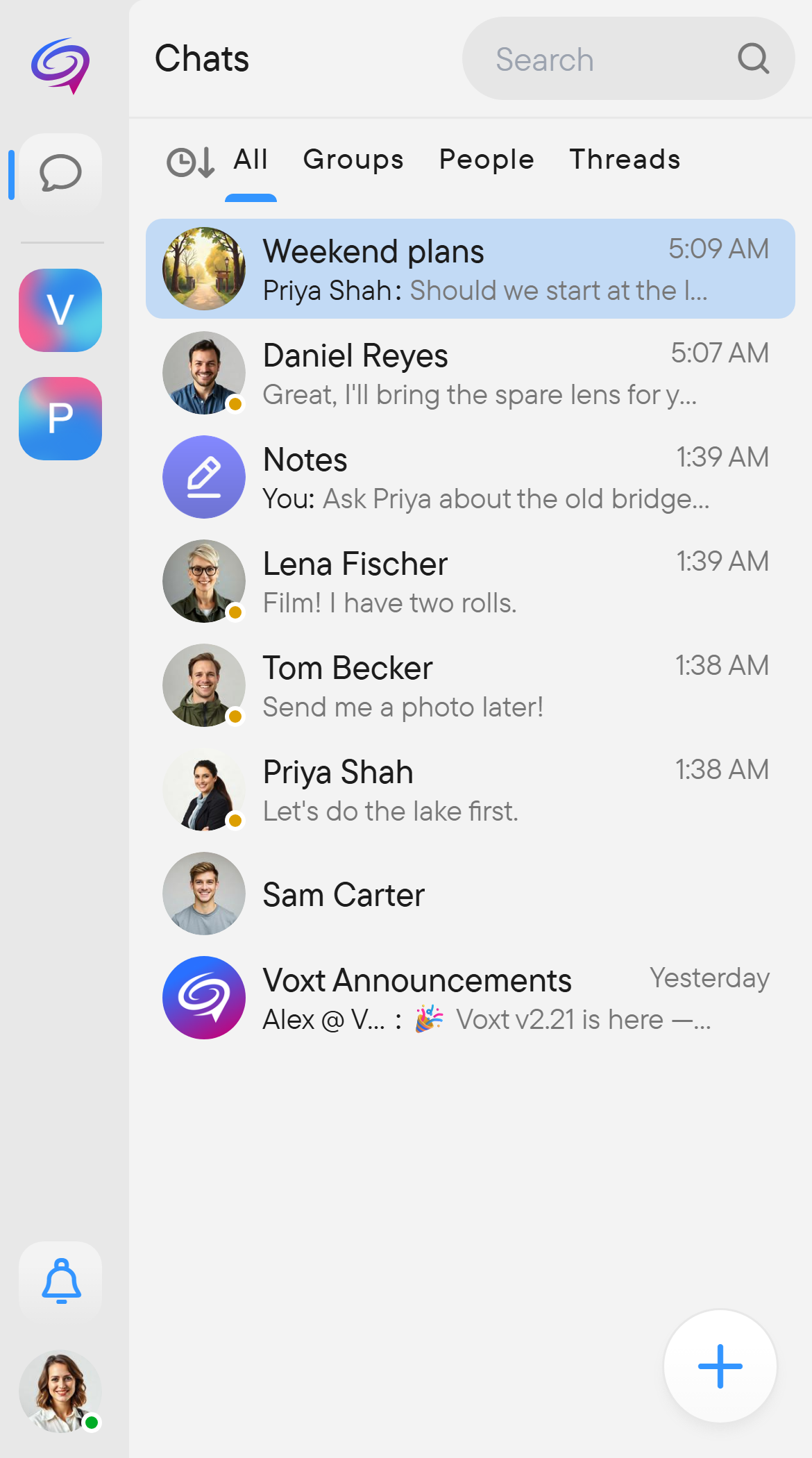
The navigation rail contains places and navigation shortcuts. Select a place to scope the chat list to that place.

The chat list includes:
- Search for finding people, groups, or messages.
- All, Groups, People, and Threads filters.
- A sorting control.
- A + button for creating a chat or place.
- A Push-to-talk chats row above the conversations when you have chats in your push-to-talk list.
- Your conversations and unread indicators.
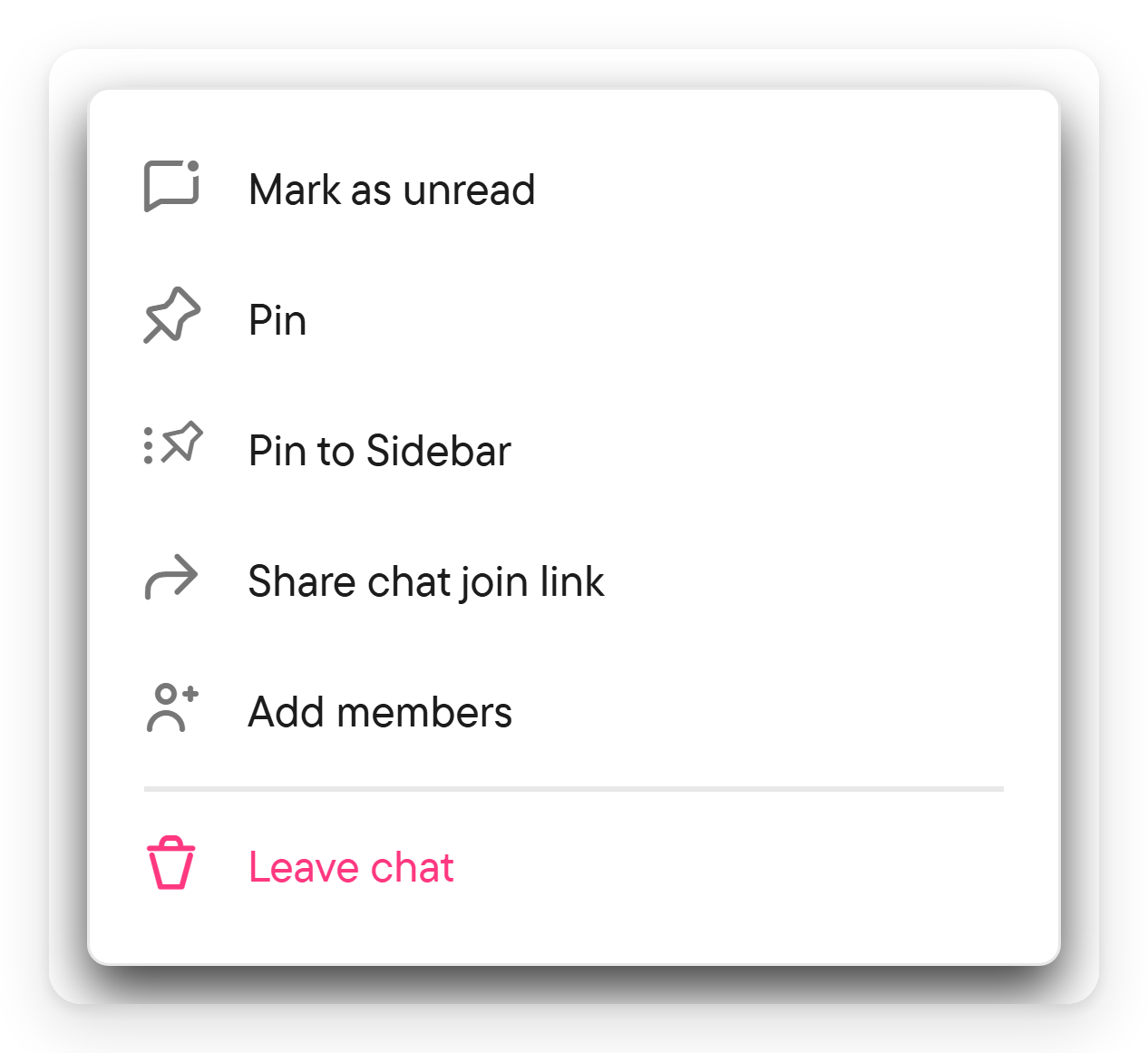
Chat menus offer actions such as pinning, marking as read or unread, and leaving. The account/avatar control opens account-related navigation, including Settings.
Middle: the conversation
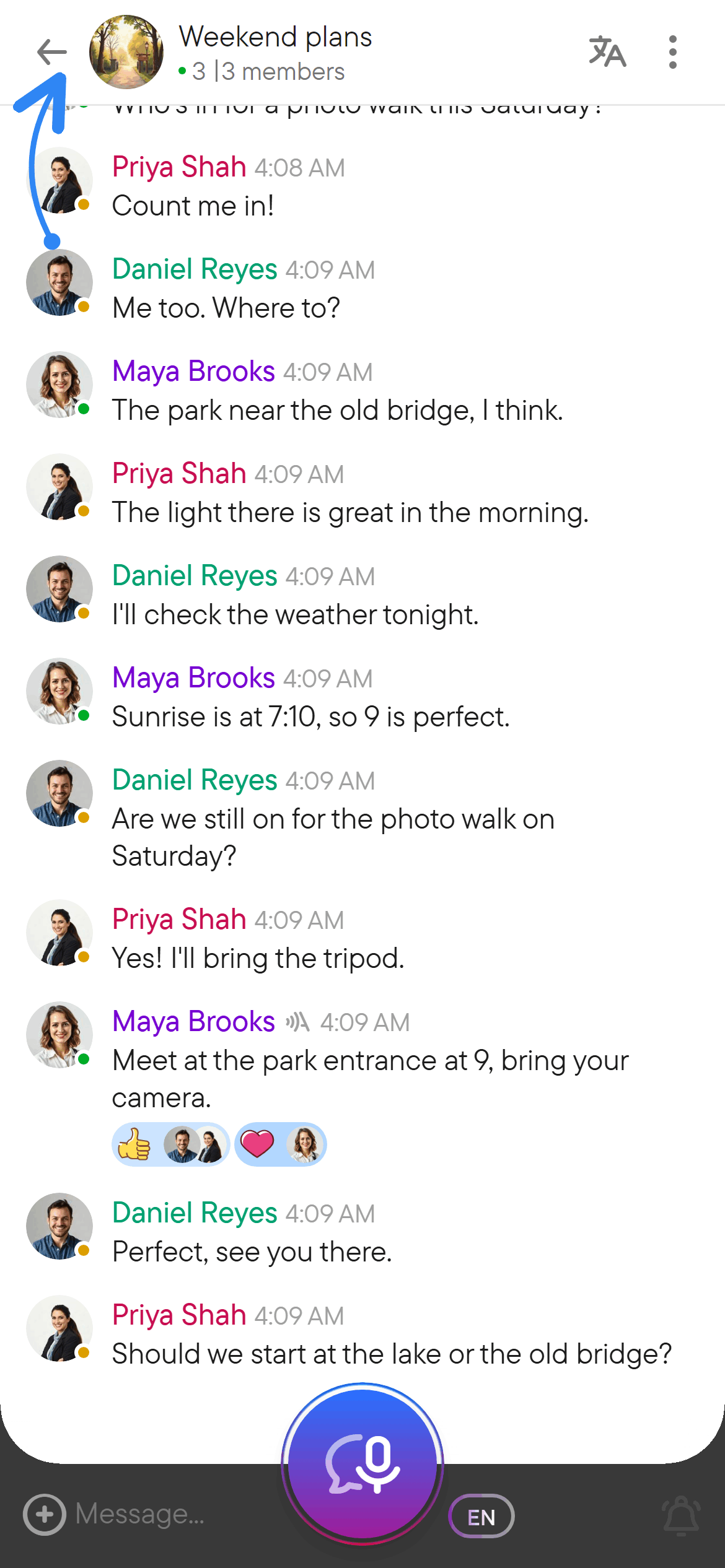
The header identifies the current chat. Below it are the messages, pinned content when present, and any live conversation.
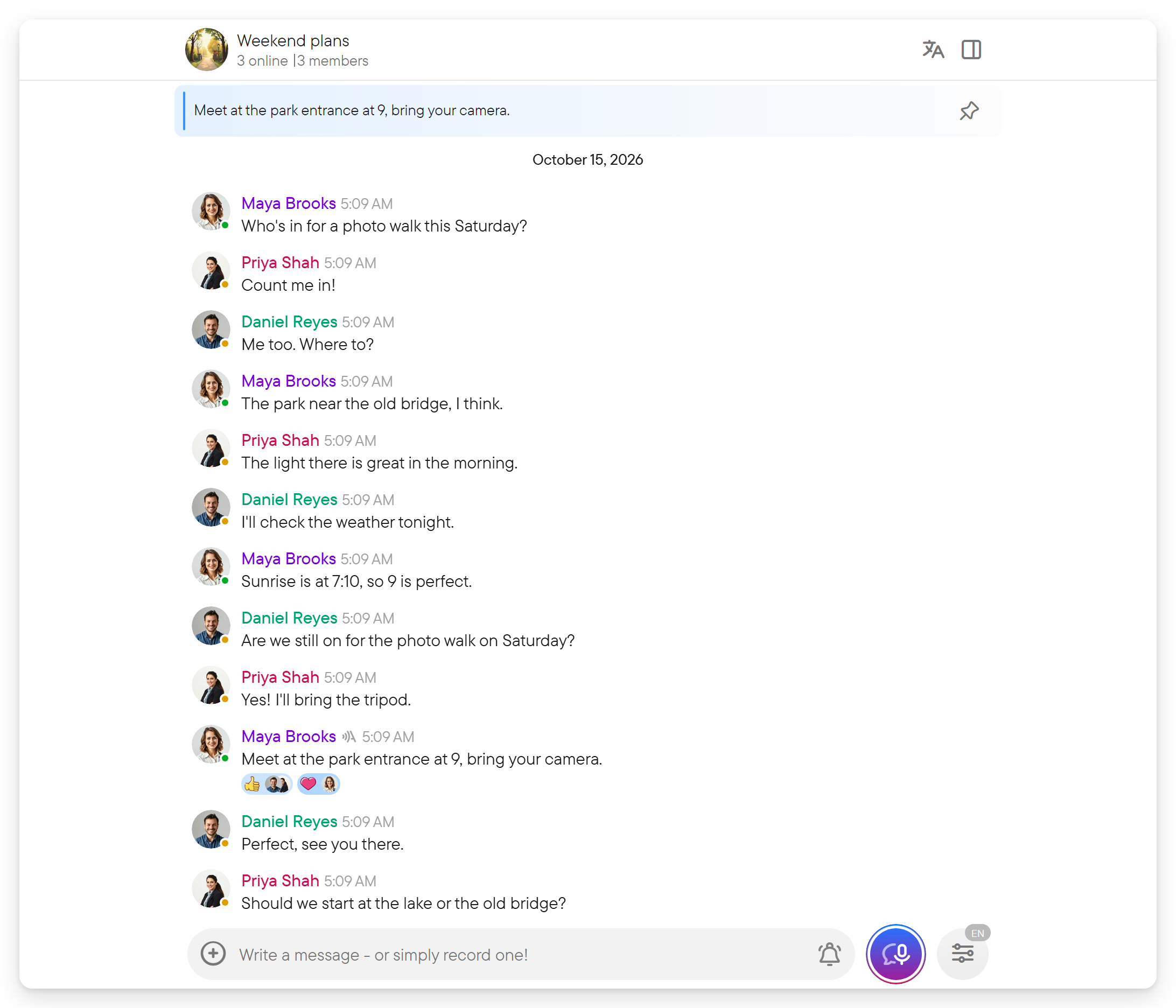
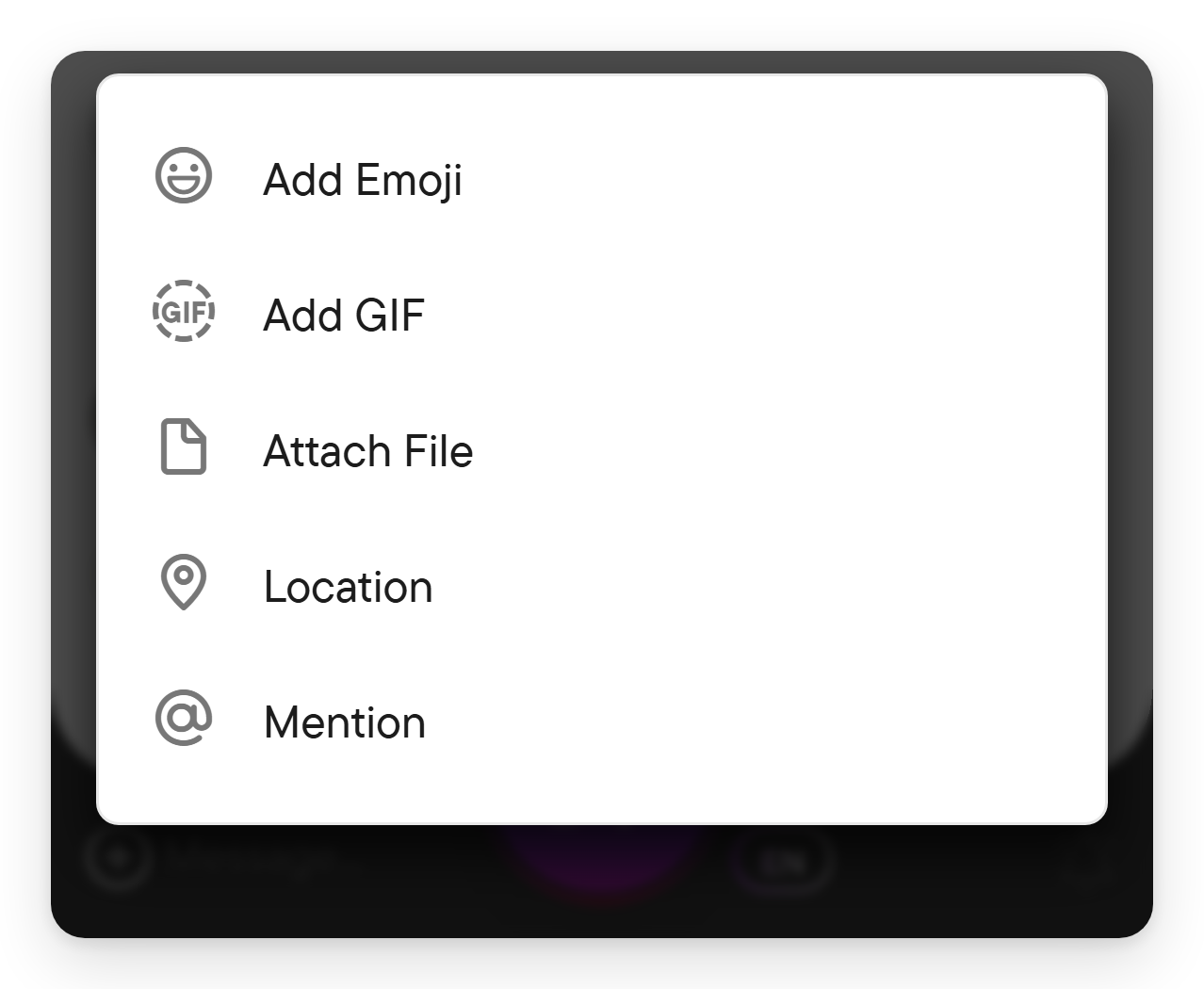
At the bottom, the composer holds your text and attachments. Its plus menu offers files, emoji/GIFs, mentions, and location. Voice/video controls appear where your chat permissions and device support them.
Use the message menu for replies, edits, forwarding, reactions, and other message actions.
Right: information and related content
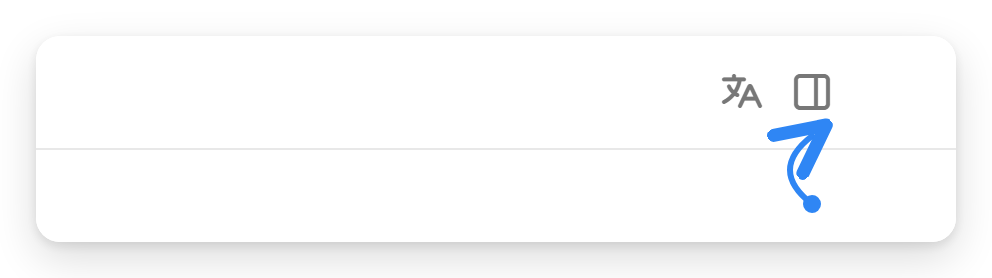
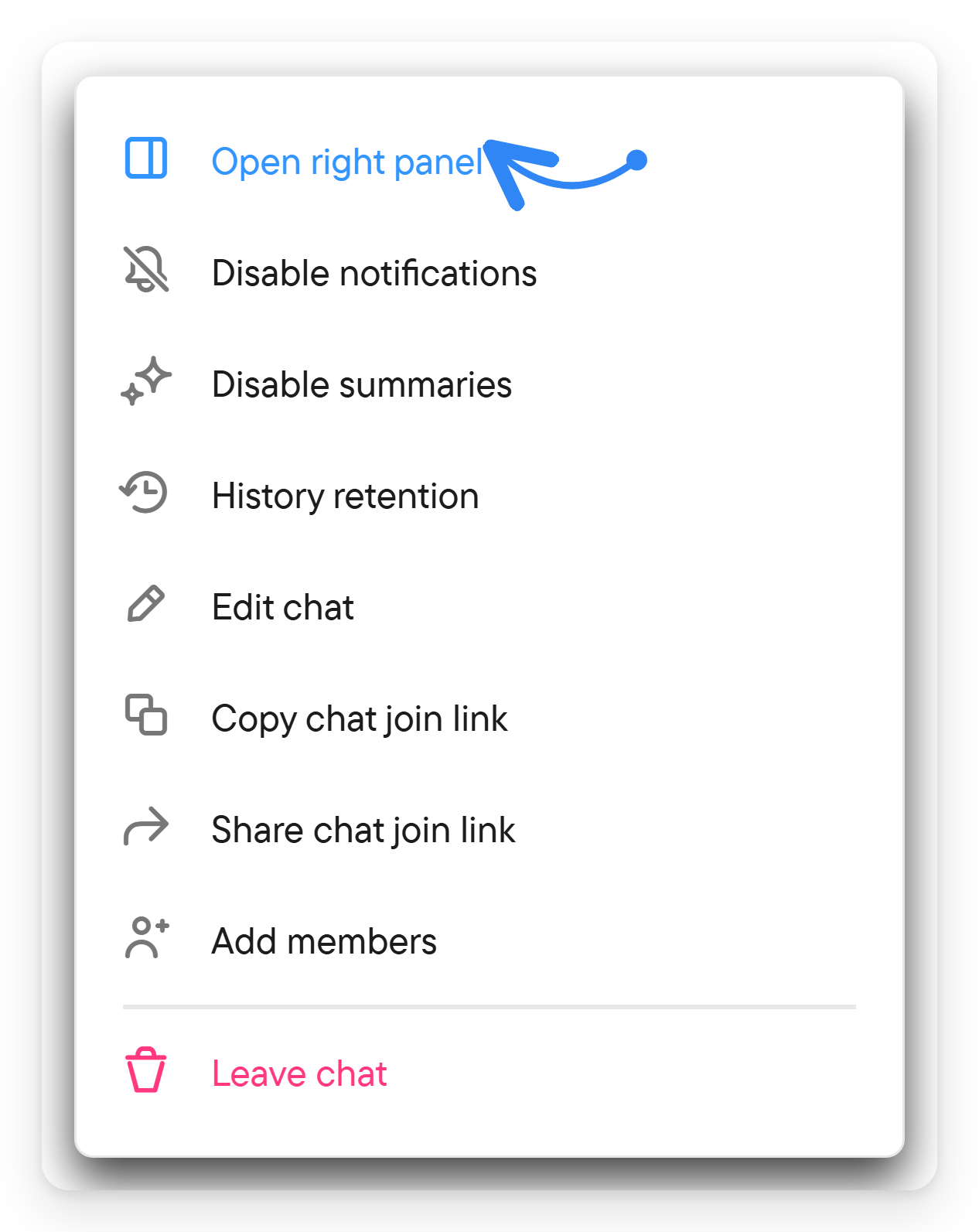
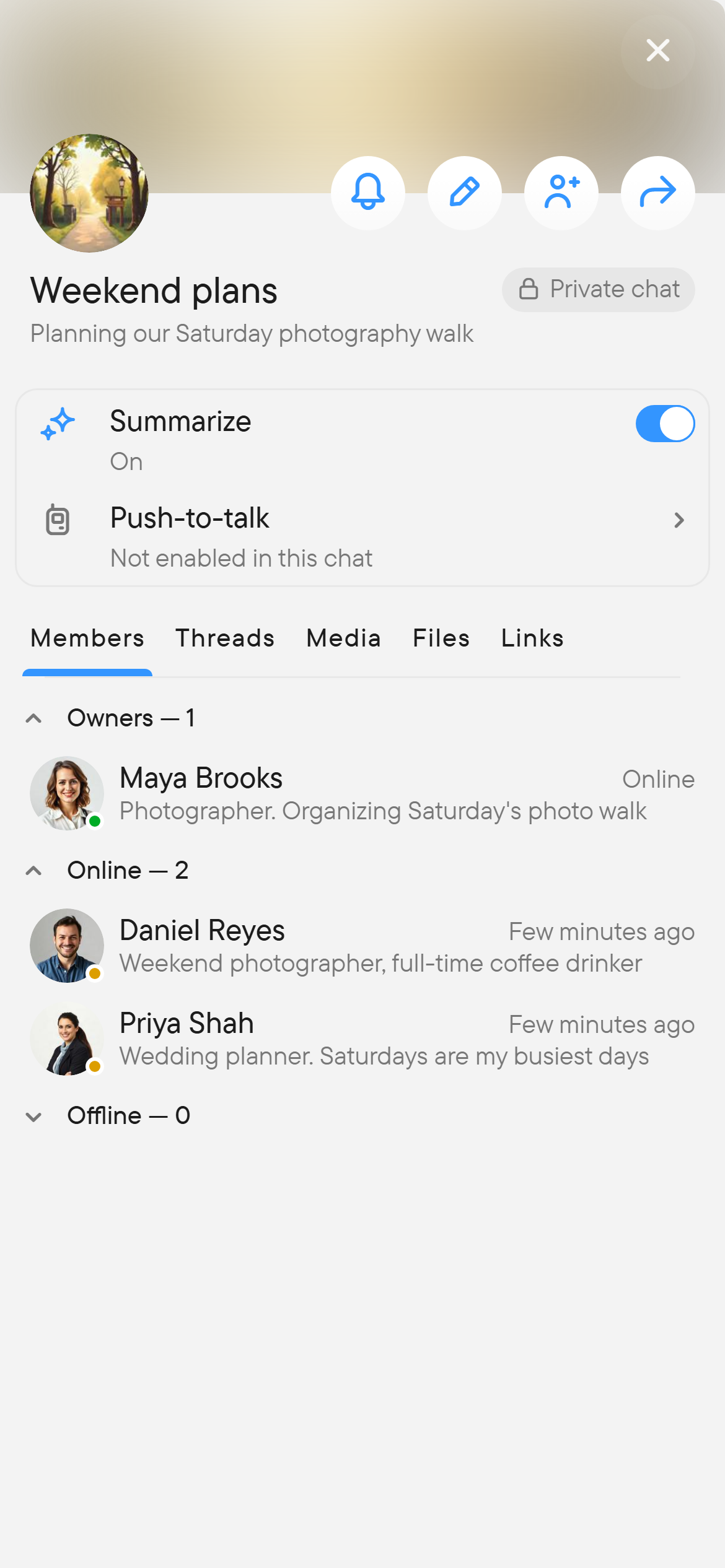
Open the chat information panel using the chat header. It provides the chat's details and relevant controls, including notification preferences and, where available, summary and push-to-talk settings.
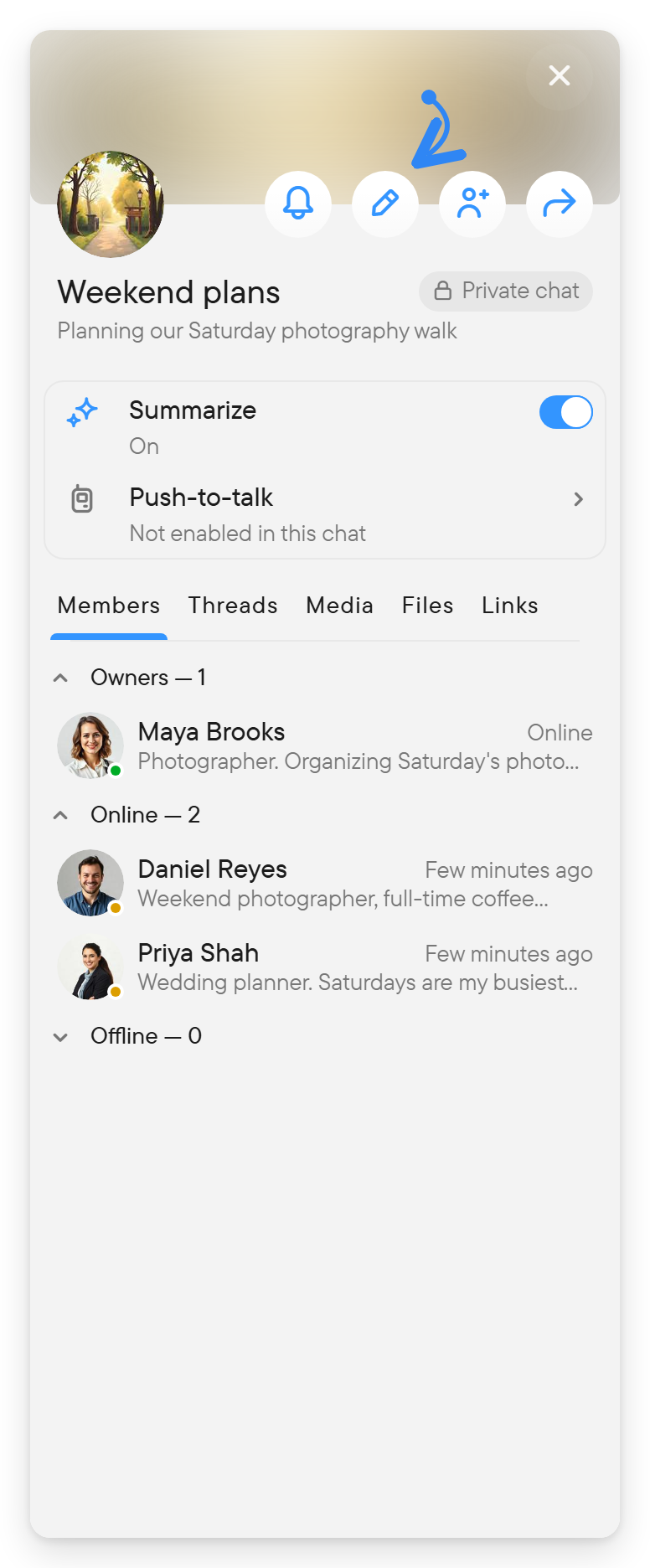
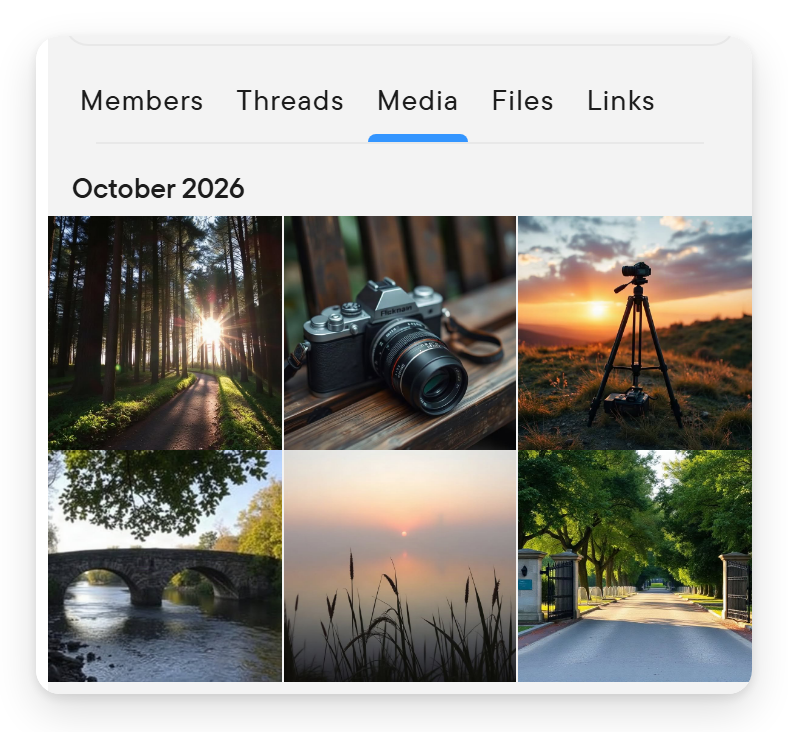
Use Members, Threads, Media, Files, and Links to explore the conversation's people and shared content. A live session can provide additional call-related information.
Edit controls appear only when your permissions allow the corresponding change.
On a phone or narrow window
Use the app's navigation/back and panel controls to move between the chat list, conversation, and information. Swipe navigation is also available in the panel layout. A mobile layout will not have every desktop control visible at once.
Keyboard shortcuts
Use ⌘ instead of Ctrl on Mac. Open Ctrl+/ to see the current shortcut list.
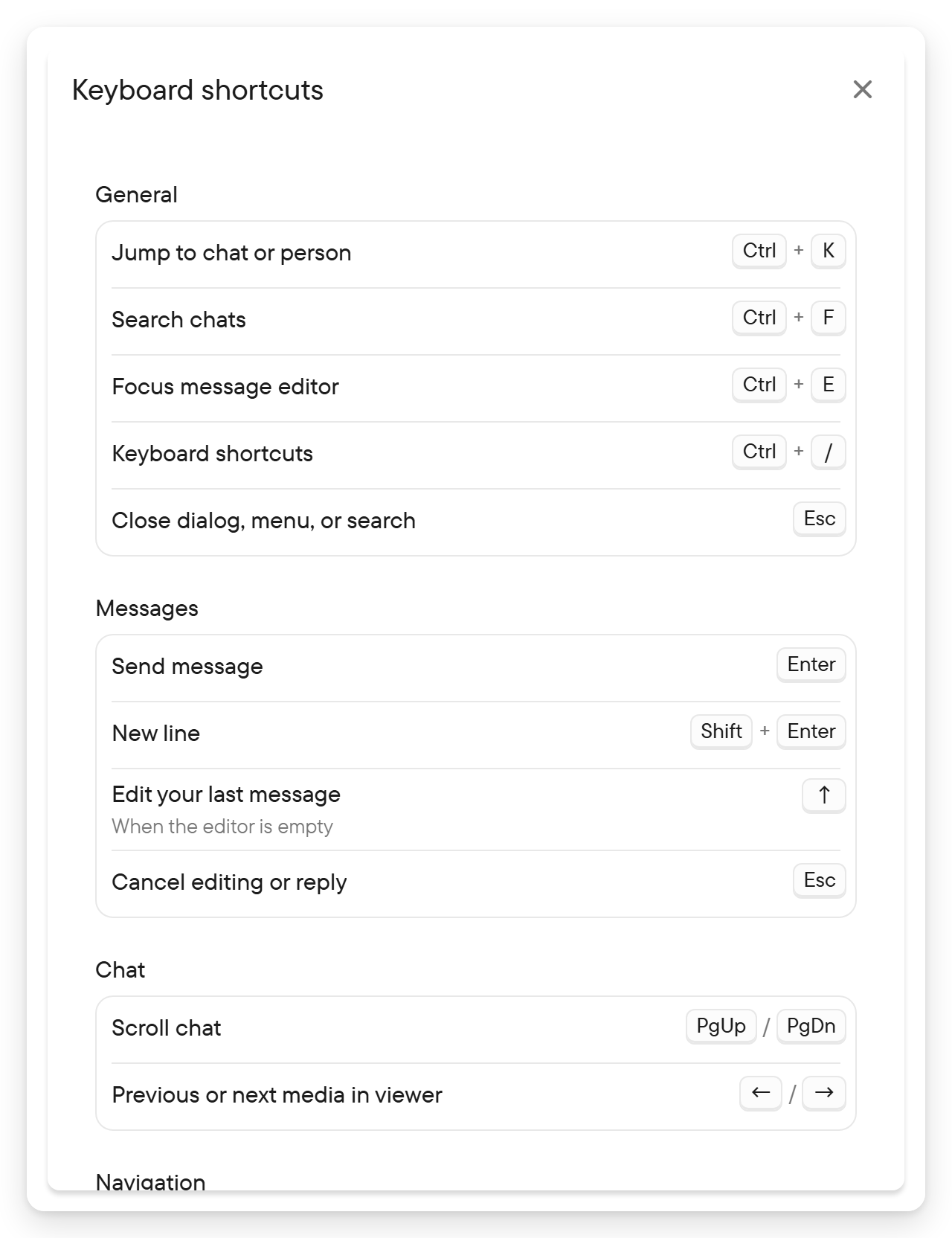
| Shortcut | Action |
|---|---|
| Ctrl+K | Jump to a chat |
| Ctrl+F | Search |
| Ctrl+E | Focus the message editor |
| Ctrl+/ | Open/close keyboard-shortcut help |
| Enter | Send a message |
| Shift+Enter | Insert a new line |
| Up arrow in an empty editor | Edit the last message |
| Esc | Cancel editing or close a dialog |
| Page Up / Page Down | Scroll the chat |
| Left / Right arrows in media viewer | Previous/next media |
| Tab / Shift+Tab | Move focus |
| Up / Down in a focused list | Move among items |
| Home / End in a focused list | First/last item |
| Enter / Space on a focused control | Activate it |
For task instructions, start with chats or the user guide contents.