
Left panel
The left panel is where you choose what to read. It has two parts: a narrow navigation rail at the far left, and next to it the chat list for whatever the rail has selected. This page walks through both, from the top of the rail down to the + button of the chat list. For the other panels see the overview.
The navigation rail
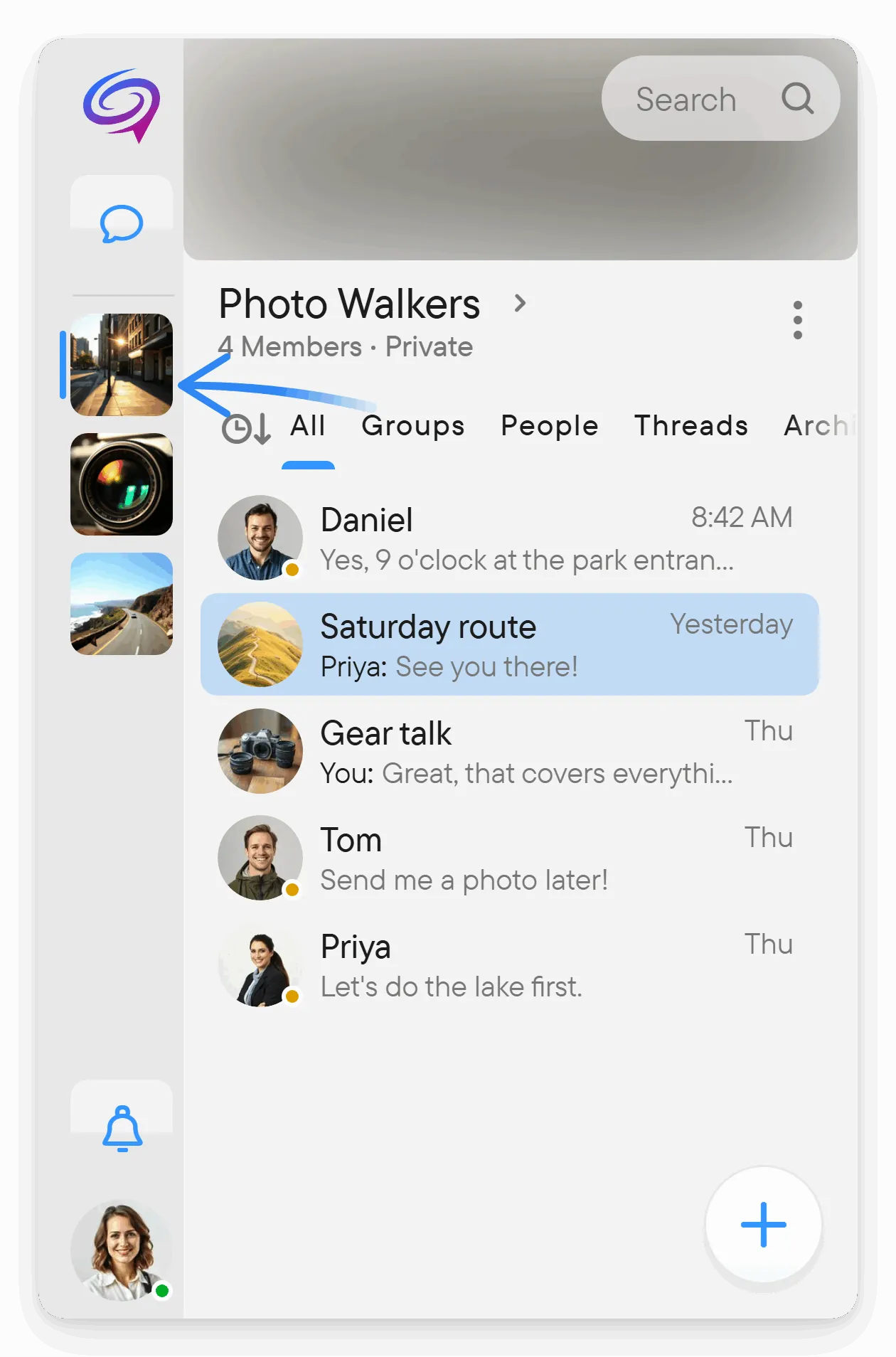
From the top, the rail holds the Voxt logo, the Chats button, one icon for each place you belong to, the chats you pinned to the rail, the Notifications bell when it has something to show, and your account button. Select Chats to see the chats that are not in a place, or select a place icon to scope the chat list to that place.
- The Chats button and each place icon show a badge with the number of unread chats that are not muted.
- To keep a chat one click away, open its menu in the chat list and choose Pin to Sidebar (see chat menus). It becomes a round icon in the rail with the person's or group's picture, a presence dot and an unread badge. Its menu has Unpin from Sidebar. This differs from Pin, which only keeps a chat at the top of the chat list.
- With a mouse you can drag place icons and pinned-chat icons to change their order. Voxt remembers the order. On a pinned icon, right-click opens the chat menu.
- The bell appears only while there is something to show: unread chats, reactions or notification history. It disappears when nothing is left. Its tooltip is Notifications. See notifications.
- If you open a chat of a place you have not joined, a temporary icon for that place appears in the rail.
- The round account button at the bottom shows your picture and presence, and a red ! while a permission is missing. Select it to open Settings (see Settings).
For places themselves, see places.
The Voxt logo menu
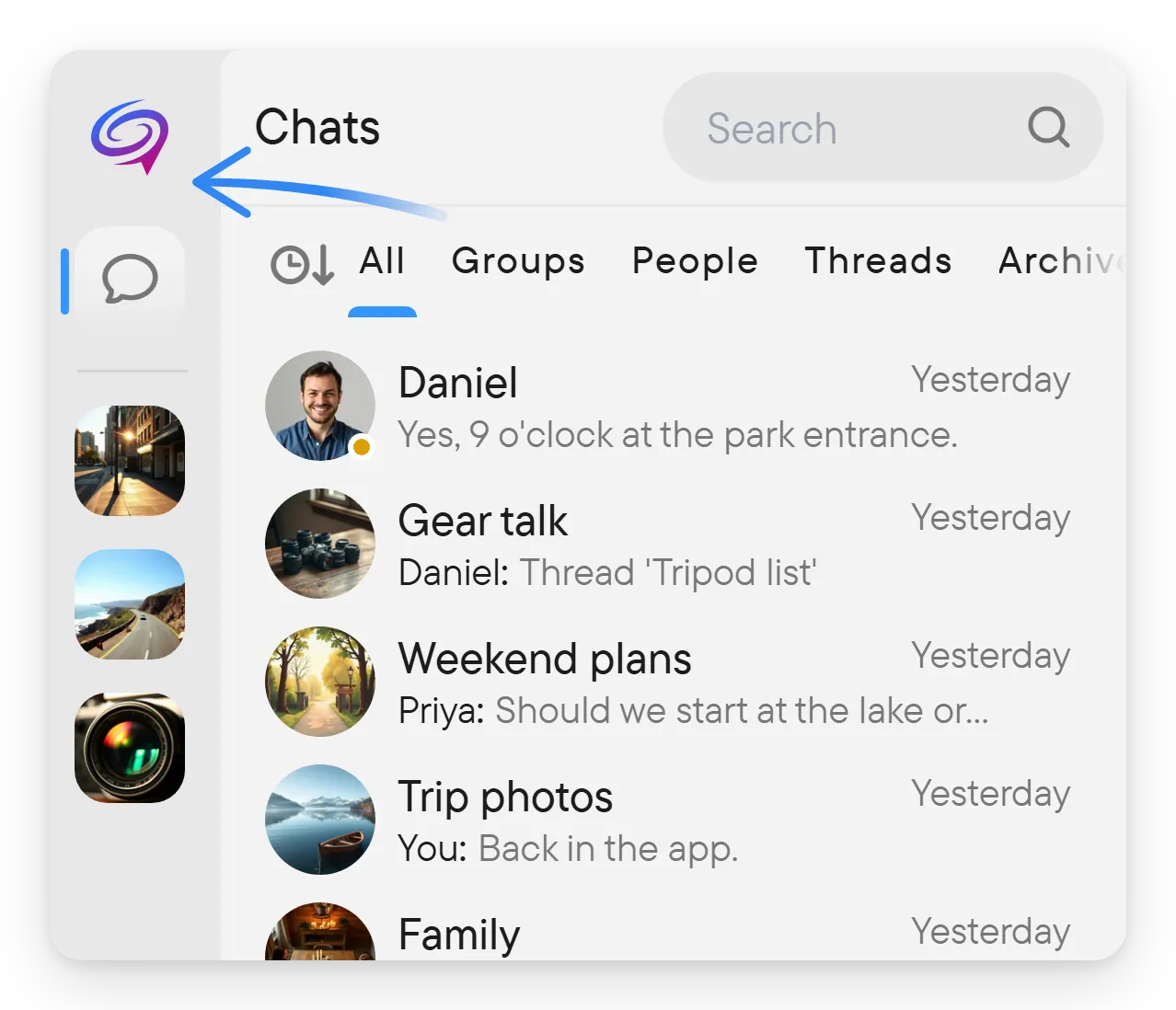
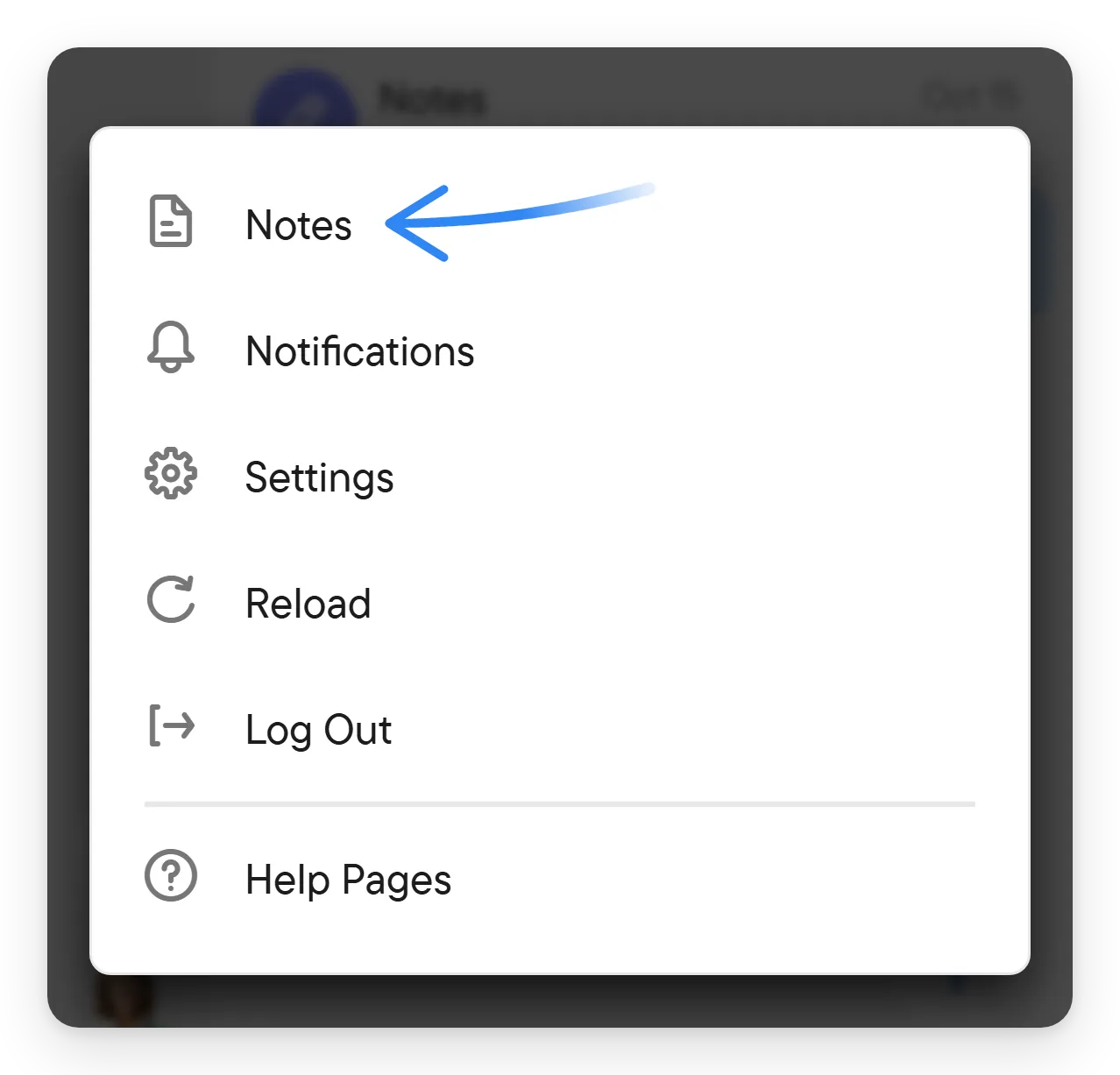
The Voxt logo at the top of the rail is a button. Select it to open a menu with Notes (your own notes chat, when it exists), Notifications, Settings, Reload and Log Out, followed by Help Pages, which opens the documentation. If you are not signed in, it offers Sign in instead of Log Out. Notifications here opens the notifications panel even when the bell is hidden.
The chat list
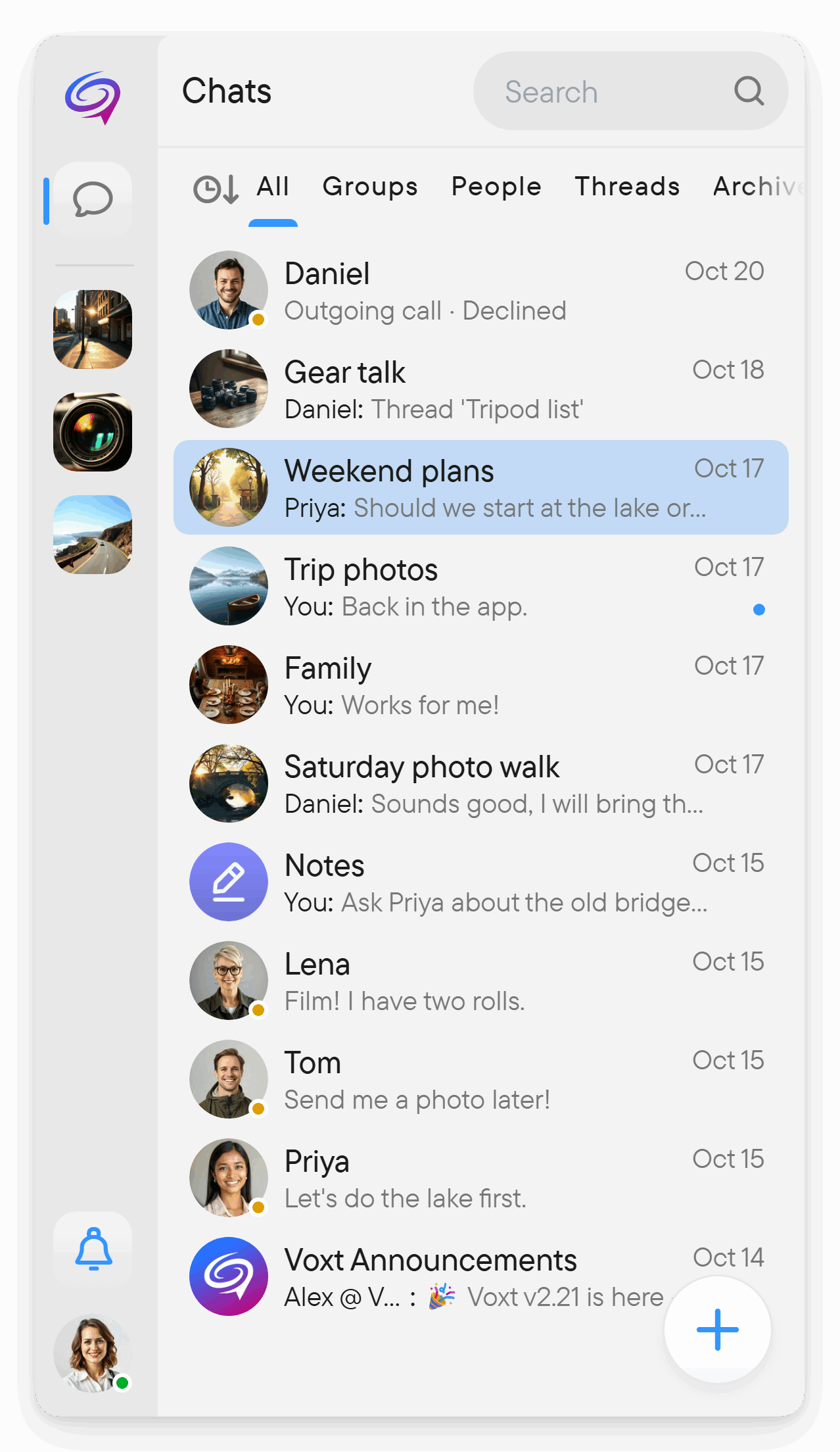
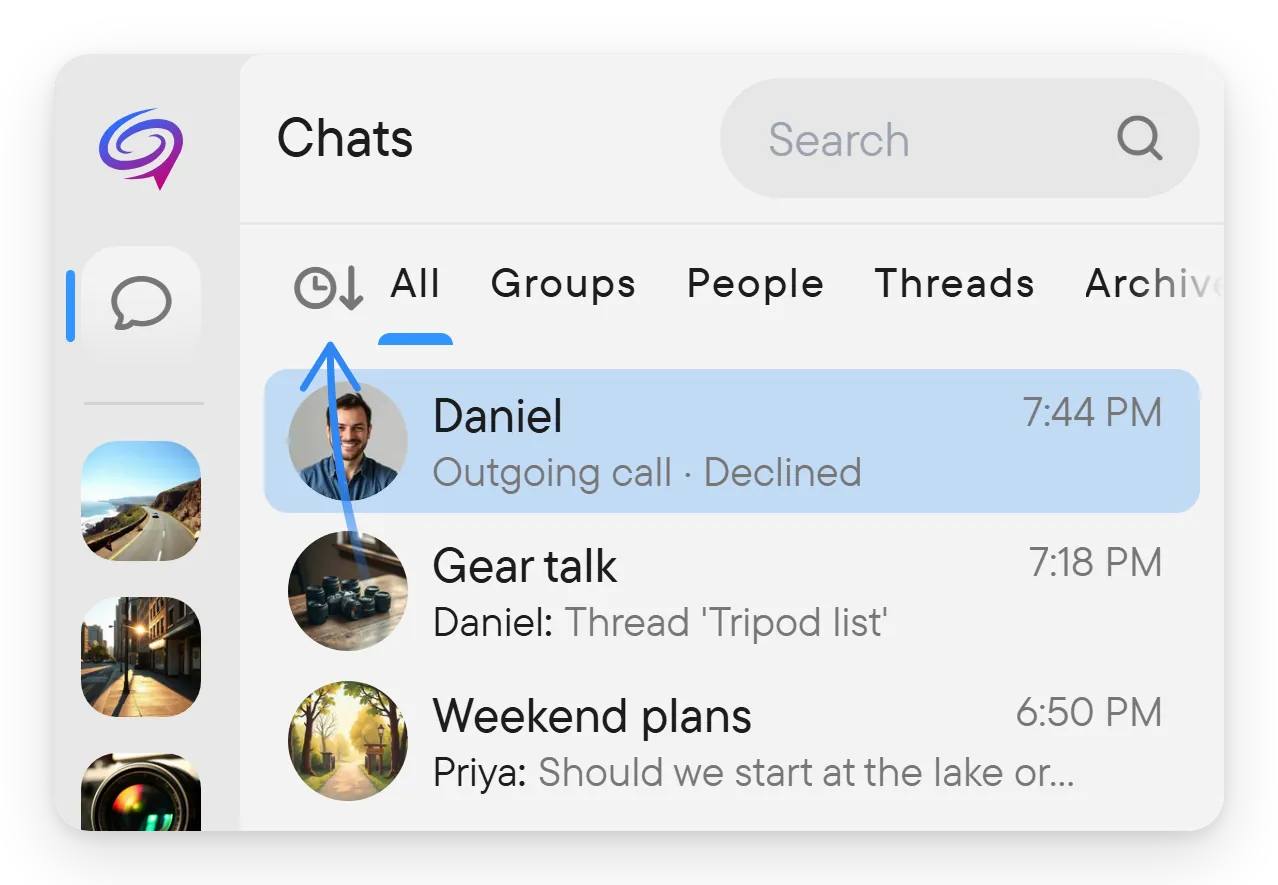
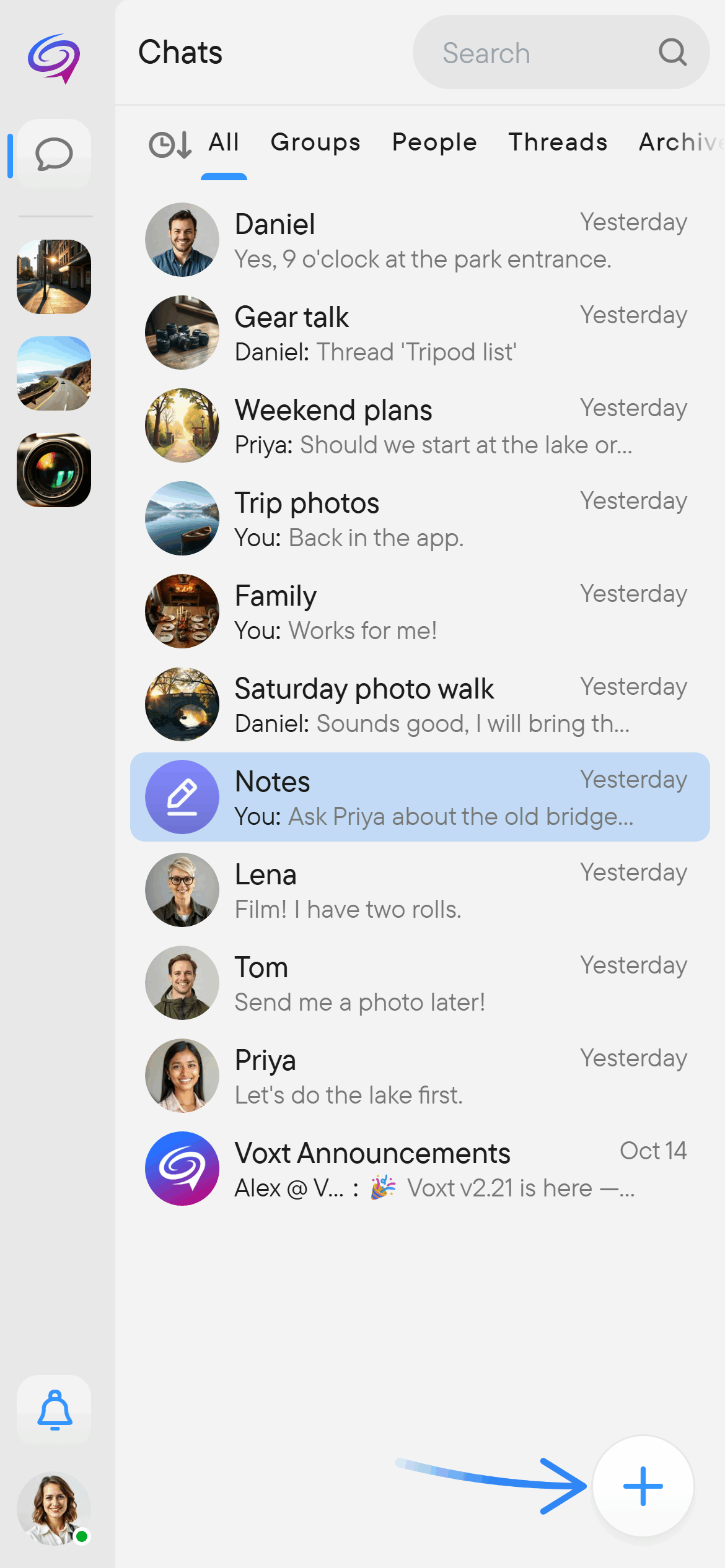
At the top of the chat list is a search box. A row of tabs follows: All, Groups, People, Threads and Archive. The Threads tab is not shown in every place. Below the tabs are your conversations, and the round + button sits at the bottom right. Voxt remembers the tab and the order separately for Chats and for each place.
- Active Chats appears at the bottom of the list. It holds the chats where you are in a call or recording, and the push-to-talk chats where someone is speaking, with listen, record or mute controls on each row.
- At the very bottom, a row of round pictures shows the chats in your push-to-talk list. Select the row to open the push-to-talk settings. Active Chats and this row stay in place while you search.
- A banner suggests inviting friends by sharing a link to your account, or by showing a QR code to people nearby.
Sort the list
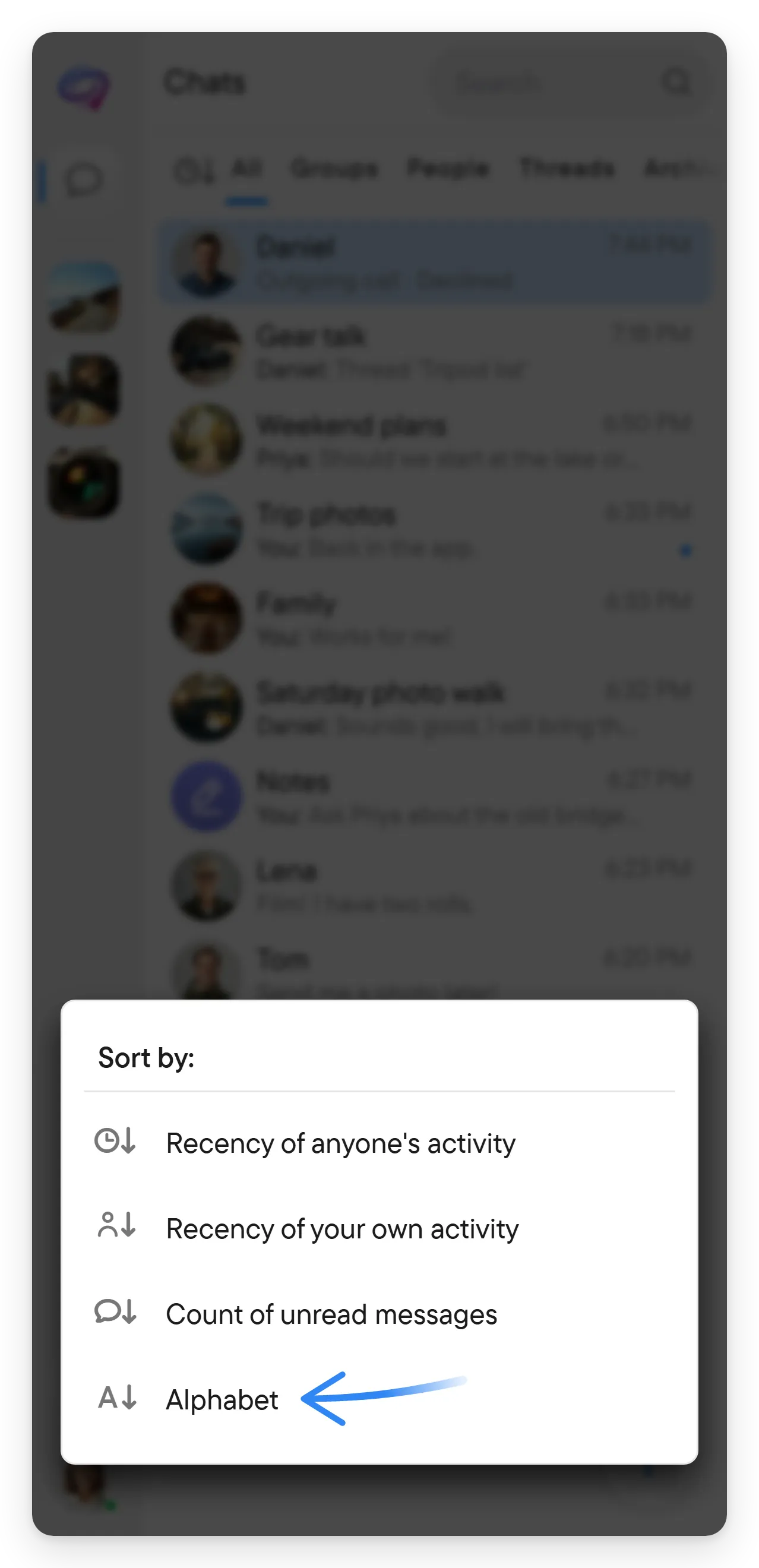
The sort button sits at the left of the tabs. Select it to open the Sort by: menu and choose Recency of anyone's activity, Recency of your own activity, Count of unread messages or Alphabet. In the Archive tab the menu offers By archival time.
Create a chat or a place
Select the round + button to open a menu with New Chat and New Place. See create a group and places.
What a row shows
Each row shows the chat's name and the time of the last message. A push-to-talk icon after the name marks a chat in push-to-talk mode; see push-to-talk. Under the name is a preview of that message, with the author's name in groups. While someone types, the row shows a typing indicator. During a live session it shows how many people are live. A badge on the right counts unread messages and marks mentions, alerts and reactions. A small dot shows that others have not yet read your last message. On a desktop, a three-dot button appears when you point at a row.
Chat menus
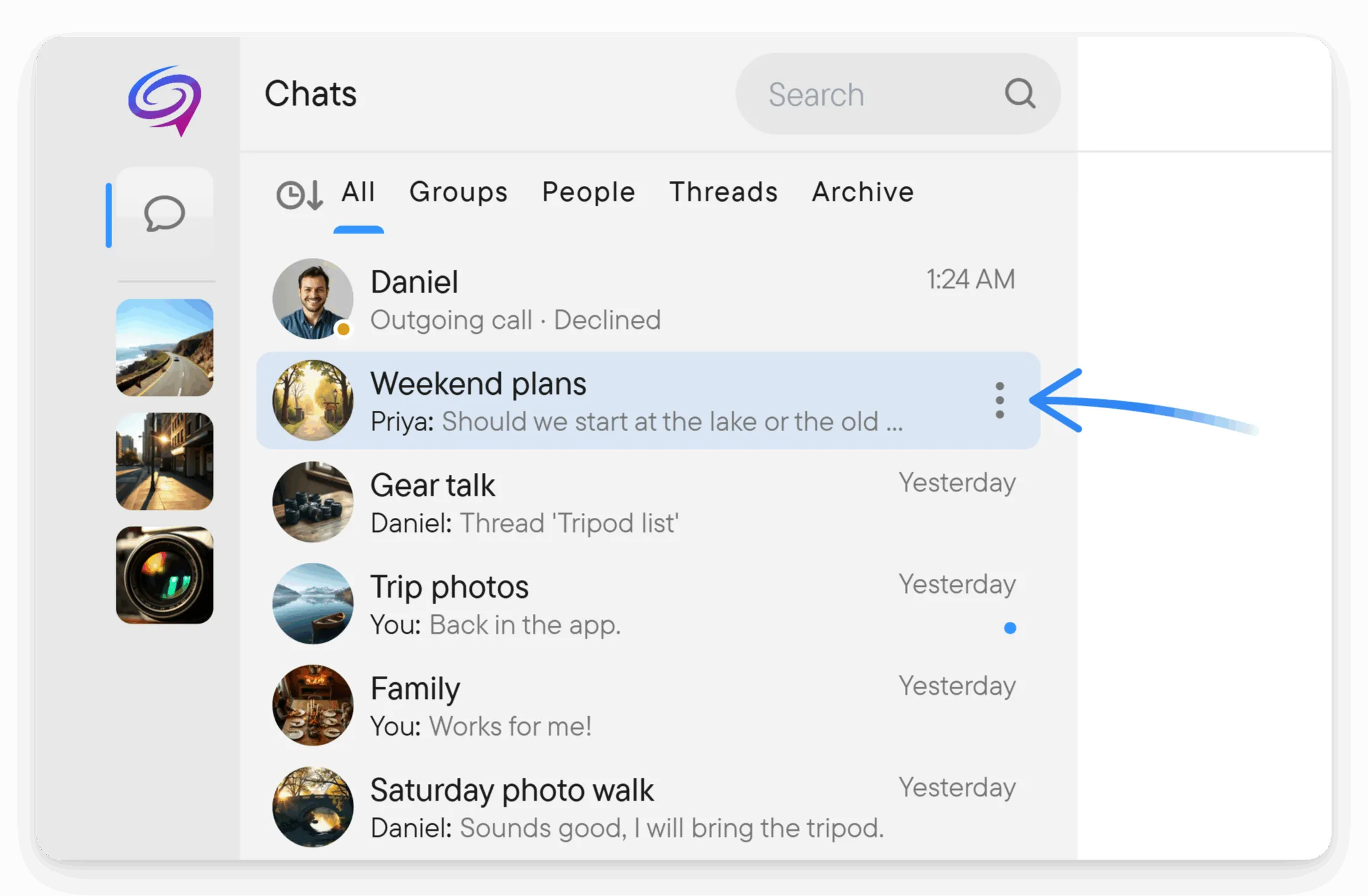
Chat menus offer actions such as pinning, Pin to Sidebar, marking as read or unread, sharing, adding members, Archive and leaving. Open the menu with the three dots, a right-click, or a long press on a touch screen. With a mouse, point at a row, select its three-dot button, then choose an action, for example Pin to Sidebar.
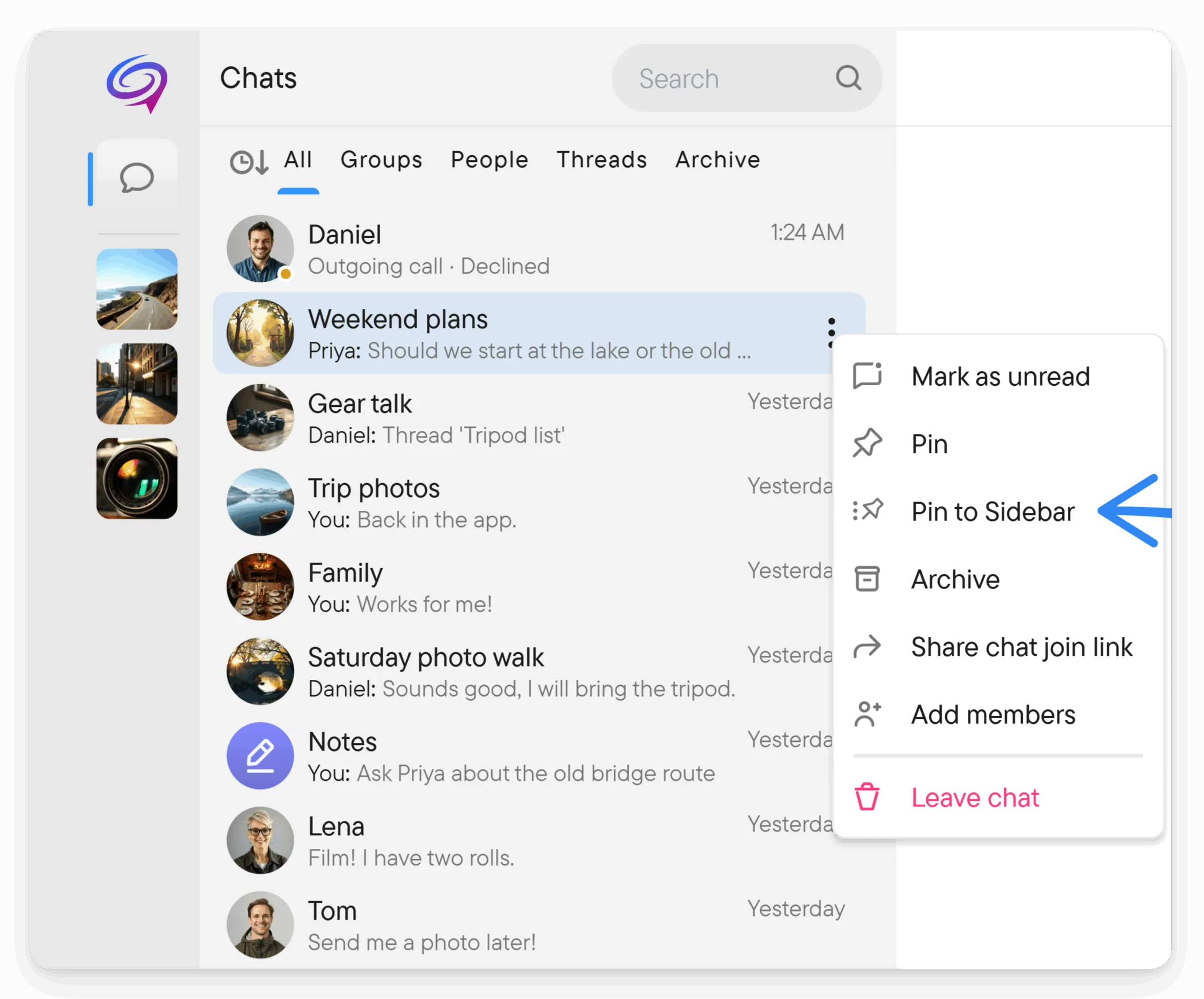
Archive takes a chat out of the list. It asks first, and you can turn off the chat's notifications in the same dialog. You find the chat in the Archive tab, sorted by the time you archived it, and Unarchive puts it back. Archiving is only for you. Other members still see the chat.
Search and Jump to
Select the search box to see Recently viewed chats and the people you contacted recently. Type to search people, groups and messages. The options button inside the field opens Search location and Result type. A choice that differs from the default shows as a badge under the field, which you can remove. Public chats and places that match are folded under Public chats & places, with a Show button. Press Esc or the X to close the search. See search.
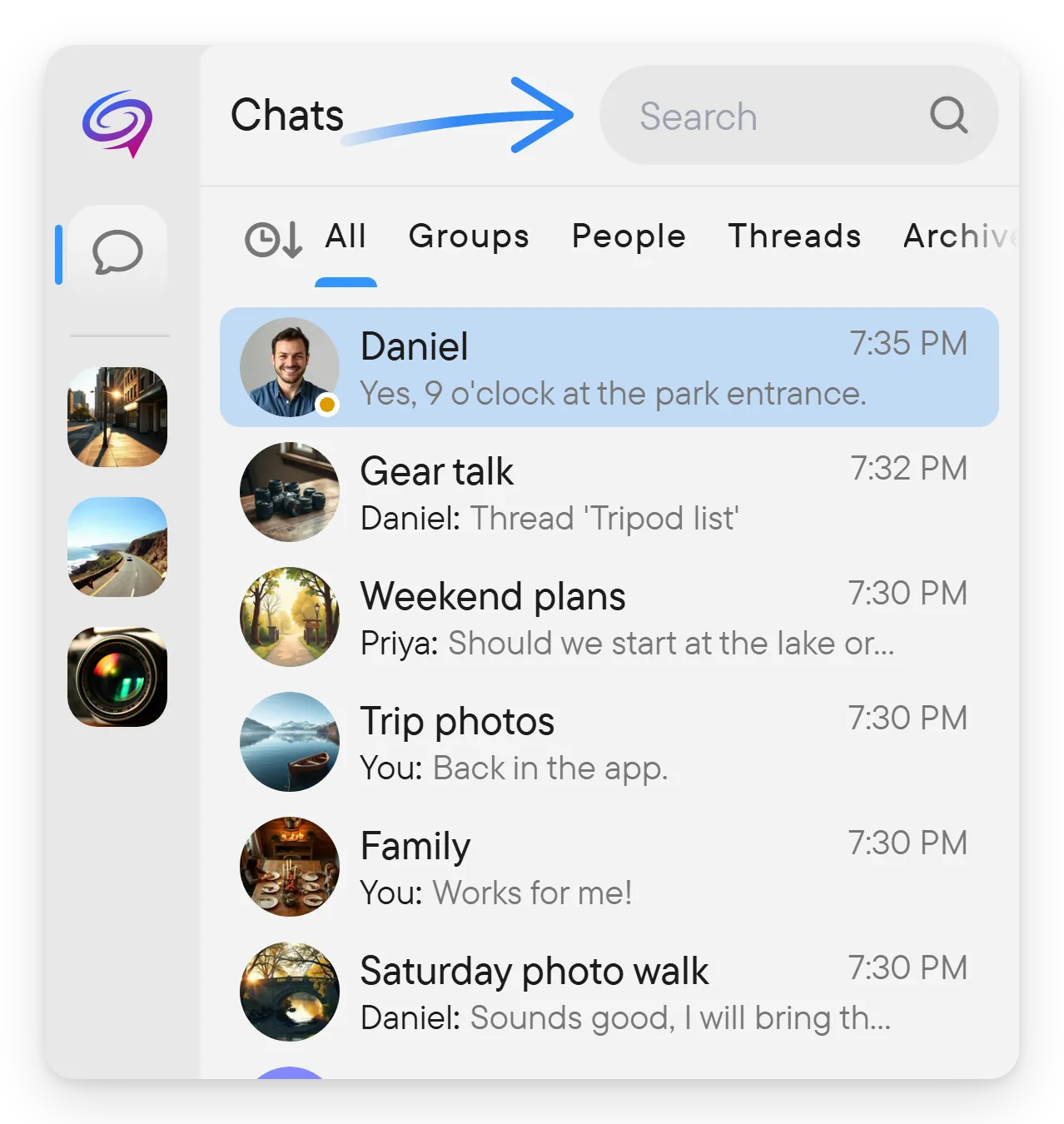
Press Ctrl+K anywhere to open Jump to.... Type part of a name to filter your chats, places and people, then choose a result with the arrow keys or the mouse. It says No matches when nothing fits.
Next
- Middle panel: the open conversation.
- Chats for what you can do in a chat.