Right panel
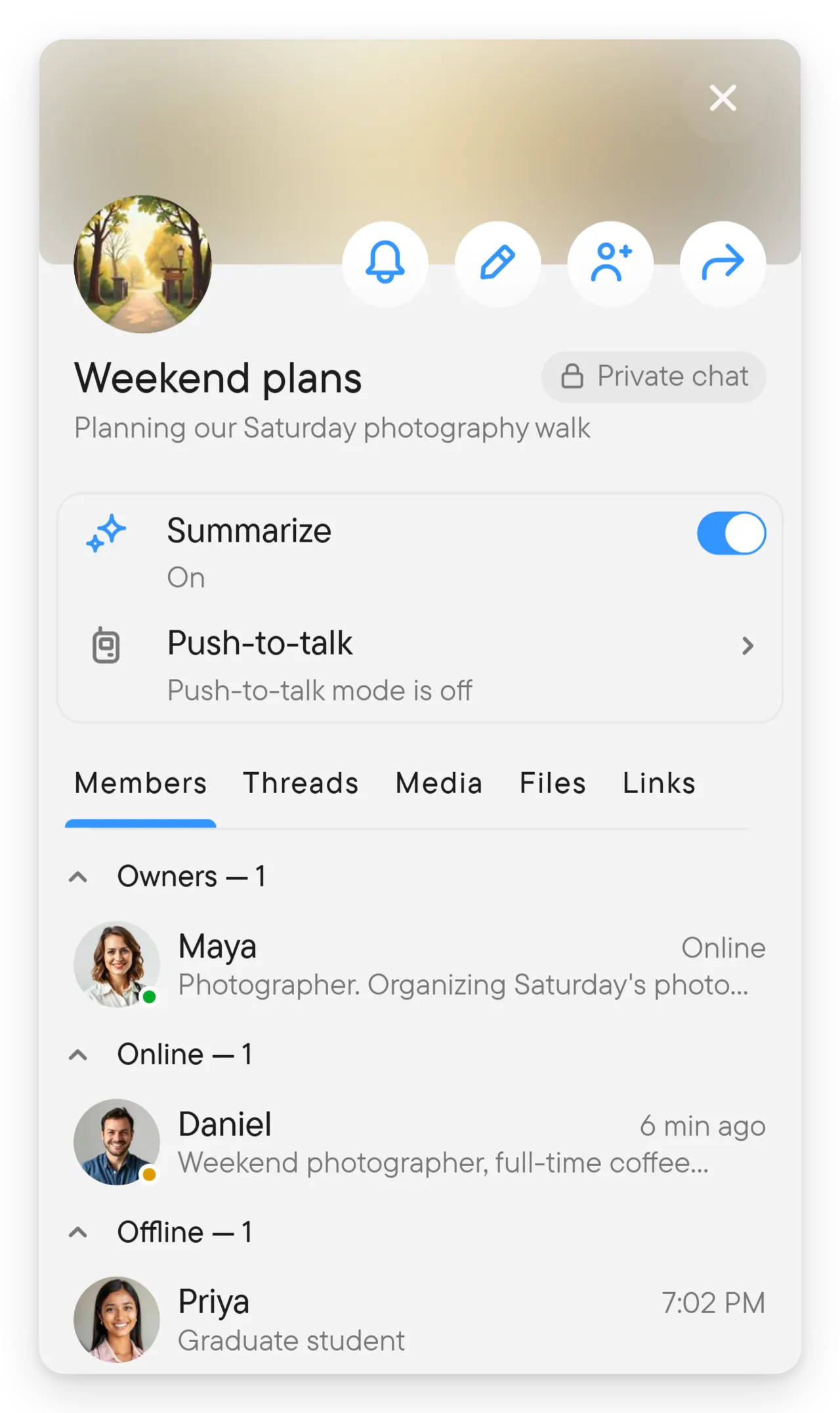
The right panel shows information about the open chat and lets you change how the chat behaves without leaving the conversation. It has a header with the chat's picture and actions, a few switches, and tabs for the chat's people and shared content. This page walks through them from top to bottom. For the other panels see the overview.
Open and close the panel
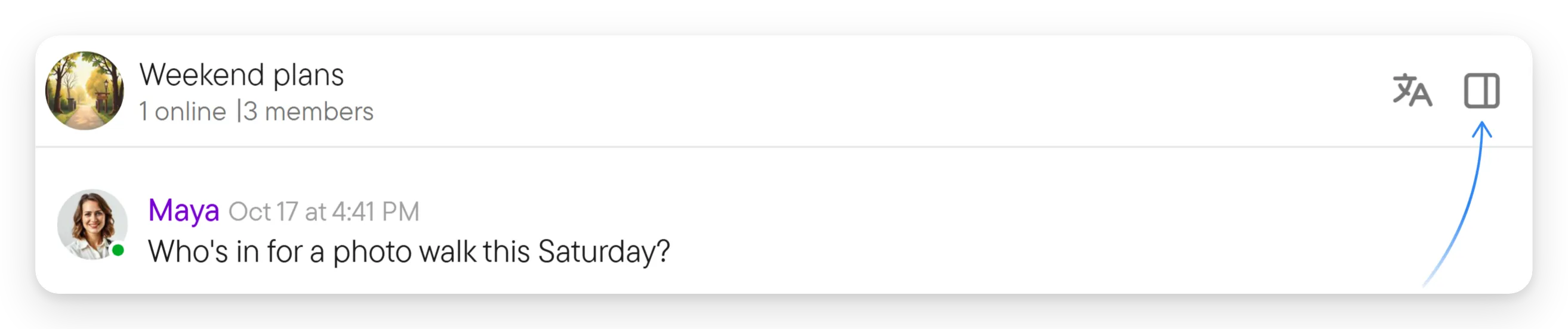
On a wide window, select the panel button at the right end of the chat header (its tooltip is Chat properties). Selecting the chat's picture and name in the header opens it too. To close the panel, select the X at its top right, or the chat's picture and name in the header again. The panel button is shown only while the panel is closed.
On a phone there is no panel button. Select the three dots in the header, then choose Open right panel; see the overview.
The header and the details
At the top of the panel are the chat's picture, its name and, in a group, its description. Round buttons in the header appear when they apply to you:
- The notification bell (All messages, Important only or Muted) for chats you are a member of. See notifications.
- The pencil button edits the chat (or the contact, in a direct chat), where your permissions allow it.
- The add-person button adds members, where you are allowed to. See manage a group.
- The share button shares the chat's link, where the chat can be shared.
Below the header is a card with the chat's switches, each shown only where it applies:
- Summarize turns on summaries for the chat. Only owners can change it. Other members see who turned it on (for example "On - by chat owner").
- Push-to-talk opens the chat's push-to-talk settings and shows their state, for example "Push-to-talk mode is off".
- History retention shows how long the chat keeps its history and, for those who can manage it, opens the setting. See control how long history is kept.
Edit controls appear only when your permissions allow the corresponding change.
The tabs
Under the card is a row of tabs: Call (only during a live session), Members, Threads, Media, Files and Links. Swipe or select a tab to switch. Which tabs you see depends on the chat. While a tab loads its content, it shows gray placeholder rows in the shape of its list.
Call
Call is the first tab and appears only while a live session is running in the chat, that is, while people are in its voice conversation or video. It disappears when the session ends. When a session starts while the panel is open on Members, the panel switches to Call by itself; if you are on another tab, it stays there. With no session the tab reads No active call.
At the top, Rules states what the session carries, for example "Transcription, Voice, Video". Under it, people are grouped as Host, Others and Exited, each with a count. Each row shows the person with their status, and small icons for what they are doing: Camera on, Sharing screen, Recording (the microphone is open) or In call (listening). A raised hand shows as Hand raised; raised hands are listed first, in the order they were raised.
If you are the host, or a moderator or owner of the chat, a Manage row of buttons sits under Rules; their names appear as tooltips:
- Transcription turns the session's transcription on or off.
- Video allows or forbids video in the session.
- Mute all turns off everyone else's microphone; it then reads Unmute all.
- Lower all hands appears while any hand is raised.
In a chat of two people there is no host to ask: either side can turn Transcription on or off, and Mute all and Make host are not offered.
In a larger chat, the host or an owner also gets Make host (the star) on a person's row, and the same people can select a person's microphone icon (Turn off recording) to turn that microphone off; owners' microphones can be turned off only by owners and the host. Select your own raised hand, or the hand icon of another person where you are allowed to, to put it down (Lower hand). To raise your hand, see the video menu.

Members
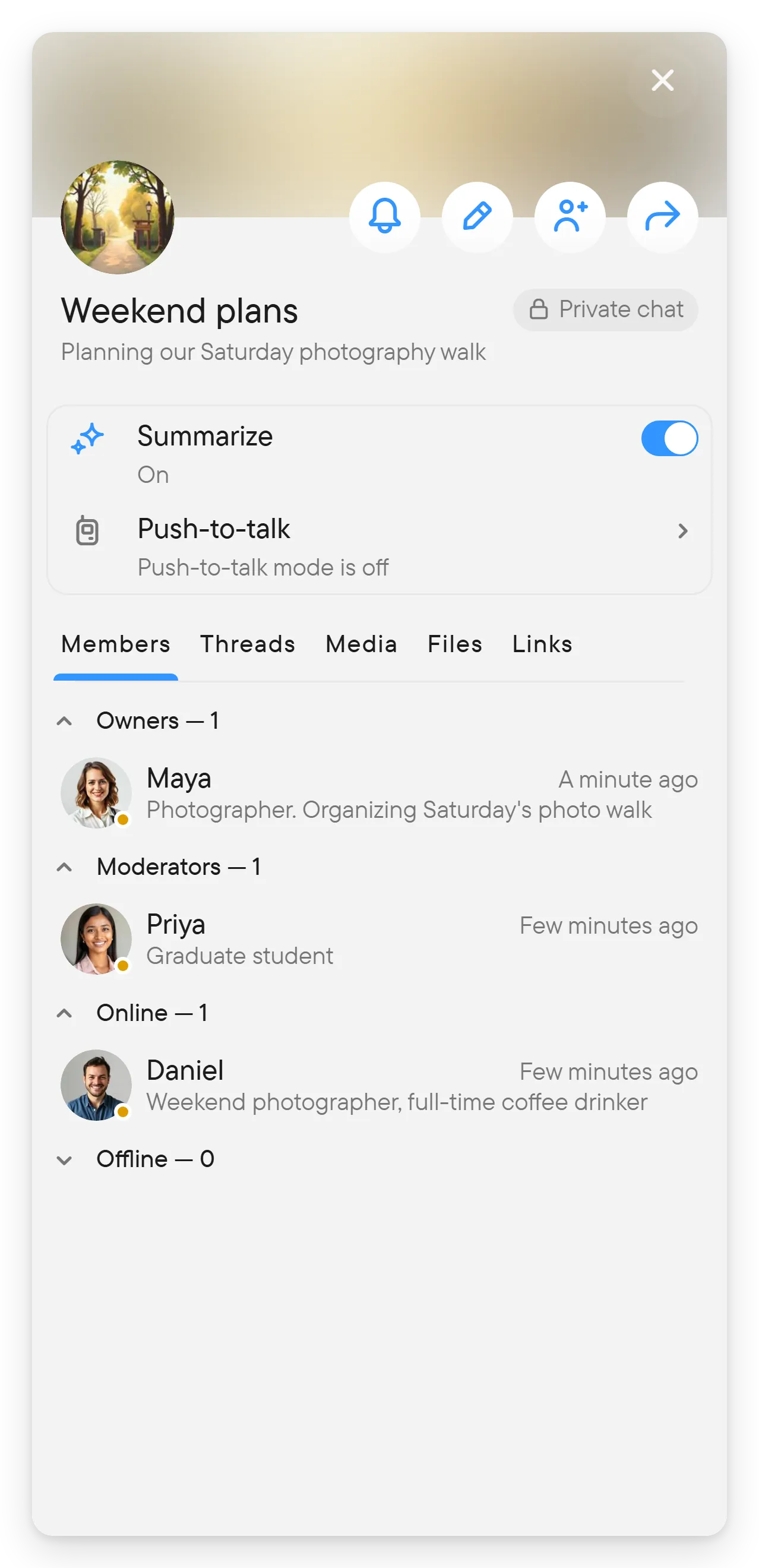
Members lists the people of a group under Owners, Moderators, Online and Offline, each with a count, and you can fold a group with its arrow. The tab is not shown in the announcements chat, or where you are not allowed to see the members. See manage a group.
Threads
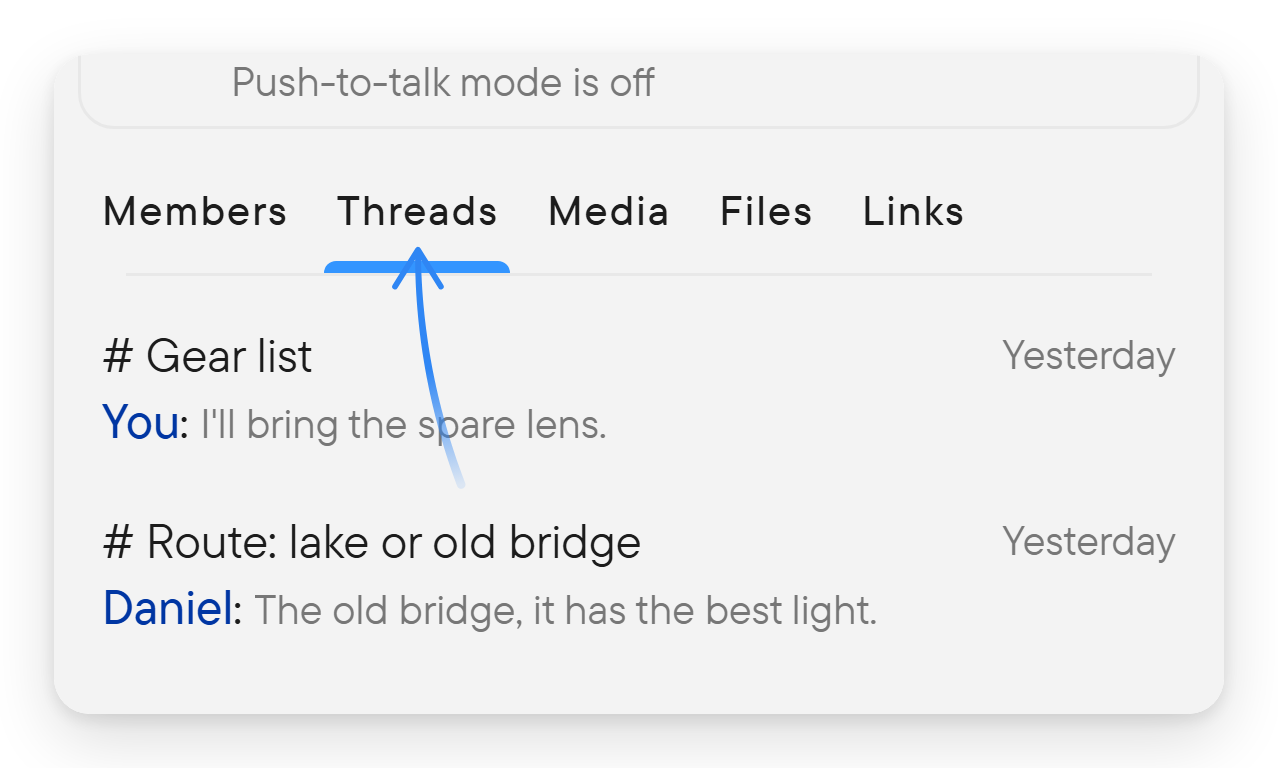
Threads lists the threads of the chat, each with its title, the last message and an unread count. Select one to open it. A chat without threads reads No threads yet. The tab is shown in groups, places and direct chats. See threads.
Media, Files and Links
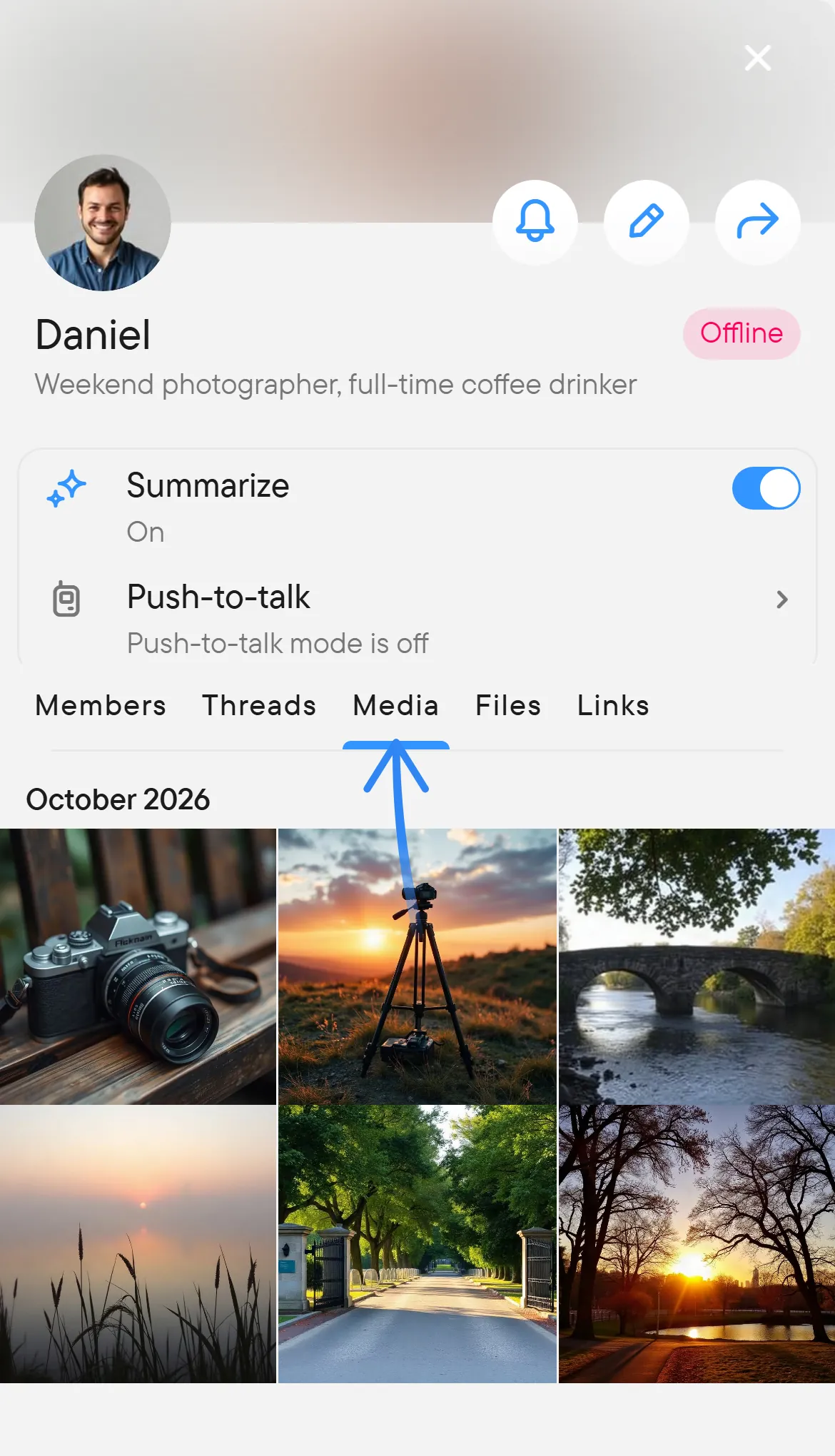
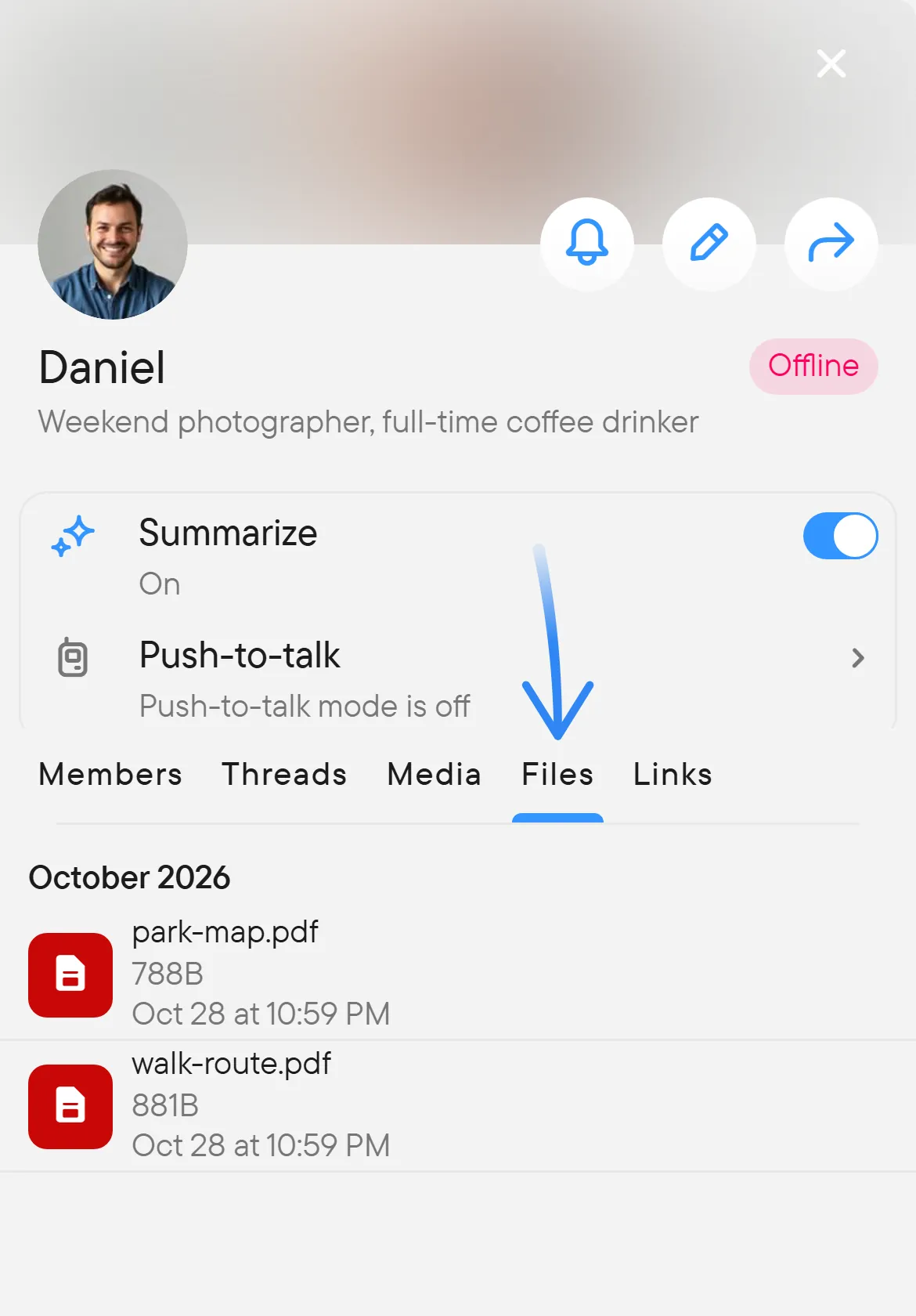
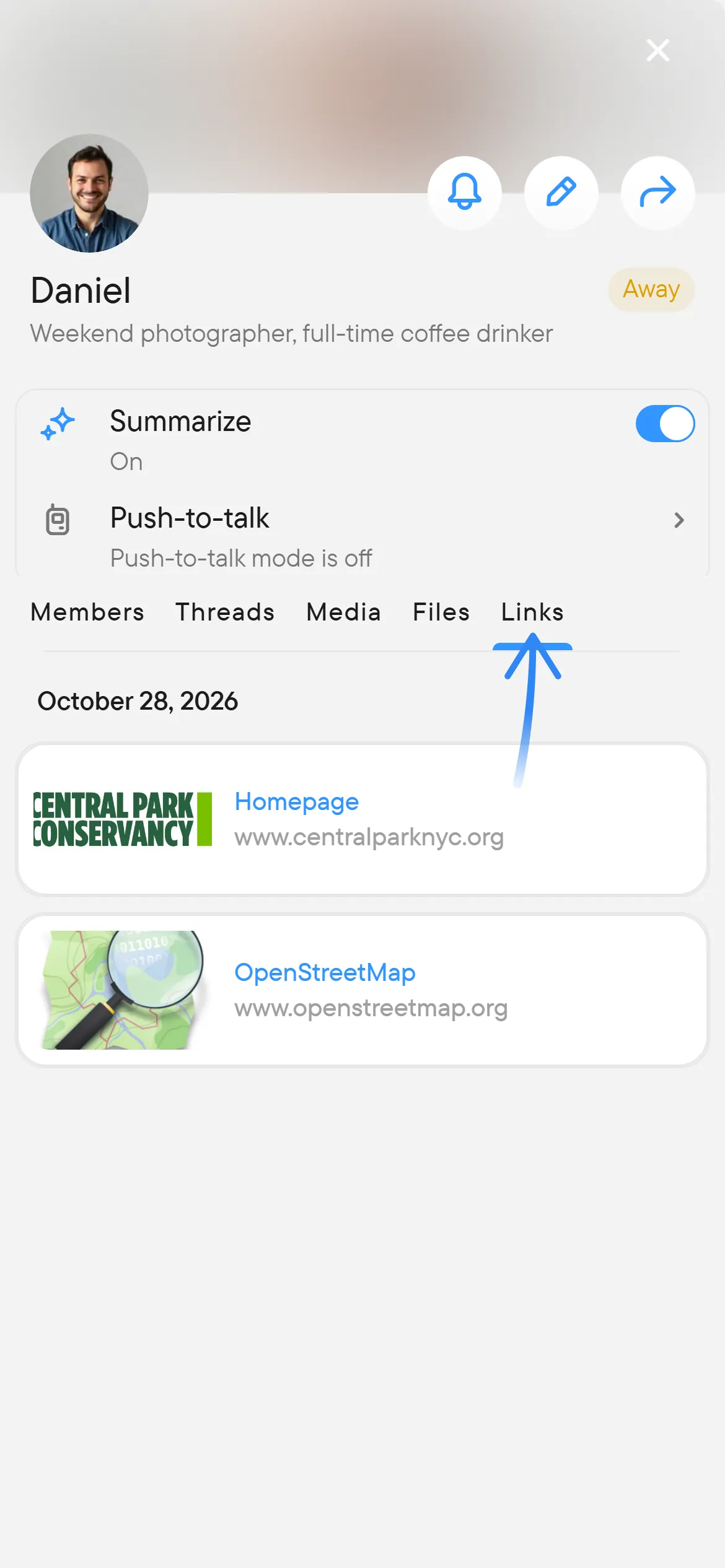
Media, Files and Links show what was shared in the conversation, grouped by month with a date bar that follows your scrolling. Media holds photos and videos, Files holds documents and audio files, and Links holds the links from messages. Select an item to open it; its menu has Go to message, Share and Download, and for links Open link, Copy link URL, Share link and Forward message. A tab with nothing yet reads No media yet, No files yet or No links yet. See find older attachments.