
Settings tour
Settings holds everything you can change about your account, the look of the app, voice and push-to-talk, permissions, and the devices signed in to your account. This page goes through it tab by tab, in the order the app shows them, and links to the pages that explain each feature in full. For where Settings sits among the other panels, see User interface.
Open Settings
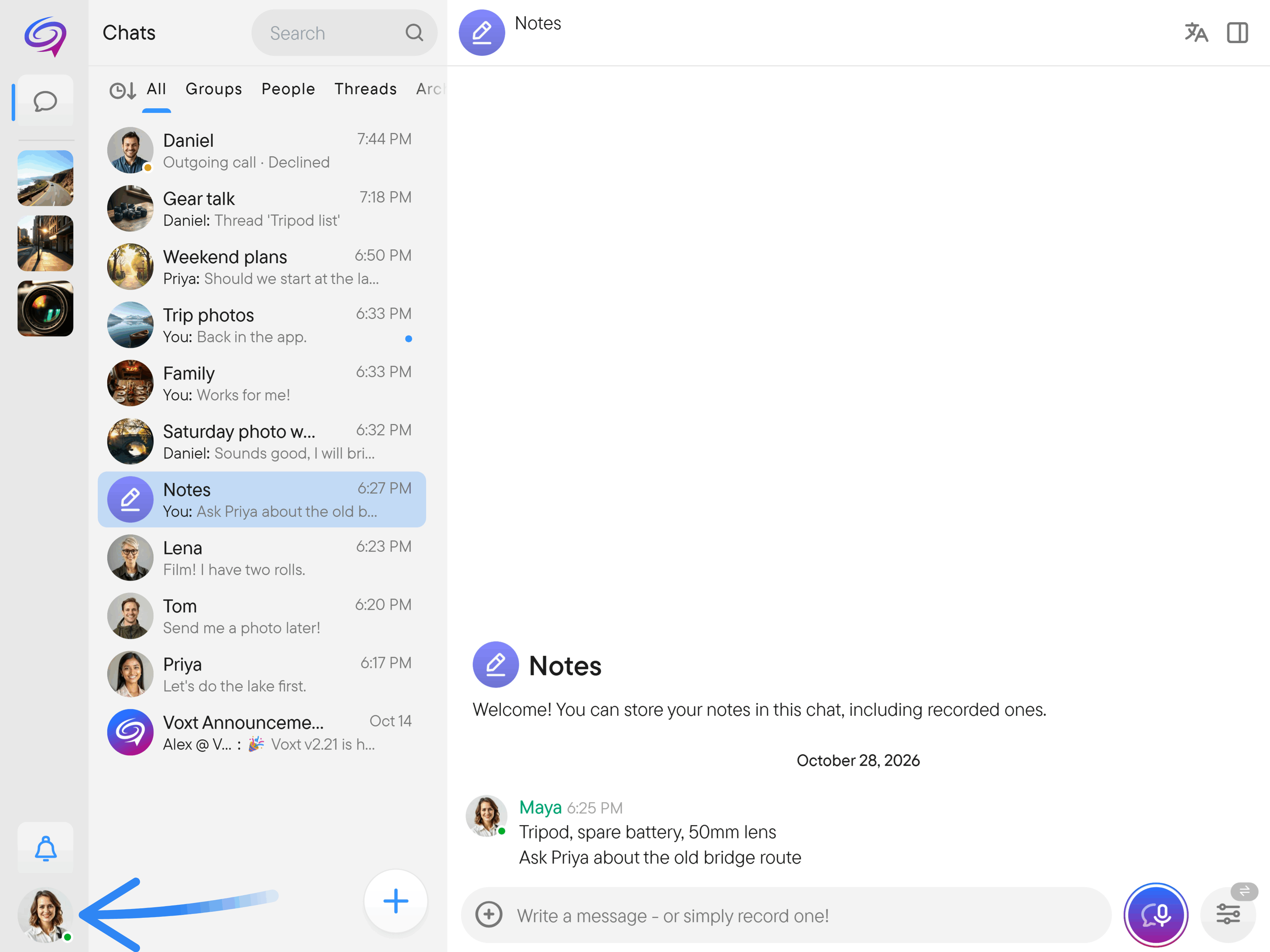
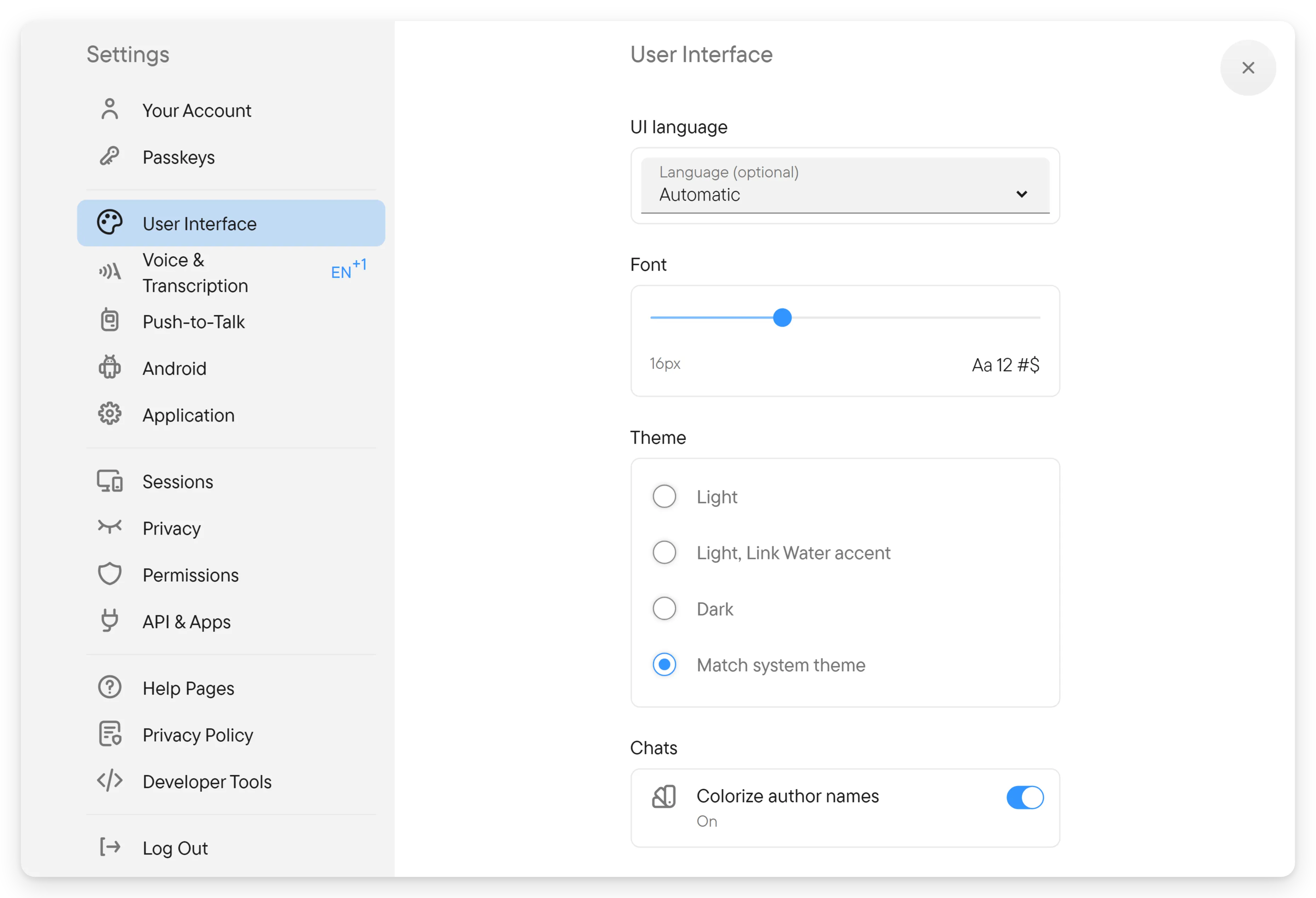
On a computer, select the round account button at the bottom of the navigation rail at the left (its tooltip reads Settings). You can also select the Voxt logo at the top of the rail and choose Settings in its menu. Settings opens in a window with the list of tabs on the left and the selected tab on the right. Your Account is selected first, and the close button is at the top right of the window.
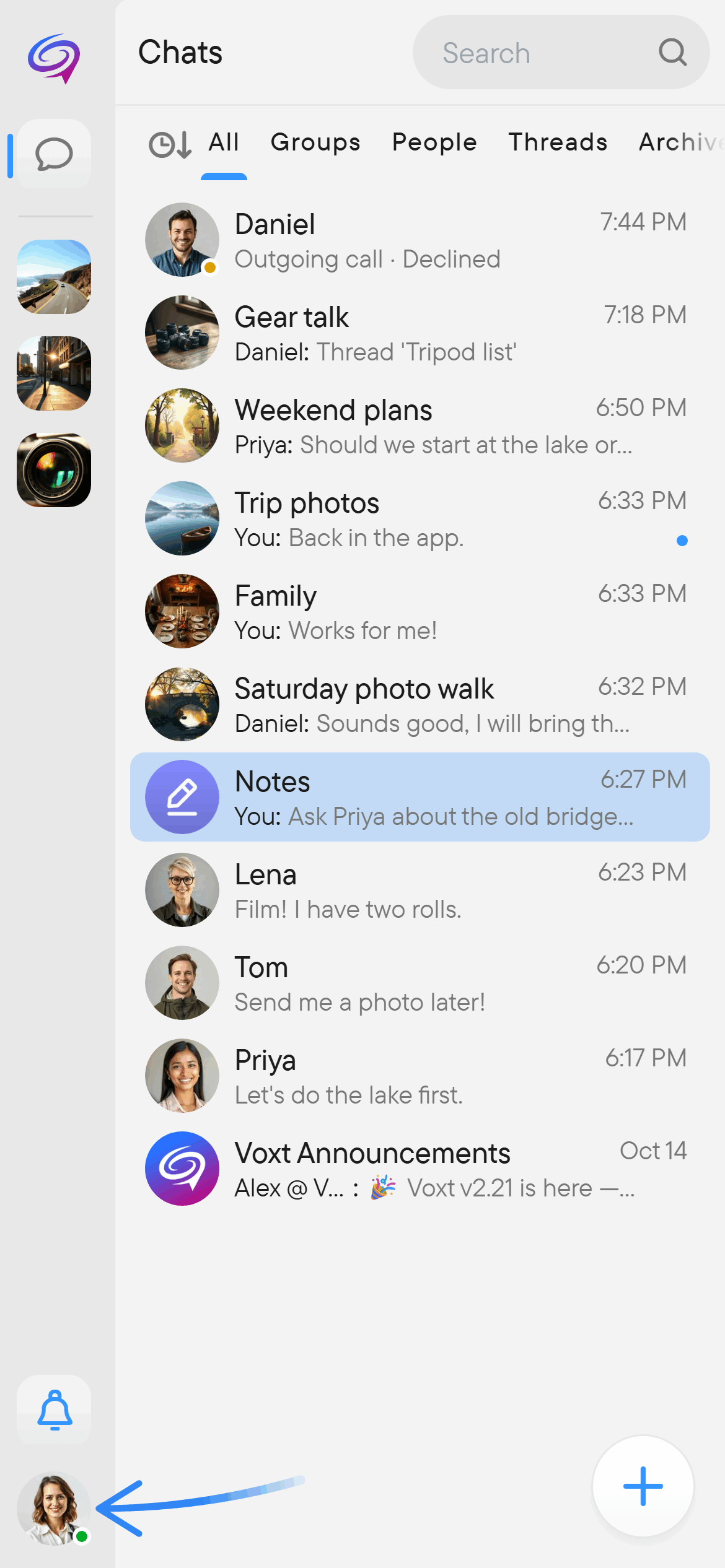
On a phone, select the round account button in the navigation. The list of tabs fills the screen. Select a tab to open it, and use the back arrow at the top left to return to the list.
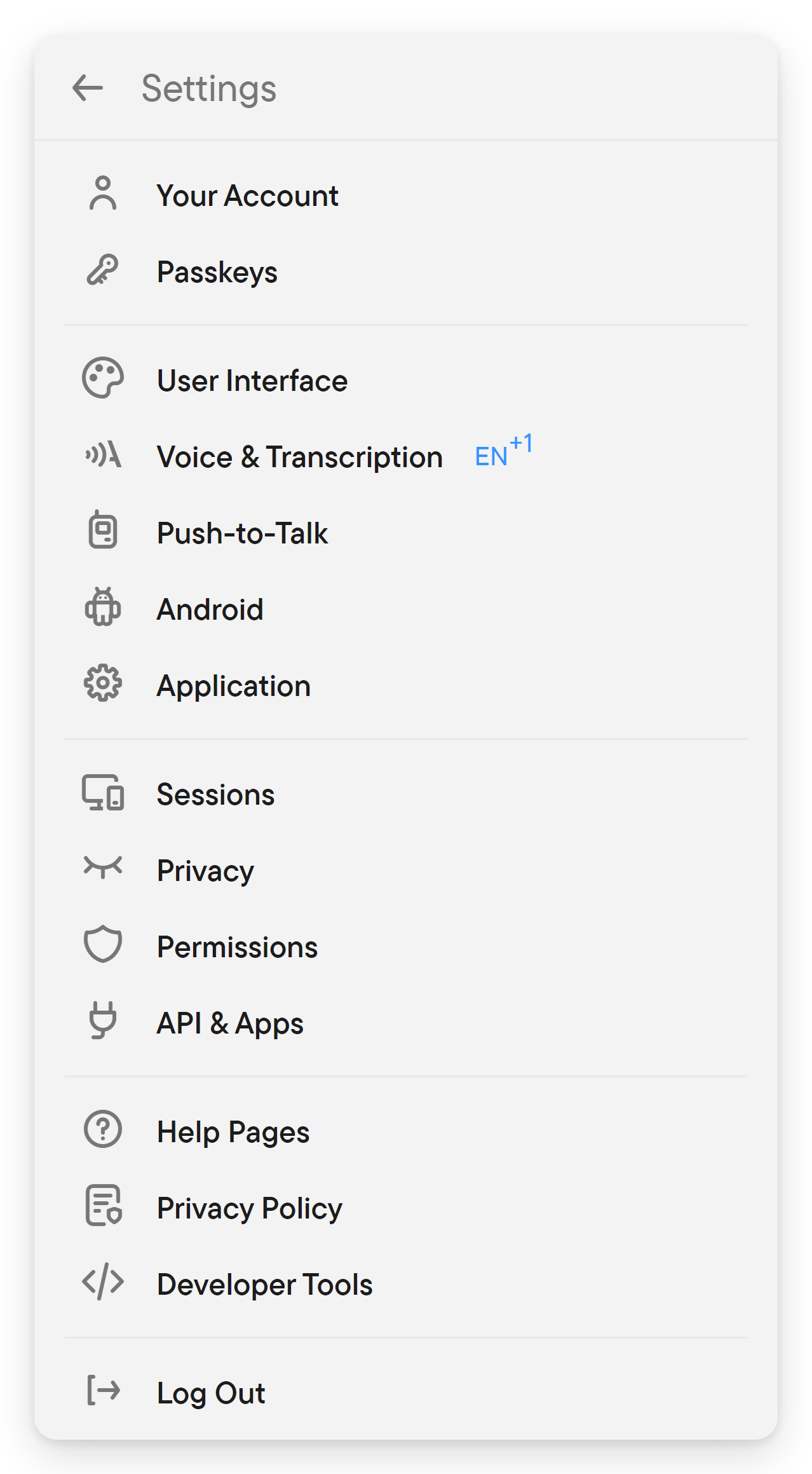
The tabs below are the ones you see when you are signed in. If you are not signed in, Your Account, Sessions, Privacy, API & Apps and Log Out are not shown. A few tabs depend on the app: Android appears only in the Android app, and Quit Voxt only in the Windows app. At the bottom of the list are the Voxt app download banner (where it applies), a tile with your profile and its Share button, and the app version; select the version to copy it, see find your app version.
Your Account
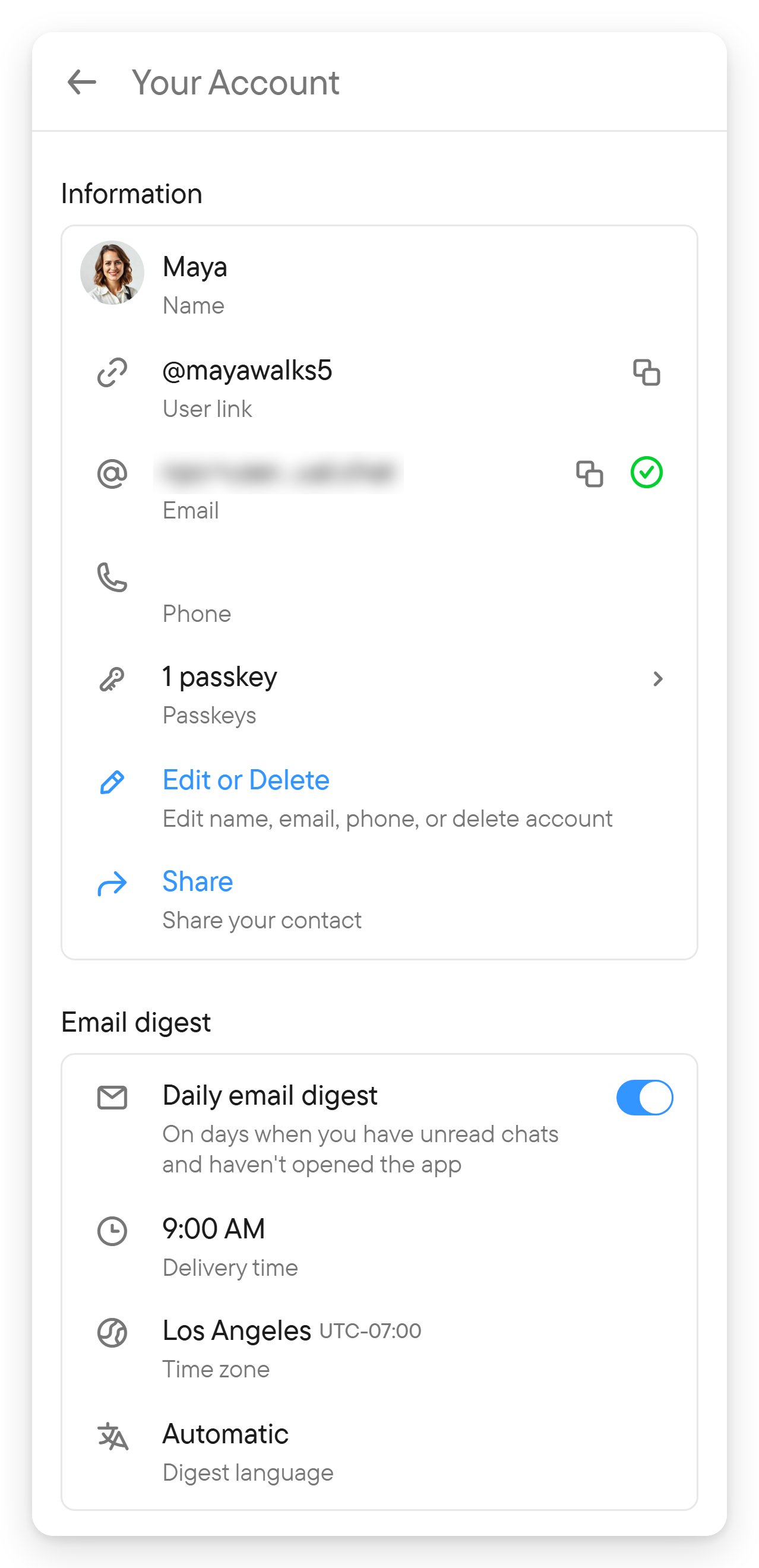
Your name, user link, email and phone, the daily email digest, and your avatars. Controls:
- Information: your name, User link, Email and Phone (with their verification status), Edit or Delete and Share.
- Email digest: Daily email digest, Delivery time, Time zone and Digest language.
- My avatars: your avatars, Add avatar, and the star that makes one the default.
See account and settings for the details and avatars for the avatar steps.
User Interface
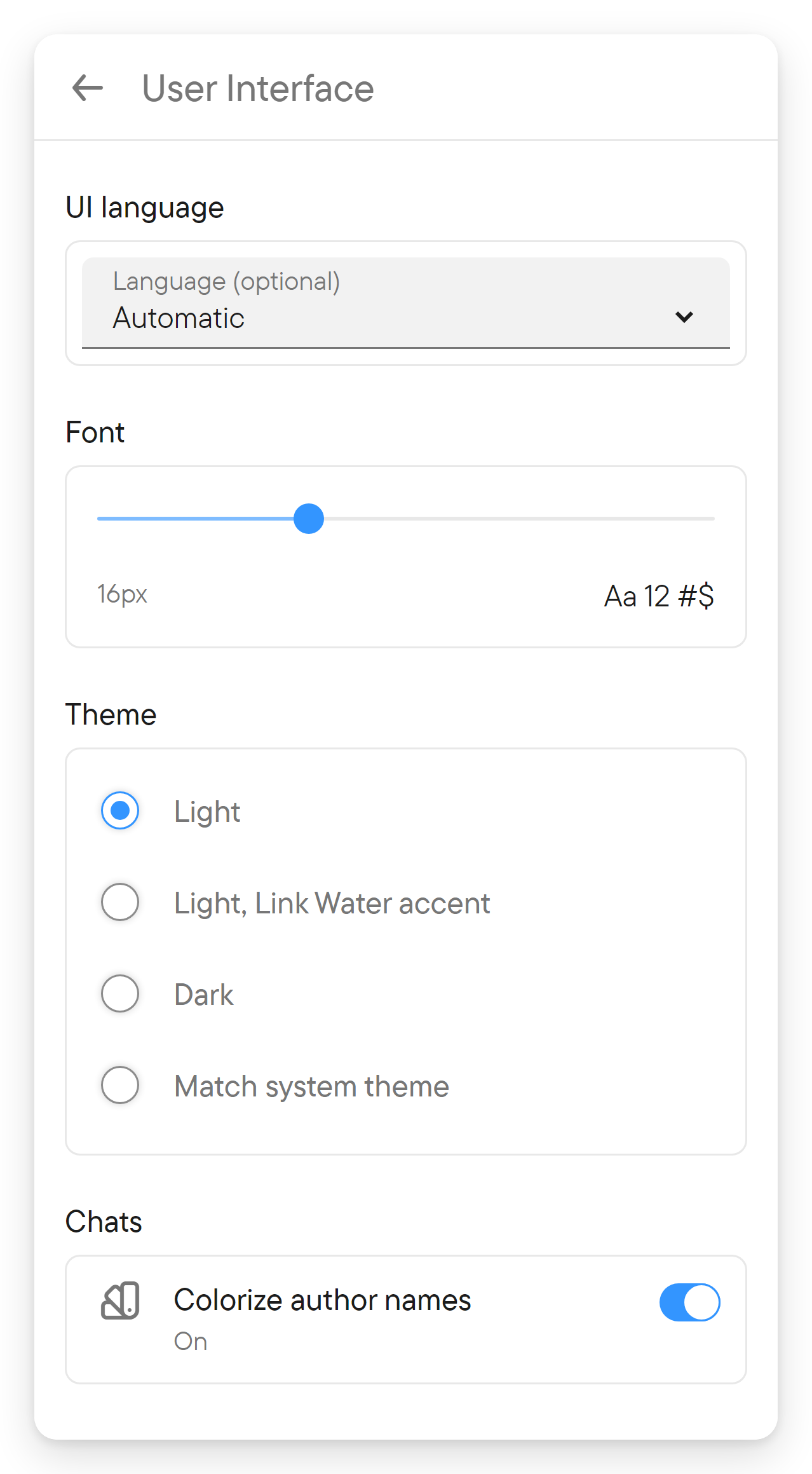
How the app looks and which language its controls use. Controls: UI language, Font (a text size slider), Theme (Light, Light, Link Water accent, Dark, Match system theme) and, under Chats, Colorize author names. See language and appearance; translating messages is a separate feature, see translation.
Voice & Transcription
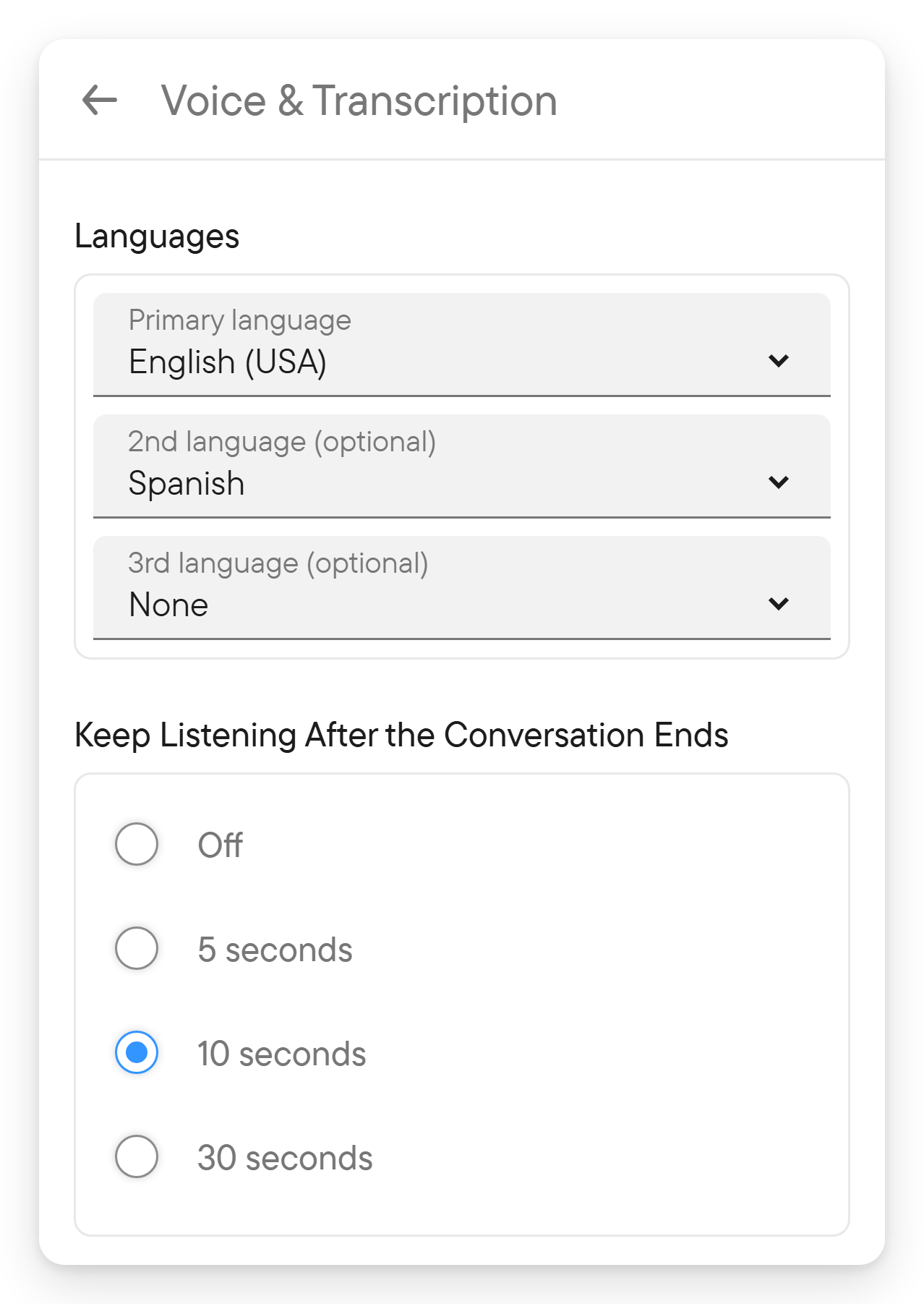
The languages you speak and how you listen. Controls:
- Languages: Primary language, 2nd language and 3rd language.
- Keep Listening After the Conversation Ends: how long Voxt keeps playing a conversation after you leave it.
- What you hear: Read messages aloud and Hear translations spoken.
- How others hear you: My voice in translations, the voice others hear when your speech is translated.
See voice and transcription and translation.
Push-to-Talk
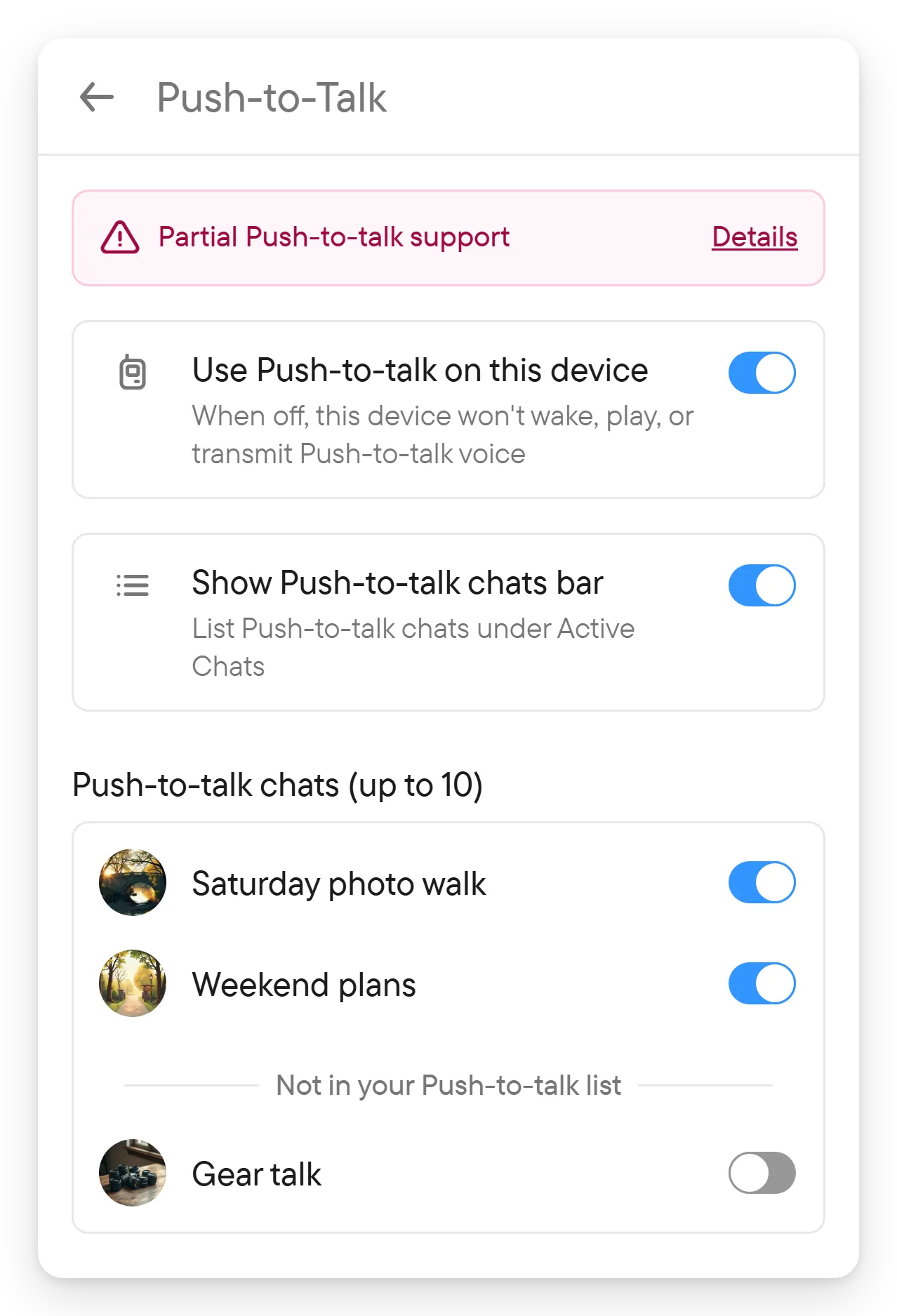
Whether this device takes part in push-to-talk, and which chats are in your list. In a browser or a computer app the tab starts with the notice Partial Push-to-talk support. Then come Use Push-to-talk on this device, Show Push-to-talk chats bar (which shows or hides the row of push-to-talk chats under Active Chats), the Push-to-talk chats list with a switch for each chat, a Reply window (how long the microphone stays open in silence) and Audible cues. Phones add gesture settings (Flip to talk, Double shake, Hush gestures) and the Android app adds Headset button. See push-to-talk.
Android
Shown only in the Android app. Starting a recording chooses what happens when a recording starts while a headset may be connected, and Android Auto - sound and microphone chooses the audio route in a car. See Android settings.
Application
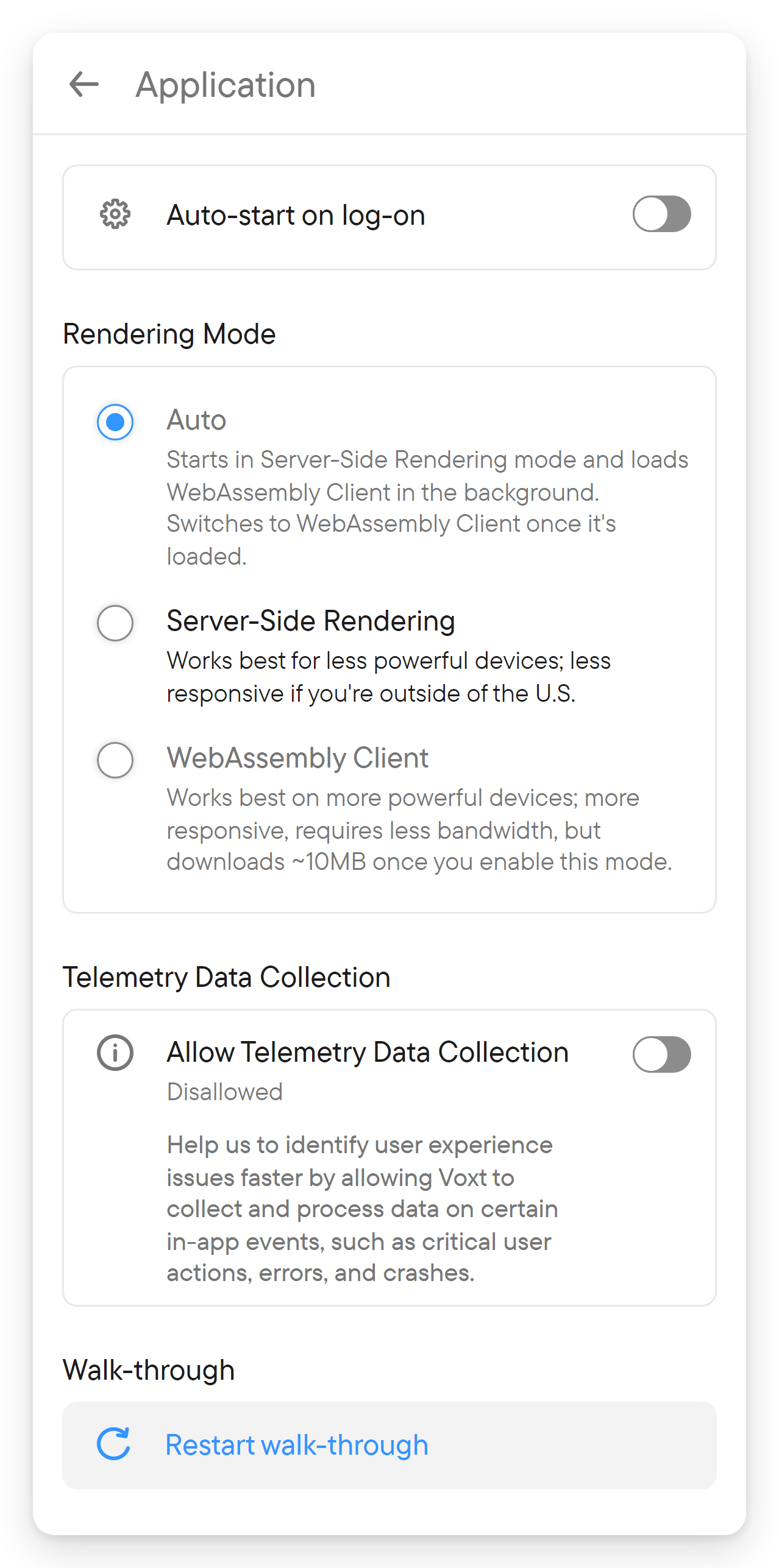
How the app itself runs. Controls: Rendering Mode (web app only), Connection, Allow Telemetry Data Collection and Restart walk-through, which brings back the in-app hints. The Windows and macOS apps add Auto-start on log-on, and native apps add Rate Voxt. See privacy and application preferences.
Sessions
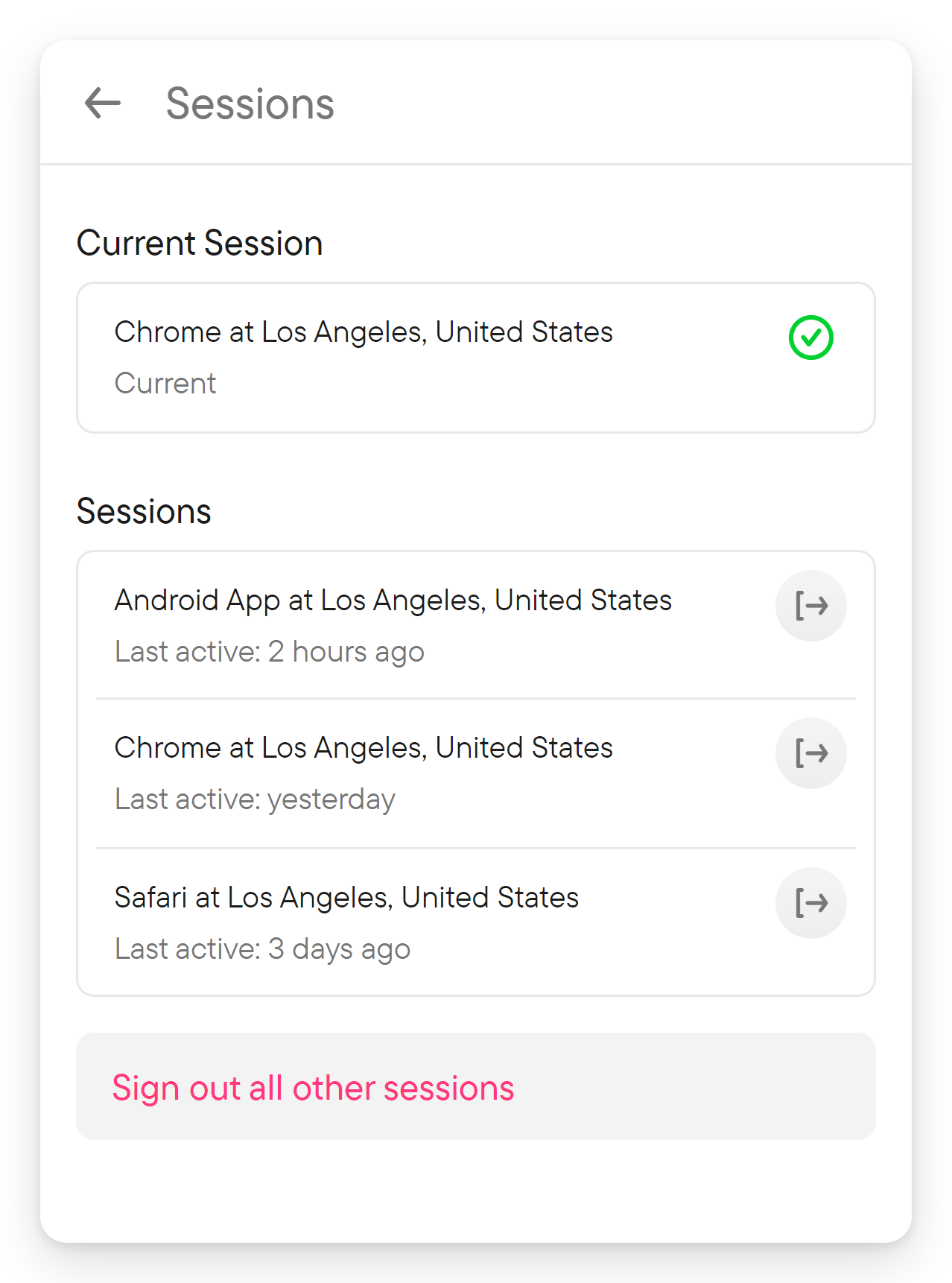
Where your account is signed in. The Current Session is shown first, then the other sessions with Last active and a sign-out button each, and Sign out all other sessions. See review signed-in sessions.
Privacy
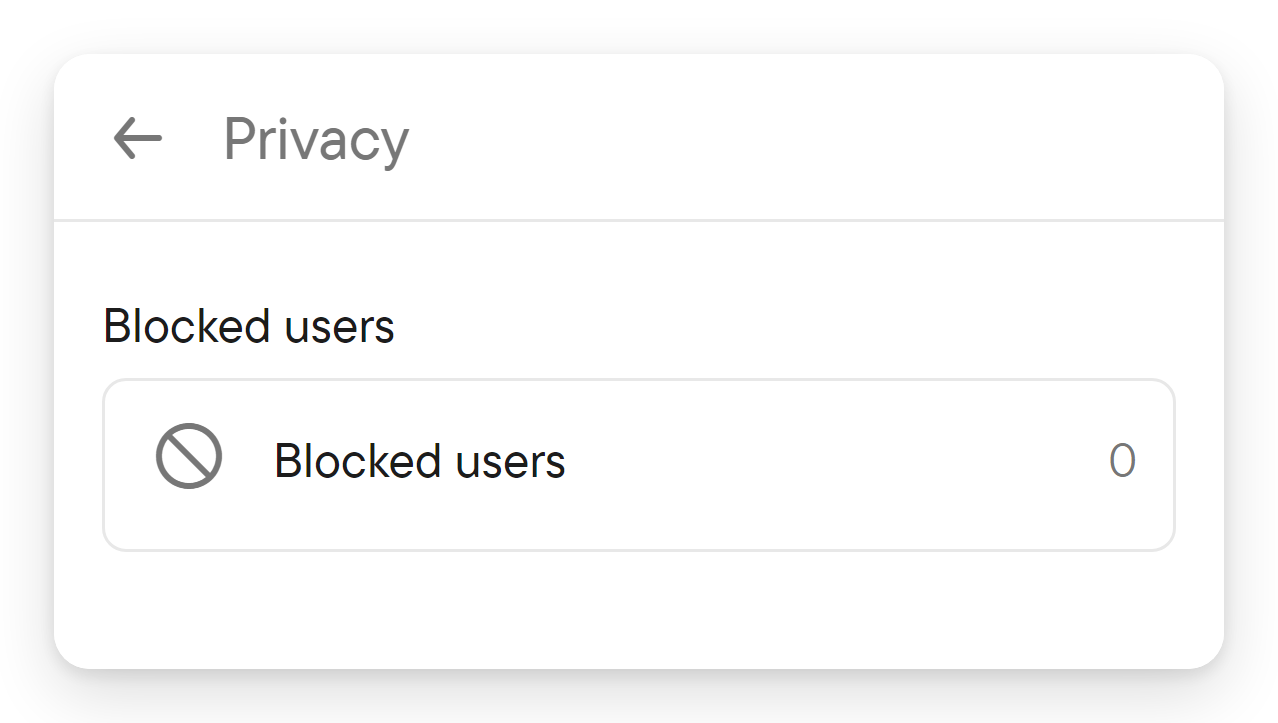
Holds Blocked users, the people you blocked, with their number. Open it to unblock someone. See block or unblock.
Permissions
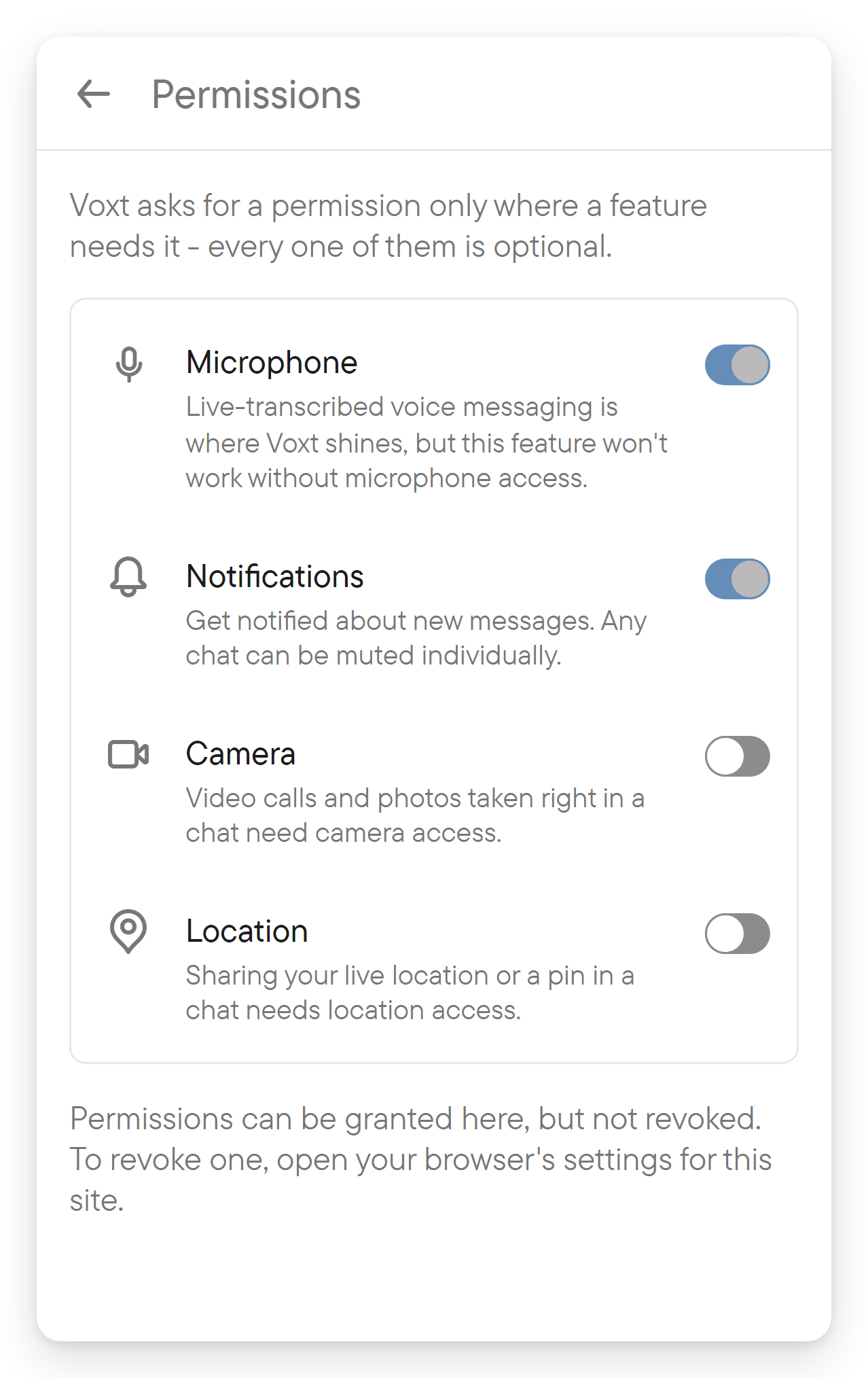
Which feature permissions the app has: Microphone, Notifications, Camera and Location in the web app, with more rows in native apps. Each row has a switch to request the permission; Dismiss warning hides the red ! marker. A permission can be granted here but not revoked: use the browser or system settings for that. See permissions and, for notifications, the notifications guide.
API & Apps
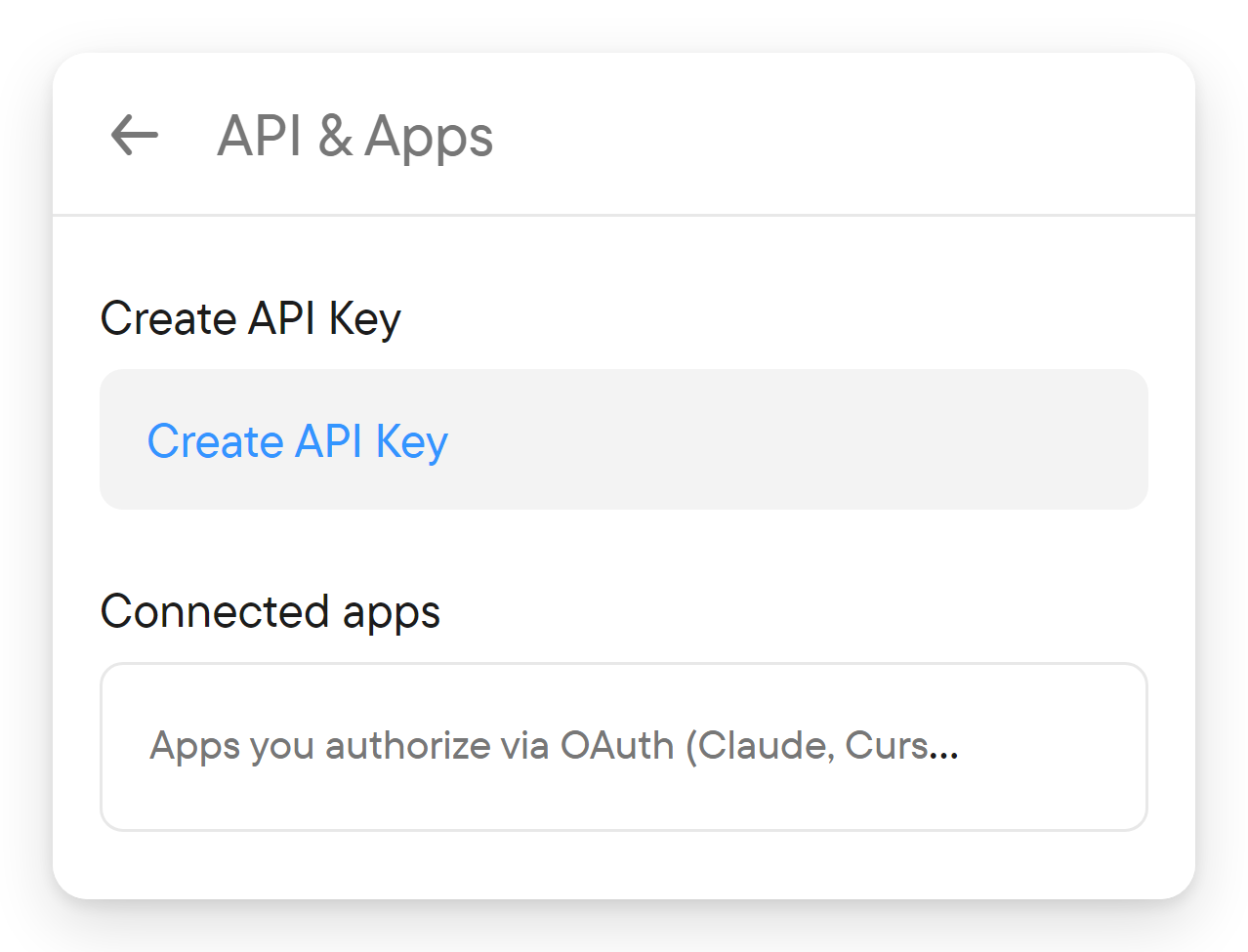
Create API Key and your API keys, which you can revoke, and Connected apps, the apps you authorized through a sign-in page, each with Revoke access. Read the developer guides before you create a key for an integration; Add Voxt to Claude shows how to connect Claude with or without a key.
Help Pages
Help Pages opens the Voxt documentation in your browser, in your UI language where the documentation has a translation. The same link is available in the Voxt logo menu.
Privacy Policy
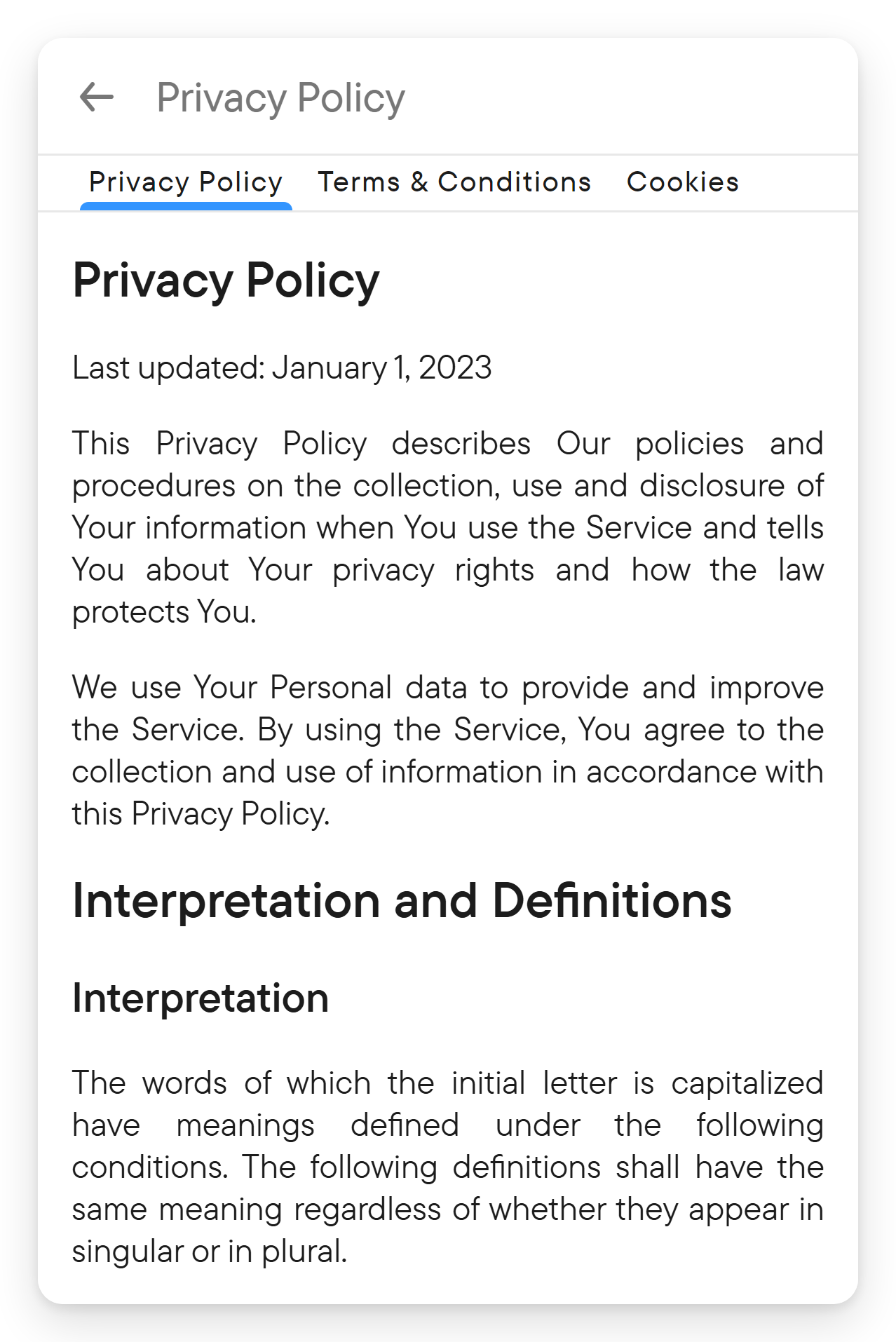
Open Privacy Policy for the legal documents of the app, in three tabs: Privacy Policy, Terms & Conditions and Cookies. Swipe or select a tab to switch between them.
Developer Tools
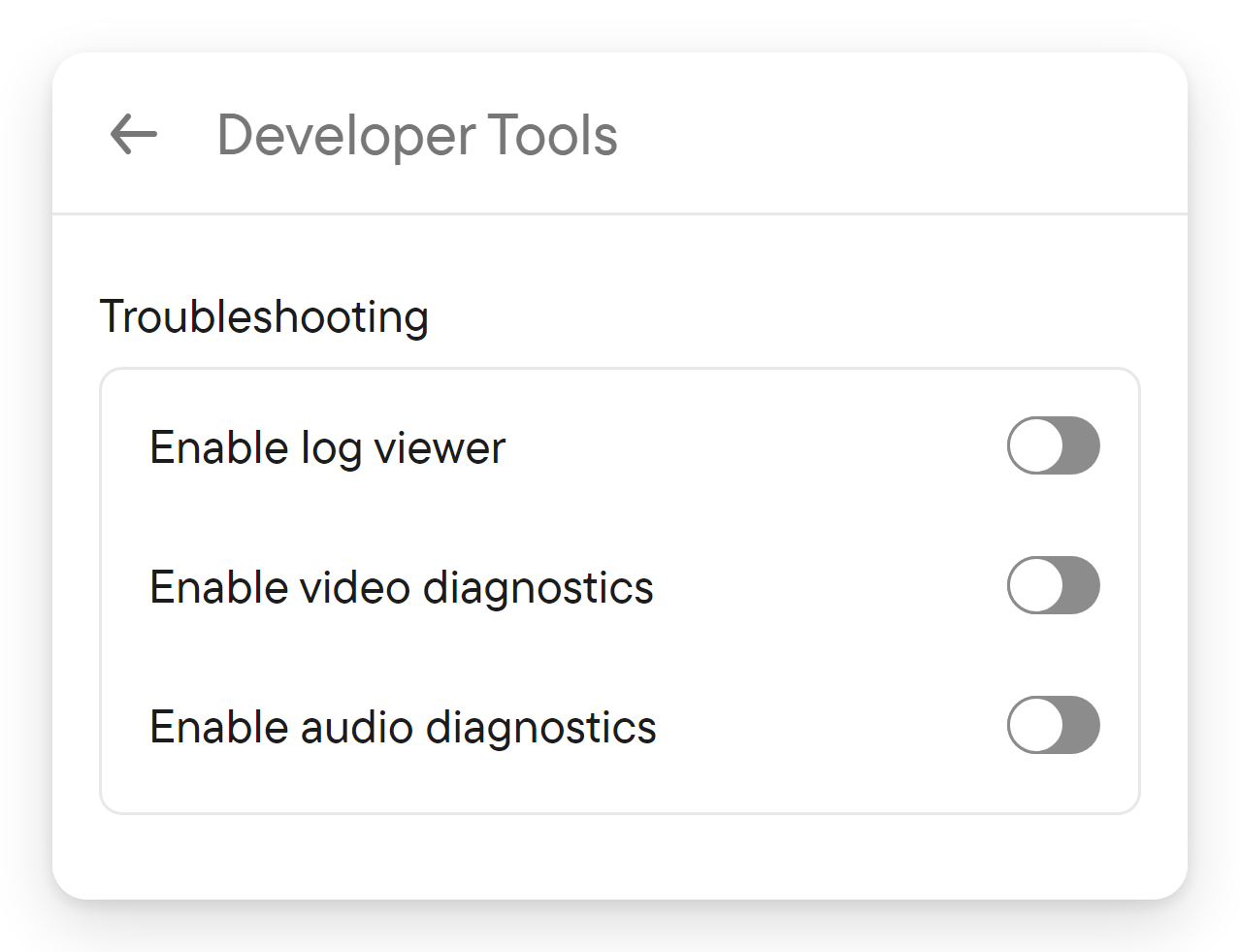
The Troubleshooting group has switches for Enable log viewer and for video and audio diagnostics; native apps add Write log to file, and the Windows app adds Open log file. Switch on Enable log viewer and a Log Viewer tab appears in the list, with a Copy button for the visible entries. Use these switches when support asks for diagnostics; see troubleshooting.
Log Out
Log Out is the last item of the list. It ends this session only; your other devices stay signed in, see sessions. In the Windows app Quit Voxt follows it.