
Calls
Every Voxt chat is already a voice chat: you can start speaking with the microphone, and others can listen and join in. You do not need to place a call first. To invite someone to talk right now, you can send an attention alert from the chat.
Call is a shortcut available in one-to-one chats. It adds the familiar experience of ringing someone, answering or declining, and talking in a call view. Underneath, it uses the same live voice and transcription features as the rest of Voxt. Transcription is on by default, so speech appears as messages in the chat; the caller can turn it off while the call rings, and either person can turn it off during the call.
On a phone-sized screen, collapse the full-screen call to return to the familiar chat: the conversation continues while you read the transcript or write messages. On a wide screen, an audio call already stays in that chat view. You can also add video or share your screen as you talk.
Start a call
- Open your one-to-one chat with the person.
- Select the phone button in the chat header.
- Allow microphone access if asked. Wait for the other person to answer.
The outgoing call shows its progress: Dialing…, then Ringing… once the other person's device rings, and Connecting… as they answer. Select Hang up to cancel before they answer. Your microphone starts when the call connects, provided microphone access is allowed.

While the call is still ringing, you can get ready:
- Select the camera to turn your camera on. You see your own picture right away, with the ringing status on top of it; the other person sees your video once they answer.
- Select the transcription button to choose whether the call is transcribed. Your choice applies when the call is answered.
You can call someone after they have added you to their contacts or replied to you. You can be in one call at a time; finish your current call before starting another.
For a live conversation in a group chat, use the chat's microphone or video controls.

Answer an incoming call
The incoming call shows who is calling. Choose one of these controls:
- Accept (phone): answer and start talking. Allow microphone access if asked; without it, you can still listen.
- Decline (cross): dismiss the call.
- Bell: silence the ringtone without declining. Select it again to restore the ringtone.
- Message: decline the call and open the chat so you can write a reply.
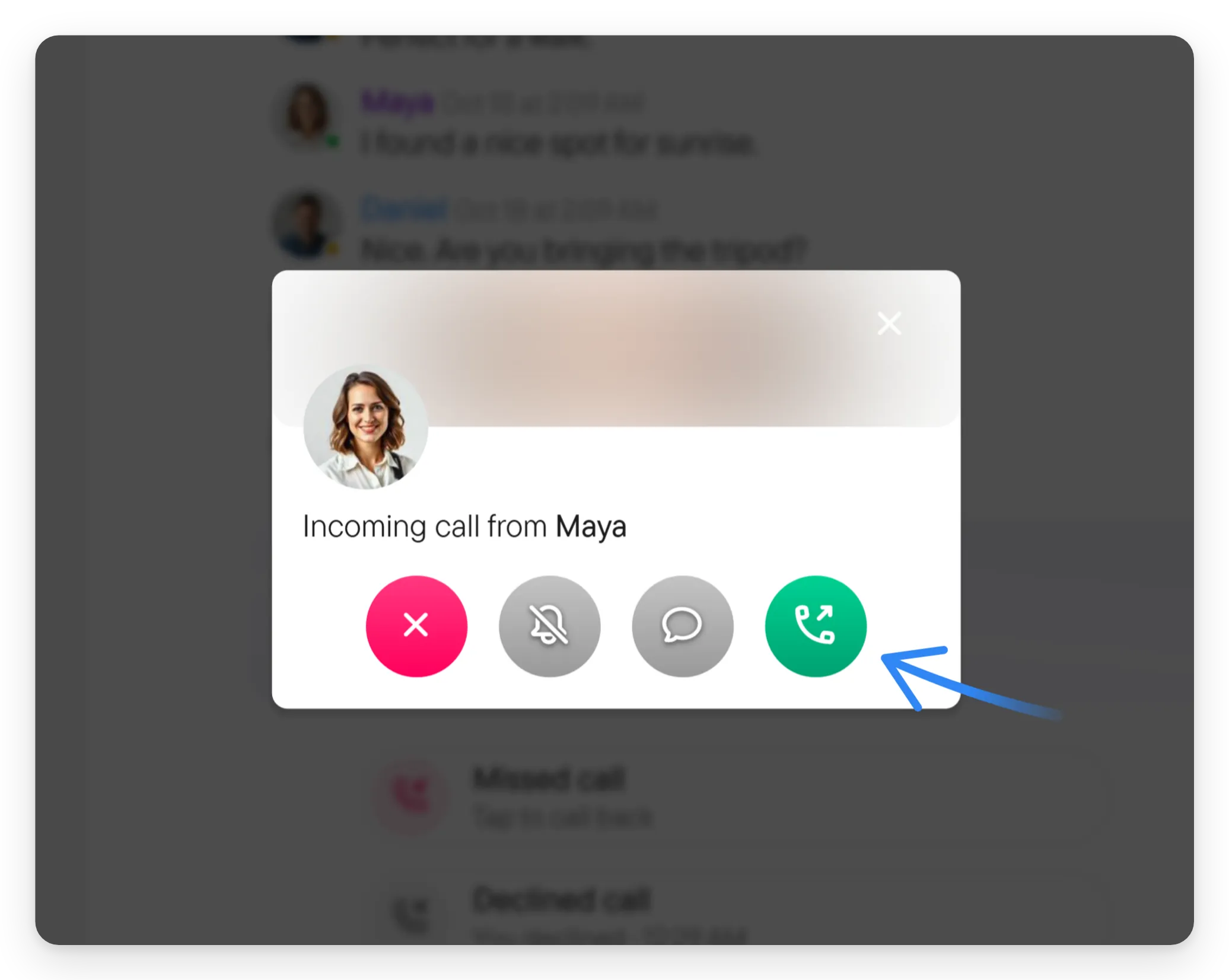
Collapsing or dismissing the incoming-call dialog keeps the call available in a compact panel. It does not decline the call.
During a call
On a phone-sized screen, the connected call opens full screen. On a wide screen, you stay in the chat, where the call timer and hang-up control appear in the header.
- Select the large record button in the middle to mute or unmute yourself. While you are muted, it says Muted. Muting keeps you in the call and lets you continue listening. The first time you mute in a call, a hint points at the Hang up button, because muting does not end the call.
- Select the camera to add video or turn your camera off again. When the other person turns on their camera, you hear a short sound, so you notice it even with the phone at your ear.
- Use Share screen to show your screen. On a narrow desktop window, find it in the ⋮ menu.
- In the full-screen call, use the transcription button to turn live transcription on or off for the conversation. Either person can change it; a message in the chat records the change.
- When video is on screen, the reactions button (a smiling face) sits under the Hang up button. Use it for reactions and Raise hand. A call without video has no reactions button. While a hand is raised, a counter with a hand icon in the call header shows how many hands are up.
- In the iPhone and Android apps, the speaker button switches the sound between the earpiece and the speaker. With headphones, Bluetooth earbuds or a car connected, it opens a list of outputs instead.
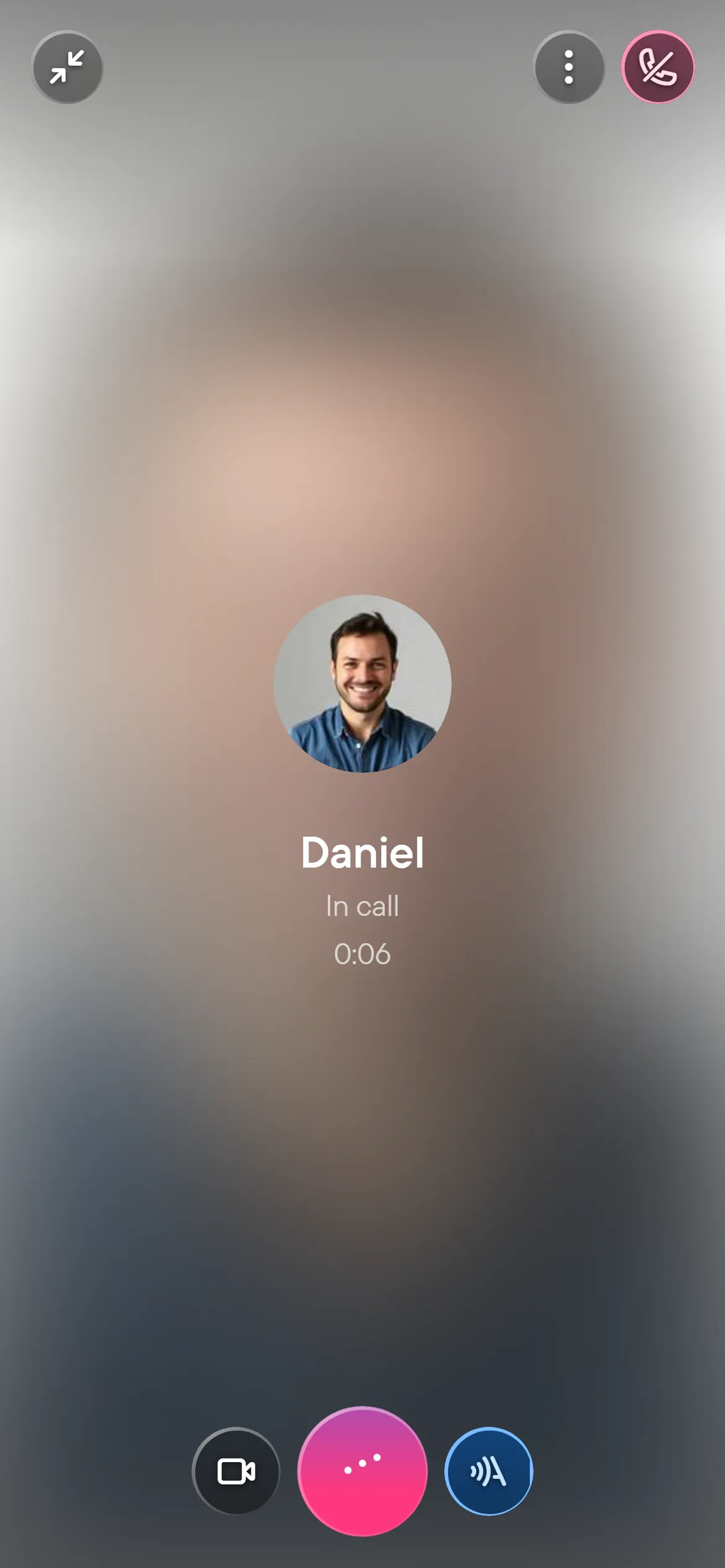
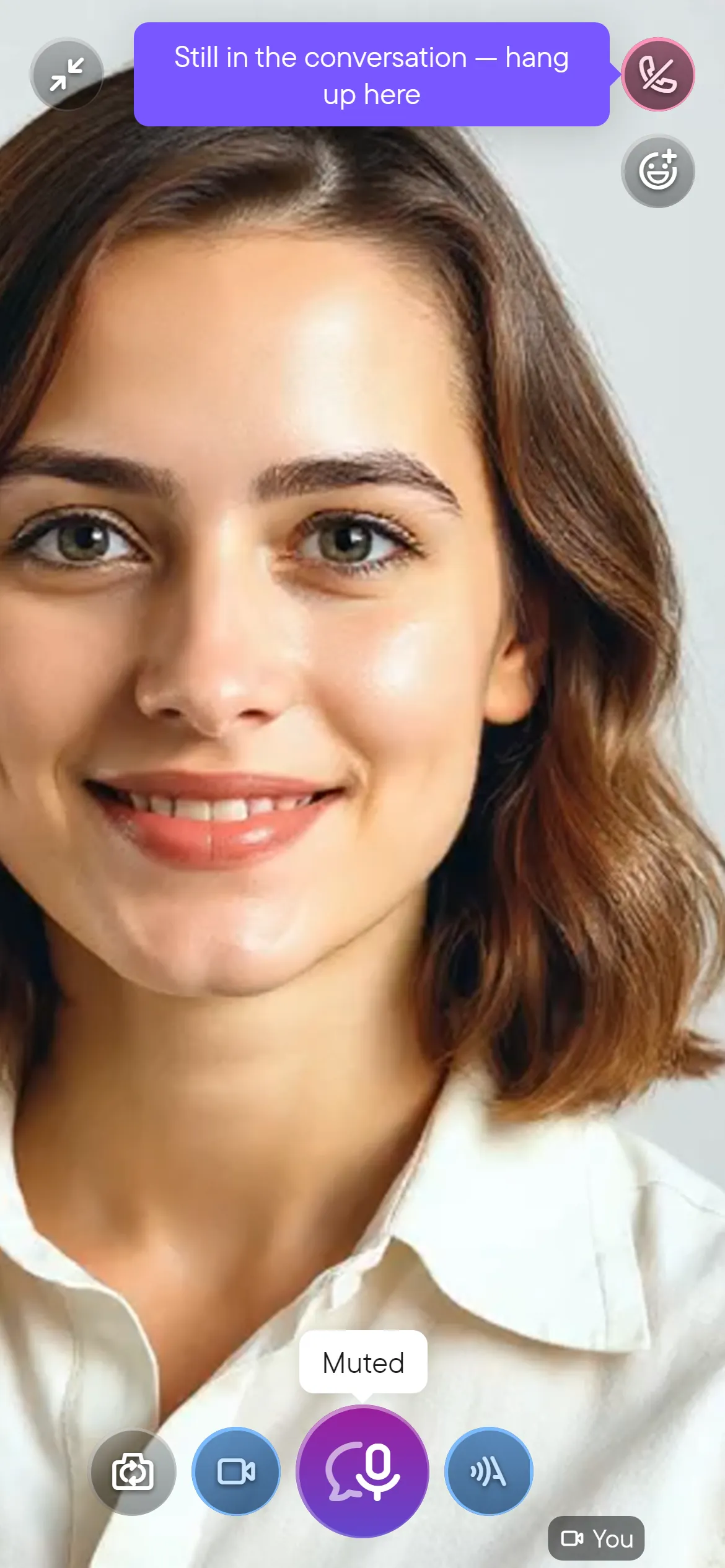
Collapse the full-screen view to read or write in the chat while the call continues. Select the compact call panel to return to it.
Select Hang up to finish. Ending a one-to-one call disconnects both people.
Call history and calling back
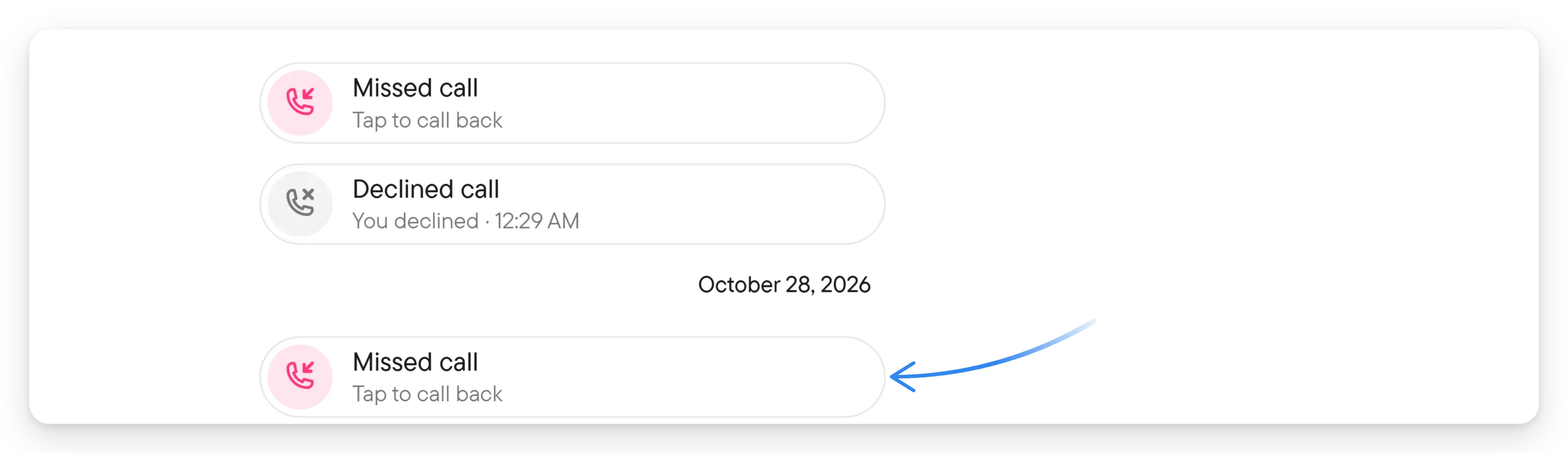
The chat keeps a record of calls. Incoming and outgoing calls show their direction; unanswered, declined, canceled, or busy calls show their outcome. Completed calls show their duration and the time of the call. Changes made during the call, such as turning transcription off or raising a hand, appear as short lines below it.
A missed call shows Tap to call back. Select the call entry to ring the person again.
If a call will not start, check that you have microphone permission, that the other person has accepted contact or replied, and that you are not already in another call. See permissions and troubleshooting.