
Middle panel
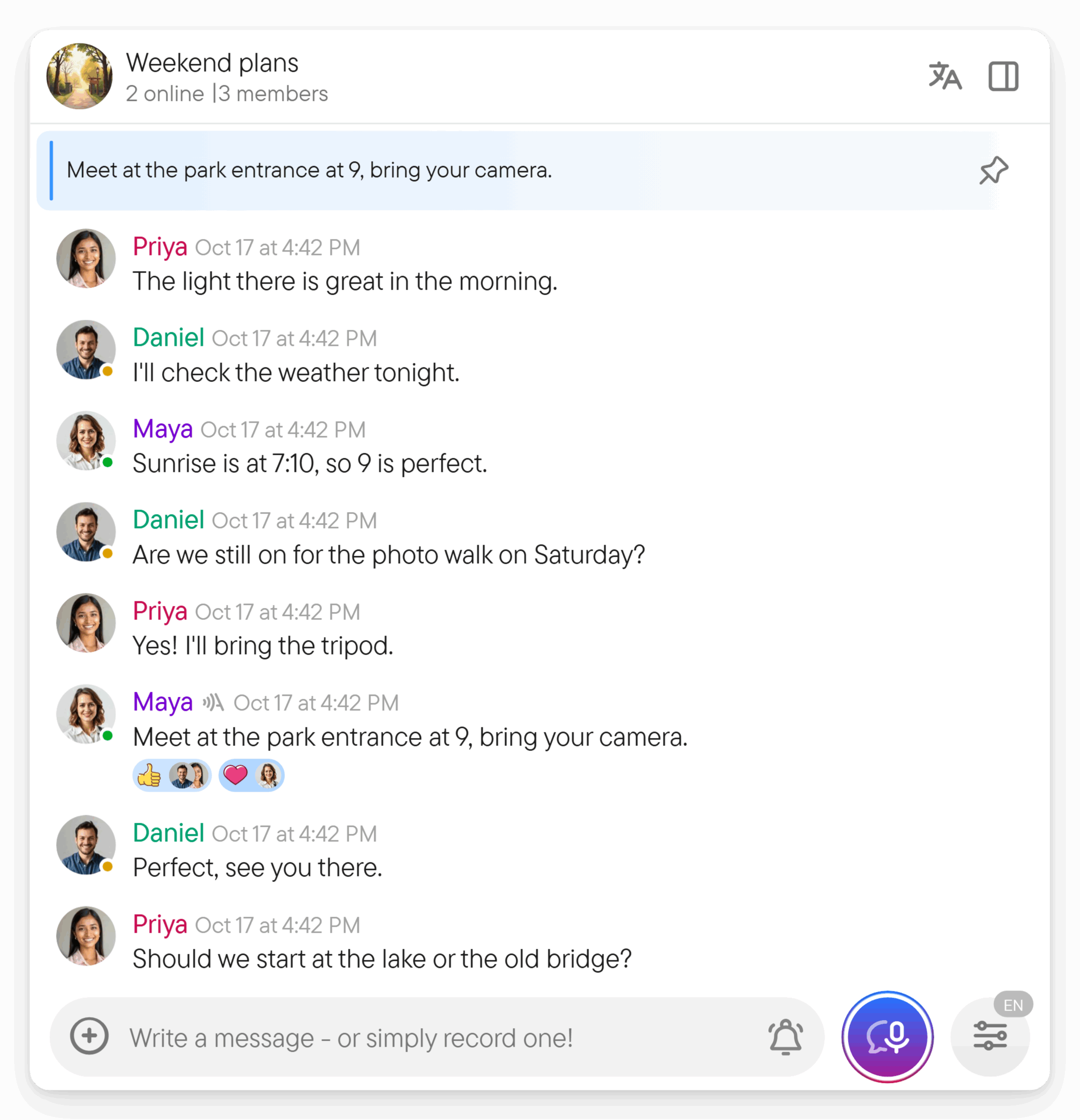
The middle panel is the open chat. From the top it holds the chat header, a bar with pinned messages when there are any, the messages, and the composer at the bottom. On a narrow screen the conversation fills the whole screen; see the overview. This page walks through the parts from top to bottom.
The chat header
The header shows the chat's picture and name; a push-to-talk icon after the name marks a chat in push-to-talk mode. Under the name a group shows how many people are online and how many are members, and a direct chat shows the other person's presence. While someone types, the line shows a typing indicator instead. Select the picture and name to open or close the right panel.
At the right end of the header are its buttons:
- In a direct chat, the phone button starts a call; see calls.
- The translation button (a translate icon) opens the translation bar of the chat; see translation.
- The panel button opens the right panel (see Right panel). On a phone, the three-dot button takes its place and opens the chat menu.
- In a thread, a Follow thread / Unfollow thread toggle appears. See threads.
On a phone, a back arrow at the left of the header returns you to the chat list.
When you select messages, the header turns into a selection header with a counter and buttons for the selection. See select several messages.
Pinned messages
When a message is pinned, a bar under the header shows it. If the chat has several pins, the bar shows one at a time with a segment indicator. Select the bar to jump to the pinned message and then to the next pin. The pin button on the bar offers Forward and Unpin message. In a group, owners and moderators can pin messages. In a direct chat, either person can. See keep an important message visible.
The messages
Messages are grouped by author and by date. A New messages divider marks where unread messages start. On a desktop, point at a message to see its hover bar with a reaction button, a reply button and a three-dot menu; on a touch screen, press and hold the message. The menu holds replies, edits, forwarding, reactions and the other message actions.
Voice messages show their transcript under the audio; see voice and transcription.
The composer
At the bottom, the composer holds your text and attachments. From left to right it has the plus button, the text field, the alert bell (in a direct chat and in a private group of up to 10 members) and the paper-plane Send button, and beside them the round recording button. Voxt keeps the text you are typing in each chat while you switch to another one, so you can come back to an unfinished message. Enter sends and Shift+Enter inserts a new line.
The plus menu
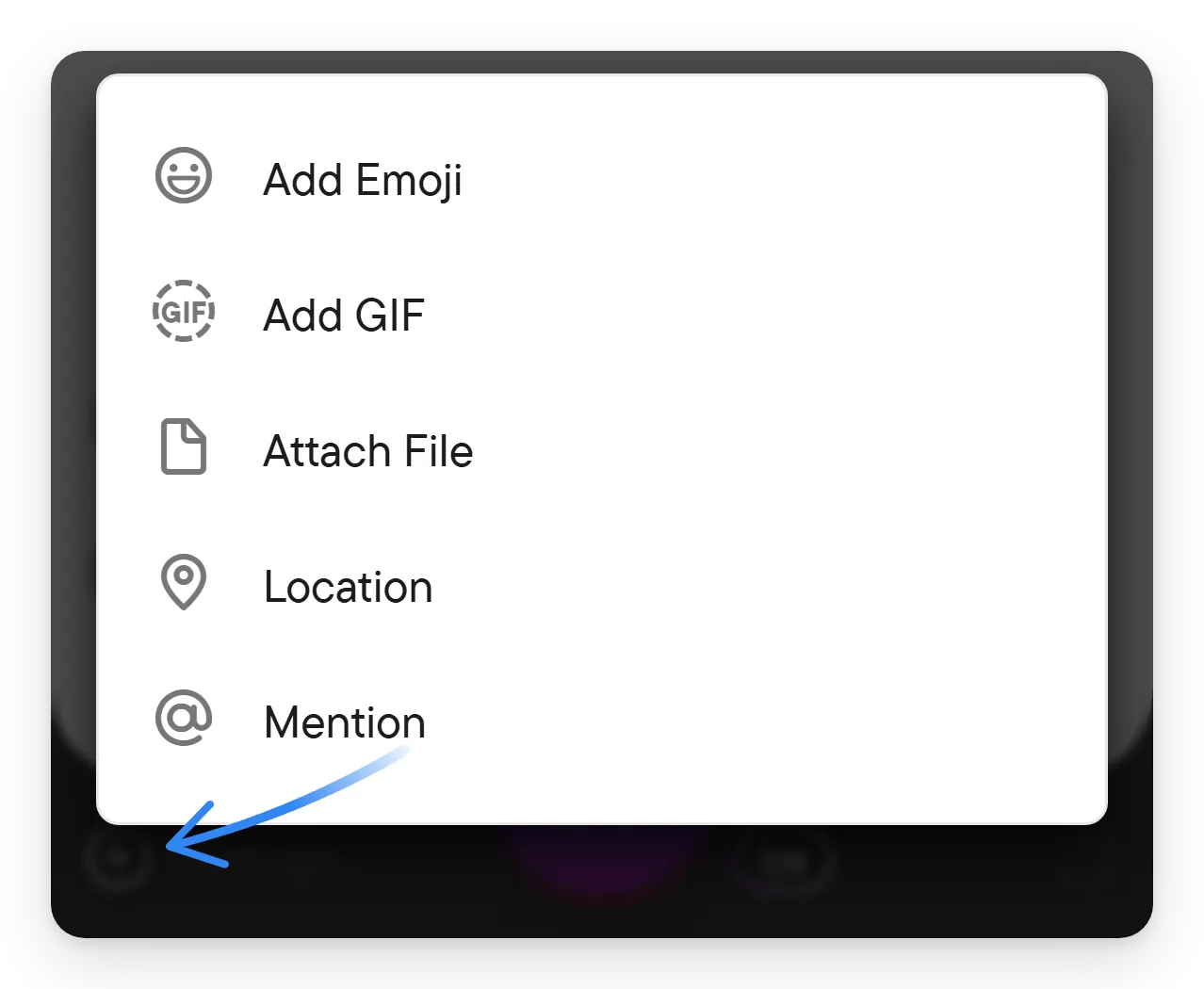
The plus button at the left of the composer opens a menu with Add Emoji, Add GIF, Attach File, Location and Mention. On a phone it also offers Choose Photo and Select Video. The plus button is not shown in a chat where you cannot upload. See files, photos and GIFs, location and chats.
Send and record
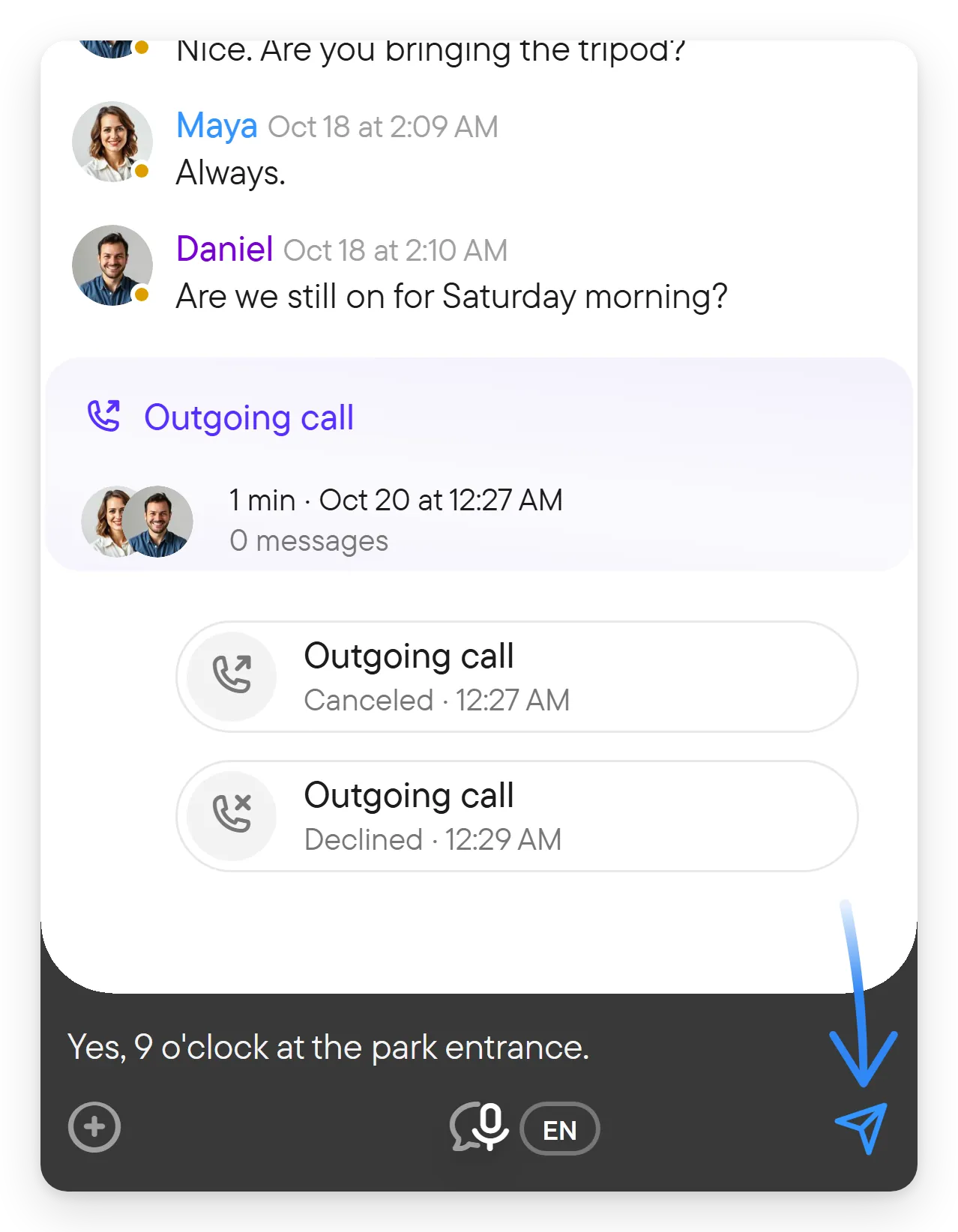
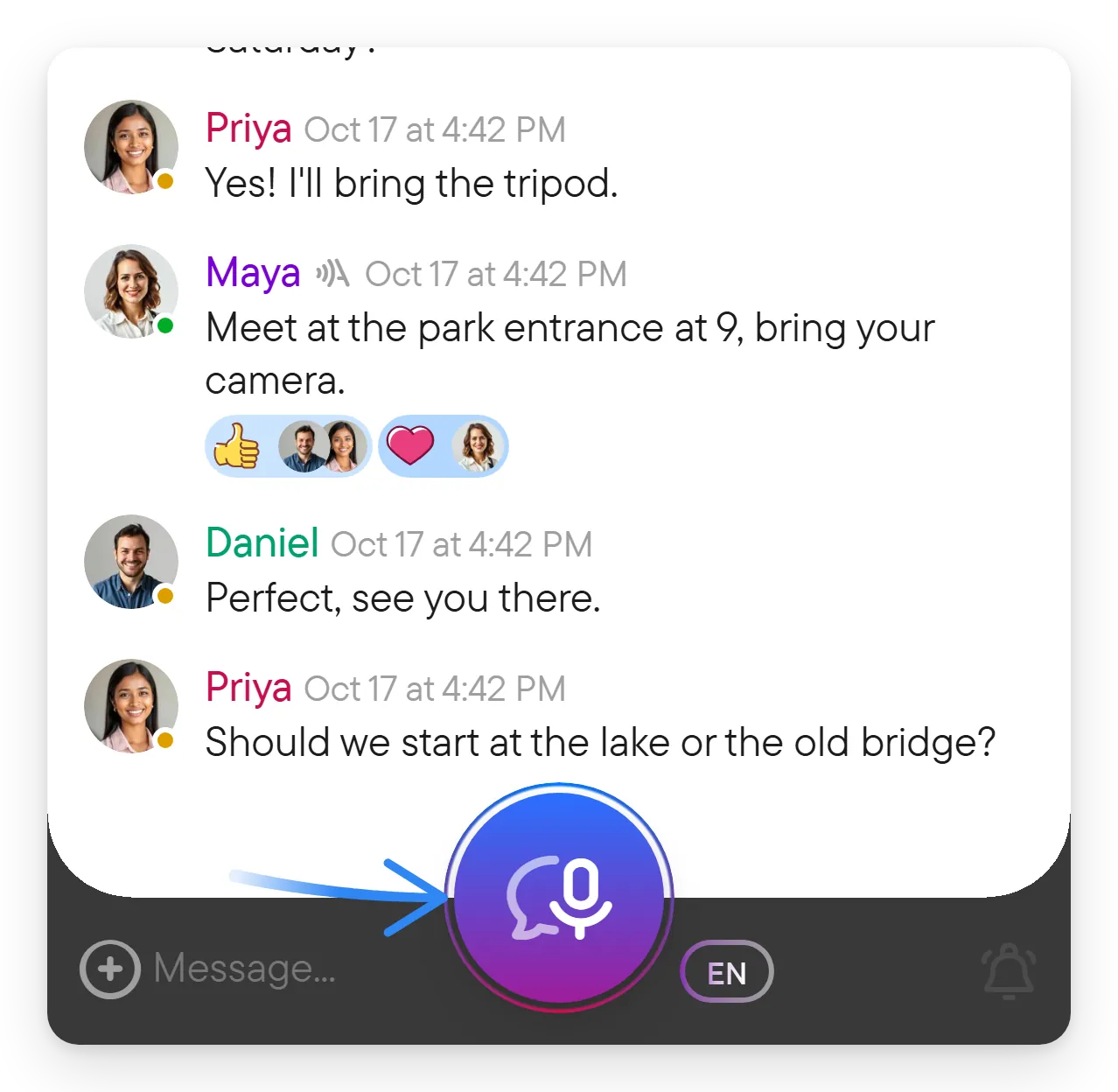
Select the paper-plane button to send the typed message. Select the round microphone button at the right end to start a voice message, and select it again to stop. Allow microphone access when asked. See voice and transcription.
The bell at the right of the composer sends an alert that is louder than a normal notification; see alert people in a chat. The button next to the recording button opens the chat's voice settings; see voice settings.
Next
- Right panel: details, members and shared content of the chat.
- Chats for everything you can do in a conversation.